
 TixFin
Door & crew app
Install the TixFin app, sign in, and find the screens for scanning, crew work and running events
The TixFin app for iOS and Android is for the people working an event: door staff scanning tickets, crew checking in for their shifts, and organisers watching today's figures and handing out scanners. It shows each person only the screens their permissions allow.
Where: the TixFin app on your phone or tablet Who can do this: any member of a project, or a device activated as a temporary scanner
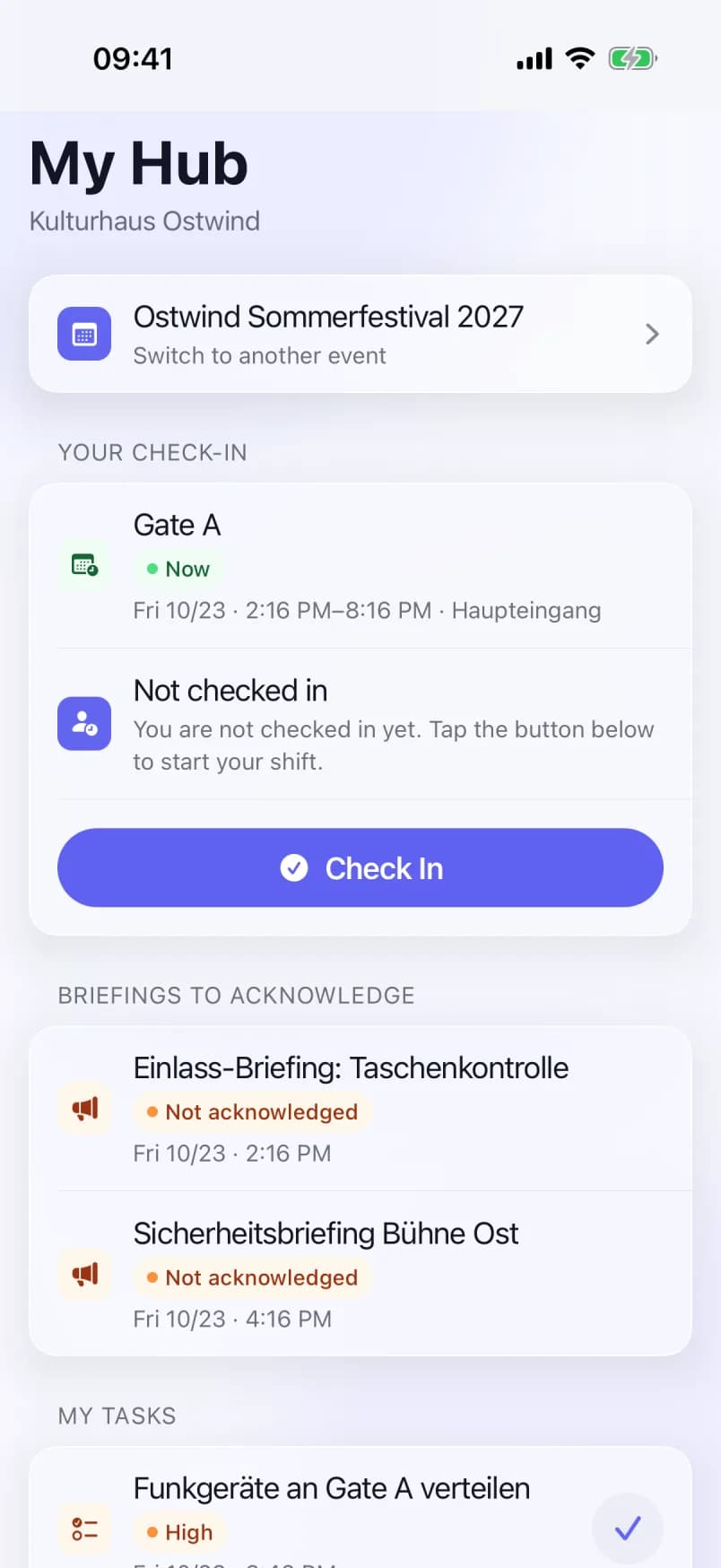
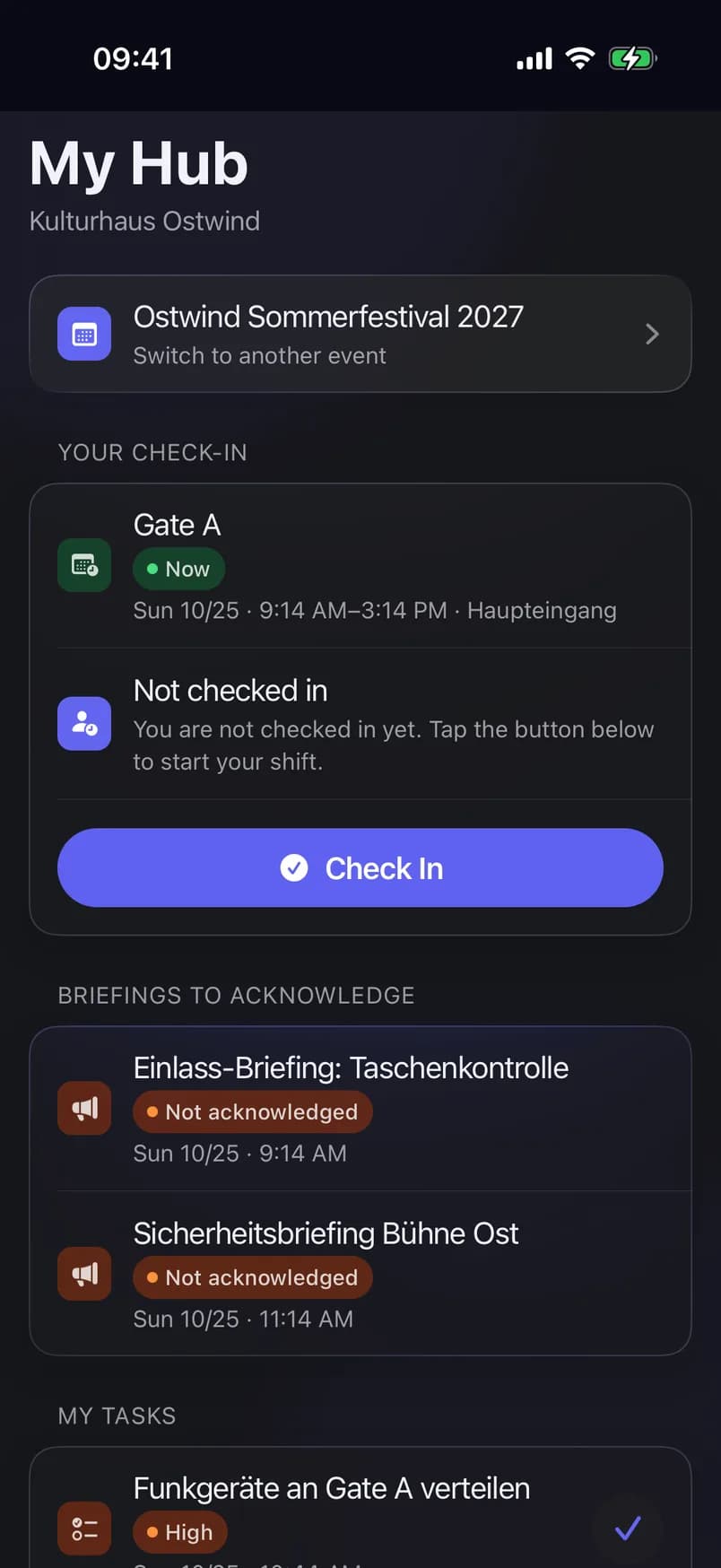
- Choose the event
- Your check-in and next shift
- Check In
- Briefings to acknowledge
- Your tasks
Install and sign in
You accept invitations to a project on the web, not in the app. A temporary scanner does not sign in. It uses the Activate scanner tab instead, see Activate the scanner device.
The three homes
The app opens on the widest home your permissions give you (organiser before crew before scanner). The others are one tap away: Manage → Crew hub and Manage → Ticket scanner on the organiser home, and Ticket Scanner on My Hub.
| Home | Who lands here | What it shows |
|---|---|---|
| Scanner (camera) | Accounts that only scan tickets, and temporary scanners | A live camera, ready for the first ticket with no tap |
| My Hub | Staff and Crew Managers | Your check-in, your next shift, briefings to acknowledge, your tasks, My work and, for leads, Live now and Crew management |
| Overview | Owners, Admins, Managers, Accountants | Today's events with sales and check-ins, crew status, and Manage |
Who sees what
Each part of the app opens on a permission from the project's role, not on the role's name (Team and roles):
| Role | Scan tickets | Own check-in | Safety | Crew screens | Crew management | Organiser screens |
|---|---|---|---|---|---|---|
| Owner, Admin | ✓ | ✓ | ✓ | ✓ | ✓ | ✓ |
| Manager | ✓ | ✓ | ✓ | ✓ | ✓ | ✓ except Temp Scanners |
| Accountant | — | — | — | — | — | Forecast only |
| Crew Manager | ✓ | ✓ | ✓ | ✓ | ✓ | — |
| Staff | ✓ | ✓ | ✓ | ✓ | — | — |
| A custom scanner role | ✓ | ✓ | ✓ | — | — | — |
| Temporary scanner | ✓ (always in scanner mode) | — | — | — | — | — |
The permissions behind each column:
- Scan tickets opens the scanner.
- View crew check-ins opens your own check-in.
- Safety opens with View crew incidents, View crew ops communications or View crew briefings.
- View crew shifts opens the crew screens.
- Any Manage crew … permission, or Create, Edit or Delete tasks, opens crew management.
- Sell at the point-of-sale register opens the Stand till; an account that may only sell opens straight into it. See Stands, food and drinks.
- The organiser screens open with Create events, Manage or edit events, Delete events, View ticket statistics or dashboard, View analytics or Manage project members.
Lock a device to the scanner (scanner mode)
Use scanner mode for a shared door device. Only the scanner and Safety stay open, and the event cannot be changed.
To leave, touch and hold the Scanner mode badge on the camera, then enter the exit PIN or use biometrics. The device passcode never unlocks it. The first four wrong PINs cost nothing. After that you wait 30 seconds, and the wait doubles with each further wrong PIN, up to an hour. Too many wrong PINs sign the session out, and the device stays locked.
To keep people from leaving the app, also turn on Guided Access (iOS: Settings › Accessibility › Guided Access) or App pinning (Android: Settings › Security › App pinning).
How do I …
| Task | Page |
|---|---|
| Scan tickets at the door, enter a code by hand, look back at scans | Scan tickets |
| Keep scanning without a network, sync, clear scans that clashed | Scan offline |
| Read announcements, acknowledge a briefing, report an incident | Safety |
| Check in for my shift, check a crew member in, set my availability | Crew check-in |
| Read handover notes, the daily log, messages and notifications | Handover, messages and notifications |
| Hand out a temporary scanner, revoke it, watch today's figures | Scanner devices |
| Scan in the web dashboard instead | Access control |
Settings
Open Settings from the scanner menu, from My Hub (Settings) or from the gear on the organiser home. There you can:
- see and sign out your other Devices;
- change the event;
- turn on Allow push notifications and a Daily shift reminder;
- switch the Language between English and German;
- turn on App Lock and Auto-logout after backgrounding;
- Log out.
Common problems
- "There is nothing here for you yet." You are not a member of a project yet. Accept the invitation e-mail on the web, then sign in again.
- "You have no access to this project." Choose another project, or ask the organiser to add you.
- "This project needs two-factor authentication on this session." Set up two-factor authentication on the web (Account security), then sign in again.
- "This device is in scanner mode. Only an account that scans tickets can use it." Sign in with an account that has Scan tickets, or activate a temporary scanner.
- Forgot the exit PIN. If it is a temporary scanner, the organiser revokes it. If it is your own device, delete the app and install it again. With Guided Access on, end Guided Access first.