
 TixFin
Account Security
Change your password, set up two-factor authentication, add passkeys and sign out other devices
Your security settings live under Account → Security (account menu → Account, then the Security tab).
TixFin requires two-factor authentication (2FA) for working inside a project. Until you set it up, the sidebar shows only your personal pages and Security, and creating a project or accepting an invitation asks you to activate 2FA first.
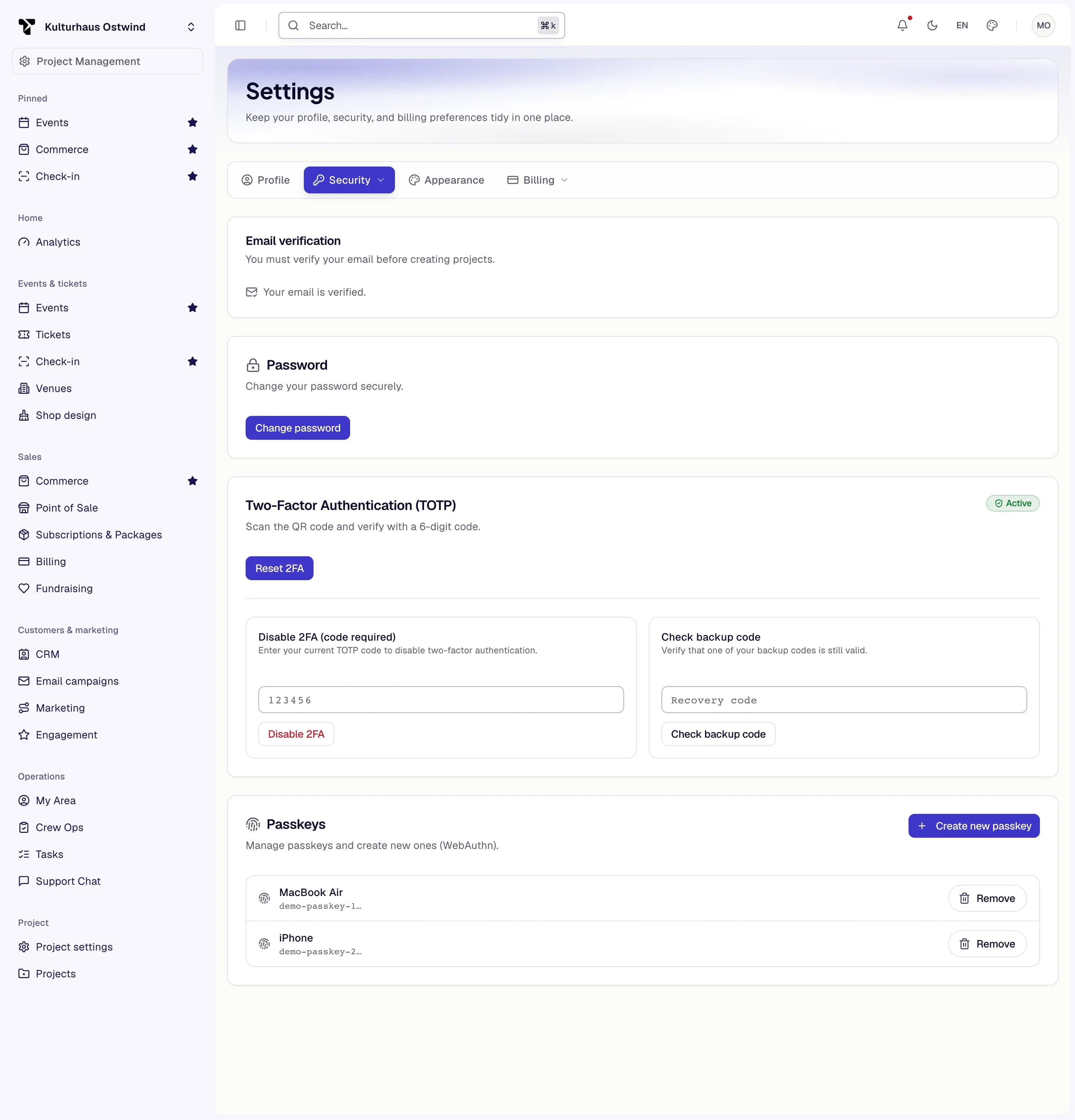
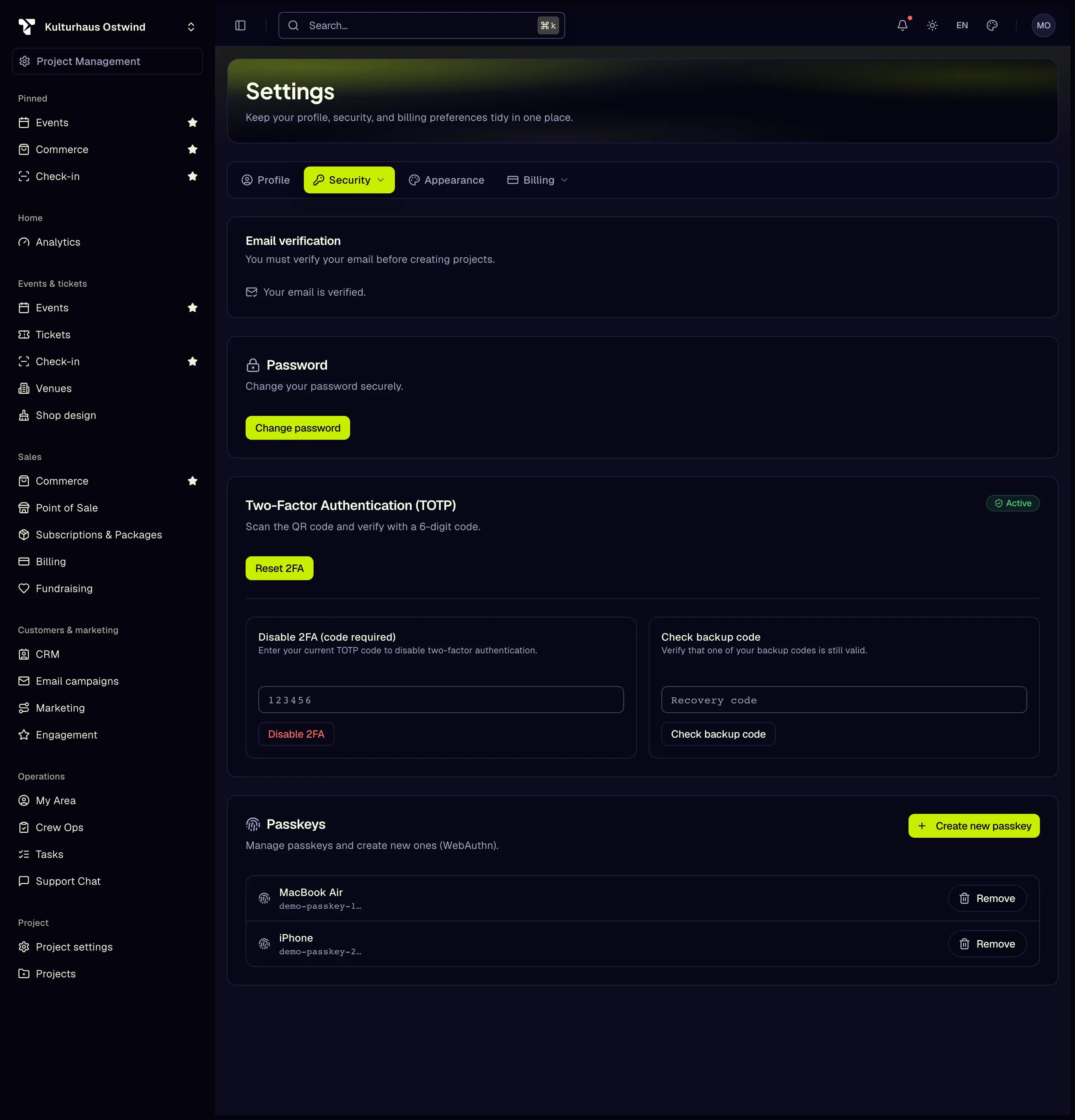
- Security tab
- 2FA badge Active
- Reset 2FA
- Change password
- Create new passkey
Set up two-factor authentication
You need an authenticator app on your phone, for example one that supports TOTP codes.
Open Account → Security and click Set up 2FA, then Start setup. If you signed in a while ago, enter your Password to continue.
Save your backup codes. Click Copy or Download, store them somewhere safe, and tick I have saved the backup codes. Click Next.
Scan the QR code with your authenticator app. If you can't scan it, copy the Secret and enter it in the app by hand.
Enter the six-digit code the app shows and click Verify & activate. The badge switches to Active.
From now on, signing in asks for a code from the app after your password.
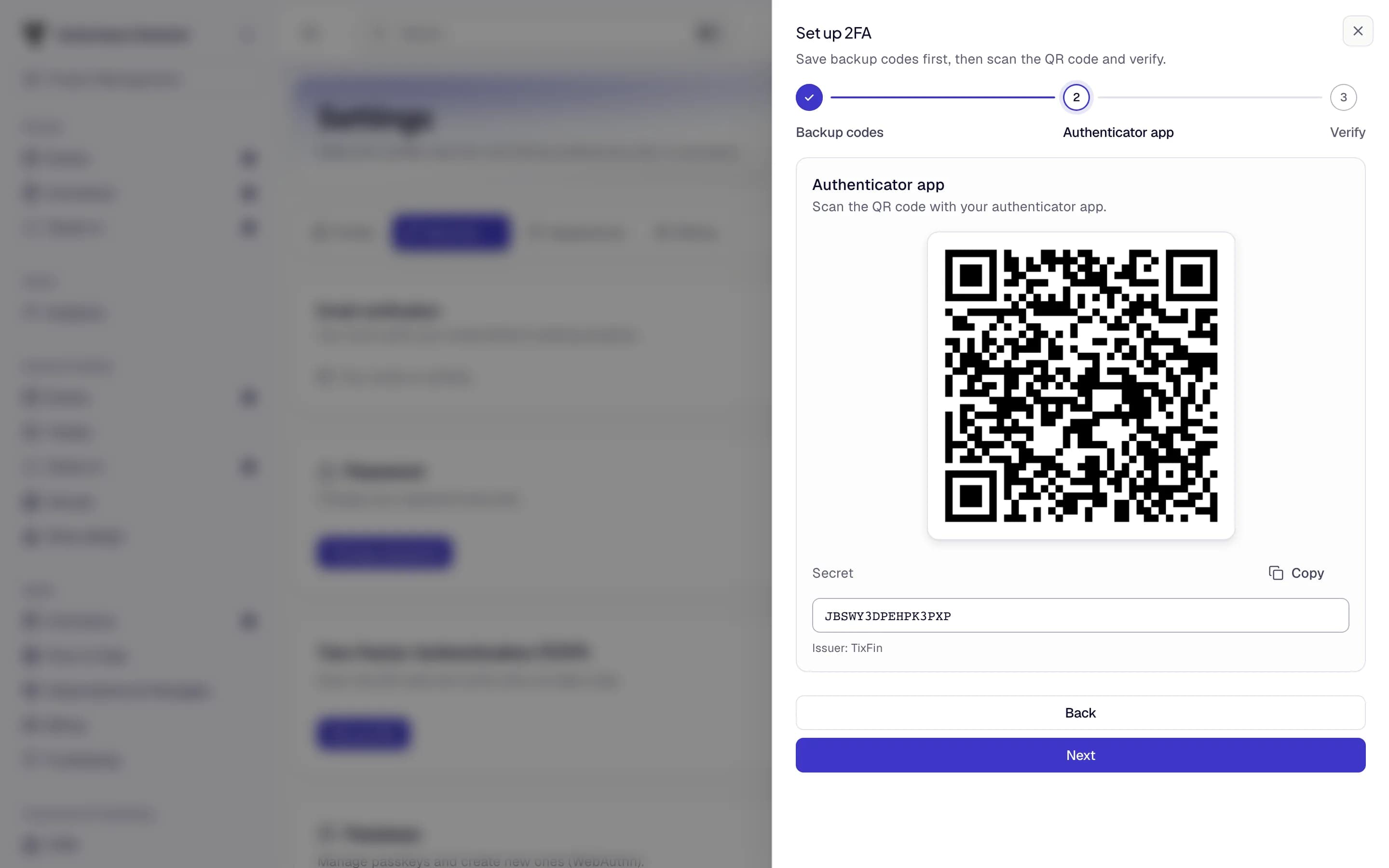
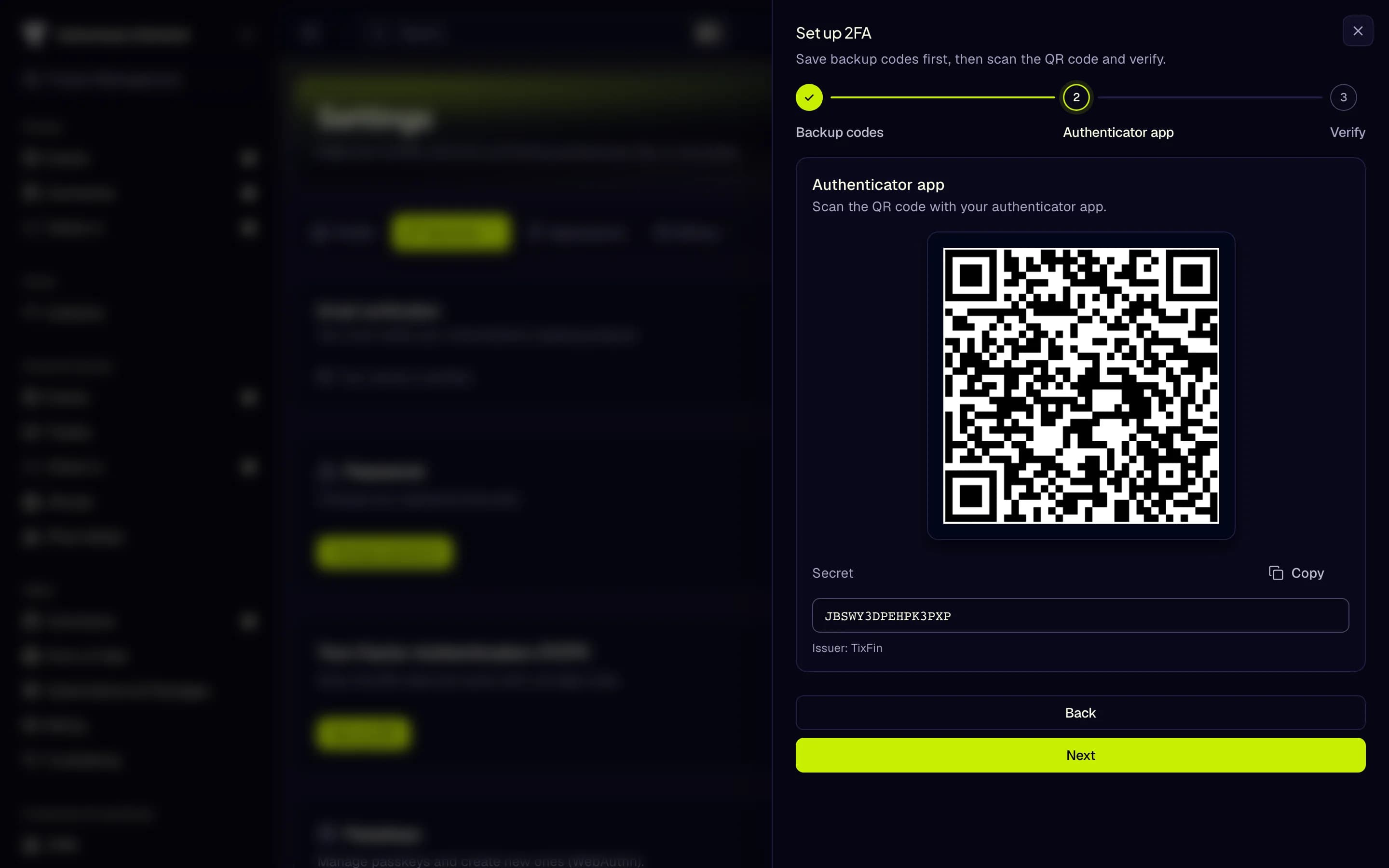
- Save your backup codes
- Scan the QR code
- Secret for manual entry
- Next
Confirm it's you
Some sensitive actions ask you to confirm with a fresh code when your last confirmation is more than ten minutes old. Enter the code from your app, or choose Use a backup code.
Disable or reset 2FA
- Reset 2FA starts the setup again with a new secret and new backup codes — use it when you move to a new phone.
- Disable 2FA (code required) turns it off after you enter a current code.
- Check backup code tells you whether a backup code is still valid.
Change your password
Enter and confirm the New password: 12 to 100 characters with lowercase and uppercase letters, a number and a symbol, different from the current one.
Forgot your password? On the sign-in page click Forgot your password?, enter your email or username, and follow the link in the email.
Add a passkey
A passkey lets you sign in with your device's fingerprint, face or screen lock instead of a password.
Click Create new passkey, optionally give it a Device name, and click Create.
To sign in with it, click Use passkey on the sign-in page; many browsers also offer the passkey as soon as the page opens. To remove a passkey, click Remove next to it.
Creating a passkey requires a session signed in with your second factor.
Sign out other devices
Open Account → Security → Sessions. Devices lists every signed-in device with its last activity. Click Revoke to sign one out, or Revoke all to sign out everywhere except the device you are using.
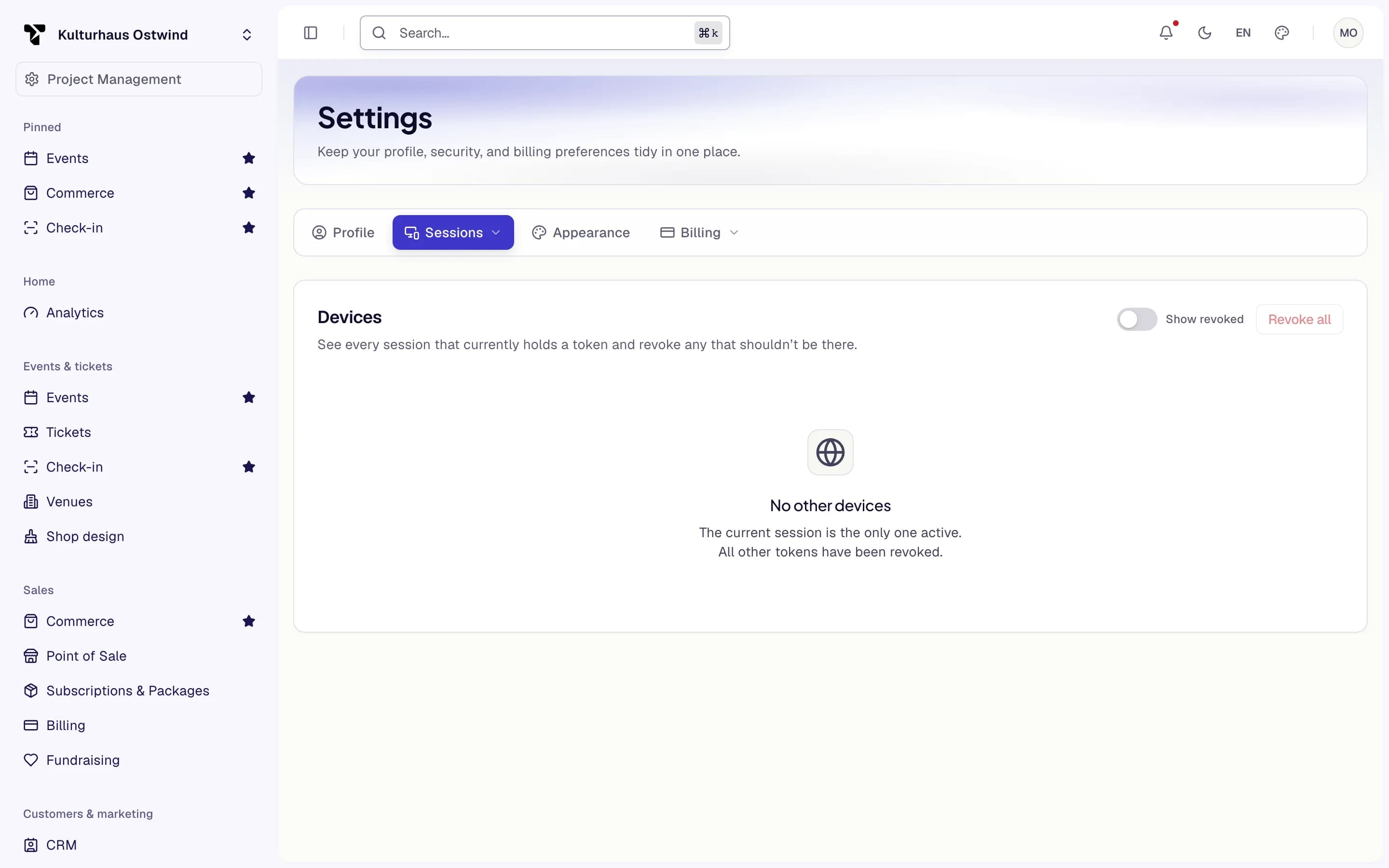
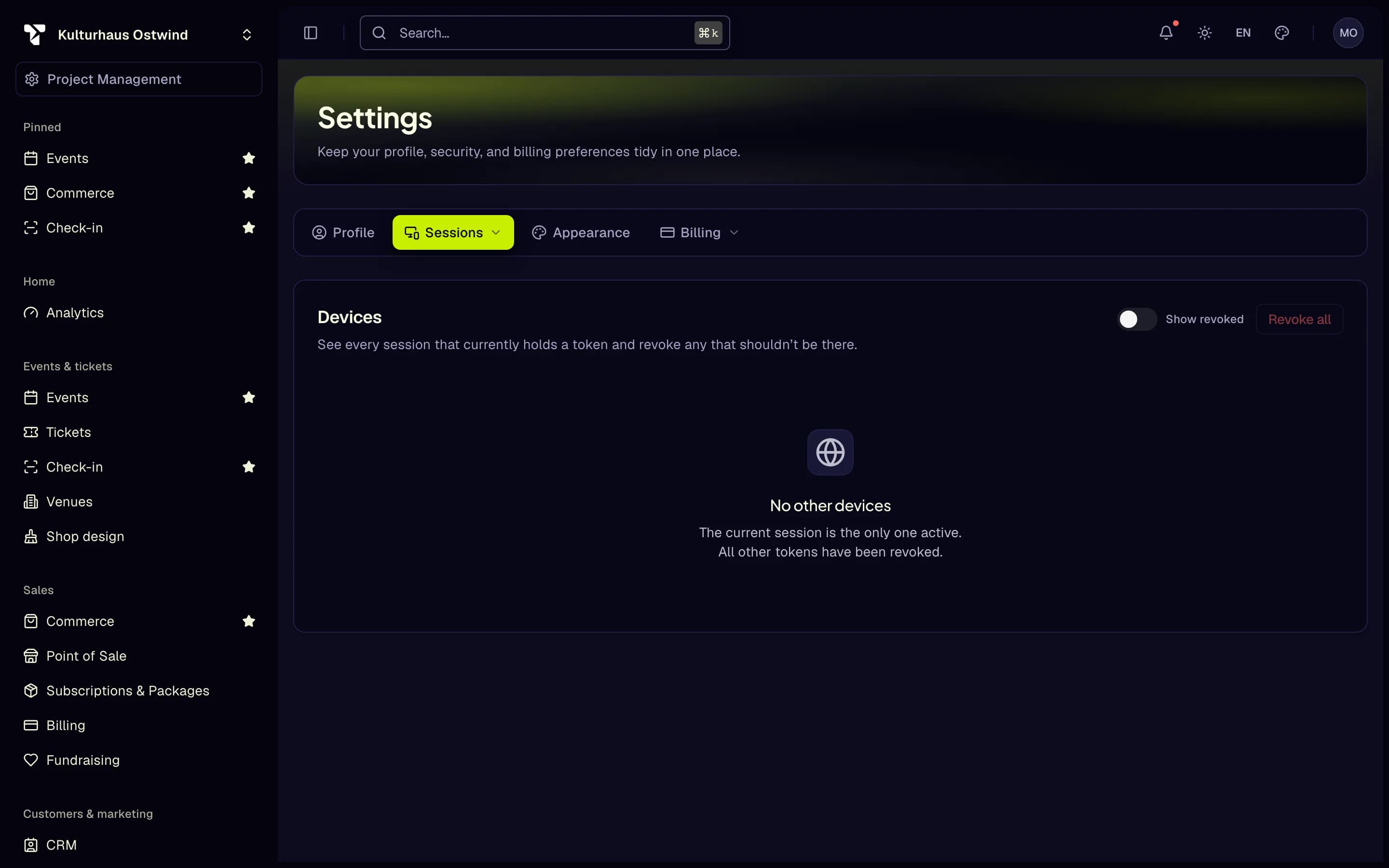
- Sessions
- Devices
- Revoke all
Reference: sign-in options
| Option | How |
|---|---|
| Password | Username or email and Password, then your 2FA code |
| Passkey | Use passkey |
| Email code | Sign in with email code, then the six-digit code from the email |
| Google or Apple | When offered on the sign-in page; link or unlink them under Account → Security → Connections |
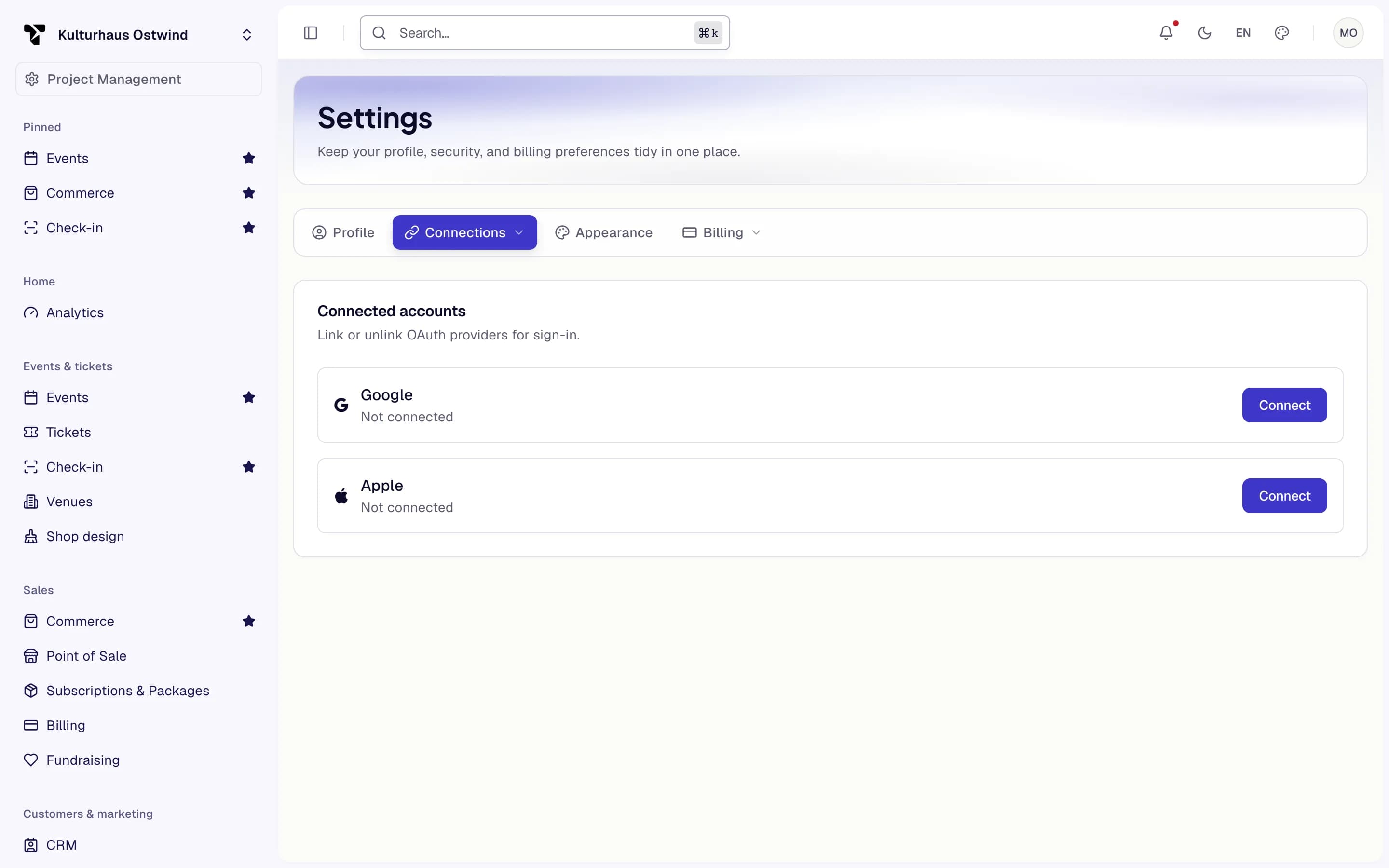
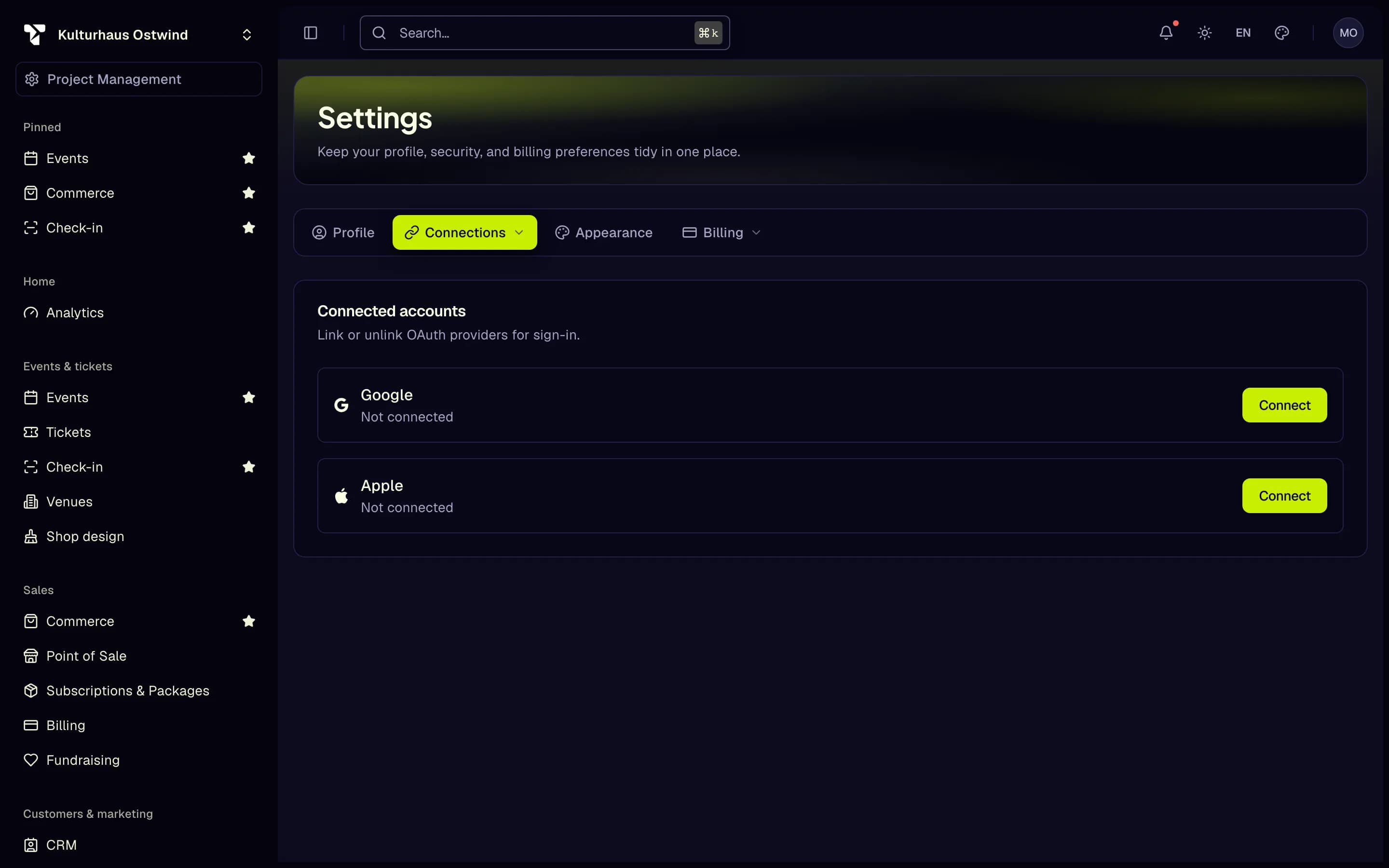
- Connections
- Link Google
- Link Apple
Common problems
- Lost the phone with your authenticator app. At the two-factor step of any sign-in (password, e-mail code, Google or Apple), press Use a backup code instead and enter one of your backup codes (Two-factor at sign-in). Then use Reset 2FA to set up the new phone. Without backup codes, contact support.
- Moving to a new phone. While still signed in on the old one, use Reset 2FA and scan the new QR code with the new phone.
- The sidebar shows only your personal pages and Security. Your session has no second factor yet. Set up two-factor authentication as above; the dashboard opens once it is done.
- No verification e-mail. See Your buyer account; the same resend form works for organisers.