
 TixFin
Troubleshooting
Fix the most common problems with payments, e-mails, sign-in, offline scanning and your shop address
Find the symptom, then follow the steps. Buyers start with Ticket buyers; most buyer problems are answered on the task pages there.
Payment provider not working
What you see
- The project shows Payments: not set up.
- Publishing says "There are paid tickets but no payment provider is set up."
- Buyers see "Paid tickets are currently unavailable. You can still order free tickets." or "Checkout temporarily unavailable".
- Buyers see "Payment could not be started. Please try again."
What to check
Open Sales → Billing → tab Payment Methods. At least one of Mollie, PayPal or Adyen must be switched on and hold your own credentials. The provider then shows Set up.
Compare the credentials with your provider account: Mollie API key; PayPal Client ID and Client secret; Adyen Merchant account, API key, Environment and, for live payments, the Live URL prefix.
Check the mode. Mollie with Test mode, PayPal with Sandbox mode or Adyen in the test Environment only accept test payments.
Make a test purchase in your shop. Credentials are validated at checkout, not when you save them, so a wrong key shows up as a failed payment.
Bank transfer is not a way to pay for tickets. If Bank Transfer is still on under Payment Methods, switch it off (Bank transfer).
Check Project settings → Billing & Legal for the company name and address. Without them an event cannot be published.
TixFin never holds your money: buyers pay you directly through your own provider.
"Paid sales paused" e-mail. New paid sales stop when a TixFin invoice is unpaid or a payment to TixFin was reversed. Tickets already sold stay valid and free tickets can still be issued. Sales resume once the invoice is settled; the e-mail links to your invoices and payment status.
More: Payments.
E-mails do not arrive
Send it again.
- Order confirmation: the buyer opens the ticket in My tickets and presses Send confirmation again (paid tickets, once every 10 minutes per order). Guest orders have no account, so this is not available to them.
- Verification e-mail: Resend link on the Verify your email page or in the sign-in page's Email not verified panel. Signed in: account menu → Account → Security → Resend verification email.
- Sign-in code: request a new one on the sign-in page.
- Team invitation: Project settings → Invitations → Send again.
- Invoice: the invoice of a paid online order is e-mailed once it is issued. Account holders also find it under My purchases. See Receipts and e-mails.
You cannot sign in
- "Username, email or password is incorrect." Use Forgot your password?.
- "Email not verified" Confirm your address first: enter it in the panel and press Resend link.
- Lost your authenticator device. At the two-factor step, press Use a backup code instead and enter a backup code. Without backup codes, contact support to reset the second factor.
- "Sign-in is not reachable right now." Try again in a few minutes.
Step by step: Your account.
The scanner is offline
In the app: see Scan offline. The app downloads the offline data when you choose the event, and syncs scans on its own when the connection returns.
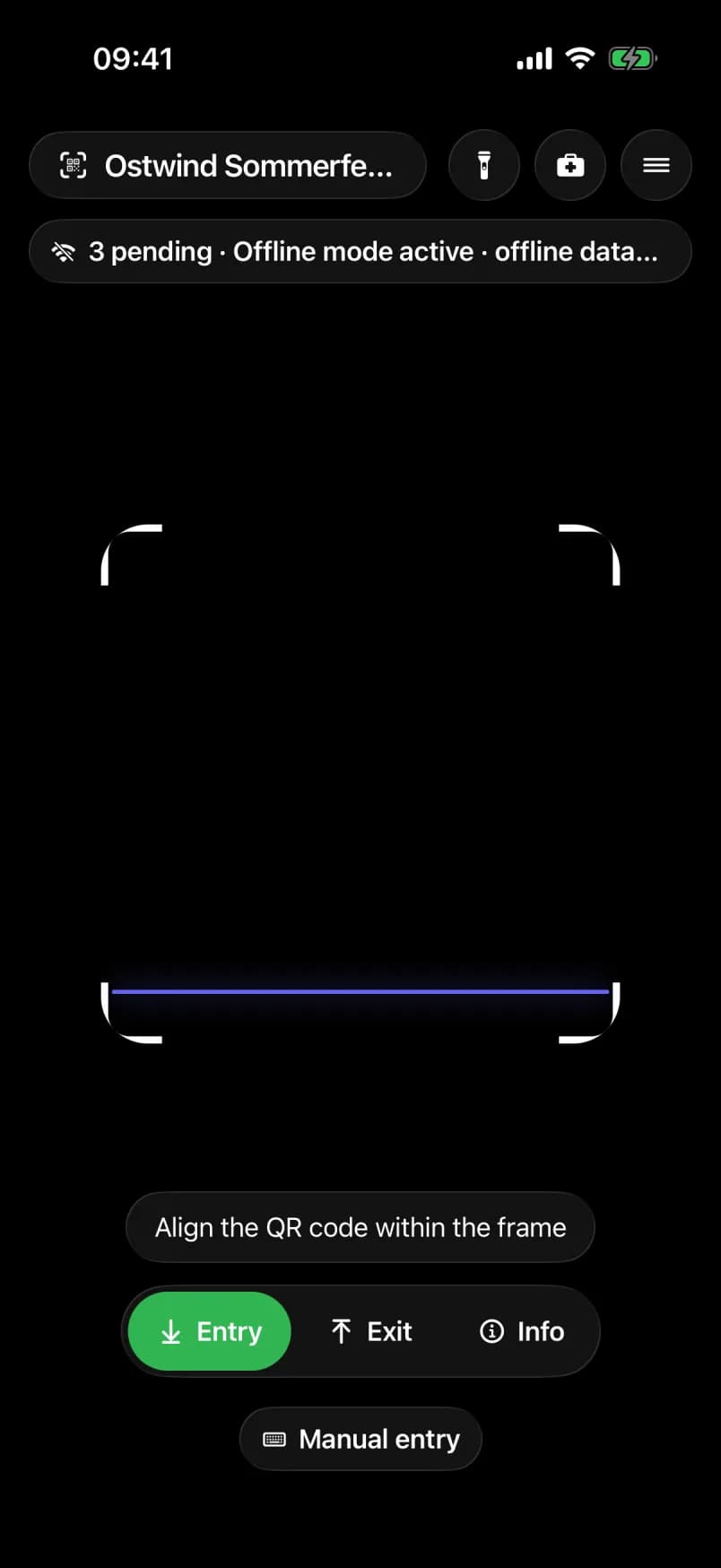
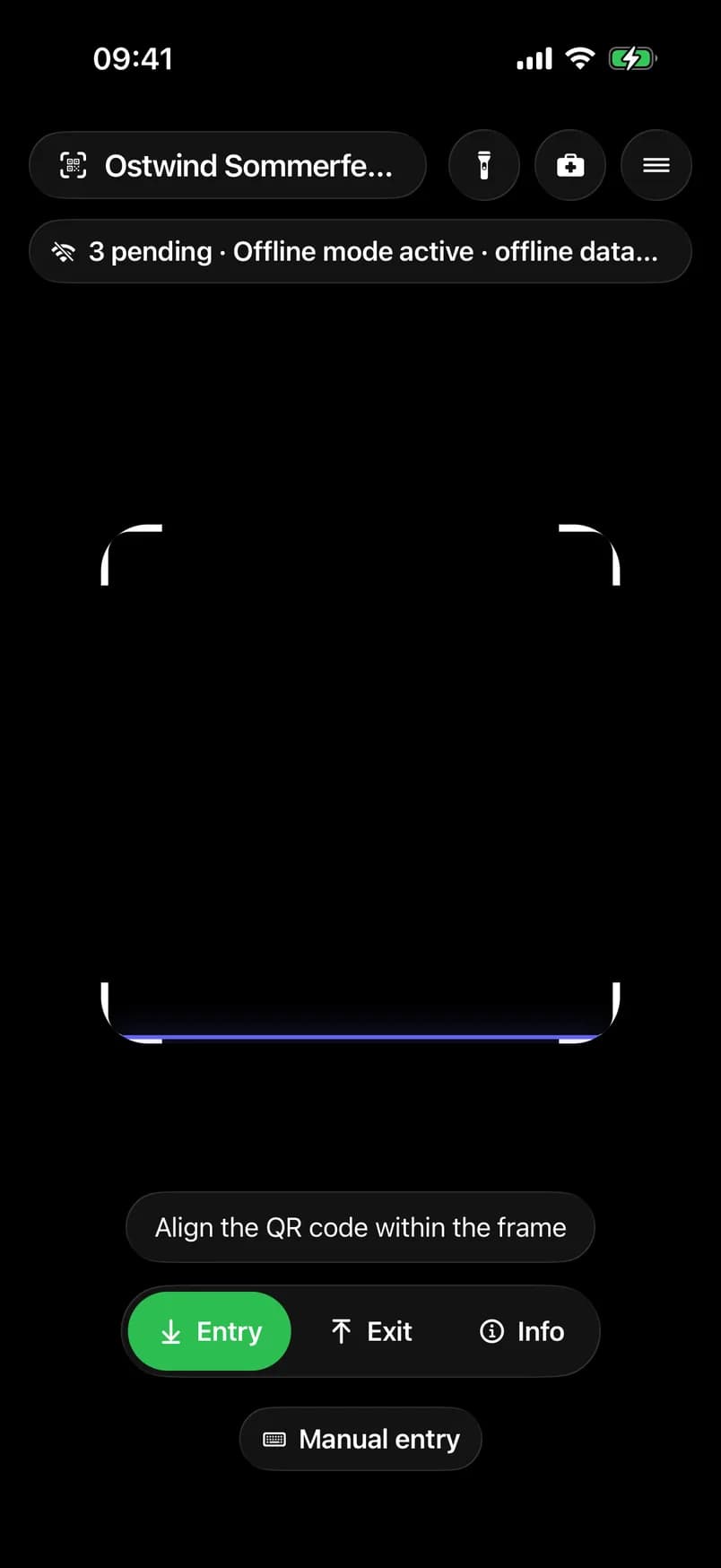
- Event with its offline data
- Status pill: pending scans
- Keep scanning as usual
In the browser (Events & tickets → Check-in):
| Before the event | During the event | After the event |
|---|---|---|
| Choose the event and a specific check-in list, then press Download snapshot while online. Keep the tab open. | Offline mode active means scans are queued on this device. Keep scanning. | Press Sync queue once you are online. It does not sync by itself. Do not press Clear offline data before syncing. |
| What you see | What to do |
|---|---|
| No offline snapshot | Nothing was downloaded. Find a connection and press Download snapshot. |
| Snapshot expired | Download a fresh snapshot while online. |
| Ticket not in snapshot | The ticket is not in the downloaded list. Check it once online, or on a device with a connection. |
| "Select a concrete check-in list for the offline snapshot." | Choose a check-in list before downloading. |
More: Access control.
Your shop address does not work
No address yet
The shop has no address until you choose a subdomain. The shop link says "Your shop has no address yet." and the shop designer shows No live preview available.
- only."Shop not found"
The subdomain in the address belongs to no project. Compare it with Current domain on the Subdomain page.
Old links stopped working
After a subdomain change, links to the previous address stop working. Update your website and social links. You can change the subdomain again after 7 days; Can change again shows the date.
Your own domain
A custom domain (for example tickets.example.com) cannot be set up in the dashboard. Contact support.