
 TixFin
Payments
Connect your own payment provider, understand where the money goes, and handle refunds and chargebacks
Buyers pay for tickets through your own payment provider account. The money goes straight into that account and your provider pays it out to you. TixFin never holds your money, so there is no TixFin balance or payout. Connect a provider before you sell paid tickets.
Where: Sales → Billing → tab Payment Methods Who can do this: members with Manage billing
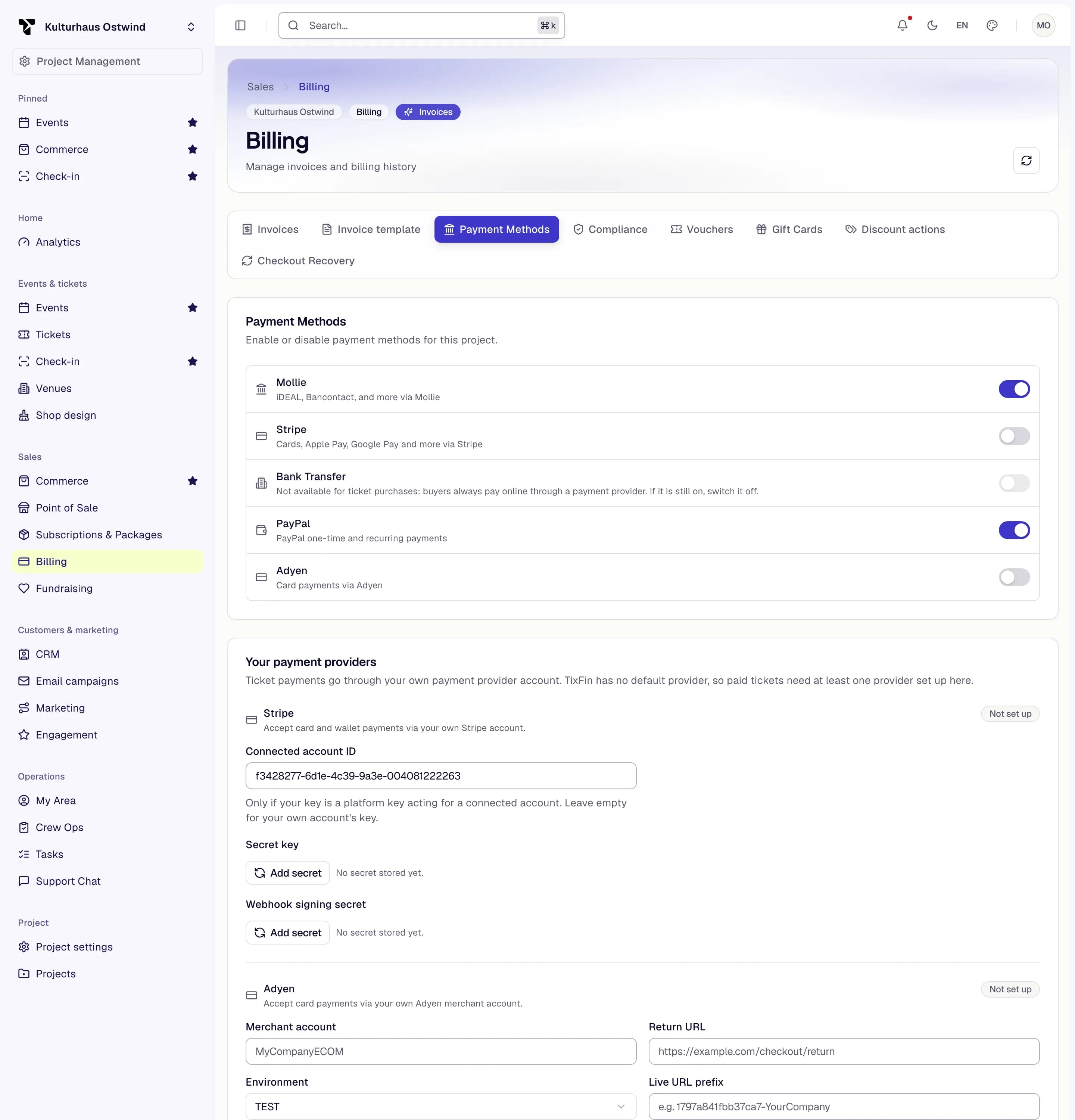
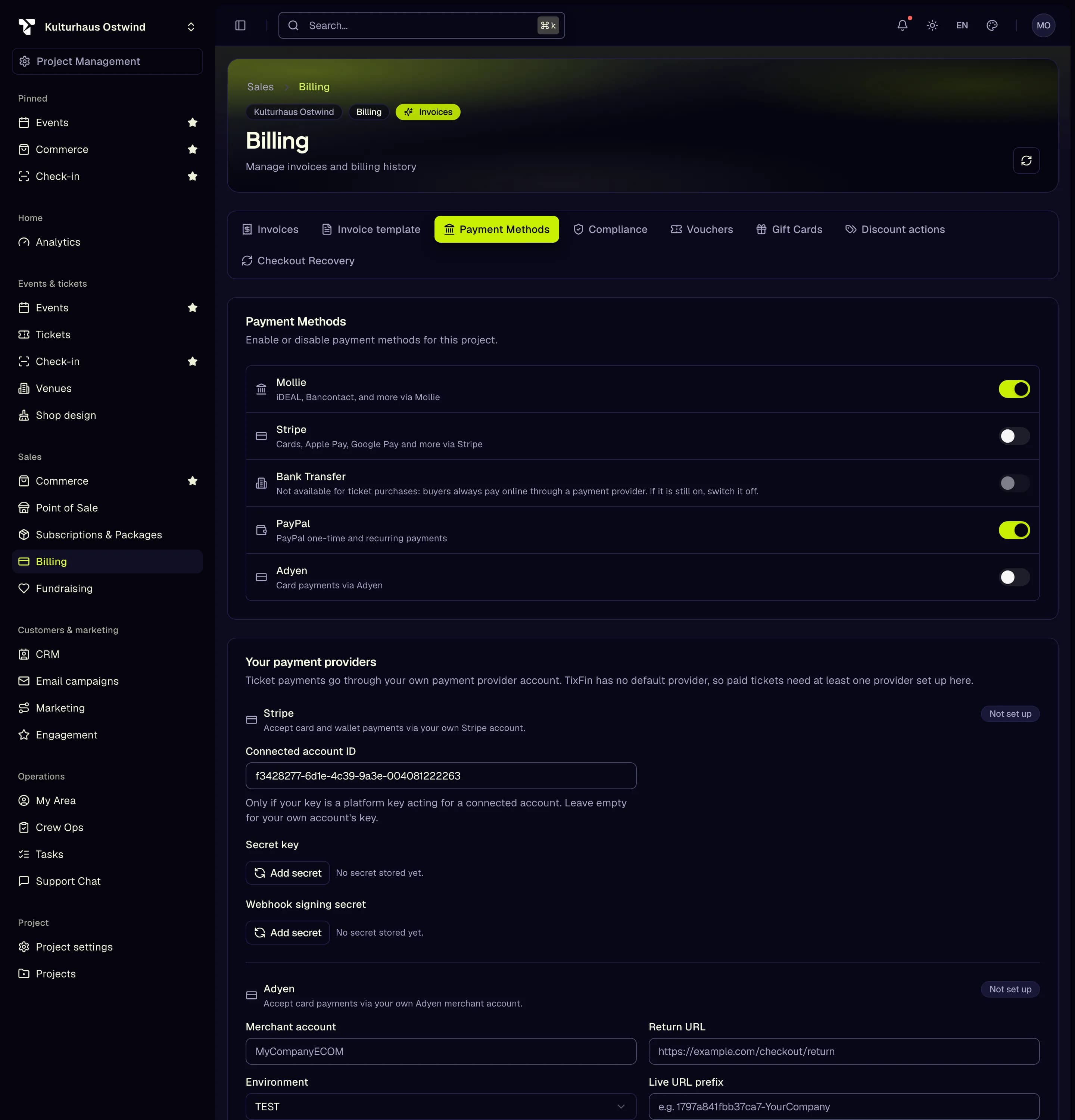
- Sales → Billing
- Payment Methods tab
- Switch a method on
- Add secret
- Provider status
Connect a payment provider
You can connect Mollie, Stripe, PayPal and Adyen. Open an account with the provider first and complete their verification. Their onboarding, checks and contract are between you and them.
Under Your payment providers, fill in the fields from your provider account. For the secret, click Add secret first:
- Mollie: API key, optionally Test mode
- Stripe: Secret key (
sk_…or a restrictedrk_…key) and Webhook signing secret (whsec_…). Fill in Connected account ID (acct_…) only if your key is a platform key acting for a connected account. - PayPal: Client ID and Client secret, optionally Sandbox mode, Merchant ID (only if your app pays out to another merchant account) and Webhook ID (from your app's webhook settings)
- Adyen: Merchant account, Return URL, Environment, Live URL prefix (live only), API key and HMAC key (webhooks); Balance account ID only for Adyen for Platforms. Adyen counts as set up only with the merchant account, the API key and the HMAC key.
Secrets are stored encrypted and never shown again: each one only says whether it is stored. Use Replace secret to change one and Remove stored secret to delete it. Save sends only the fields you changed, so a field you cannot see (without View billing) is never overwritten.
Payment routing
If you connect more than one provider, Payment routing decides which one takes a payment:
- The first rule that matches wins. A rule can match a Payment method, a Currency and an amount range (From amount, Up to amount) and names the Provider. Up to 20 rules.
- Otherwise the provider of the payment method the buyer chose.
- Otherwise the Default provider.
- Otherwise the first provider that is set up.
A rule or default that names a provider without credentials is skipped.
Until a provider is set up, Project settings → Billing & Legal shows Payments: not set up and you can only issue free tickets.
Where your money goes
- Ticket revenue goes to your payment provider account. Your provider decides when and how it pays you out, and charges its own fees. Check payouts and fees in your provider's dashboard.
- TixFin's fee per paid ticket is never taken out of a sale. TixFin bills it to you separately. See Billing and plans.
- Every order shows its payments, refunds and chargebacks in its Payment ledger, each with your provider's reference, so you can match it against your provider's statements. See Orders and Point of Sale.
Bank transfer
Bank transfer is not available for ticket purchases. Buyers always pay online through your payment provider, so TixFin never has to watch a bank account for incoming money.
Bank Transfer is still listed under Payment Methods, marked "Not available for ticket purchases". If it is still on from earlier, switch it off; it can only be switched off. The bank details shown while it is on are not used for ticket purchases. The shop checkout and the dashboard's Buy tickets never offer it, and there is no manual payment confirmation for tickets.
Local and pay-later methods
The card Local and pay-later methods lists what each connected provider account offers, read from the account itself: TWINT and Klarna, iDEAL, Bancontact. Choose a currency to see what applies to it: TWINT is CHF only, iDEAL and Bancontact are EUR only.
- Activate a method in your provider account; Set up in your provider account links there.
- Use the switch to leave a method out of this project's payment page.
- Klarna is available through Stripe. Mollie and Adyen need order lines TixFin does not send, so it is not offered there.
- PayPal shows Pay Later on its own page to the buyers it finds eligible. It can't be switched here, and orders report it as PayPal.
- PostFinance and SEPA Direct Debit are not available.
An order shows the method the buyer used. Money still goes straight to your provider account, and refunds and chargebacks run through it. Some methods limit refunds: TWINT allows them for 180 days at Stripe and Mollie.
Refunds and chargebacks
- You refund an order line by line under Sales → Commerce → Orders. Each refund issues a credit note. See Refund a line.
- Buyers refund a ticket themselves only if you allow it for the event. Set this in the event's Refund policy: Allow refunds, Refund fee (%) (0 means a full refund, 100 means nothing is paid back) and Refund cutoff (hours before start).
- The money goes back through the payment provider the buyer used. How long it takes is up to the provider and the buyer's bank.
- Chargebacks are raised and decided at your payment provider. Answer them in your provider's dashboard before their deadline. Deadlines and any dispute fees are set by your provider.
Common problems
- "Payments: not set up" No provider has its credentials stored. Add them as described above.
- "Credentials are validated at checkout" This is a reminder, not an error. Wrong credentials only show when a buyer tries to pay, so make a test purchase.
- Bank Transfer is still on. Switch it off and click Save. It has no effect on ticket purchases either way.
- Buyers cannot pay. See Troubleshooting.