
 TixFin
Orders and Point of Sale
Find or create an order, refund or exchange a line, send a payment link, and sell on site
Every sale in your project becomes an order: shop purchases, Point of Sale sales, memberships, donations and more. Use this page to find an order and fix it, refund many orders at once, export the list, and to sell on site.
Where: Sales → Commerce → tab Orders, and Sales → Point of Sale Who can do this: View billing or Manage billing for orders (new orders, refund, exchange, moving a ticket to another seat and pay need Manage billing, refunding several orders at once included). Point of Sale needs the plan feature Point of sale and Sell at the point-of-sale register or Manage point-of-sale terminals.
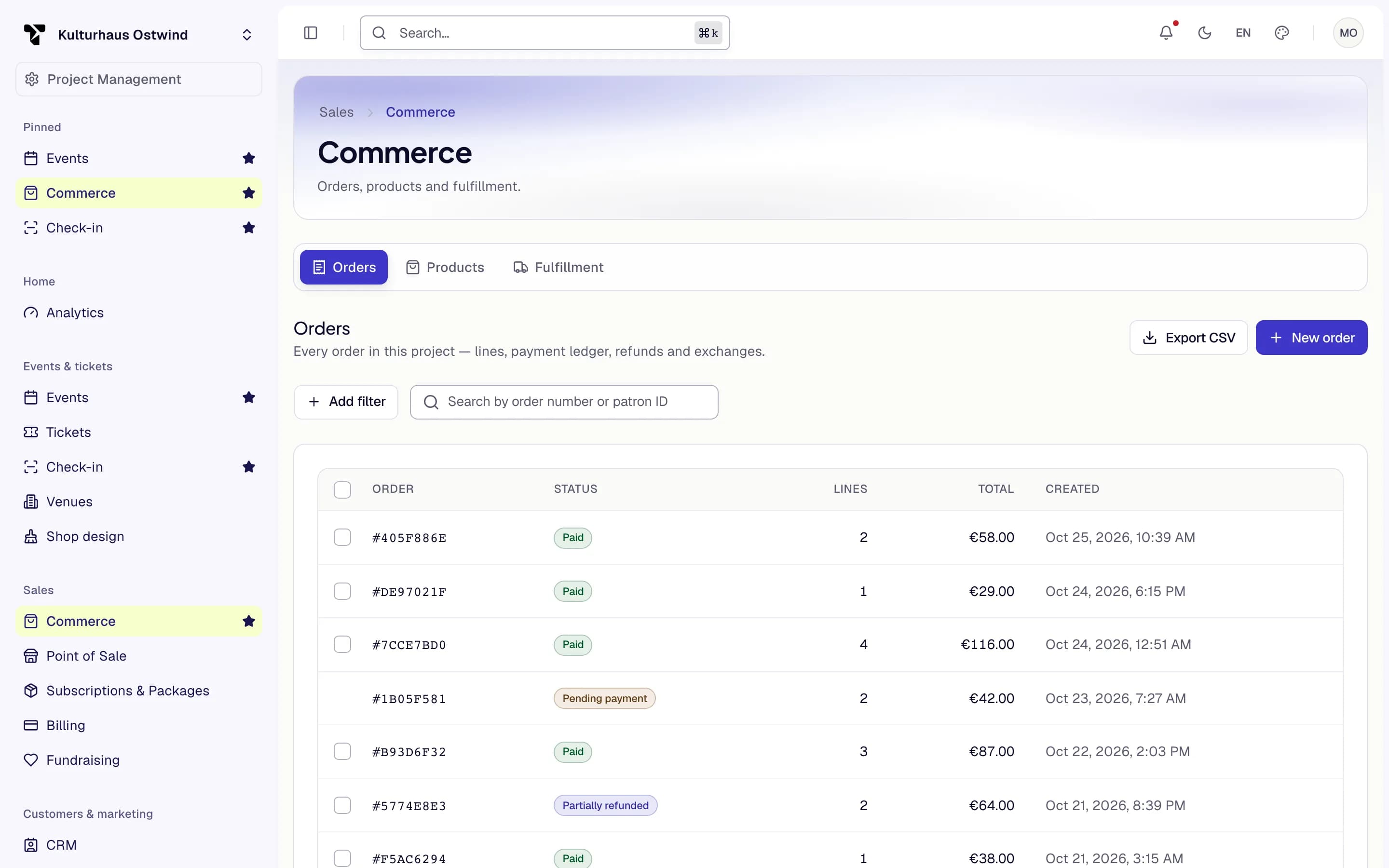
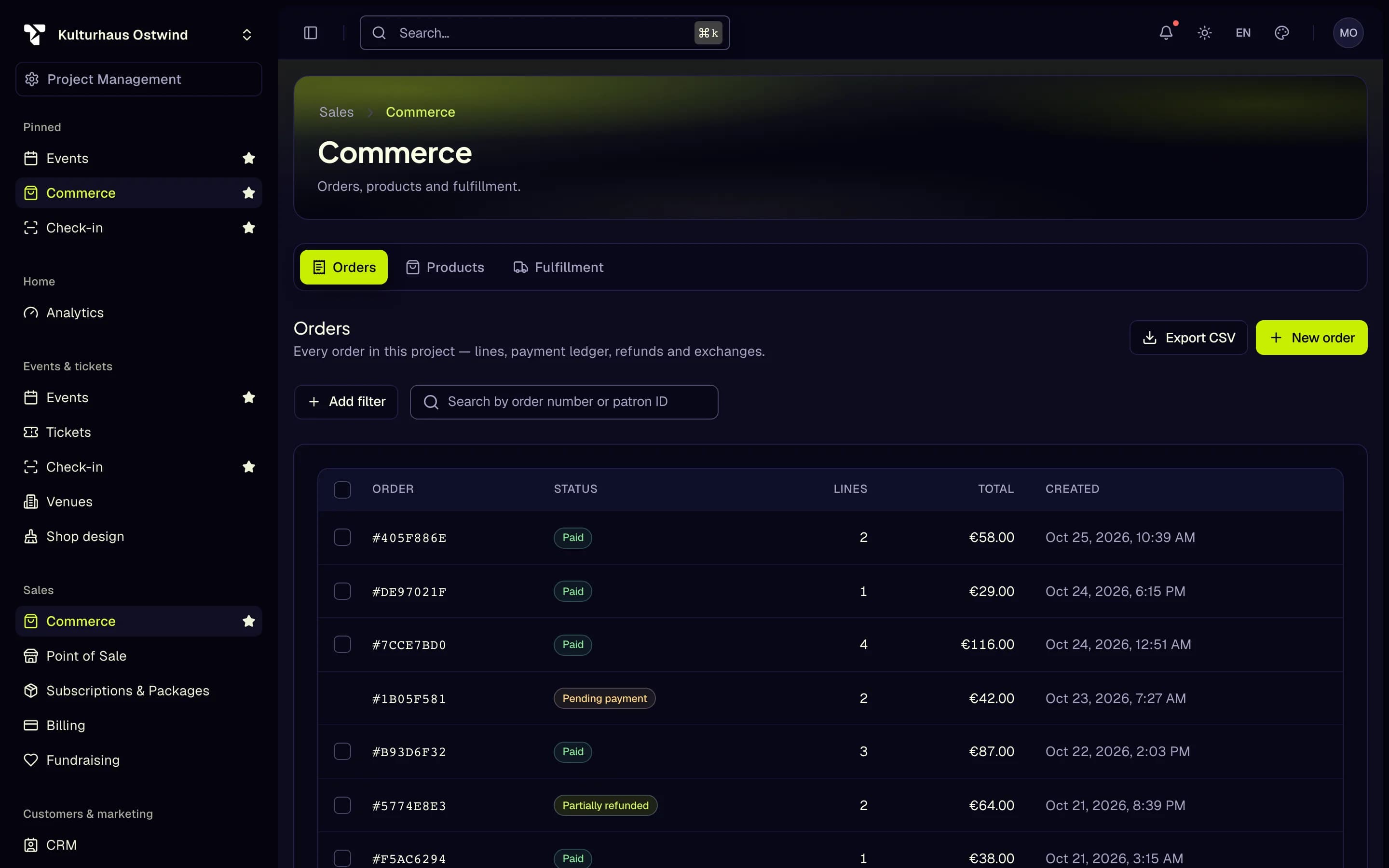
- Orders tab
- Search by order number
- Add filter
- Export CSV
- New order
Find an order
Orders are listed newest first, 25 per page. The order number is the last eight characters of the order ID with a #
in front, for example #3F9A21C0. A paid order with a total of zero is marked Free.
Export orders
Click Export CSV above the list. The file holds every order that matches the current search and status filter, not
only the page you see: order number, order ID, status, lines, total, currency, created and patron ID. Headers follow
the language of the interface. The file is UTF-8 and opens in Excel; in German it uses ; between columns.
The export is built in your browser from the list you are allowed to see and is not stored anywhere. More than 50,000 matching orders are refused with a message: narrow the filter and export in parts.
Refund several orders in full
Use this when an event is cancelled or a batch of orders has to be returned. Each order is refunded in full: what is left of it goes back to the buyer through your payment provider account, and its tickets are cancelled.
The orders are refunded one after another. The dialog then lists each order as Refunded with the amount the server returned, or Refused with the reason, for example an open dispute on the payment. The other orders go ahead when one is refused. To try the refused ones again, press and hold Hold to try the … again; orders already refunded are not asked again, and asking again for the same order never refunds it twice.
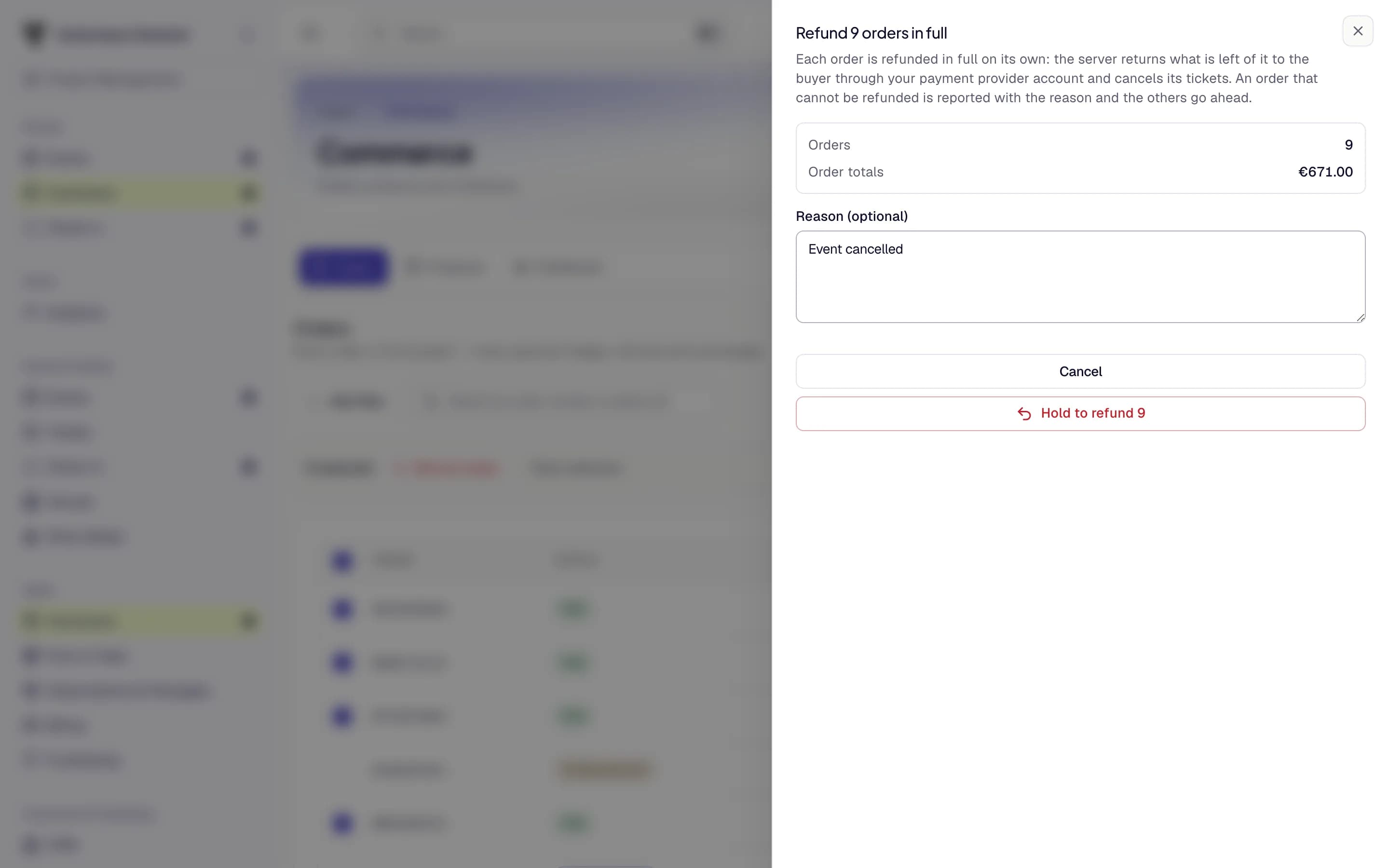
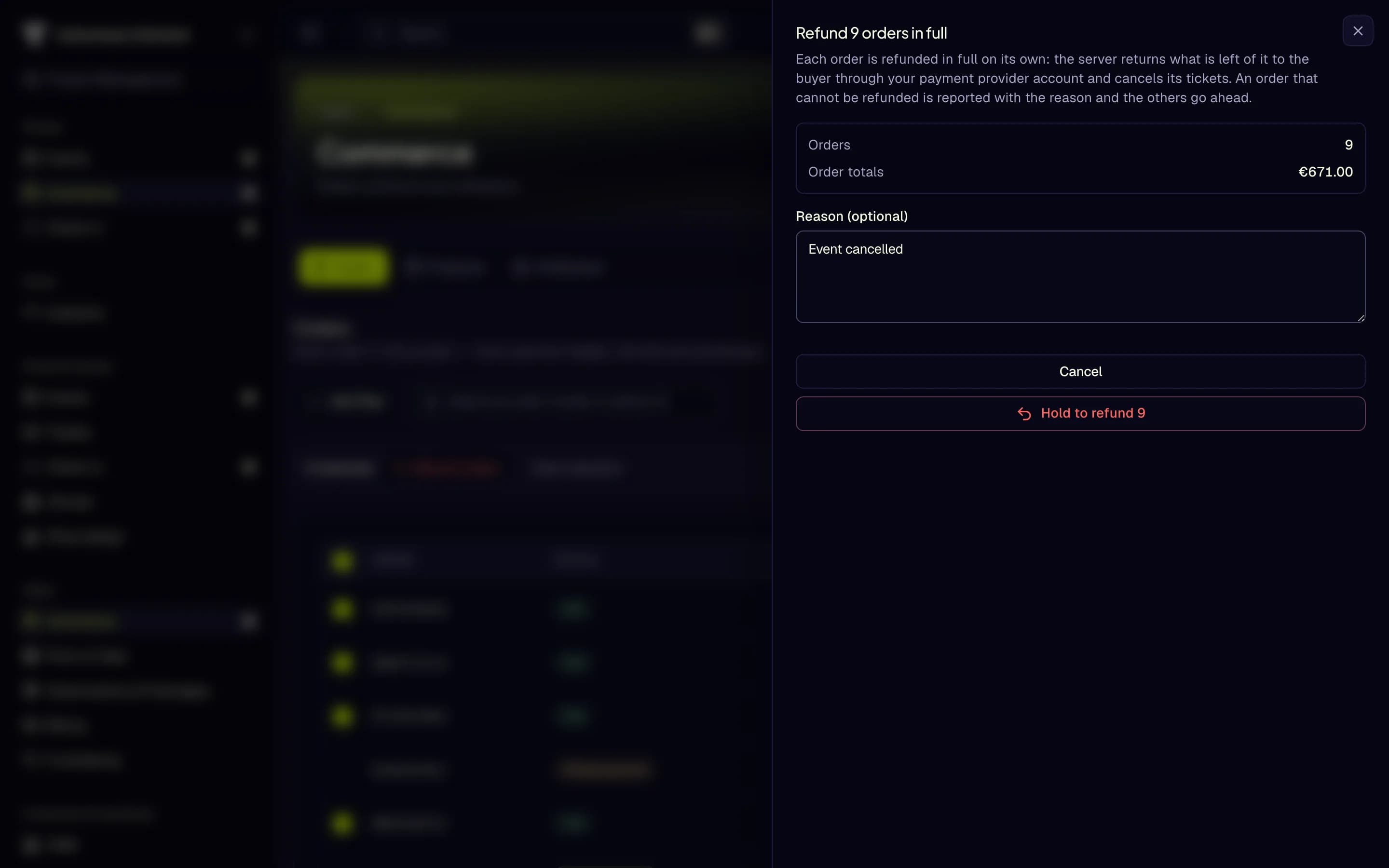
- Orders and Order totals
- Reason
- Hold to refund
Refund a line
A line refund returns an amount against one line, for example a price reduction, and leaves the line's tickets valid. To refund whole orders and cancel their tickets, see Refund several orders in full.
The refund appears in the order's Payment ledger and in the Refunded balance. The money goes back through the payment provider the buyer used.
Once the provider has made a refund, from here, from Refund orders or from the buyer's own request, the buyer gets the e-mail "Refund for your order …" in the language they bought in: the amount, the refunded lines, the tickets it cancelled and the invoice its credit note corrects. A refund the provider refuses or fails sends none, and neither does a refund you record as paid outside the provider.
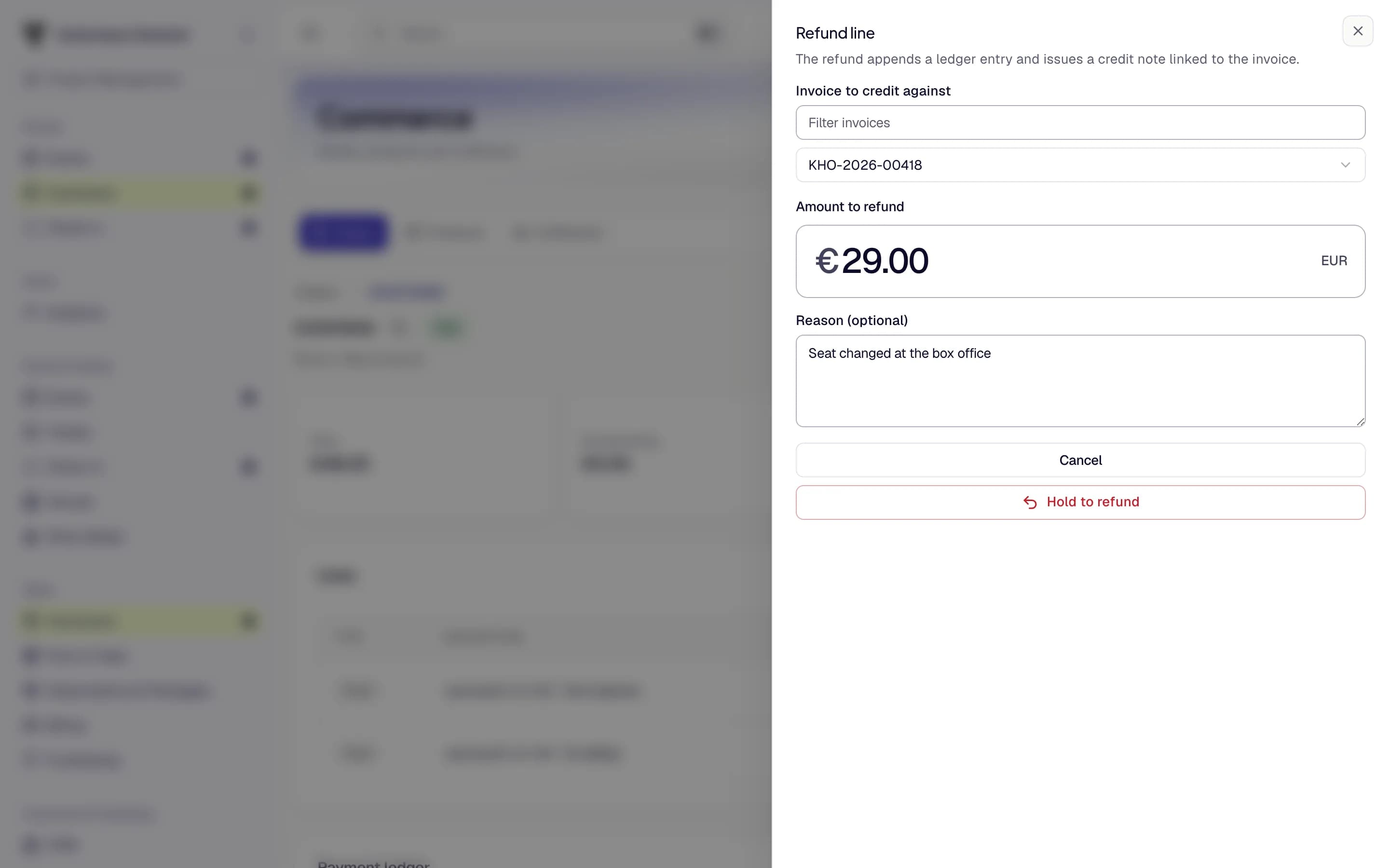
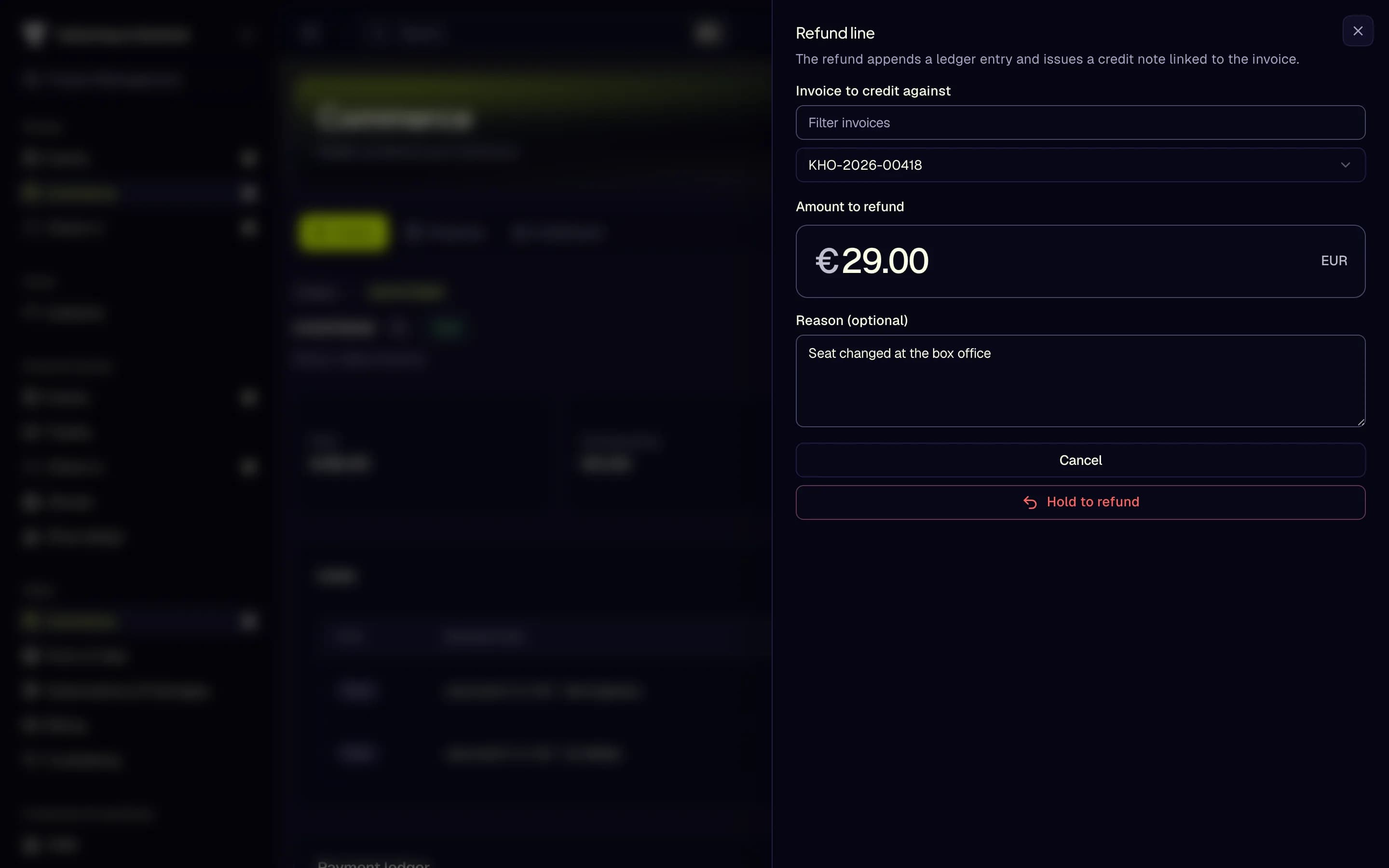
- Invoice to credit against
- Amount to refund
- Reason
- Hold to refund
Exchange a ticket
For a ticket line without an assigned seat you can swap the ticket type instead of refunding and selling again.
After the exchange the order page shows an Exchange panel with where it stands:
- Awaiting payment: the new ticket costs more. Copy the Payment link for the buyer and send it; the buyer pays the difference with your payment provider.
- Processing: the difference is being settled. Use the refresh button.
- Completed: the new ticket replaces the old one. A cheaper ticket's difference is refunded to the buyer's means of payment; TixFin never holds a credit.
- Needs attention: the exchange stopped. Click Retry exchange, or End exchange and confirm: a charged difference is refunded, the new tickets become invalid and the old ones admit again. Both need a fresh second factor.
Close the panel with Close. The panel's address (?exchange=…) can be opened again later.
Move a ticket to another seat
When a sold seat has to change — a blocked view, a request from the ticket holder, a changed seating plan or a moved show — move the ticket to another free seat instead of refunding and selling again. The ticket keeps its ticket type and price; no money moves, so the new seat must cost what the current seat costs now. Moving a ticket needs a fresh second factor.
A ticket is not moved when it was already used at the door, when it was sold at the till (reprint it there), or while a refund of it is pending. While an offline door device may still admit its old barcode, the move asks you to confirm that risk first: once confirmed, the ticket moves and its old barcode stops at every online door, and the old seat stays off sale until every offline snapshot built before the move has expired (13 hours by default). Otherwise let the event's devices sync first.
The new seat is taken before the ticket moves, so no buyer can buy it meanwhile. The ticket is reissued on the new seat, its old barcode stops admitting at once, and the old seat goes back on sale. The ticket's holder — the buyer, or whoever the ticket was transferred to — gets an email with the new and the previous seat.
The reason is a fixed choice, not free text, because it is kept with the order: don't record why a person needed another seat.
The order page lists every move under Seat changes. A move that stopped half-way shows Moving and keeps both seats off sale; click Finish move to complete it. A move that could not happen (for example because the ticket was cancelled meanwhile) shows Abandoned and frees the seat it had taken.
Upgrades and add-ons by the buyer
When a ticket type offers it (see Offer upgrades and add-ons after purchase), buyers upgrade their tickets or add add-ons themselves from the order link in their confirmation. The order page shows a card Upgrades and add-ons:
- Upgrades by the buyer: each upgrade with its status and difference. Show exchange opens its exchange panel.
- Add-on orders: each order of add-ons the buyer added, with its status and total. Refund it like any order.
- On an add-on order, Add-ons for order links back to the first order.
Redeem a flexible package
A flexible package lets the buyer choose some of its parts after the purchase. When they tell you their choice, issue it from the order.
When no selections are left, the buttons are disabled. A fixed package issued its tickets with the order and has nothing to redeem.
Create an order for a buyer
Use this to sell tickets to someone who orders by phone or email and pays online later.
Send a payment link
When an order is awaiting payment, a Pay button appears. Click Create payment link: TixFin opens a payment of the outstanding amount at your payment provider. Copy the link and send it to the buyer, or open it yourself. The order is paid, and its tickets issued, once your provider confirms the payment. Nothing is recorded as paid before that, and gift cards or credit cannot pay such an order.
Let buyers refund themselves
Buyers can refund a ticket from their account only within the rules you set per event under Refund policy: Allow refunds, Refund fee (%) and Refund cutoff (hours before start). See My tickets.
Sell on site with the Point of Sale
This is the event till for tickets and add-ons. To sell food, drinks and merchandise at a bar or a food truck, with deposits and stock, see Stands, food and drinks.
Tickets at the till
A ticket sold at the till is a real ticket: TixFin takes it from the ticket type's stock at the current price and prints its QR code on the receipt, which opens for printing by itself. The receipt is the ticket, door tickets are not e-mailed.
A seated ticket type shows Choose seats instead of Add to cart. The seat map opens with the seats that are free right now; sold seats and seats held in the shop are shown taken. Tap seats, or use best available, then Take n seats. The cart line lists the seats; to change them, click Choose seats again. If somebody buys one of the seats before you complete the order, the whole sale is refused with "A seat is not free to sell at the door." Choose another seat and complete the order again.
The first ticket sale binds the terminal to your sign-in for 24 hours. A terminal another cashier holds is refused until somebody who opens and closes tills takes it over.
The Latest orders list refreshes every ten seconds. For a paid order you can Print receipt (formatted for 80 mm receipt printers) or Cancel order. Cancelling cannot be undone.
If a ticket sale's receipt has no QR codes, or the receipt is lost, click Reprint tickets on the order. The tickets get new QR codes and the old ones stop working; a ticket already admitted is marked as such. If the receipt warns about offline scanners, the old codes may still be admitted on a device that has not synced yet. Selling cashiers reprint their own sales; for anything else, or after too many reprints, ask a supervisor.
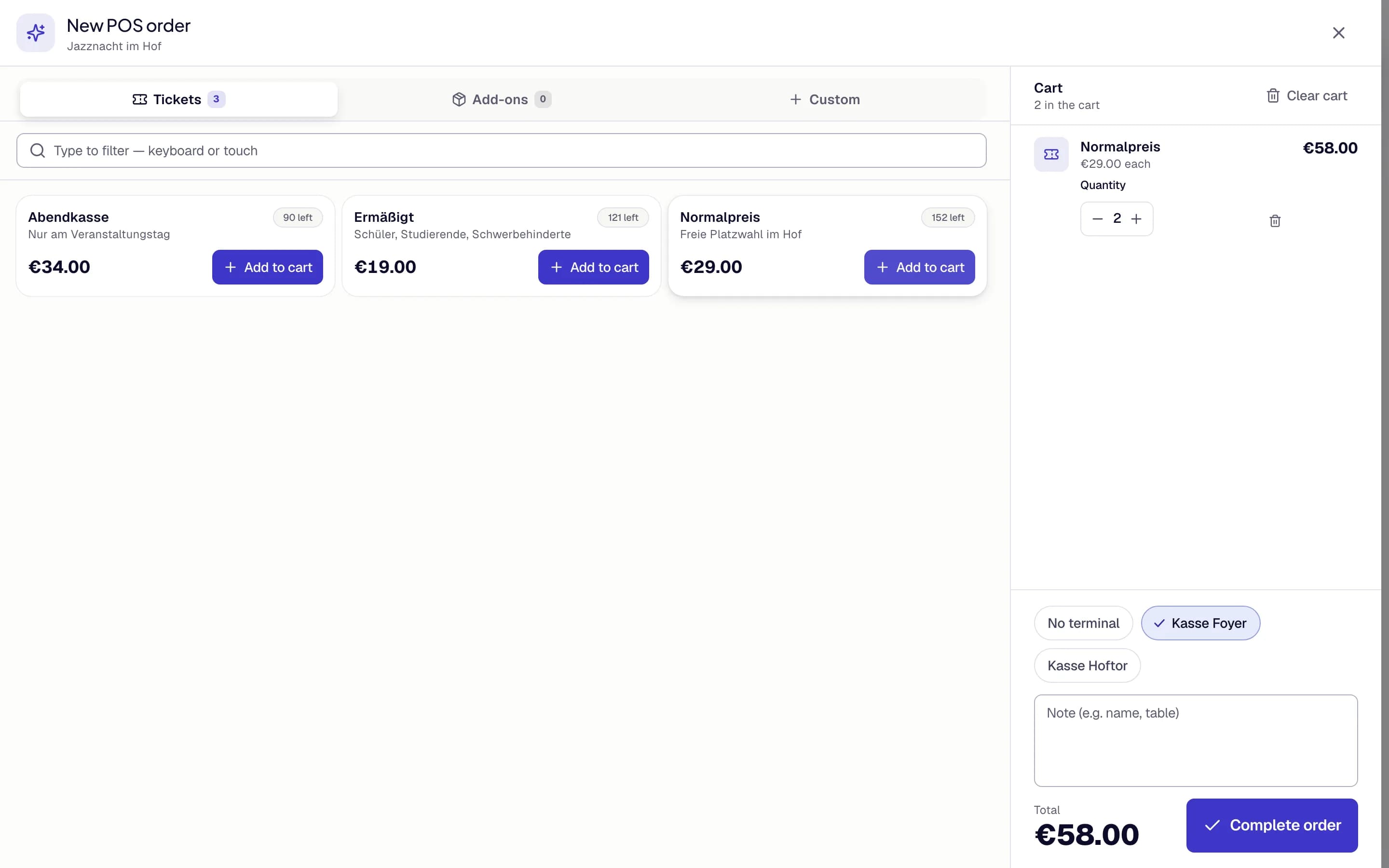
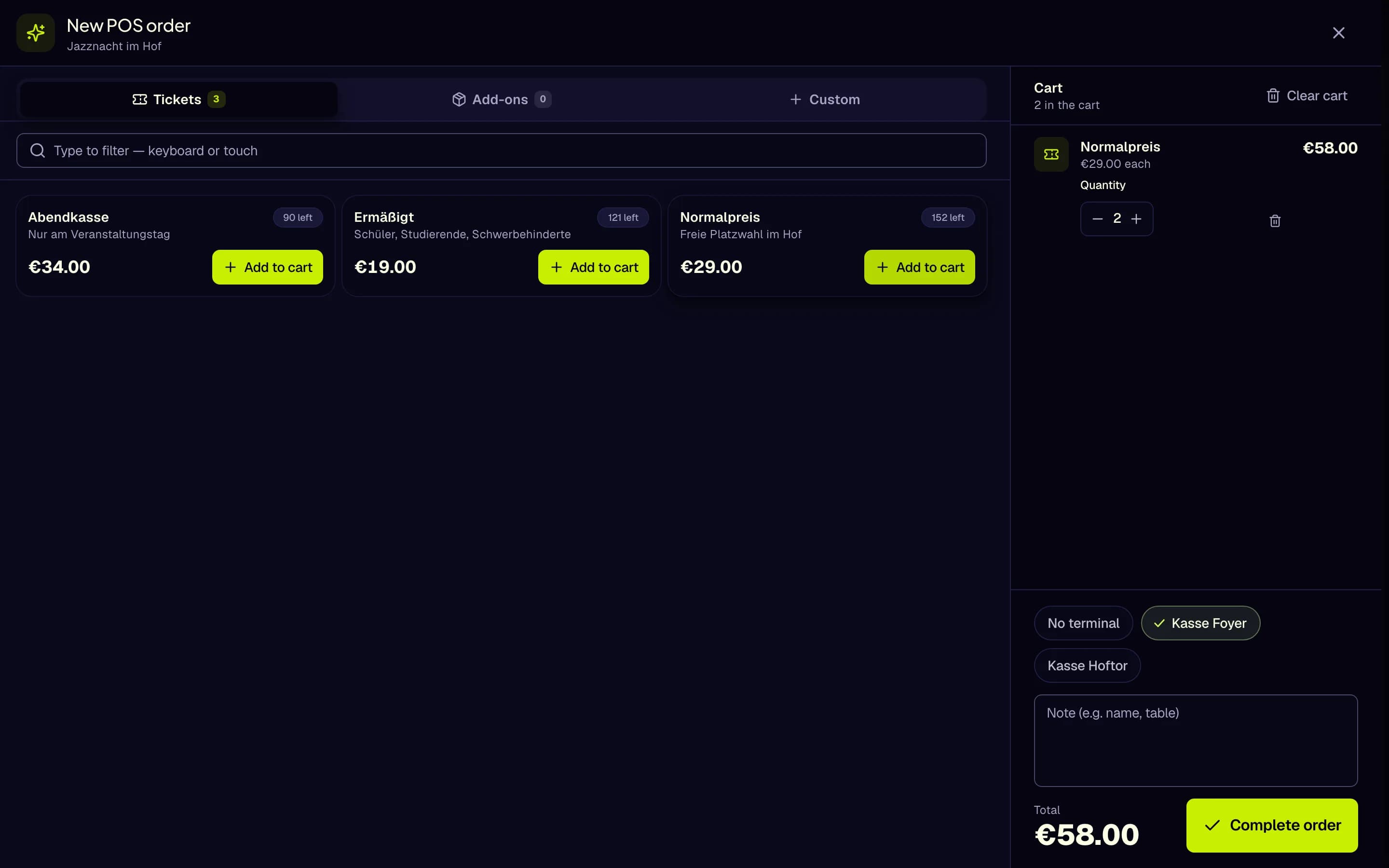
- Tickets tab
- Add to cart
- Terminal
- Note
- Complete order
The Point of Sale records the sale. It does not take card payments itself and has no cash-up report. Prices are in euros.
To add a terminal, choose Create terminal in the New order menu. Terminals can be activated, deactivated or deleted.
Buy tickets in the account menu is not a till. It buys tickets for your own account. To sell to a customer in person, use the Point of Sale. Online sales go through your shop.
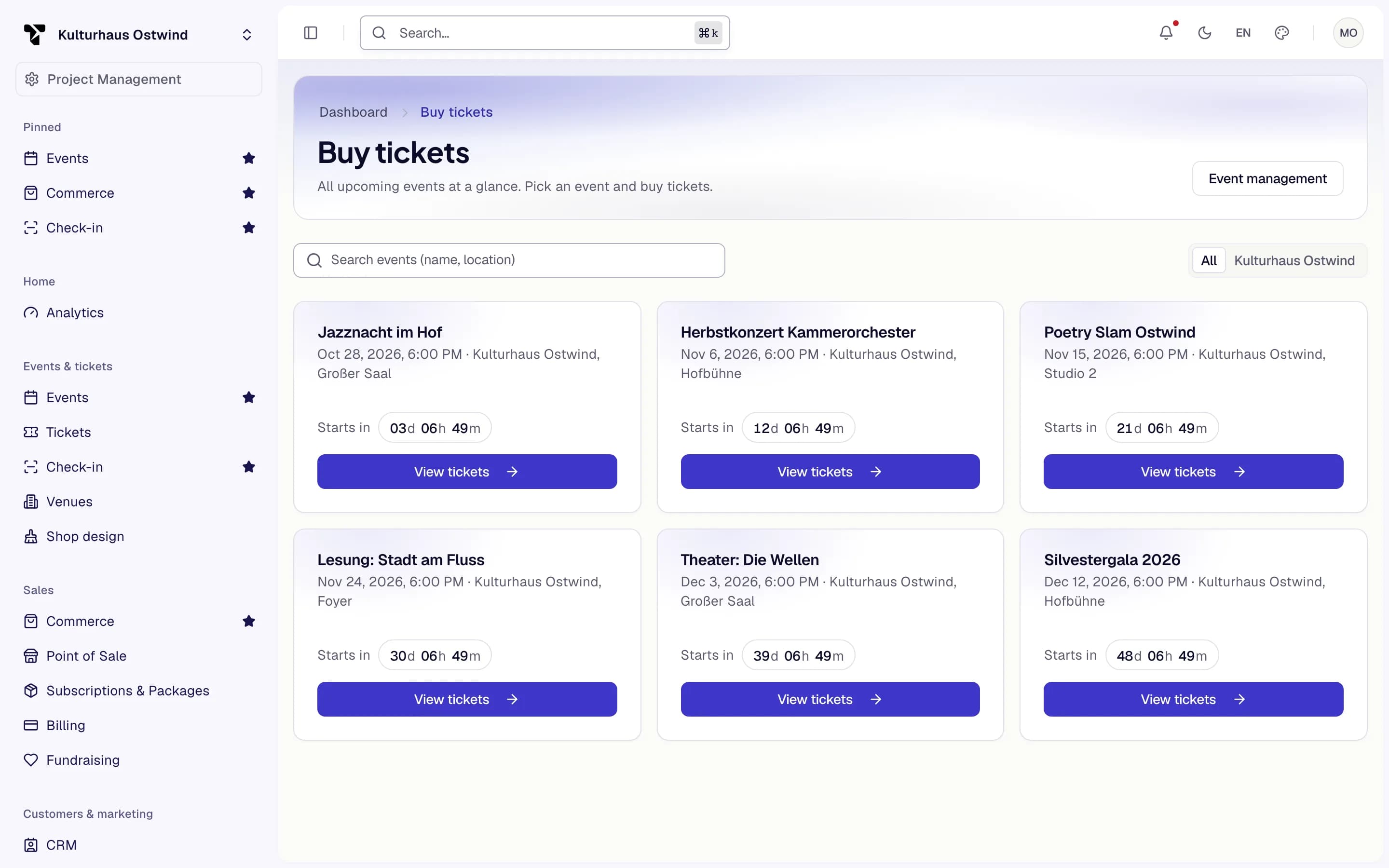
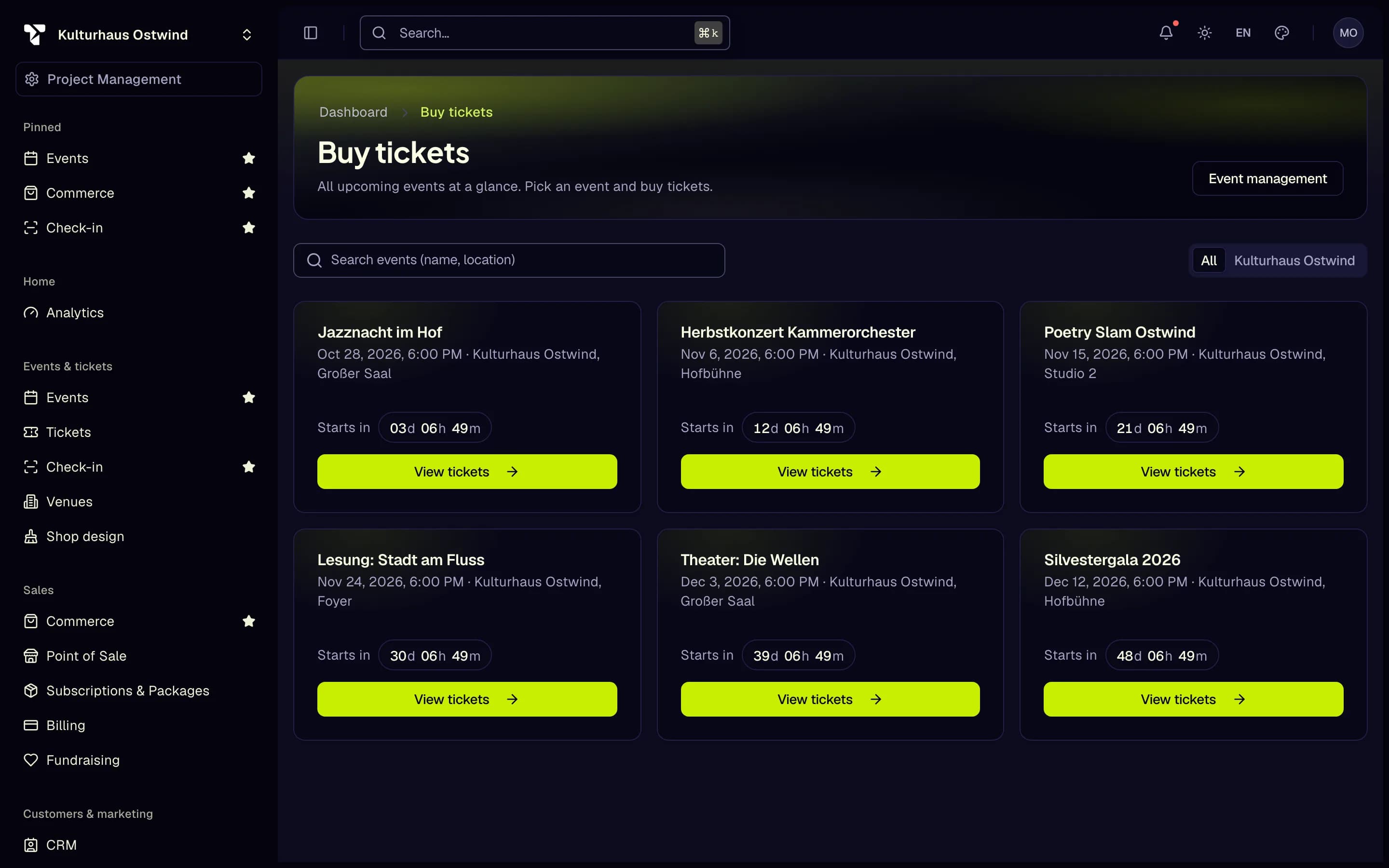
- Event management
- Search events
- View tickets
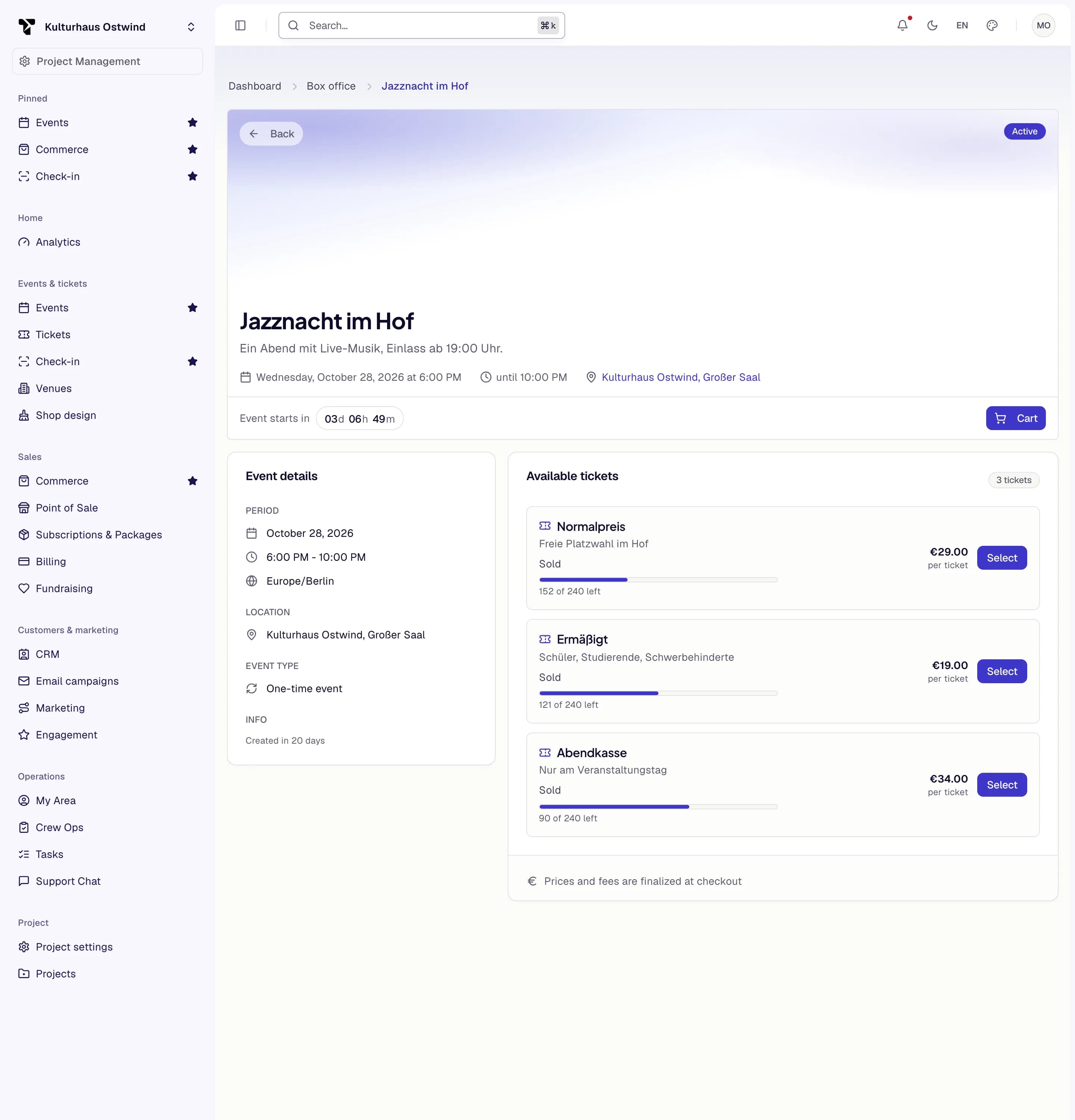
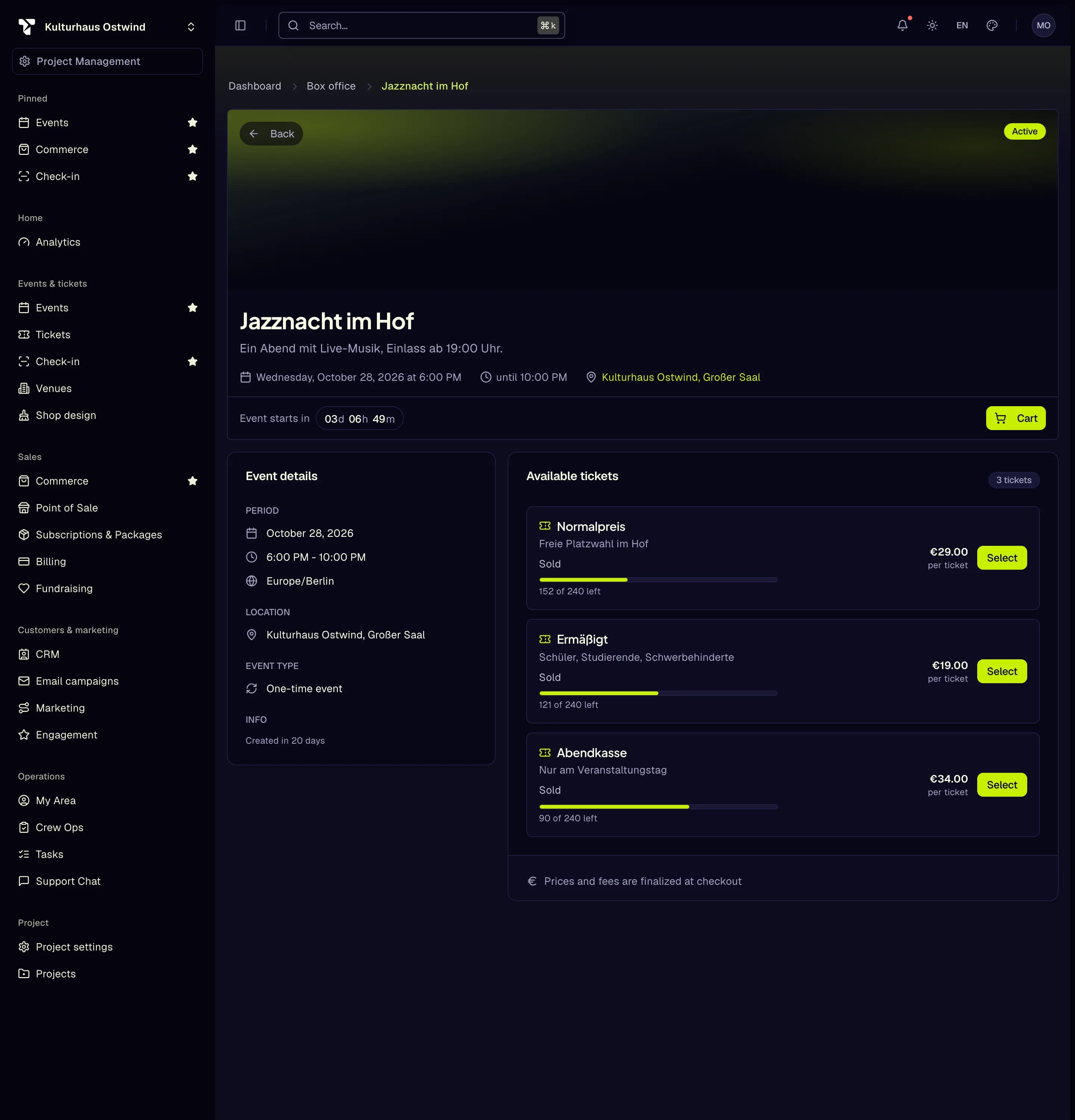
- Available tickets
- Select
- Cart
Reference
Order statuses
Draft, Pending payment, Paid, Partially refunded, Refunded, Cancelled, Locked.
Order detail
| Section | Contents |
|---|---|
| Header | Order number (copy the full ID), status, and the patron, linked to the CRM |
| Balances | Paid, Outstanding, Refunded, Credited |
| Lines | Type, description (with seat), quantity, unit price, total, and the actions |
| Payment ledger | Authorisation, capture, refund, credit issued or redeemed, chargeback and adjustment entries, each with the payment provider's reference |
| Notes | Notes on the order (read only) |
Line types: Ticket, Add-on, Product, Donation, Membership, Gift card, Package, Fee.
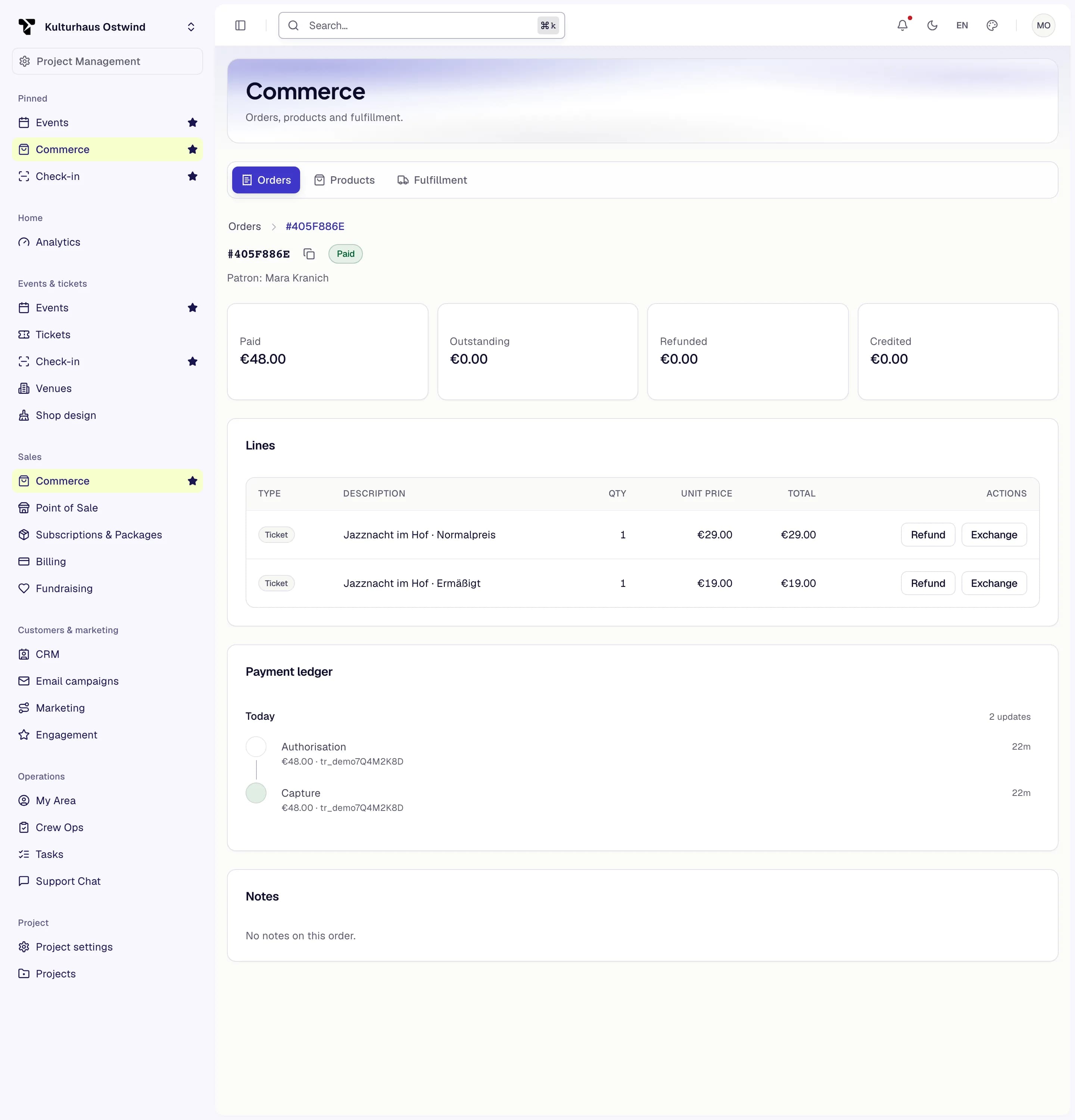
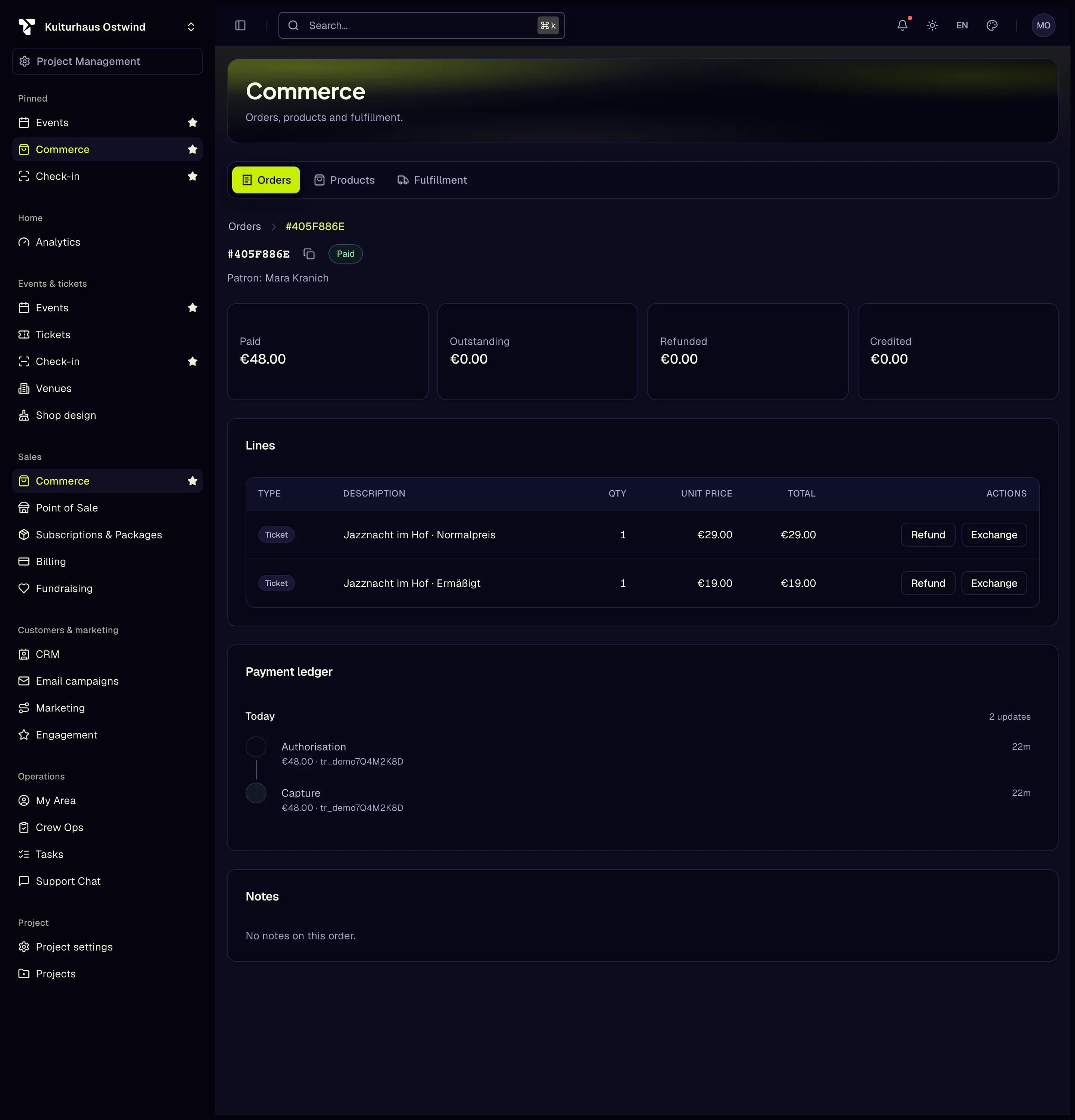
- Order number and status
- Balances
- Refund
- Exchange
- Payment ledger
Other Commerce tabs
- Products: merchandise sold alongside tickets, with variants (SKU, optional price override and Stock) and inventory. A variant is for sale only once its stock is set; the stock can't go below the units already sold.
- Fulfillment: move product orders through Pending, Picked, Shipped, Collected and Returned. Mark returned is final.
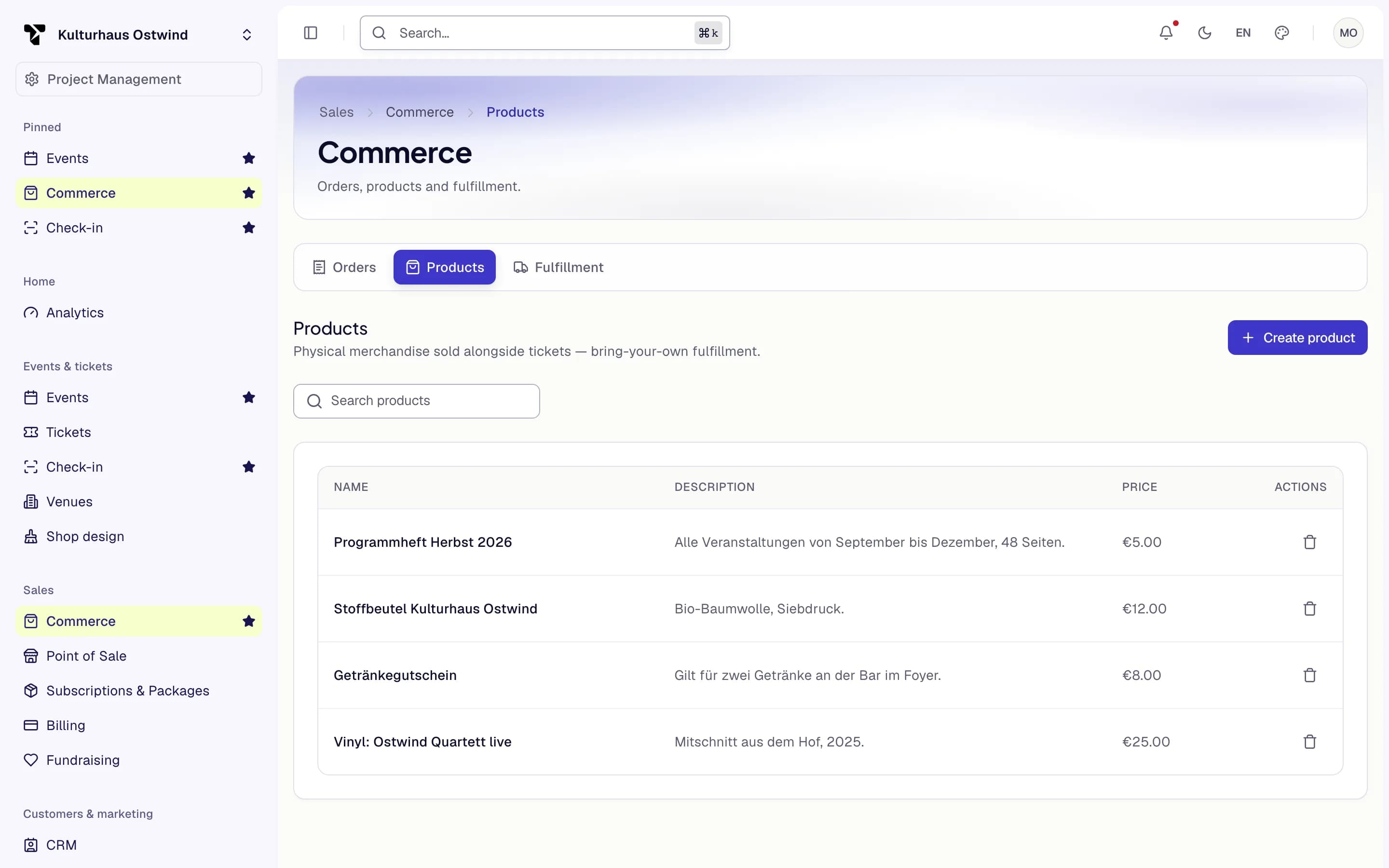
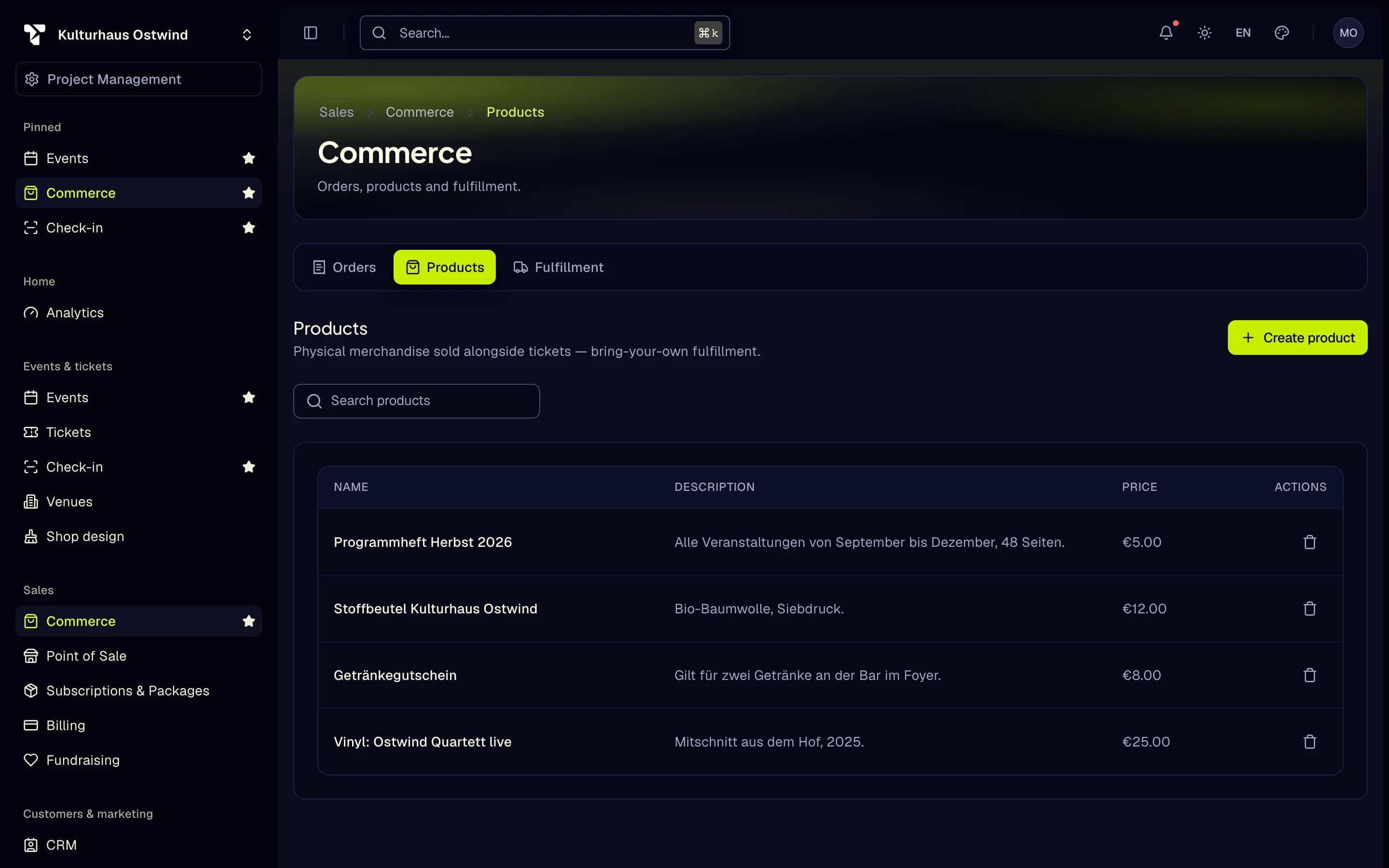
- Products tab
- Create product
- Delete
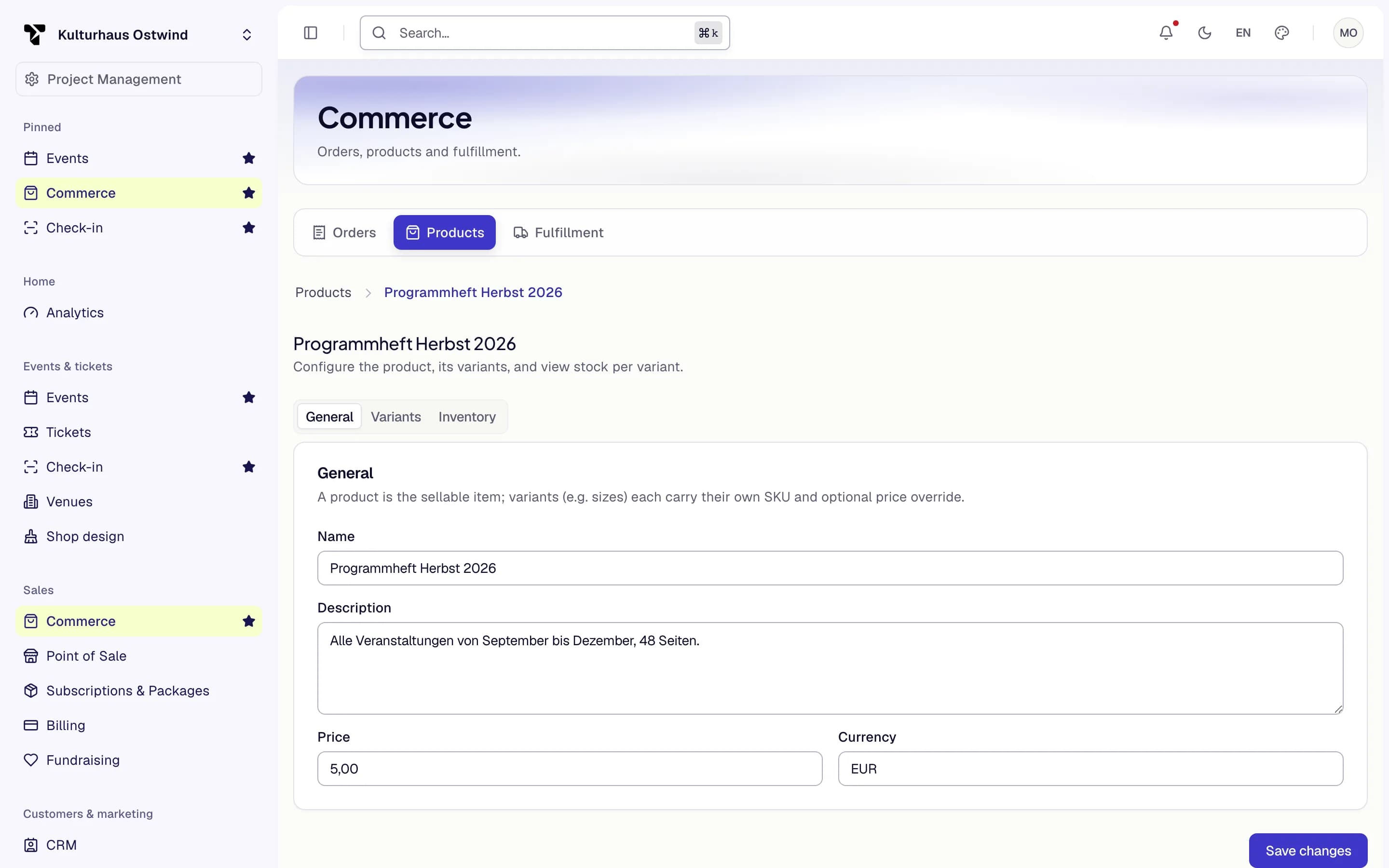
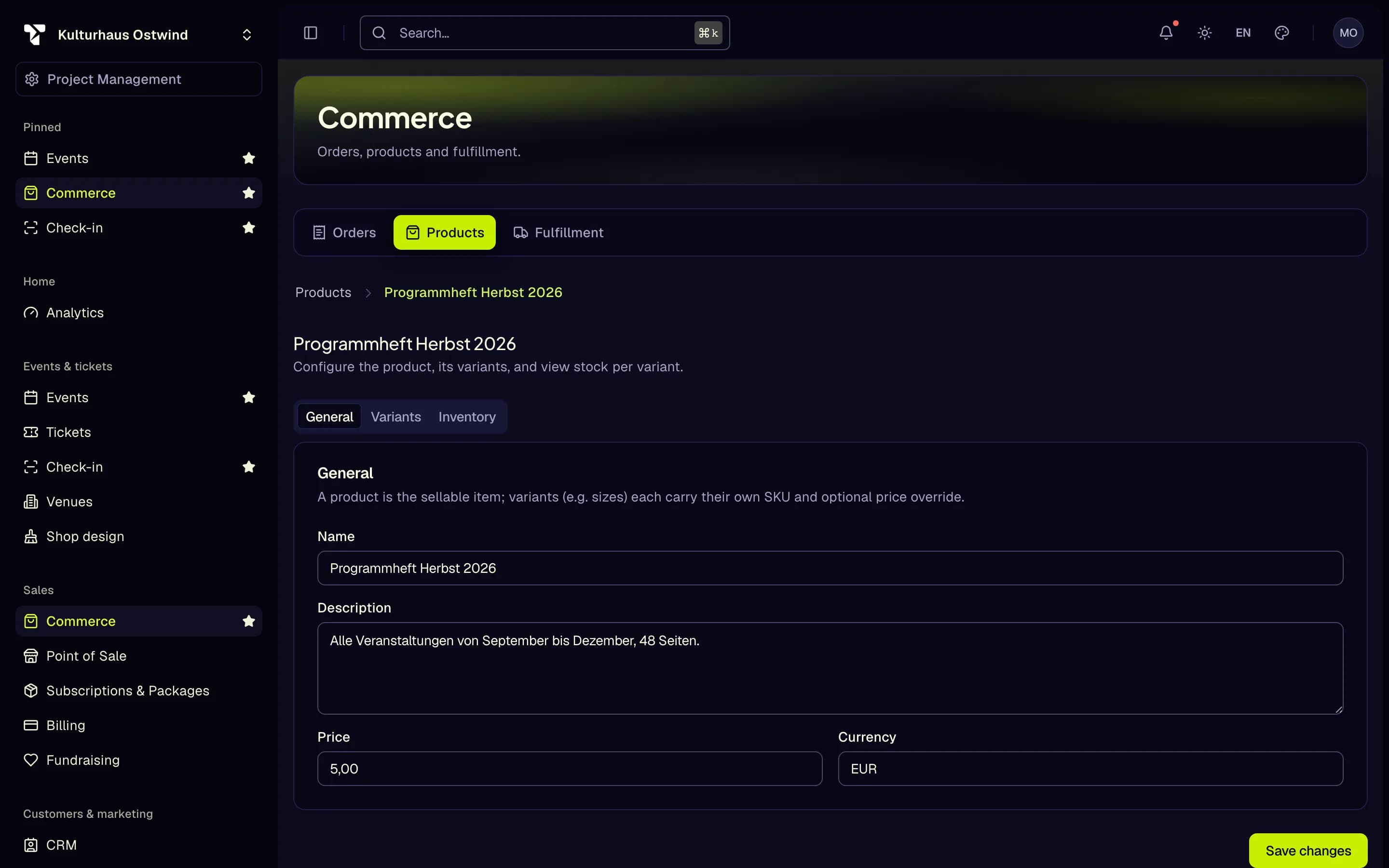
- Variants
- Inventory
- Save changes
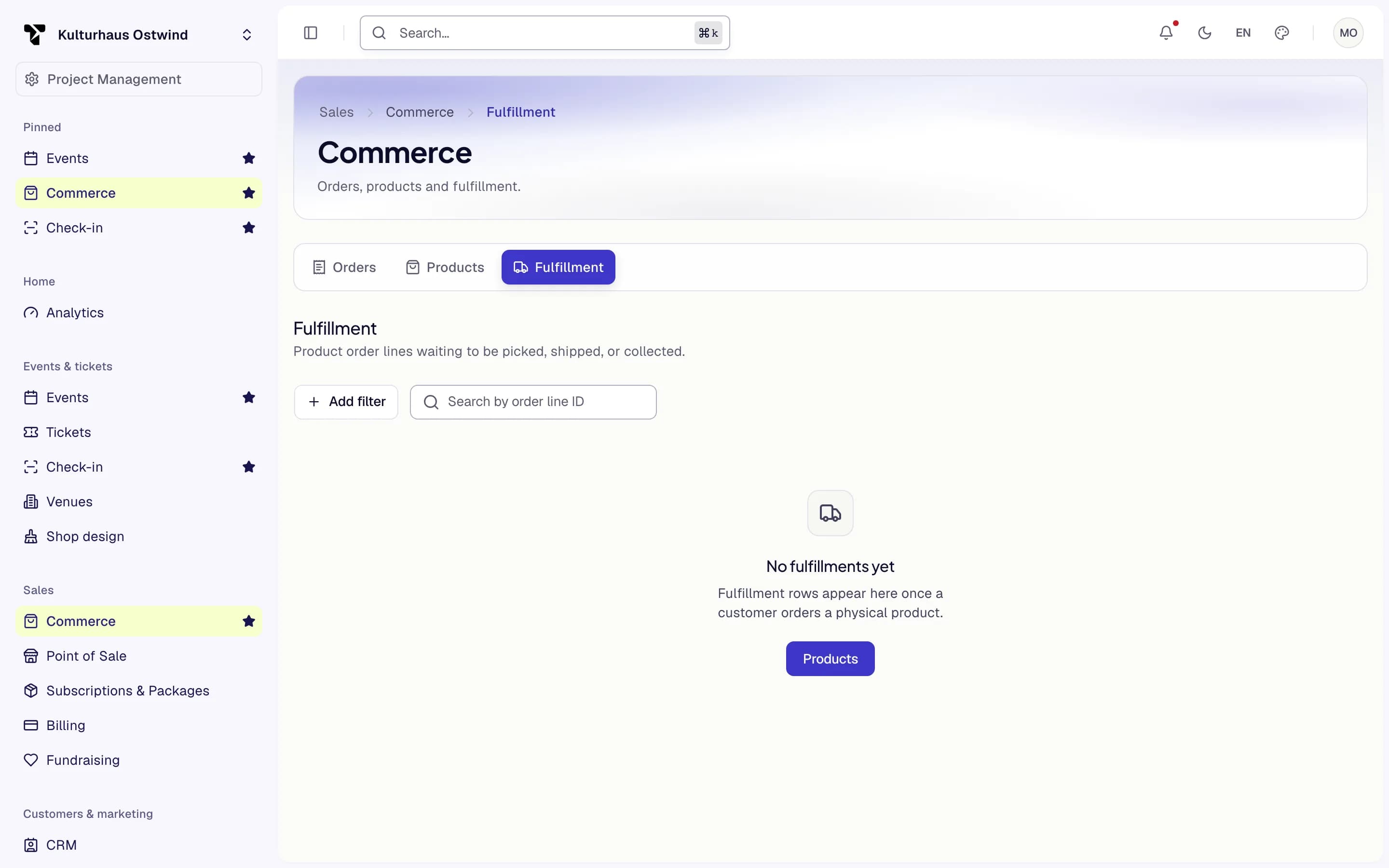
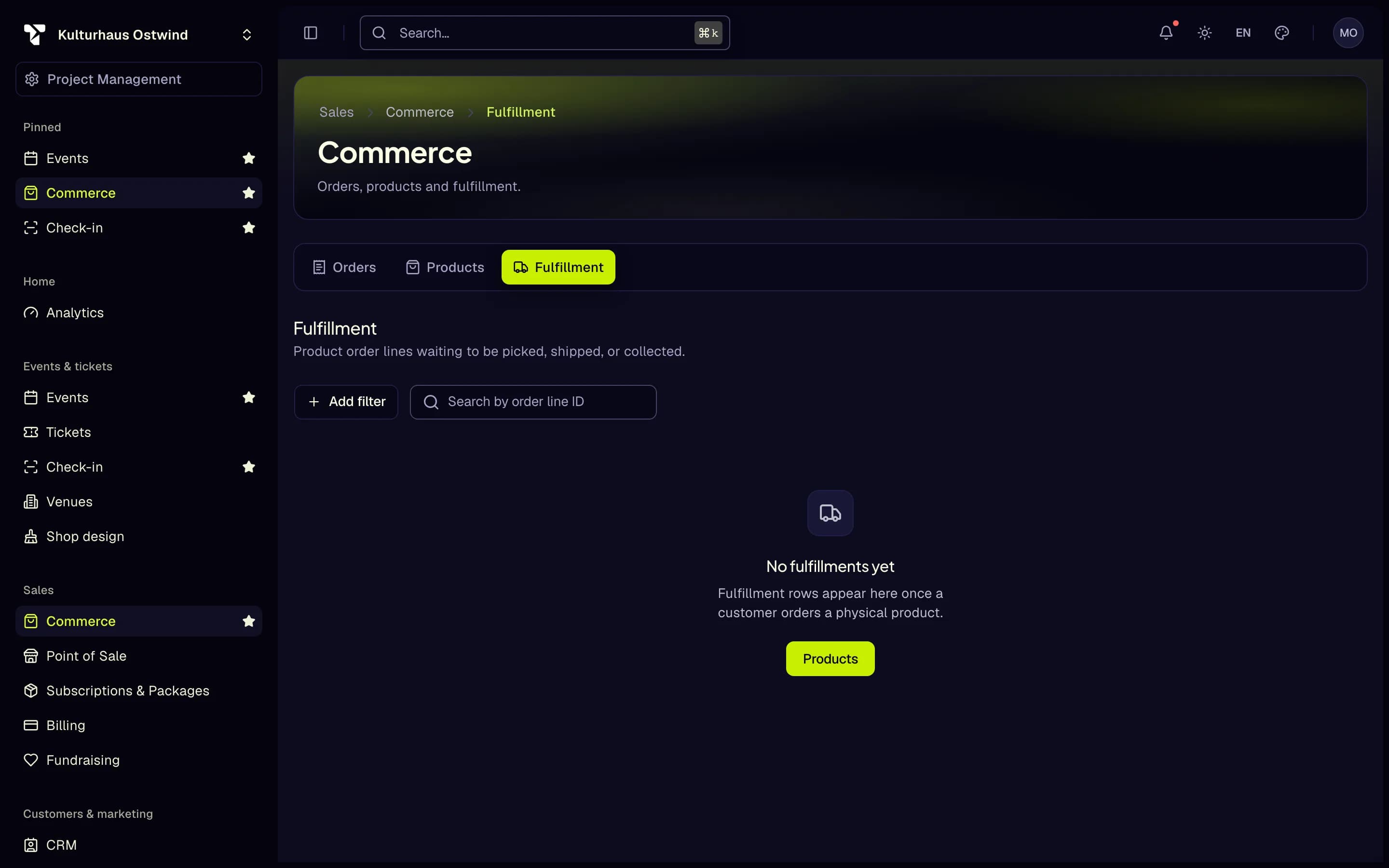
- Fulfillment tab
- Search by order line ID
- Products
Common problems
- "This project has no invoices to issue a credit note against." The order has no invoice to credit, for example because it was free. Free orders get no invoice, so they cannot be refunded here.
- "The amount exceeds this line's total." Lower the amount to at most the line total.
- "Refused: Nothing is left to refund" or "Order has already been refunded" in the bulk refund. The order was refunded before, in full or line by line.
- "Refused: No captured payment to refund" The order has no payment from a provider to return, for example a free order.
- "More than 50,000 orders match." Narrow the search or status filter and export in parts.
- "Order could not be loaded" Click Try again. If it keeps failing, contact support.
- The Commerce or Point of Sale area is missing from the sidebar. Your role lacks the permission, or your plan does not include the point of sale. Ask the project owner.
Related
Sales by date and time slot
The analytics dashboard shows, for each event starting in the selected period, tickets sold, reserved and the share of capacity sold, and a calendar shaded by start date. A second grid shows when those tickets were bought, by weekday and hour. Times are in each event's own time zone. Each date of a recurring series is one slot. It holds counts only, and needs the ticket statistics permission.
Pay-what-you-want tickets
A ticket type can let buyers name their price. Turn on Pay what you want in the ticket wizard or on the ticket type. The price field becomes the minimum. You can set a maximum (up to 10,000 per ticket; 1,000 if you set none) and up to six suggested amounts, which the shop shows as buttons.
The whole amount is ticket revenue: VAT and fees apply to it, and invoices, reports and refunds show what the buyer paid. A pay-what-you-want ticket cannot have a seat, a membership or a deposit. An order holding one takes no voucher or discount, and exchanges cannot move a ticket to such a type. Door sales and draft orders sell it at the minimum.