
 TixFin
CRM and Marketing
Patrons, email campaigns, journeys, loyalty, memberships, referrals and fundraising at a glance
The Customers & marketing group in the sidebar holds everything about the people who buy from you. Fundraising sits under Sales. Which of these areas you see depends on your role and, for some, on your plan.
Where: Customers & marketing → CRM, Email campaigns, Marketing, Engagement, and Sales → Fundraising Who can do this: depends on the area. For example View campaigns or Manage and send campaigns for email campaigns and journeys, Manage loyalty program and Manage referral programs for those tabs.
| Area | Sidebar | Plan feature needed |
|---|---|---|
| CRM | Customers & marketing → CRM | — |
| Email campaigns | Customers & marketing → Email campaigns | Campaigns |
| Marketing (journeys, attribution) | Customers & marketing → Marketing | — |
| Loyalty, memberships, referrals | Customers & marketing → Engagement | Loyalty, Memberships, Referrals |
| Fundraising | Sales → Fundraising | — |
Switch plan features on under Project settings → Plan & Features; see Billing and plans.
CRM
A patron is a person who donated to your project. Gifts given under the same email address are one patron; a gift given while signed in is filed under that account.
Who can do this: View patrons (CRM) to open the contacts, a patron's profile and the duplicates. Tagging, Not a duplicate and merging need Manage patrons, merge duplicates, and evaluate segments. Project owners and admins hold both.
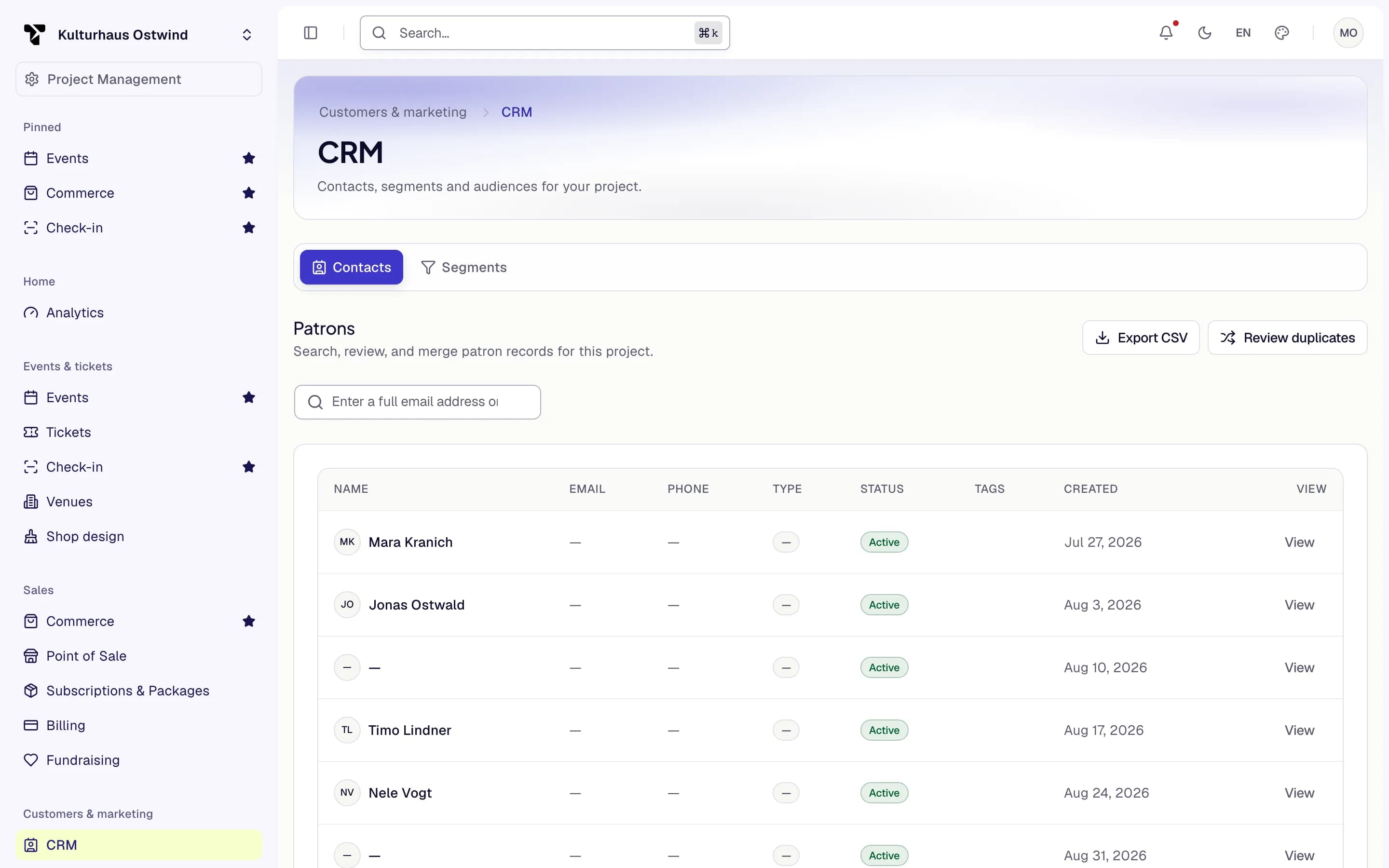
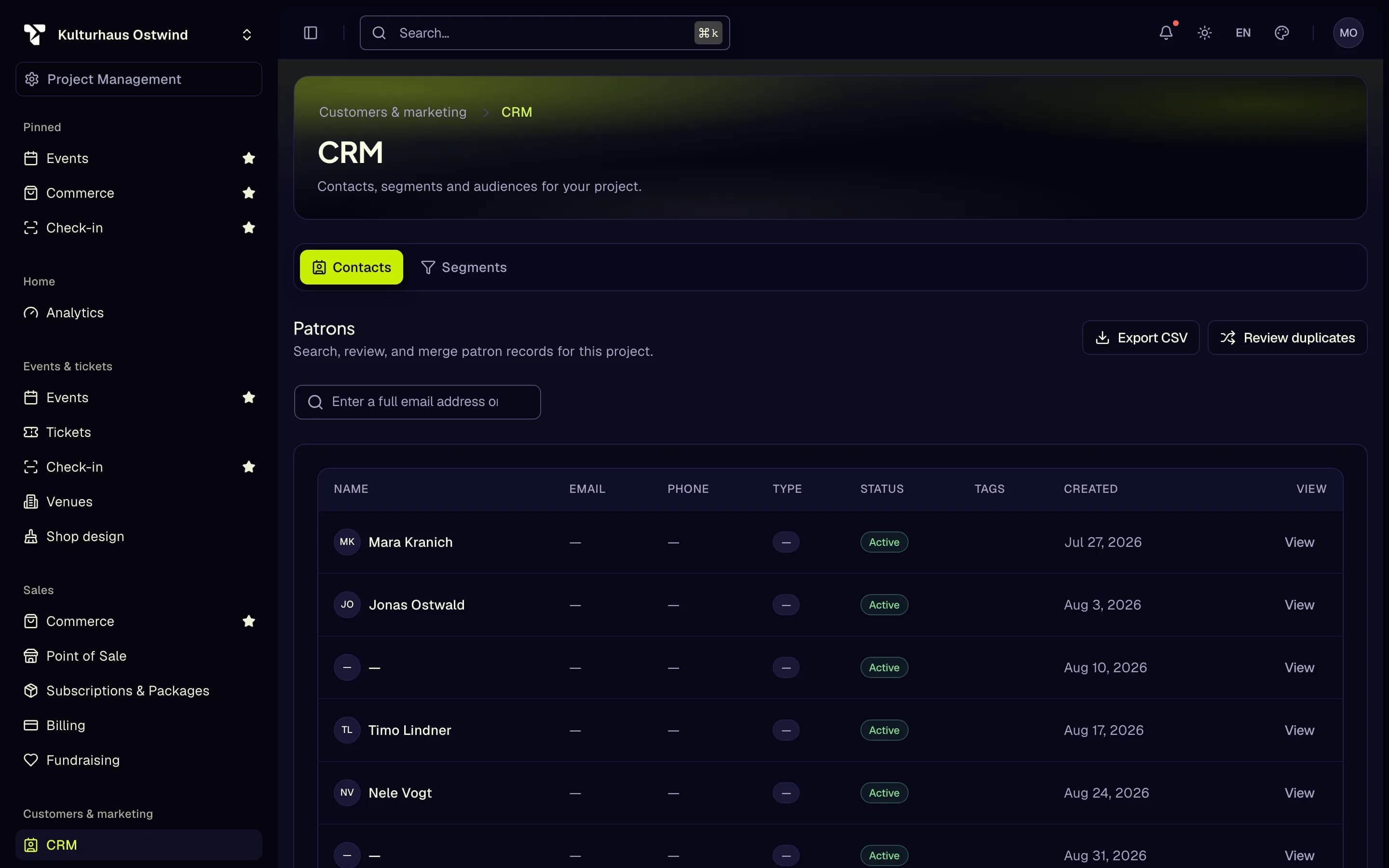
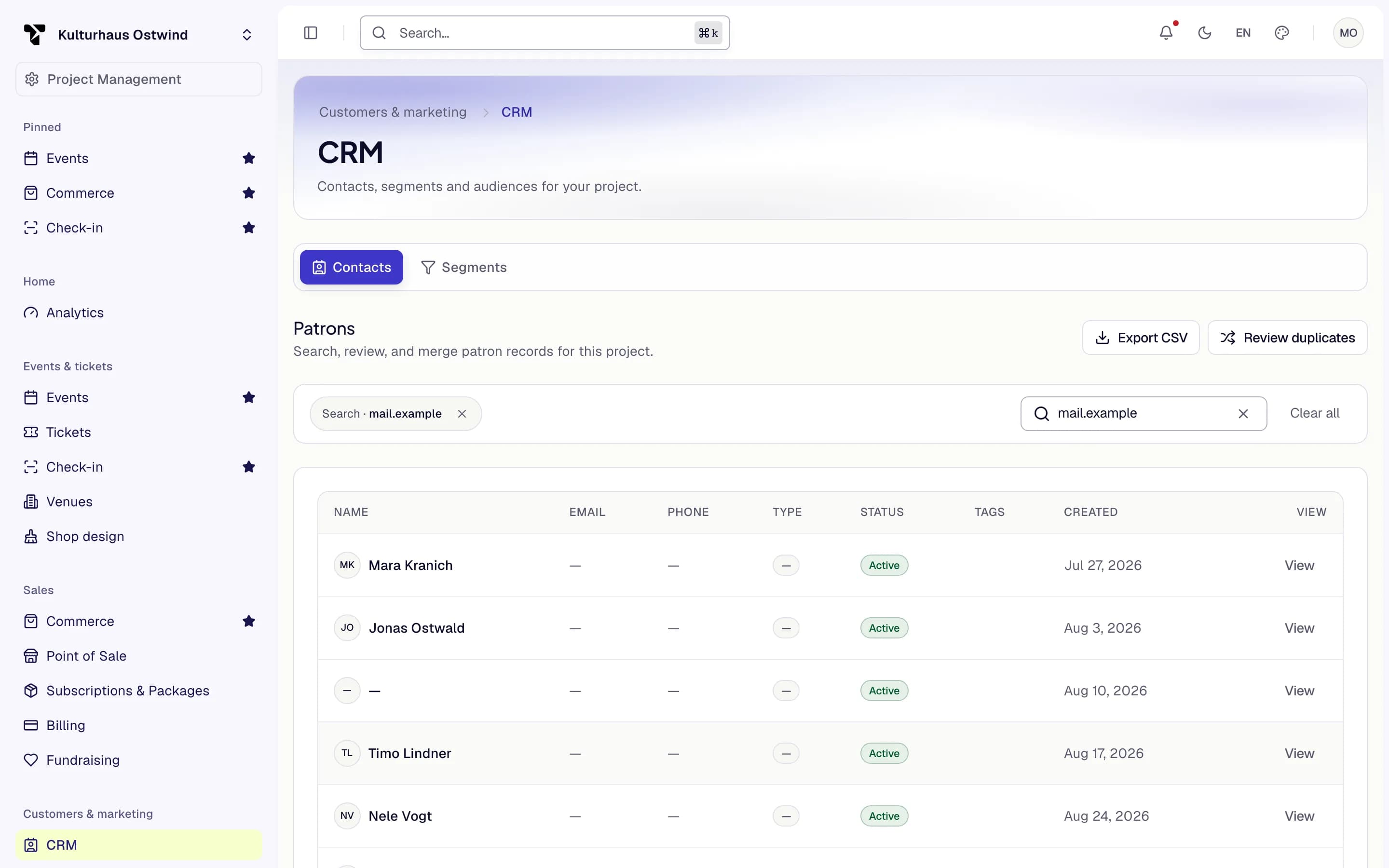
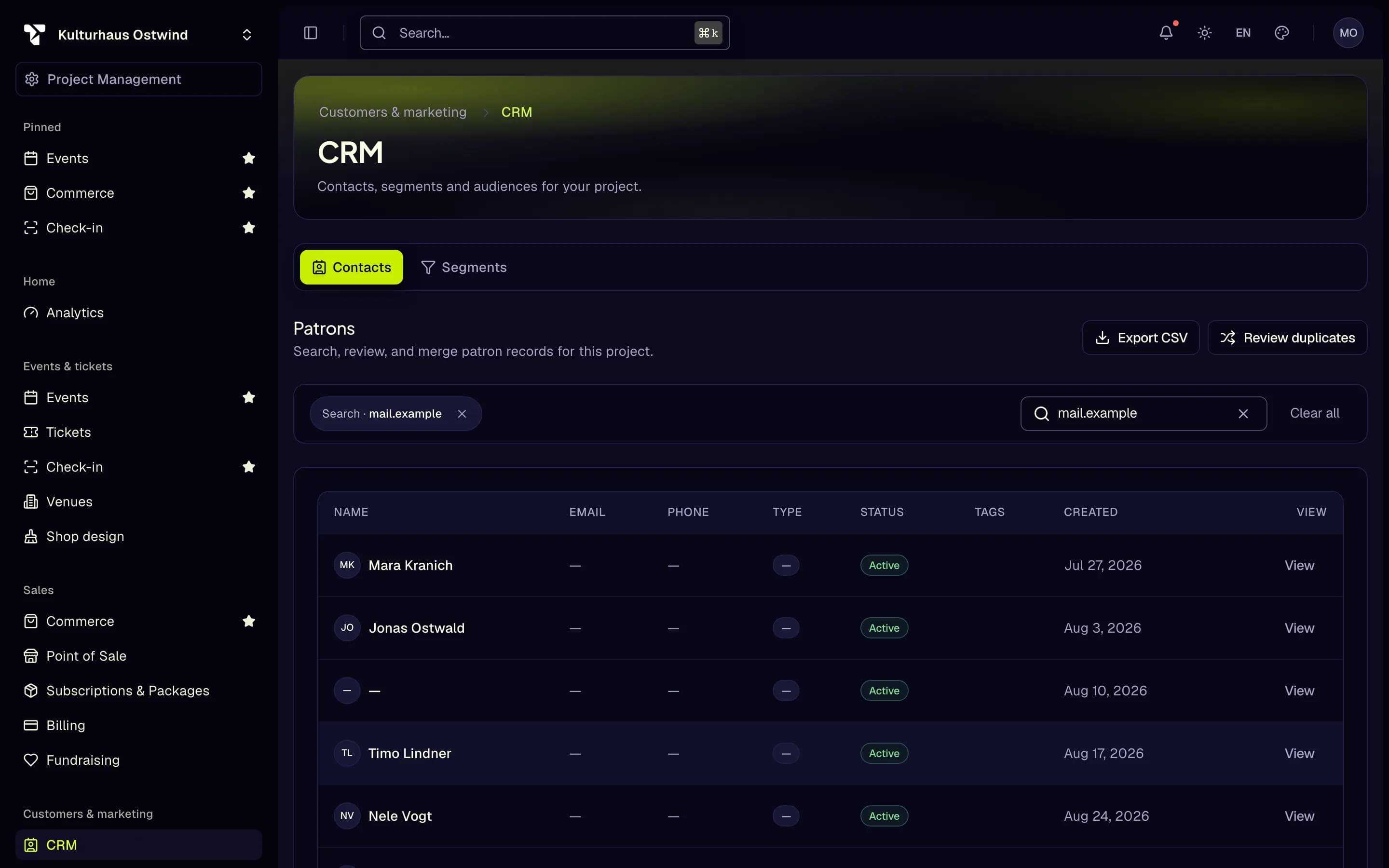
- Contacts lists patrons, 25 to a page, largest giver first. A patron who gave while signed in shows their account name; a guest donor has no name here, and the email and phone columns stay empty: the CRM keeps neither, only a one-way index of the address. Search with a full email address (any capitalisation) or a patron or account ID; a search by name finds nobody. Open a patron to see the profile, the Activity timeline of their donations and the donations themselves. Orders link to their patron. Export CSV writes every patron matching the search (name, email, phone, type, status, created, ID) to a file for Excel. The file is built in your browser and stored nowhere; it holds personal data, so keep it as you would the CRM. More than 50,000 matches are refused: narrow the search.
- Tags label a patron, for example
BoardorMajor donor. Add or remove them in the Tags field on the patron's profile: up to 20 tags of up to 32 letters, digits, spaces, hyphens or underscores. Click a tag in the contacts list to show only the patrons that carry it. When two patrons are merged, the surviving one keeps the tags of both. Tags describe a person, so write only what you would show them: they are part of the patron's data access request and are deleted when the patron's data is erased. - Review duplicates pairs records given under the same account, with a match score. Choose which record survives and Hold to merge permanently. Merging cannot be undone. If they are different people, click Not a duplicate: the pair leaves the list for good. A new record on the same account comes back paired with each of them.
- Segments shows the existing segments; Evaluate counts how many patrons currently match.
- Contacts
- Search by full email or ID
- Open a patron
- Review duplicates
- Segments
- Search
- Active search filter
- Export CSV
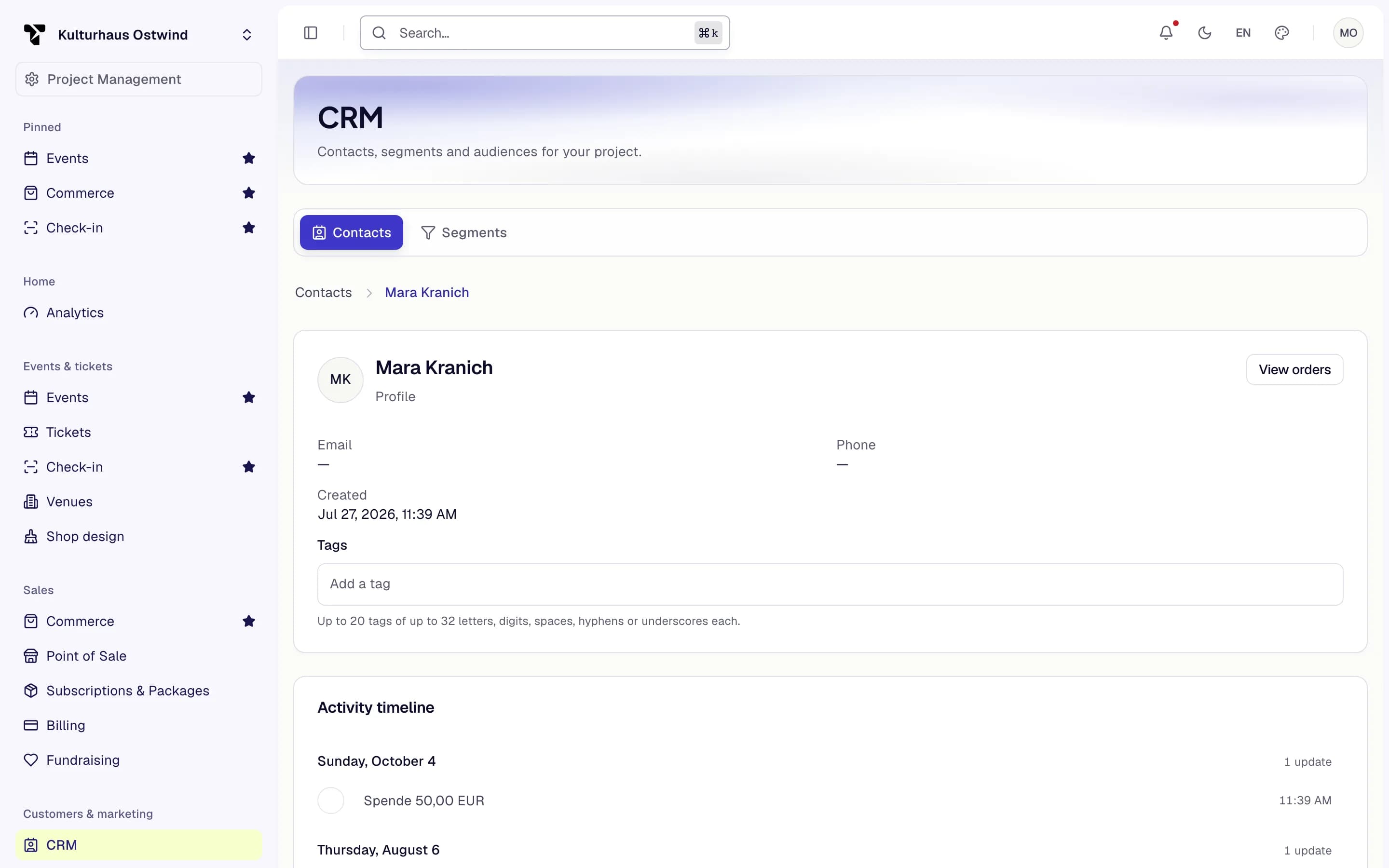
- Activity timeline
- Orders of this patron
- Tags
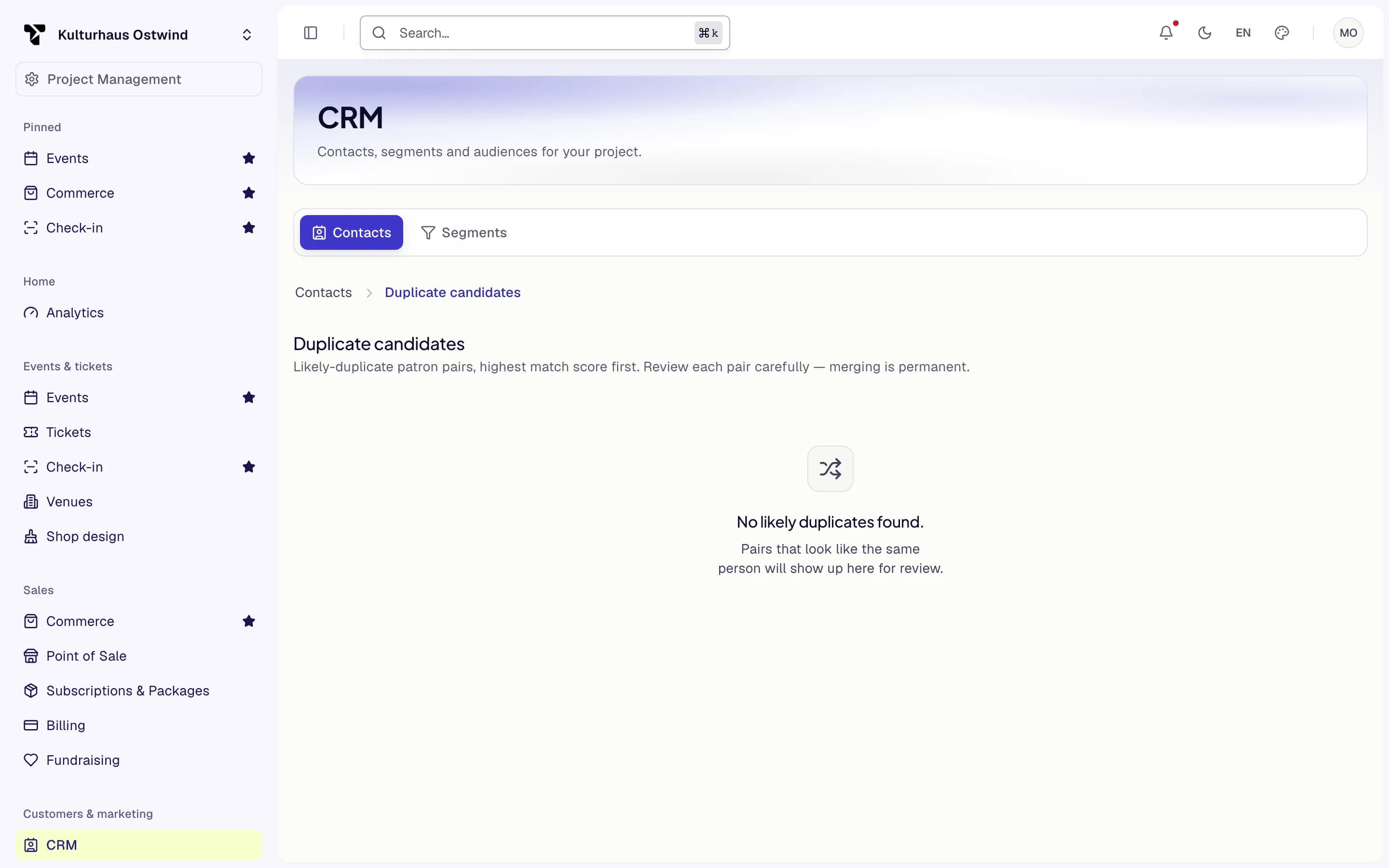
- Back to Contacts
- Pairs, highest match score first
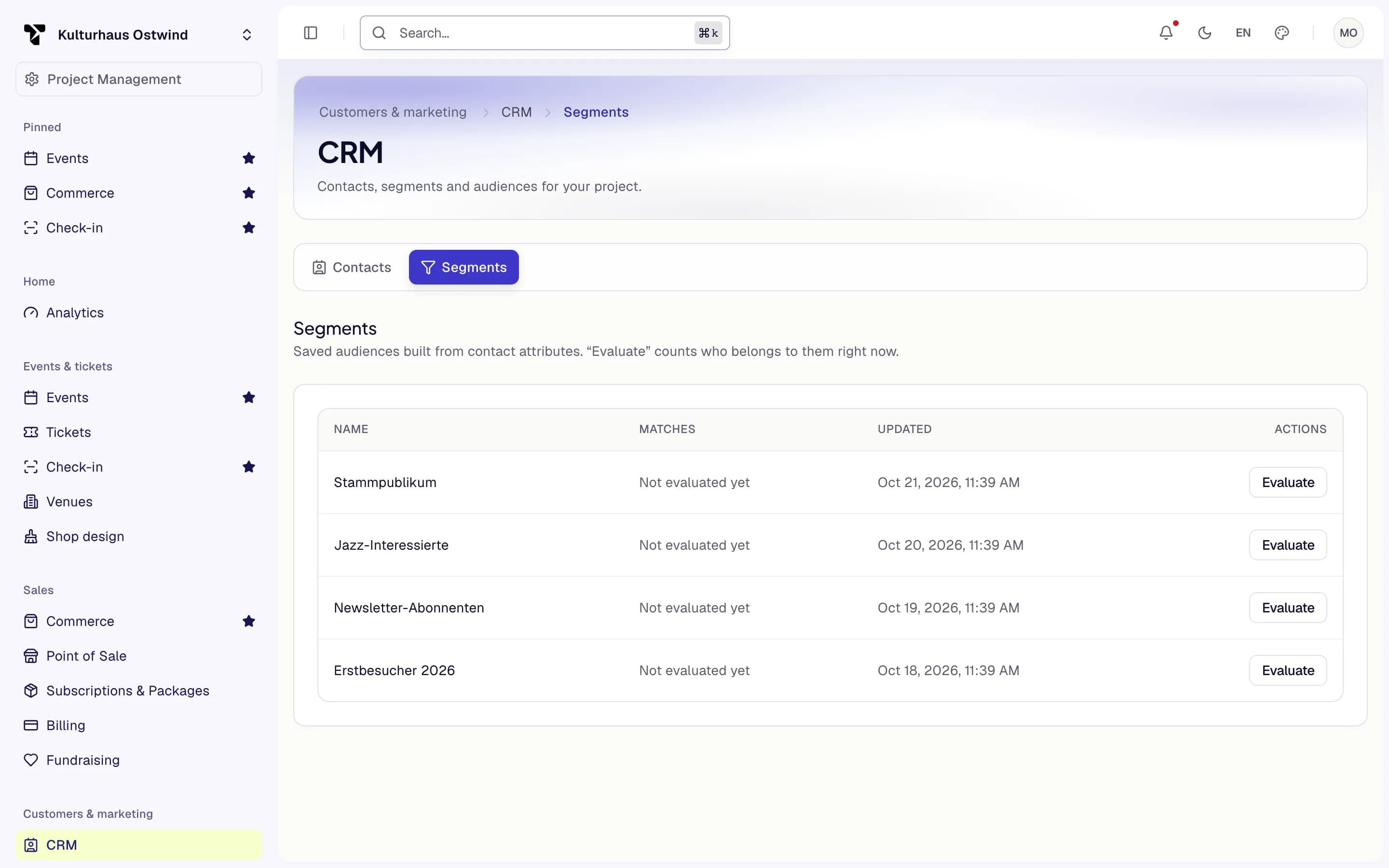
- Segments tab
- Matching patrons
- Evaluate
Email campaigns
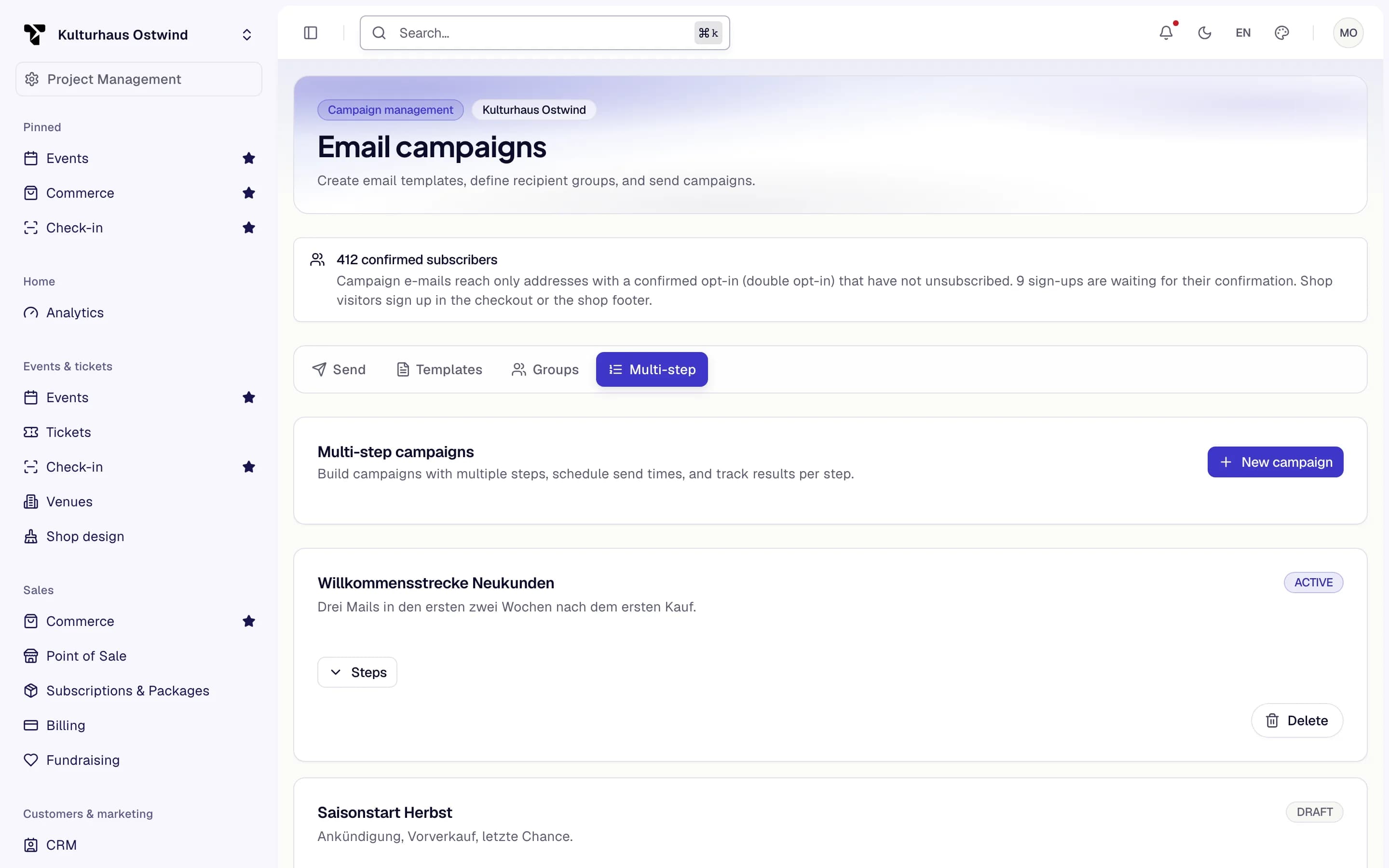
Campaign emails go only to people who confirmed that they want your emails (double opt-in). Visitors sign up in your shop: with the unticked newsletter box in the checkout, or with the newsletter form in the shop footer. Each sign-up gets an email with a confirmation link, valid for 72 hours; only once the link is followed does the address count. Anyone who unsubscribes, through the link in every campaign email or their email preferences, is not mailed again. The address is never shown to you: you see counts.
The top of Email campaigns shows how many confirmed subscribers you have and how many sign-ups wait for their confirmation.
Open Customers & marketing → Email campaigns and create a template under
Templates. Write it in Markdown mode: campaign emails send the
Markdown text (headings, lists, bold, italic and https links), or the plain
text when there is no Markdown. The subject is at most 150 characters and the
text at most 10,000.
On Send, pick the Template and the recipients: All confirmed newsletter subscribers, one or more Recipient groups, or both. Optionally override the subject. To add single people, open Advanced options → Select contacts directly and search your contacts by email address or contact ID; only contacts of this project with a customer account are listed. This also needs permission to view contacts (CRM).
Click Check recipients. Resolved is everyone the selection names; Reachable (confirmed opt-in) is who will actually get the email: confirmed, not unsubscribed and not blocked. Then Send. The campaign goes out immediately, and sending it again reaches nobody twice.
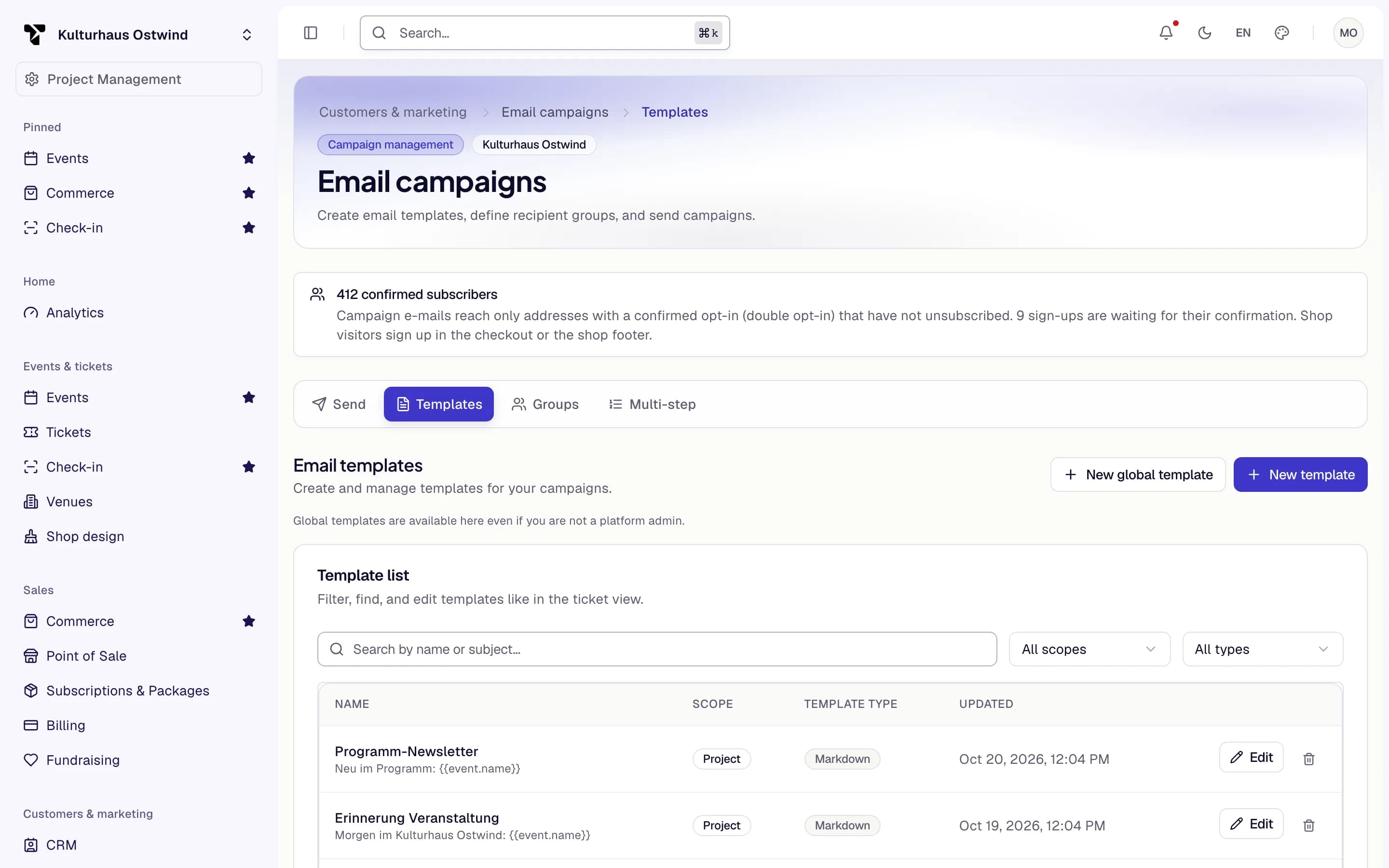
- Templates
- New template
- Markdown template
- Edit
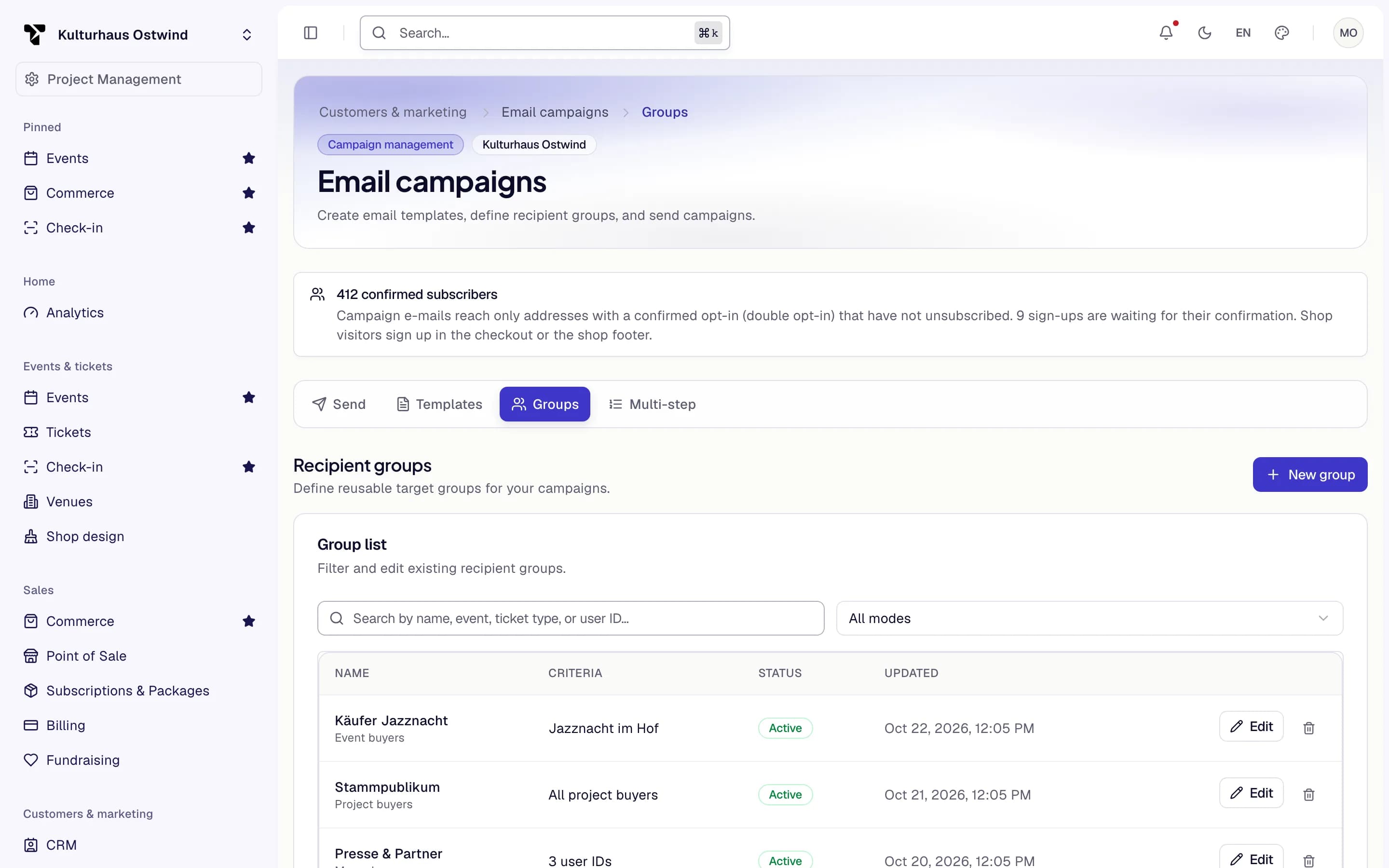
- Recipient groups
- New group
- Who the group names
- Edit
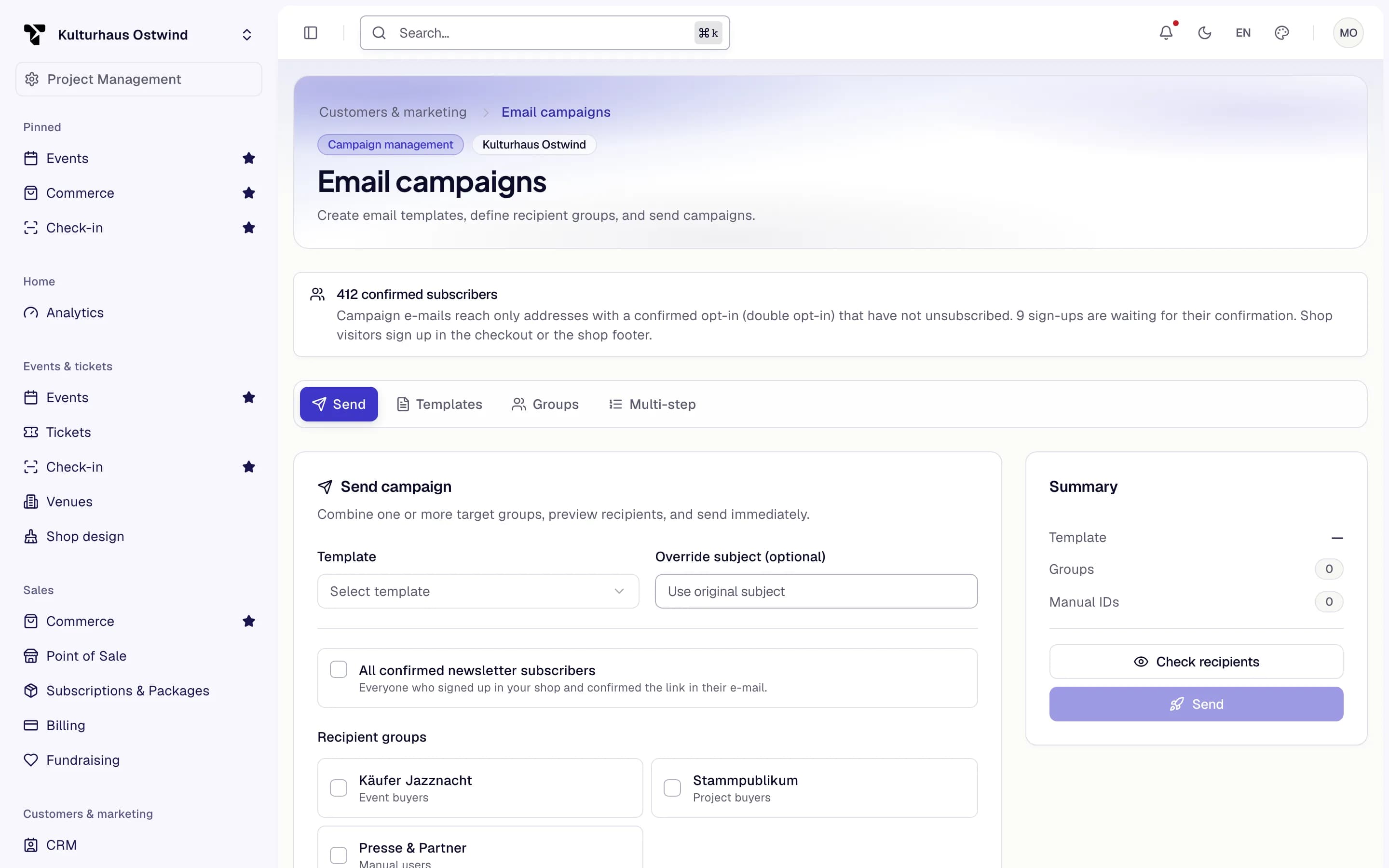
- Confirmed subscribers
- Template
- All confirmed newsletter subscribers
- Check recipients
- Send
Every campaign email names your organisation with the legal details from your project's seller settings, and carries an unsubscribe link and a one-click unsubscribe header for mail apps. Fill in your organisation's legal name first: without it campaign emails are not sent. Emails leave through your own verified sender when you have set one up.
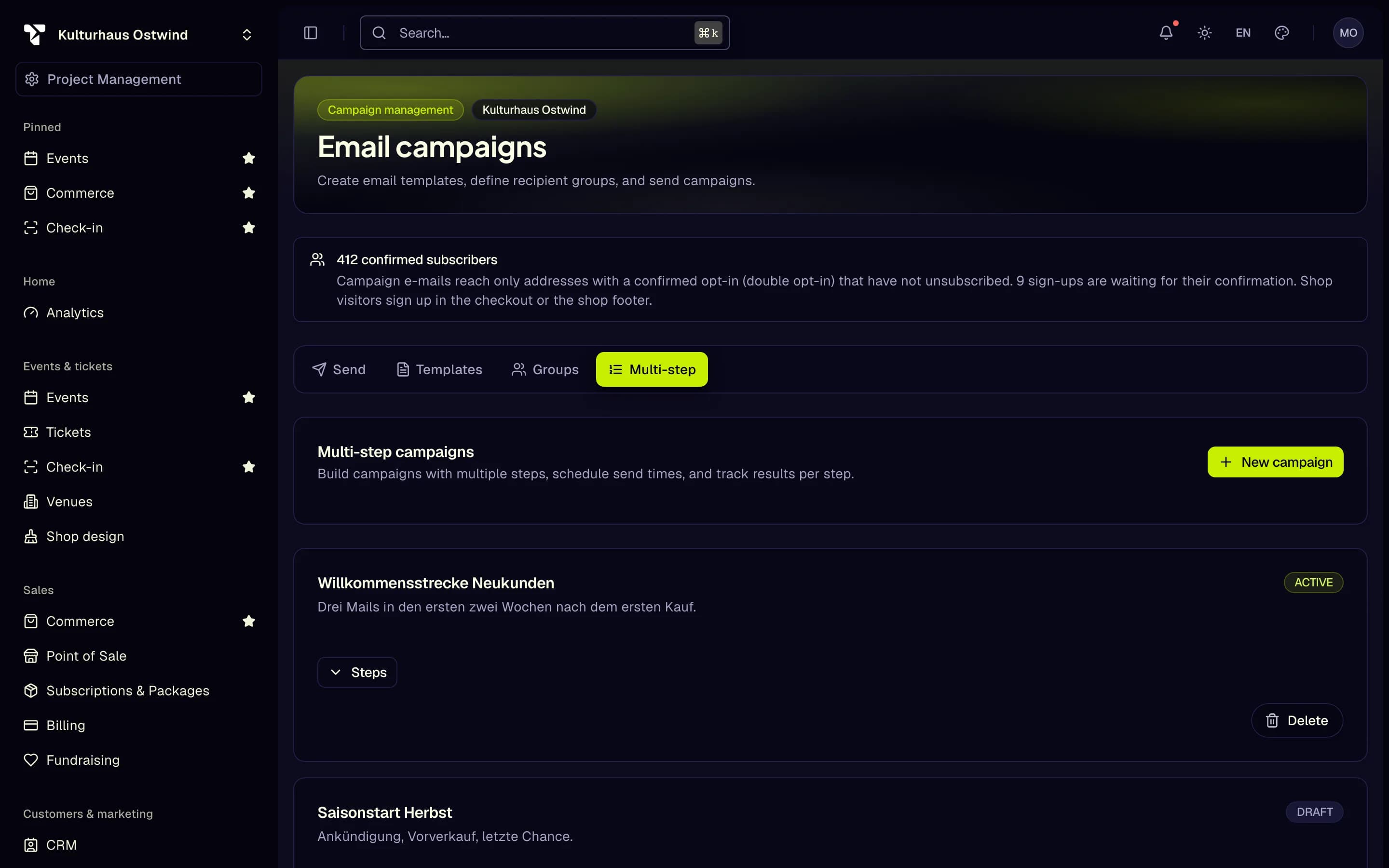
Multi-step campaigns send several emails in sequence at scheduled times; each step reaches only confirmed subscribers, the same way. Creating, editing and sending needs the campaign management permission; without it the page is read-only.
- Multi-step
- New campaign
- Steps
- Campaign status
Marketing: journeys and attribution
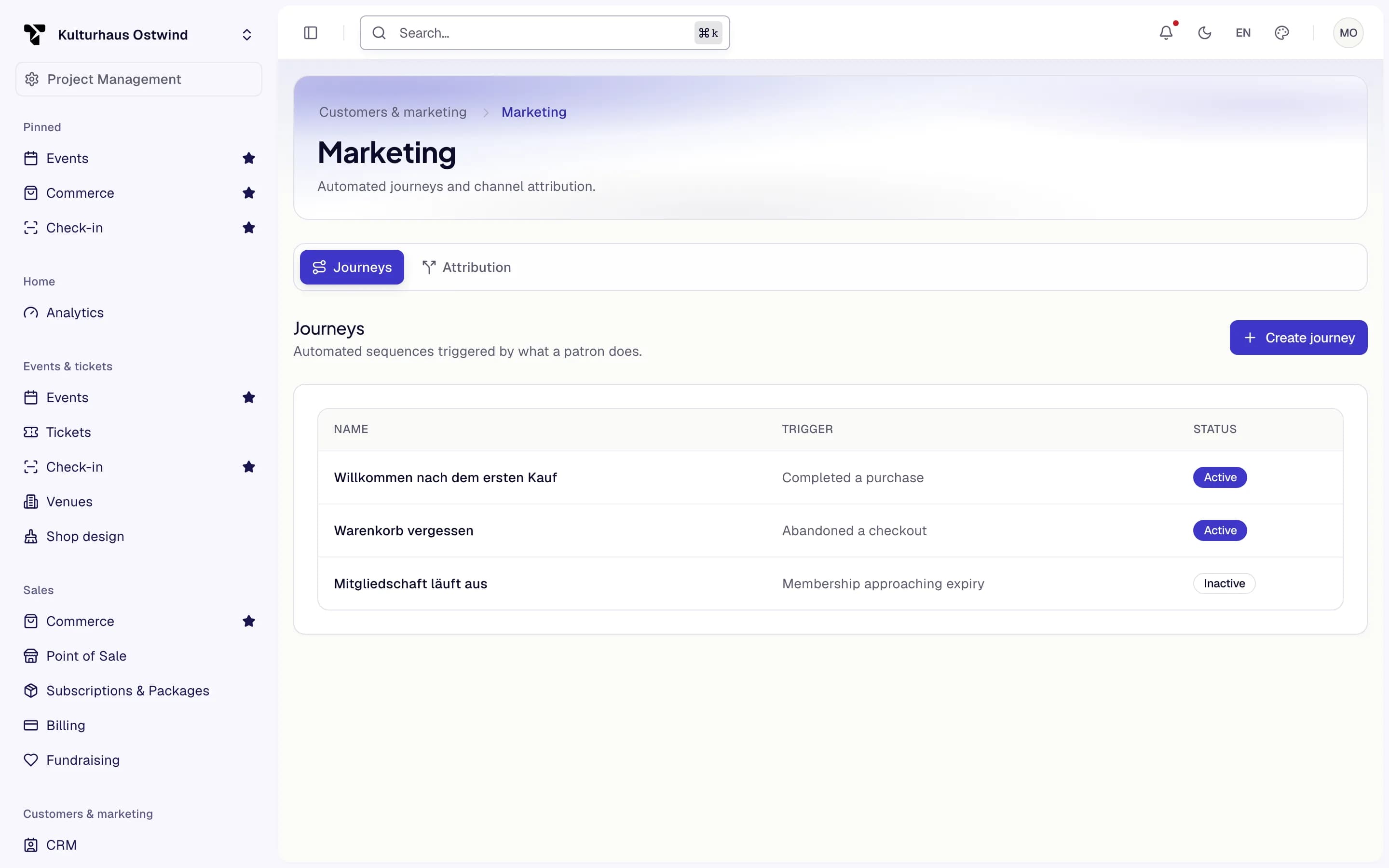
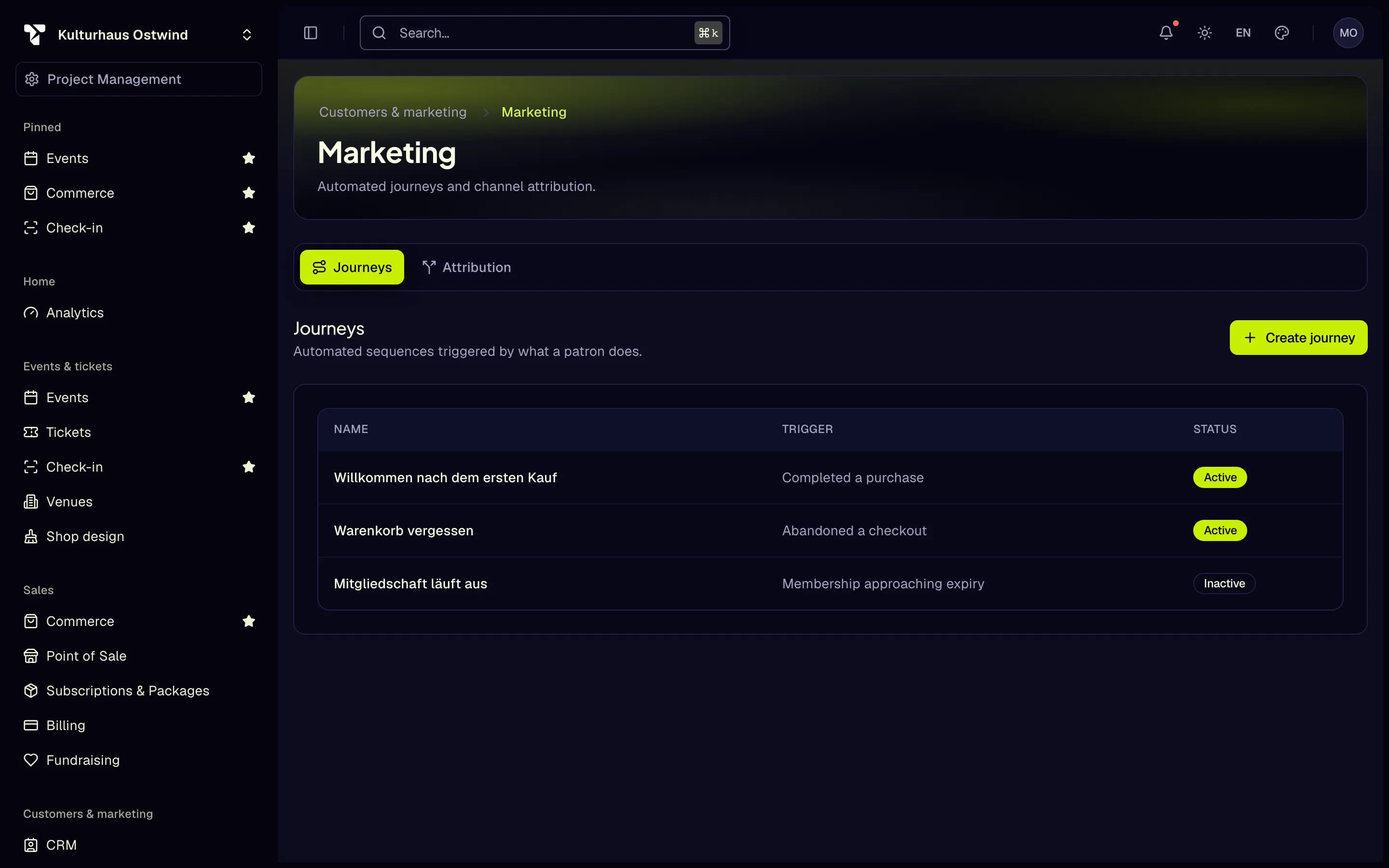
A journey sends follow-ups automatically when something happens.
- Open Customers & marketing → Marketing and click Create journey.
- Give it a Name and a Trigger: completed a purchase, engaged without purchasing, attended / scanned in, made a donation, membership approaching expiry, or abandoned a checkout.
- Add Steps — wait, condition, send email, send SMS, set tag, add to segment — and Save steps. Email and SMS steps name the consent purpose they rely on. A send email step mails a person only if they confirmed your newsletter and have not unsubscribed; otherwise the step passes without an email.
- Activate the journey, or tick Active immediately when you create it. Otherwise a new journey stays inactive; activating sends real emails and SMS.
- Create journey
- Trigger
- Inactive until activated
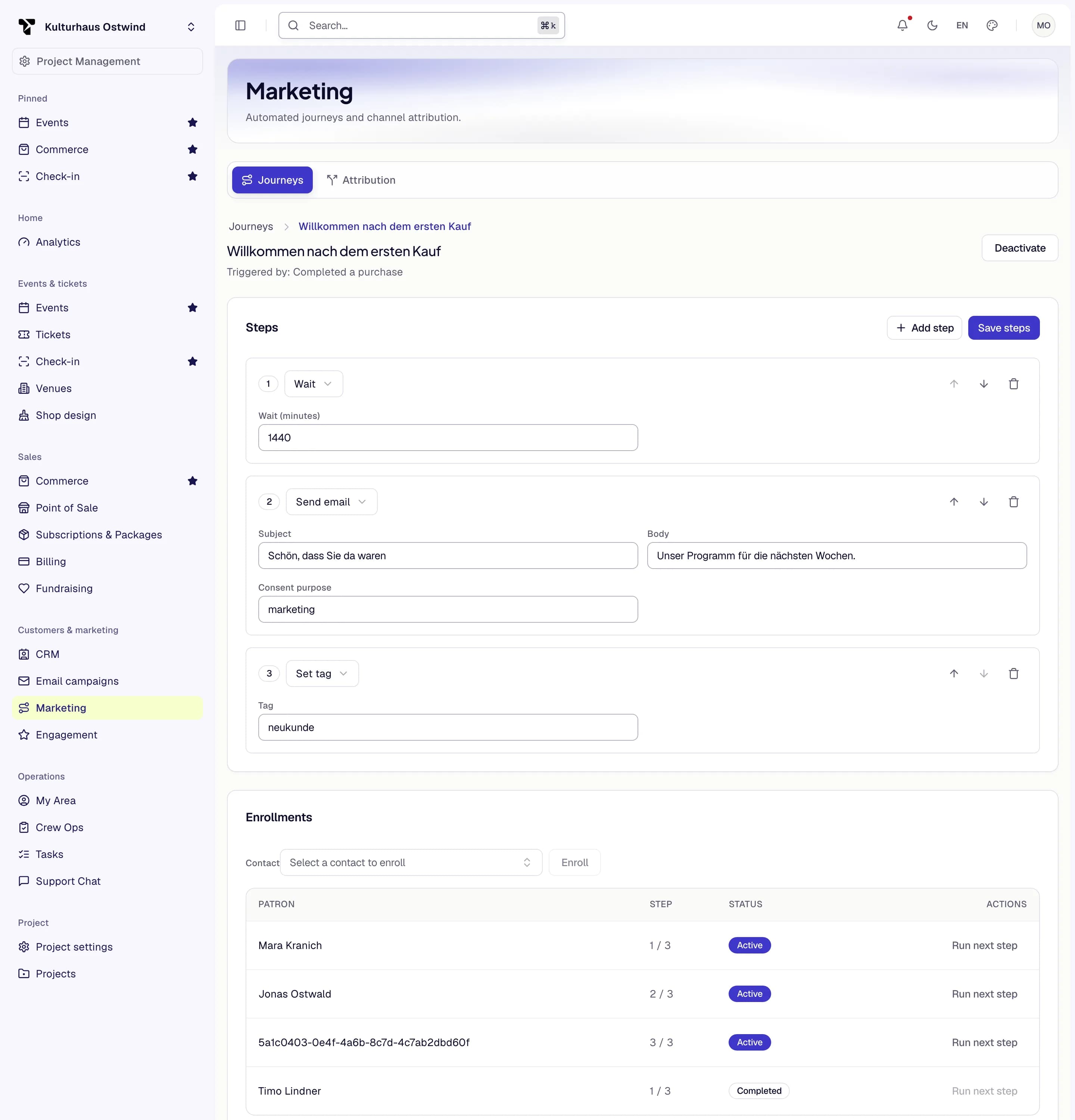
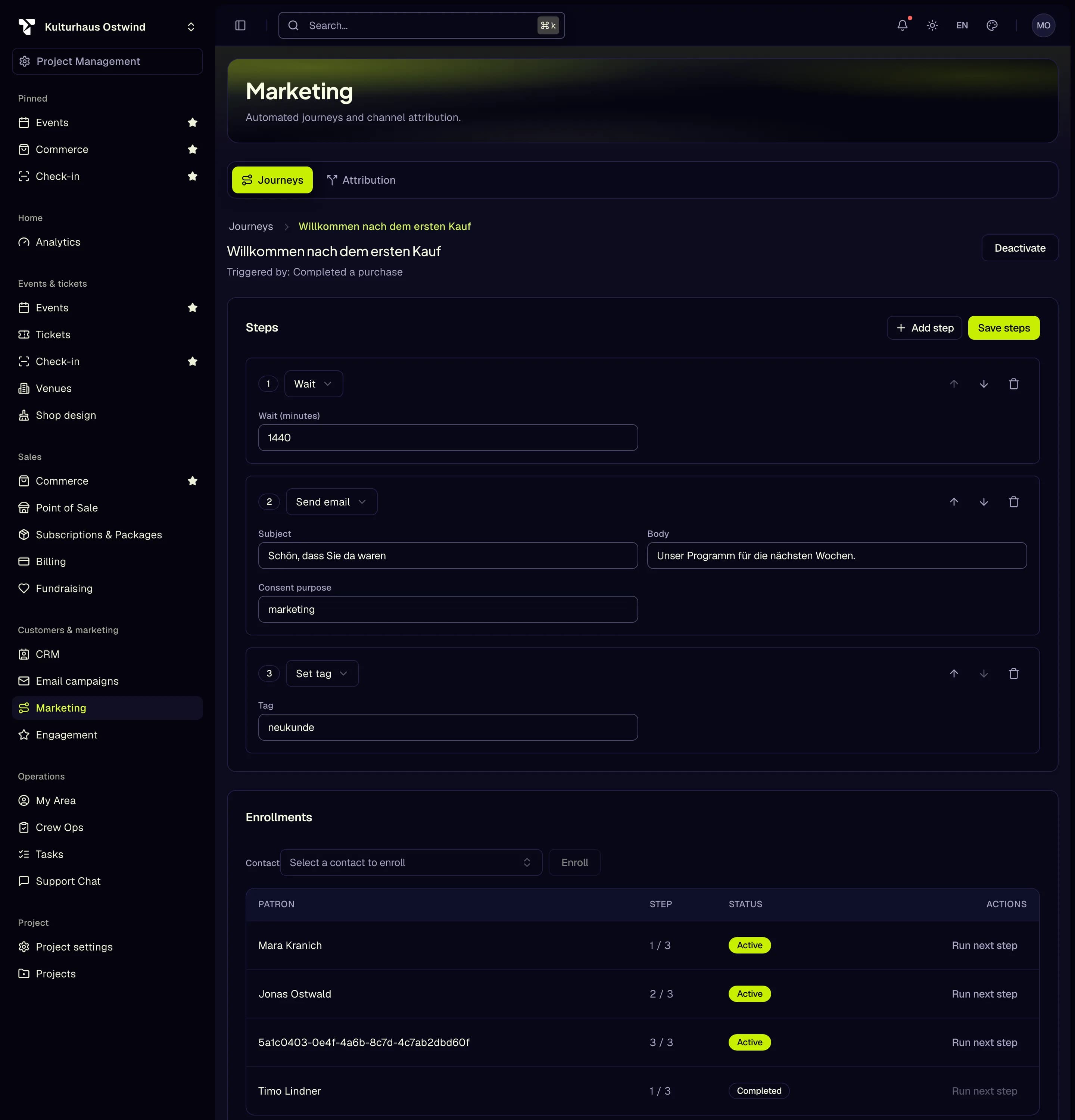
- Add step
- Send email step
- Consent purpose
- Save steps
- Activate or deactivate
Attribution shows which channels and sources led to sales, using a first touch, last touch or linear model over a date range.
- A sale counts only once it is paid, and only when the buyer allowed marketing measurement in your shop's cookie banner. A buyer who did not allow it is never counted, and one who withdraws later is removed again.
- Revenue is the paid order's total. Last touch credits the campaign the buyer started the checkout from, first touch the buyer's first tracked visit, and linear splits it equally across the visits and the checkout.
- An order refunded in full drops out of the counts and the revenue. A partial refund does not change them.
- Revenue is shown in the currency most of the period's orders were paid in.
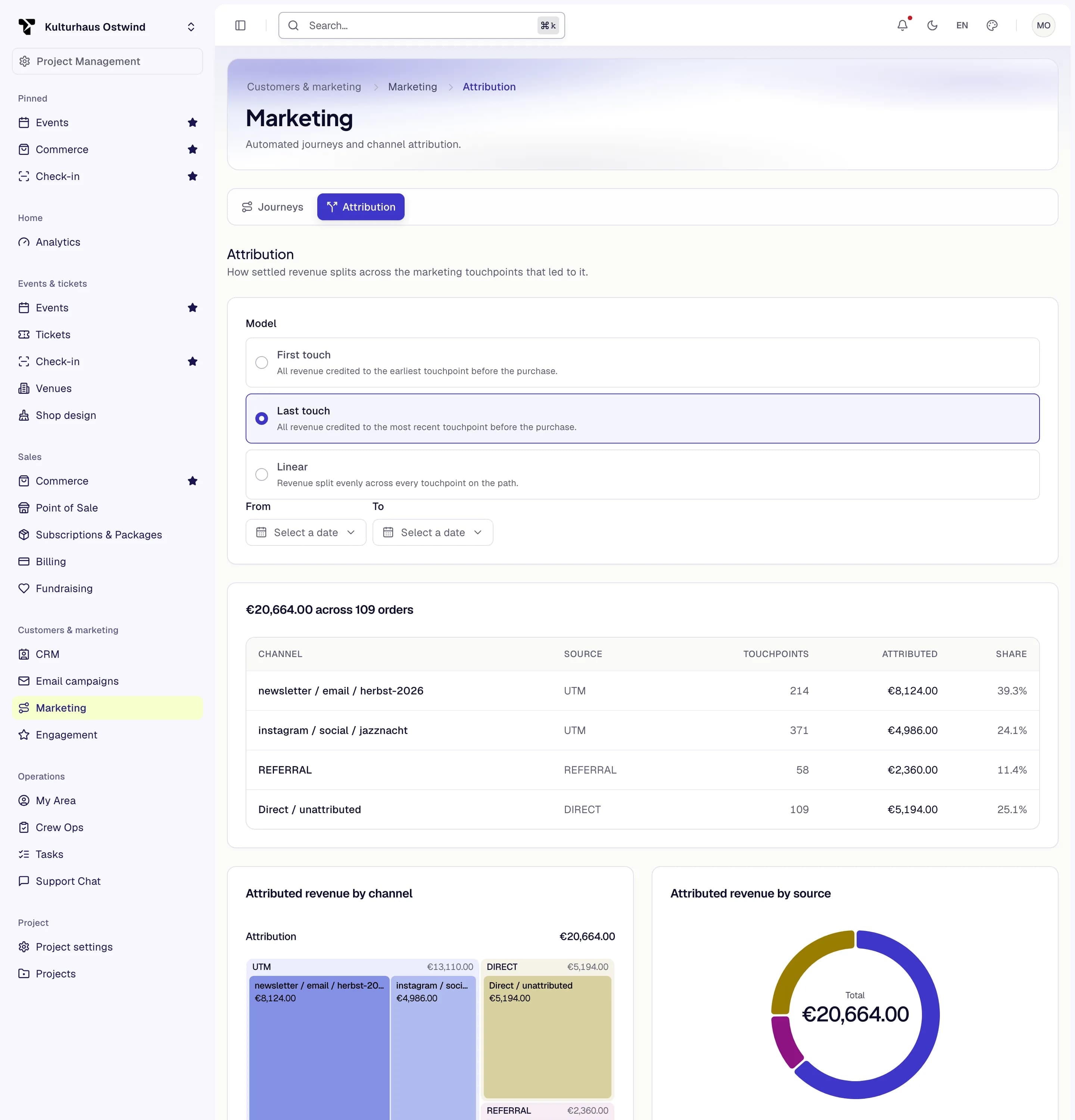
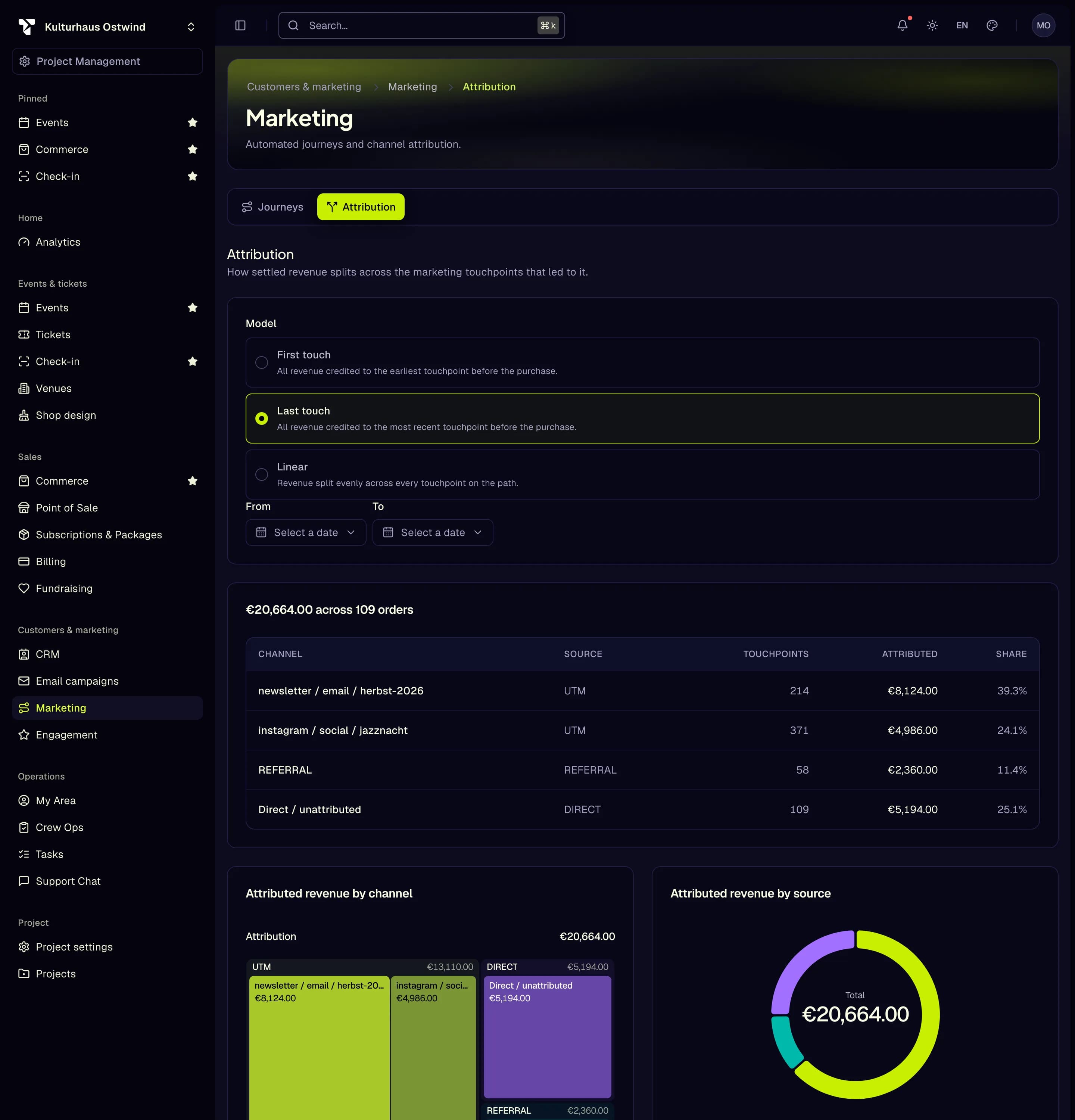
- Attribution tab
- Model: first, last or linear
- Date range
- Revenue of paid orders
Engagement: loyalty, memberships, referrals
Customers & marketing → Engagement has three tabs.
- Loyalty — run a points programme. Under Settings set points per euro, check-in points and streak bonuses; define Tiers and Rewards (discounts, upgrades, early access and more); adjust a member's points under Members. Buyers join and redeem rewards under My Rewards in their account menu.
- Memberships — see every membership with its status (active, expired, cancelled, suspended), renew, suspend, reactivate or cancel it, and Export CSV. A renewal adds a year free of charge, counted from the current end or from today, whichever is later, and asks for a confirmation first; a cancelled membership cannot be renewed. The Events column says which events a membership admits to at the door: click it, tick events and Save; with none ticked it admits to every event of the project. Buyers see and renew theirs under My memberships. Buyers can cancel memberships through your shop's cancellation page — see Shop legal pages.
- Referrals — per event, turn the programme on, decide whether a referral code is required, set rewards (percent of revenue or a ticket after a number of sales), and settle payouts to referrers. Sales in a period on the overview lists each referrer's paid sales and revenue for the dates you choose. Buyers who open the referrals page see Your referrals, where they apply, copy their referral link and follow their sales; the event list also shows every event they promote, even without a ticket for it.
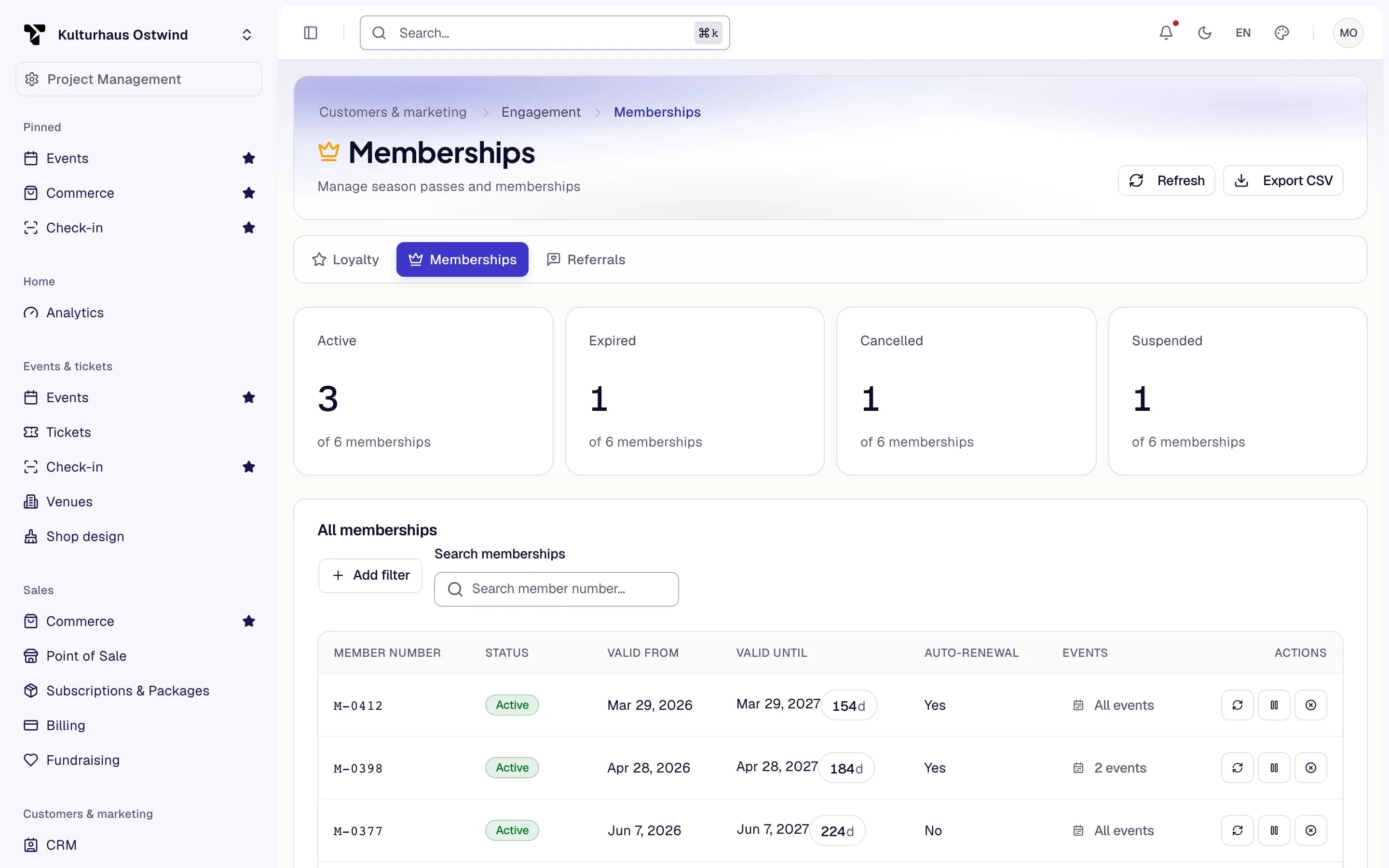
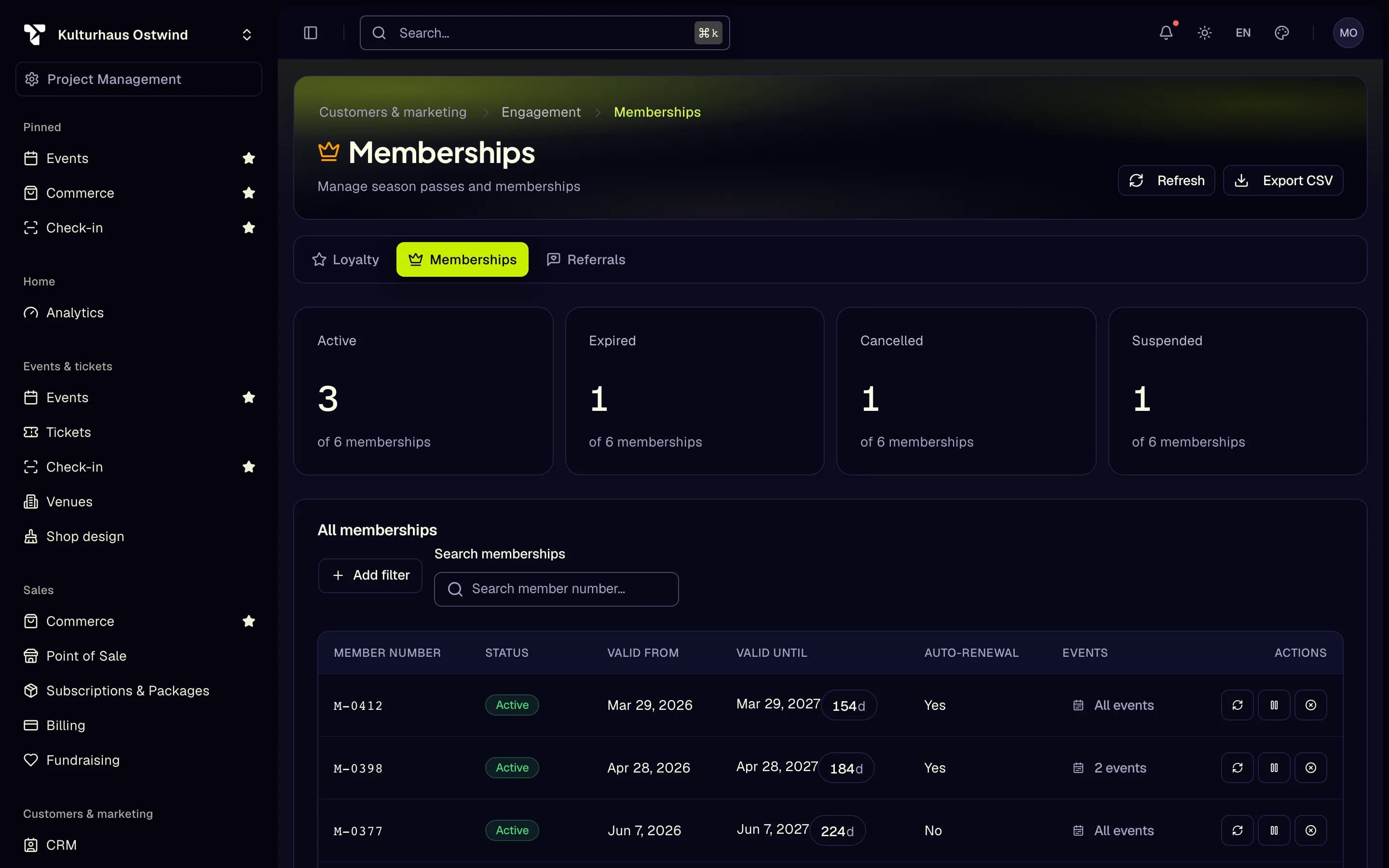
- Memberships tab
- Count per status
- Renew, suspend, cancel
- Export CSV
- Events it admits to
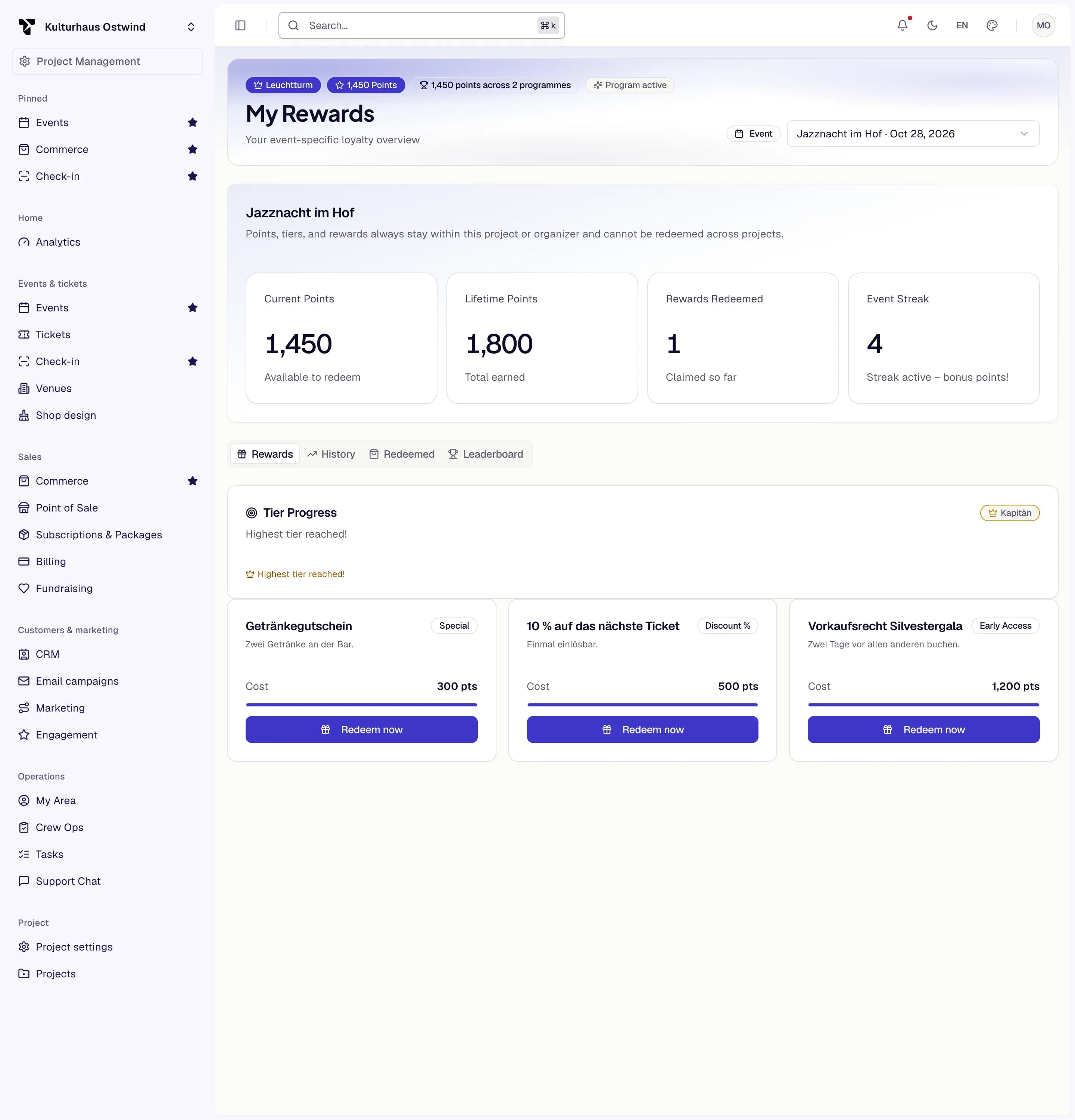
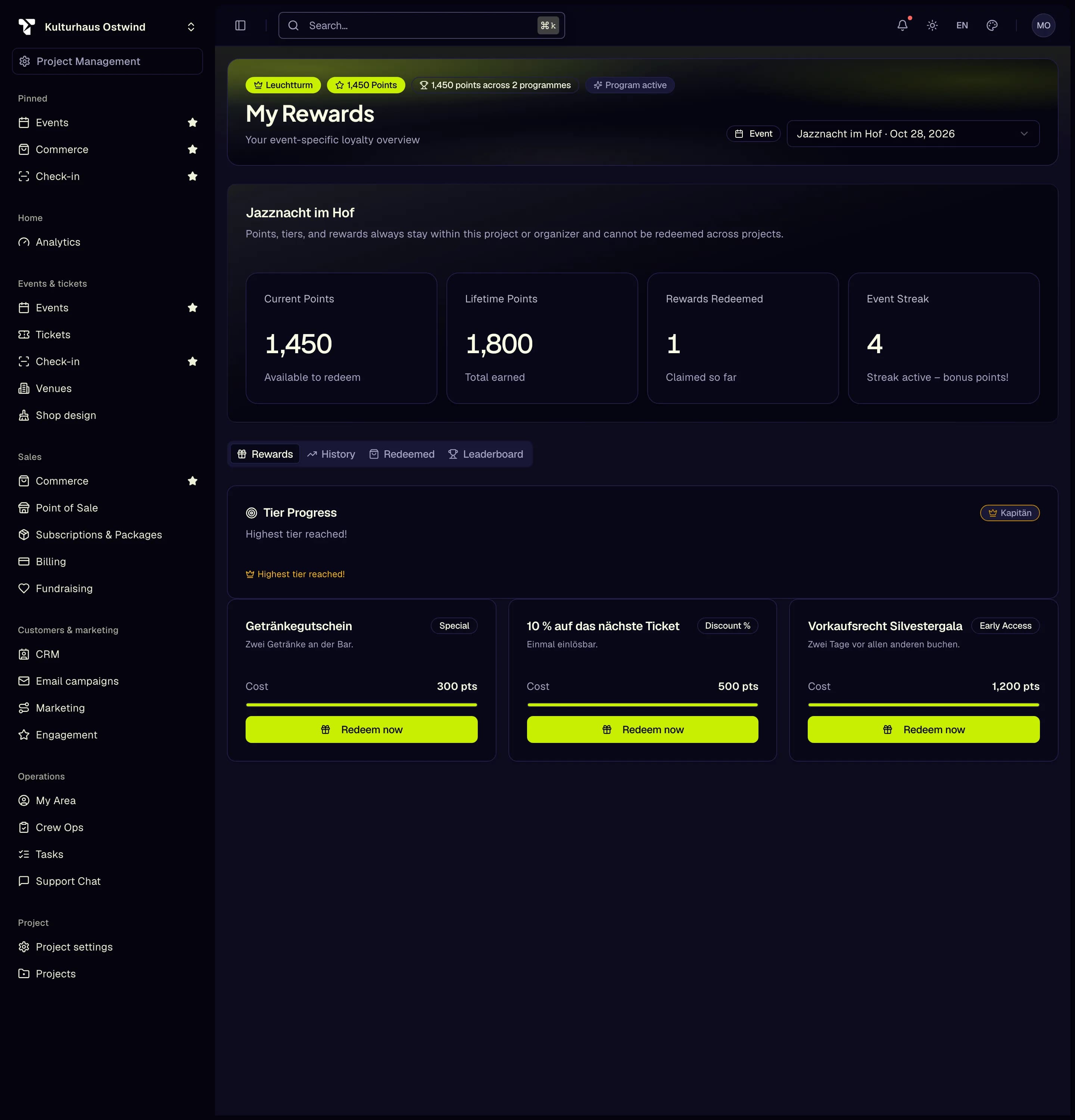
- Choose the event
- Current points
- Rewards tab
- Leaderboard
- Redeem now
Fundraising
Sales → Fundraising has two tabs:
- Fundraising campaigns — create funds (rename or describe one later with the pencil beside it), then campaigns with a goal, currency, dates and a status (Draft, Active, Paused, Completed, Cancelled). The campaign page shows progress towards the goal.
- Donation receipts — issue a single donation receipt or an annual summary receipt. Issuing cannot be undone; a receipt can only be revoked afterwards. Issuing the same receipt again (a double click, a retry) gives you the receipt already issued, not a second number.
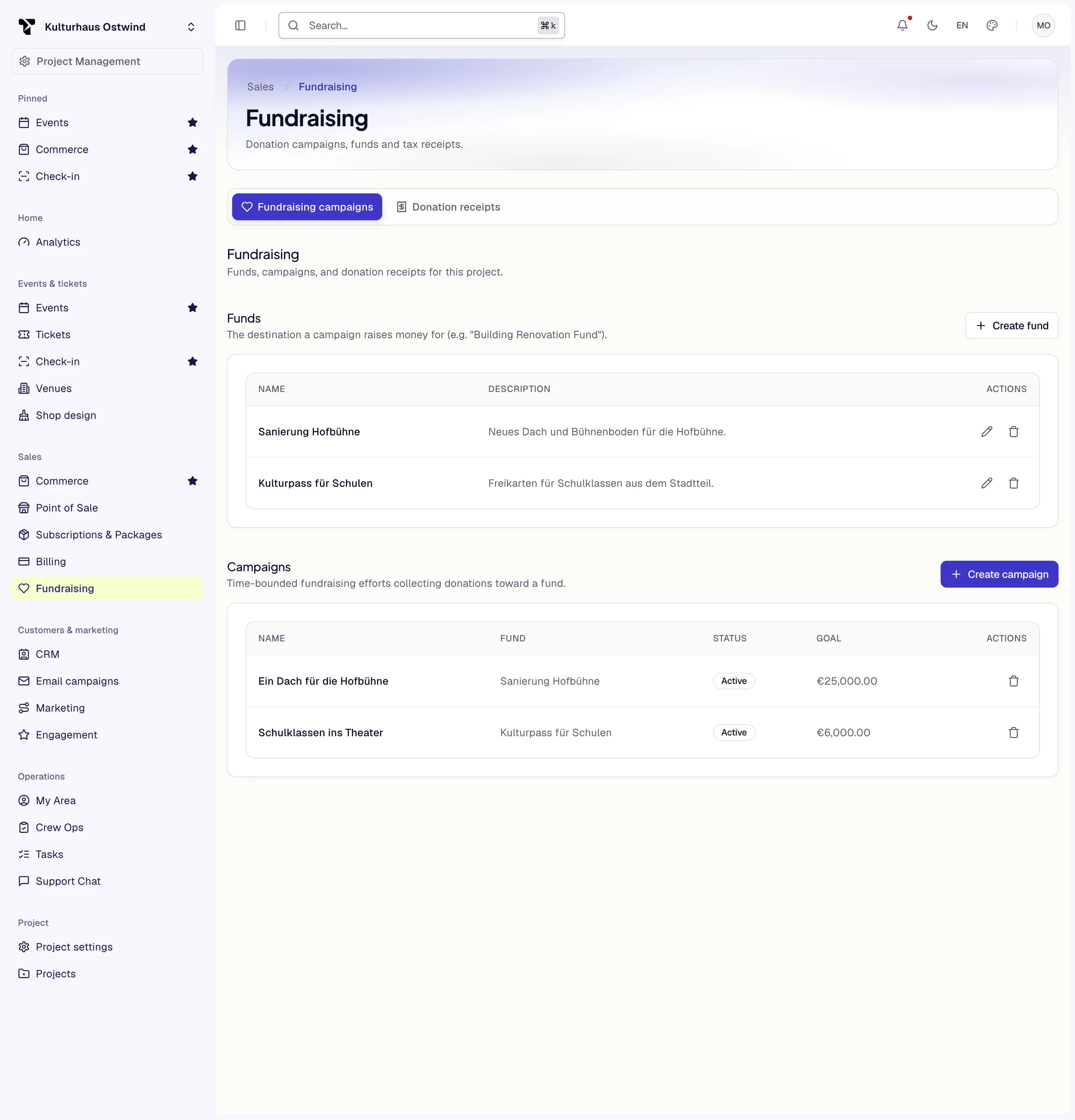
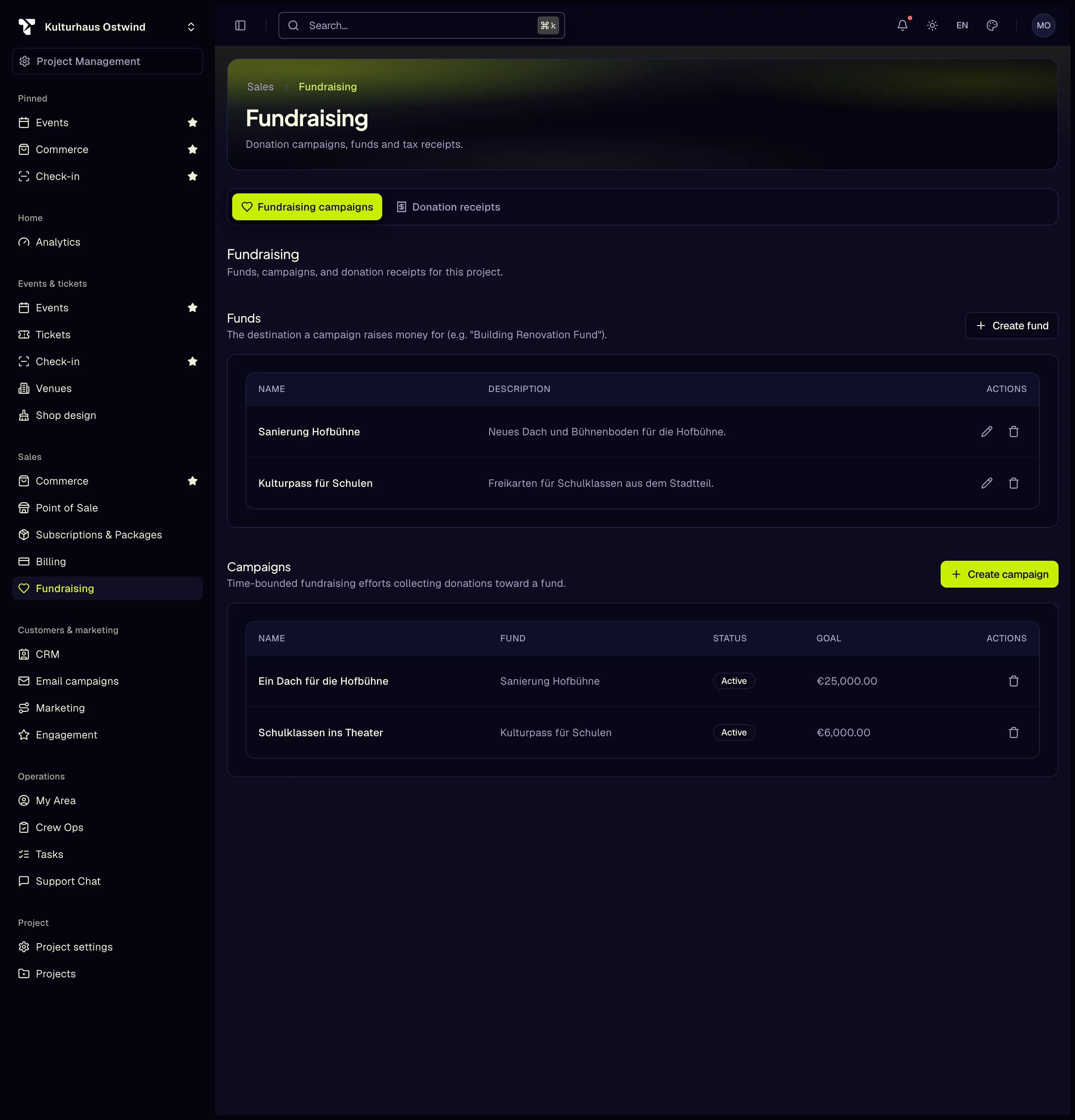
- Sales → Fundraising
- Fundraising campaigns tab
- Create fund
- Create campaign
- Campaign status
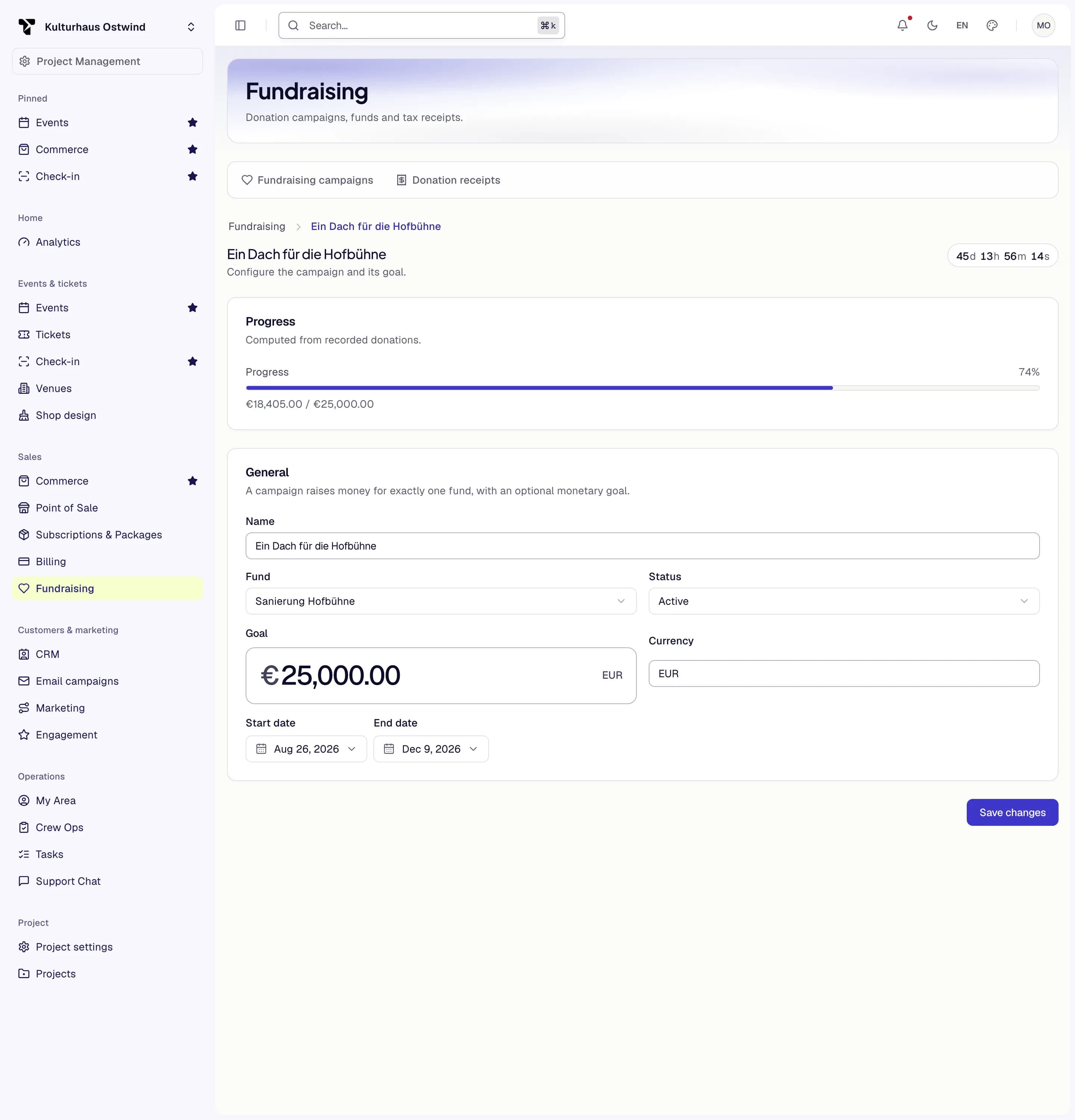
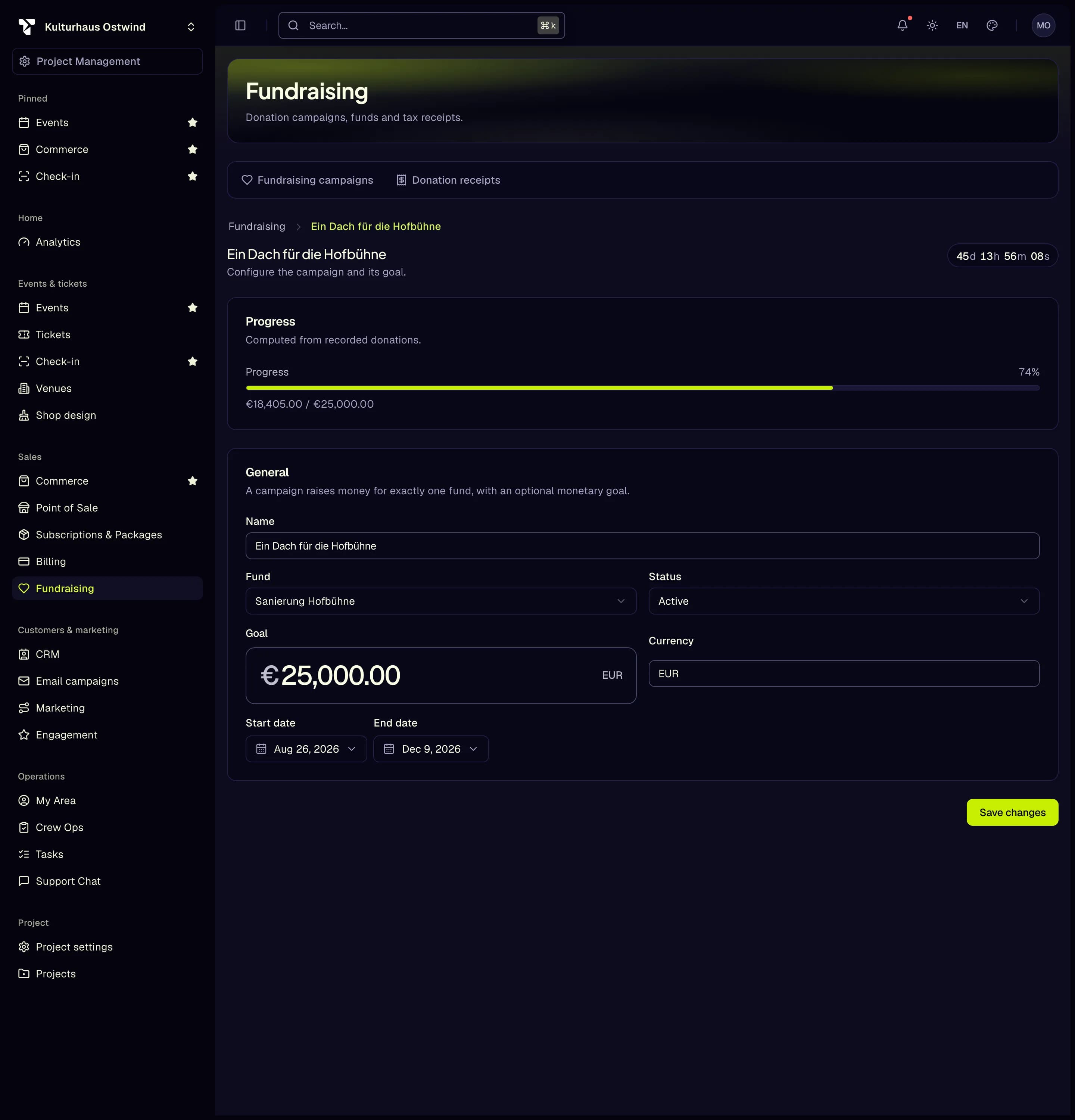
- Progress towards the goal
- Fund
- Status
- Goal
- Save changes
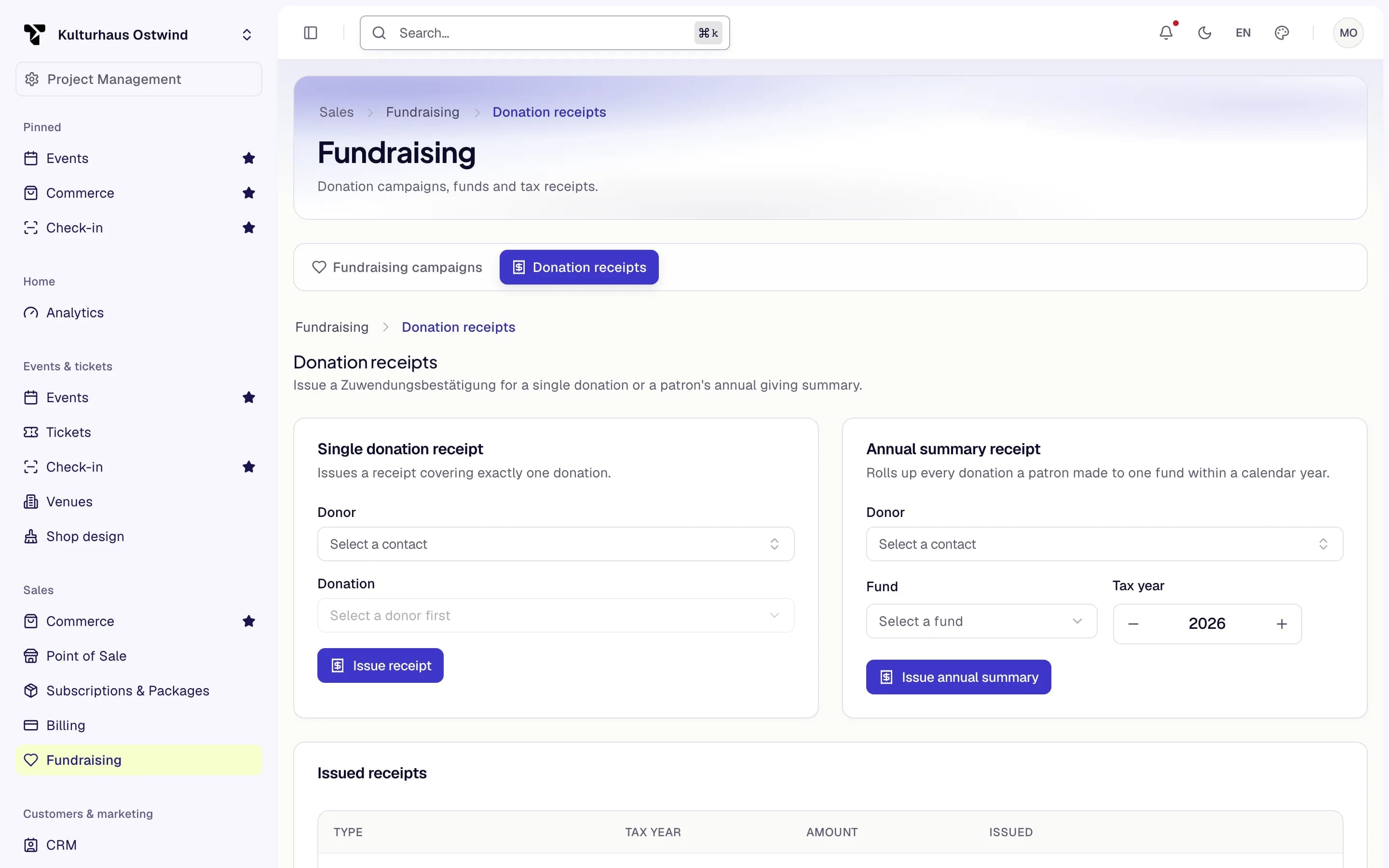
- Donation receipts tab
- Issue receipt
- Issue annual summary
Who can do this: View fundraising to see campaigns, including private ones, and the issued receipts. Creating and changing campaigns and issuing receipts need Manage fundraising. Project owners and admins hold both.
How donations arrive. A campaign that is Active, inside its dates, not private and linked to a fund shows a donation card in your shop. The donor pays for the gift as its own order; once it is paid, the gift appears on the campaign's progress and the donor becomes a patron in the CRM. If you refund the whole order, the gift is marked refunded and no longer counts towards the campaign, the patron's giving or a new receipt.
Common problems
- An area is missing from the sidebar. Your role lacks its permission, or the plan feature is off. Check Project settings → Plan & Features, or ask the project owner.
- The campaign pages are read-only. You can view campaigns but not manage them. Ask for Manage and send campaigns.
- The contacts are missing or say you have no access. Ask the project owner for View patrons (CRM).
- Saving tags, "Not a duplicate" or a merge fails. They change patron records and need Manage patrons, merge duplicates, and evaluate segments. Ask the project owner.
- The shop shows no donation card. The campaign must be Active, inside its dates, public or for members, and linked to a fund.
- A search finds nobody. Search with the full email address the donor gave, or a patron or account ID. Names cannot be searched.
- A journey sends nothing. A new journey is inactive unless Active immediately was ticked. Click Activate. A send email step also needs the person's confirmed newsletter sign-up.
- Reachable is 0, or lower than Resolved. Only confirmed newsletter subscribers who have not unsubscribed get campaign emails. Choose All confirmed newsletter subscribers, and point visitors to the newsletter box in your shop.
- "Campaign e-mails are switched off". Delivery is switched off on this platform; sending is refused and nothing is recorded as sent.
- Subscribers say they received nothing. Check that your project's seller settings name your organisation's legal name.