
 TixFin
Shop Legal Pages
Imprint, terms, privacy and withdrawal policy in your shop, and what buyers see when a page is missing
Every shop shows four legal links in its footer: Legal notice, Terms and conditions, Privacy policy and Right of withdrawal. You cannot remove them. What you control is the page behind each link.
Where: Events & tickets → Shop design → Shop pages and the designer area Checkout & legal Who can do this: members with Customize shop design
TixFin does not write your legal texts. The content of your imprint, terms, privacy policy and withdrawal policy is your responsibility as the seller. Have them prepared or reviewed by a qualified adviser.
Add your legal pages
Legal pages are ordinary shop pages. The shop recognises them by their slug (the last part of the address).
Open Events & tickets → Shop design, then click Shop pages in the top bar. This opens the Pages manager.
Click New page. For the privacy policy, choose the page type Privacy notice. For the imprint, terms and withdrawal policy, choose Custom page.
Set the Slug to one of the values in the table below, for example
imprint or terms.
Write or paste the content, turn on Serve page in the shop, and click Save.
Back in the Shop designer, open Checkout & legal. Under Required pages each page now shows its link with a green tick.
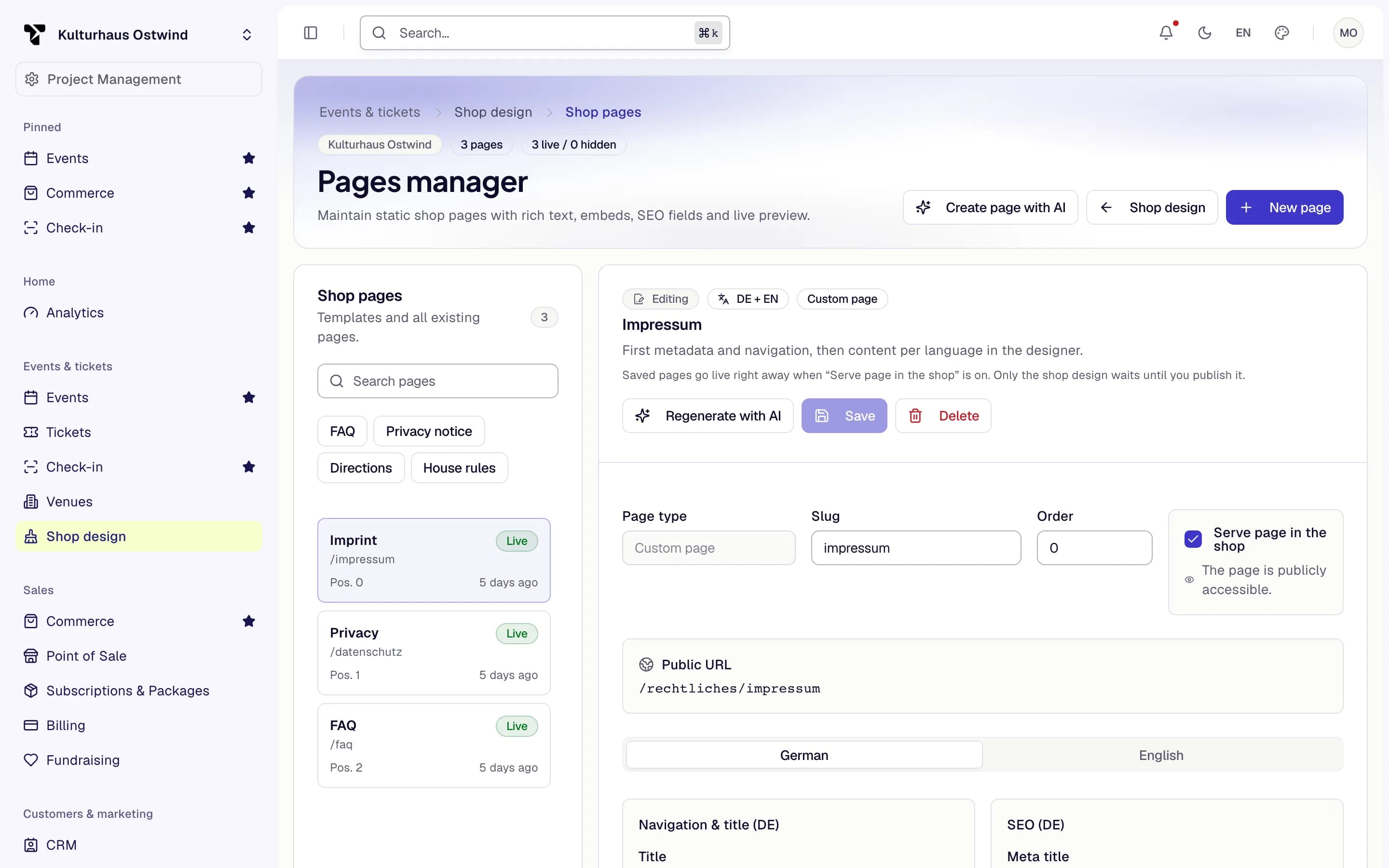
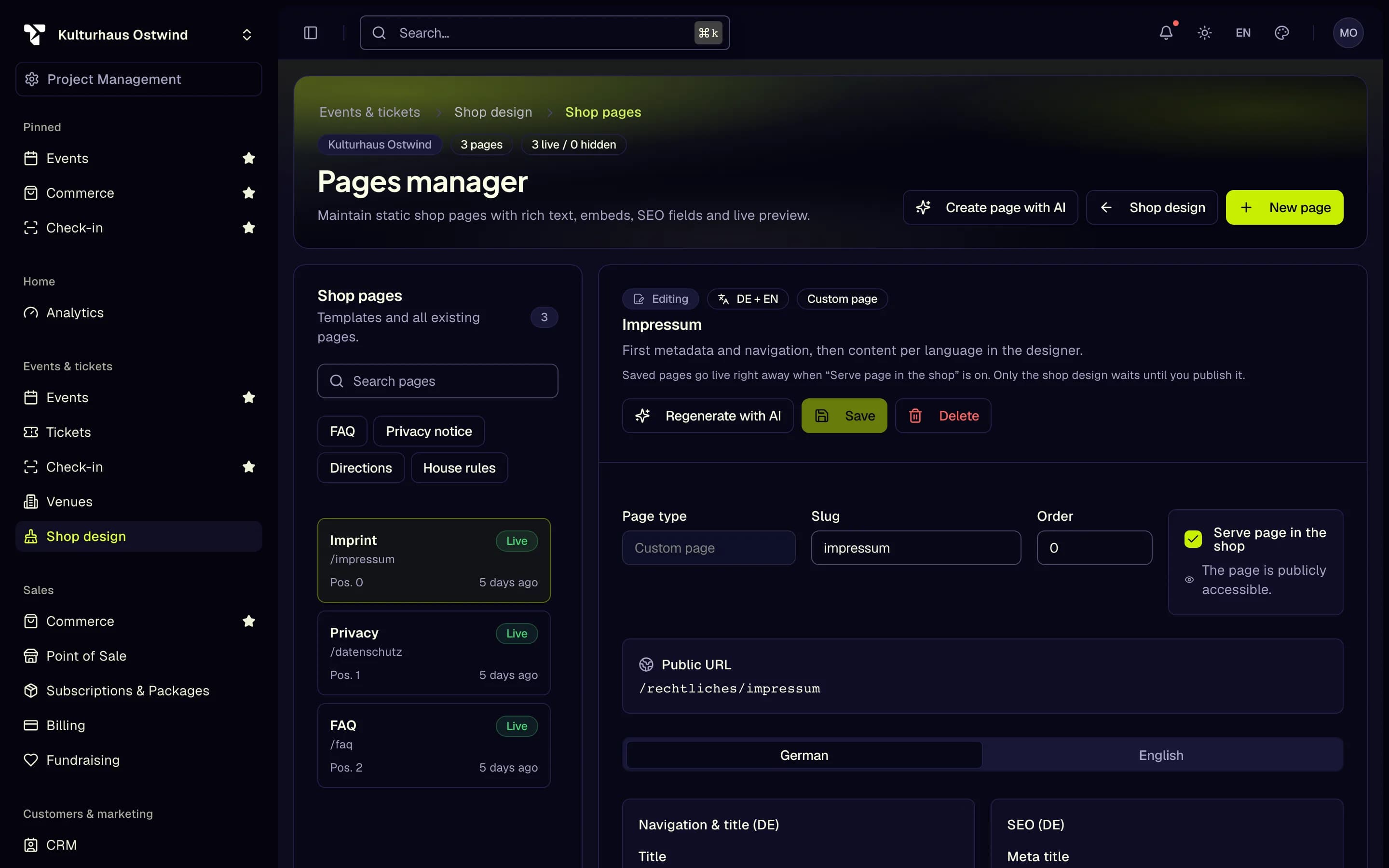
- New page
- Slug
- Serve page in the shop
- Save
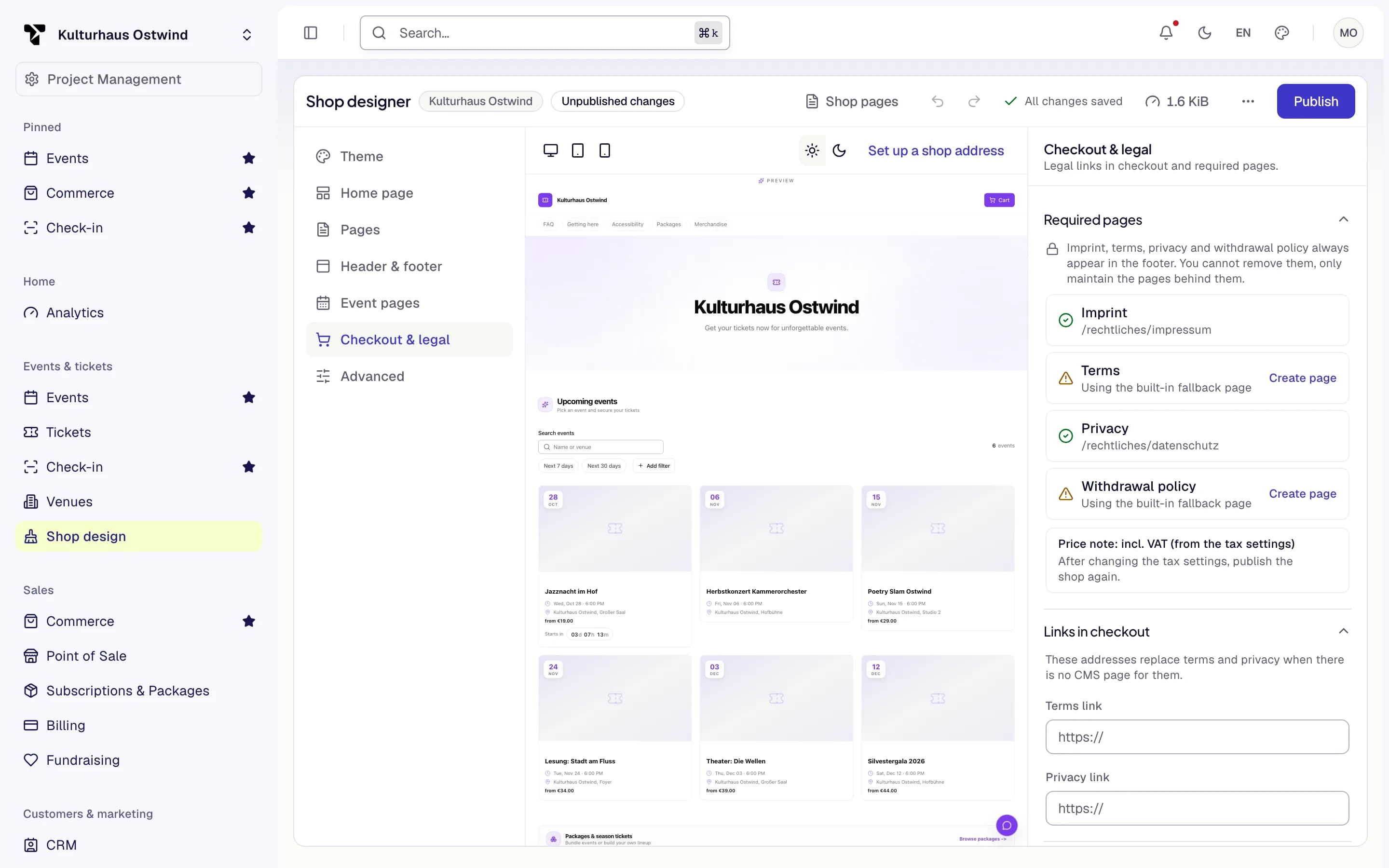
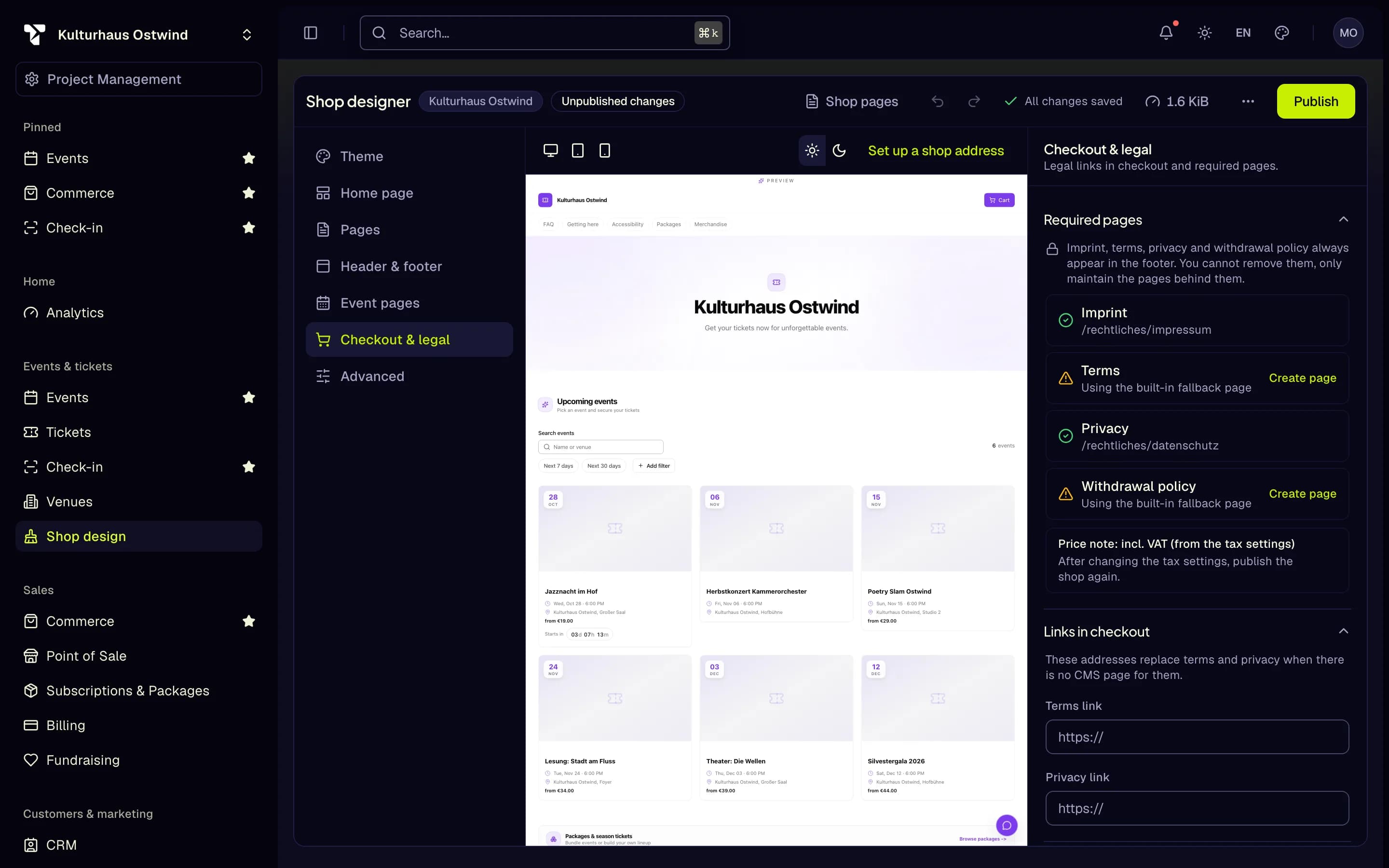
- Checkout & legal
- Required pages
- Page found: green tick
- Built-in fallback page
- Create page
Slugs the shop recognises
| Legal link | Slugs |
|---|---|
| Legal notice (imprint) | imprint, impressum, legal-notice, anbieterkennzeichnung |
| Terms and conditions | terms, terms-and-conditions, agb, allgemeine-geschaeftsbedingungen |
| Privacy policy | privacy, privacy-policy, datenschutz, datenschutzerklaerung, or any page of type Privacy notice |
| Right of withdrawal | withdrawal, right-of-withdrawal, cancellation-policy, widerruf, widerrufsbelehrung |
A page only counts when Serve page in the shop is on.
External terms and privacy links
If your terms or privacy policy already live on your own website, enter their addresses under Checkout & legal → Links in checkout (Terms link, Privacy link). They are used whenever there is no shop page for that document.
What buyers see when a page is missing
The footer links go to fixed addresses in your shop:
| Link | Shop address |
|---|---|
| Legal notice | /rechtliches/impressum |
| Terms and conditions | /rechtliches/agb |
| Privacy policy | /rechtliches/datenschutz |
| Right of withdrawal | /rechtliches/widerruf |
If you have a matching page or link, the address forwards to it. If not, the shop shows a built-in page that search engines do not index:
- Legal notice — your organiser name and a link to TixFin's own imprint. It does not contain your address or the other details an imprint requires.
- Terms and conditions — a note that you have not provided terms yet.
- Privacy policy — a note that you have not provided one, a pointer to the cookie settings, and a link to TixFin's privacy policy.
- Right of withdrawal — general information about tickets for leisure events, plus model texts when your shop also sells goods or memberships. It points out that your address, phone number and email are not shown.
The Shop designer marks a missing Imprint or Privacy page as Required page missing and a missing Terms or Withdrawal policy as Using the built-in fallback page. Each missing row has a Create page link.
The built-in pages are a safety net, not a replacement. Create your own imprint and privacy policy before you start selling.
Reference: legal elements in checkout
- Order button — the final checkout button reads Order with obligation to pay, or Order for free when the total is zero. Donations use Donate with obligation to pay. You cannot change these labels.
- Checkout notice — above the button, checkout states that your terms apply (only when you have your own terms), links your privacy policy, and adds notes for tickets to leisure events and for memberships where they apply. There is no terms checkbox.
- Price note — "incl. VAT" or the § 19 UStG small-business note, taken from your project's tax settings.
- Order confirmation email — names you as the seller and includes your terms.
Reference: the cancellation page
If your project sells memberships, the footer also shows Cancel contracts
here, which opens /kuendigen in your shop. There, a buyer can cancel a
membership or a recurring donation without signing in:
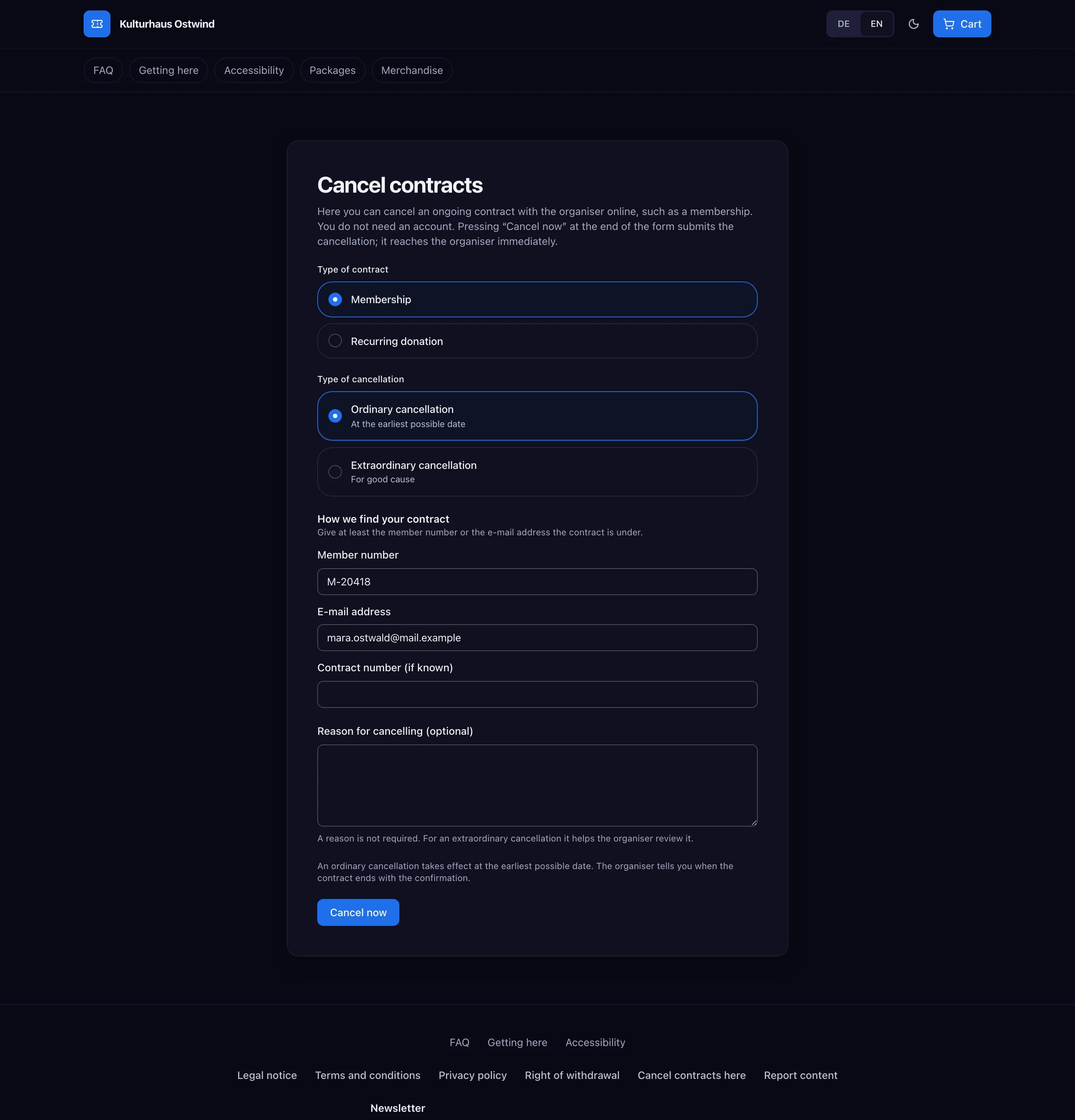
- Choose the Type of contract and the Type of cancellation (ordinary or extraordinary).
- Identify the contract with a Member number or E-mail address, and the Contract number if they know it.
- Optionally give a reason, then click Cancel now.
The buyer sees a confirmation with a reference, can print or save it, and receives a confirmation email. A cancellation made without signing in is confirmed through a link in that email.
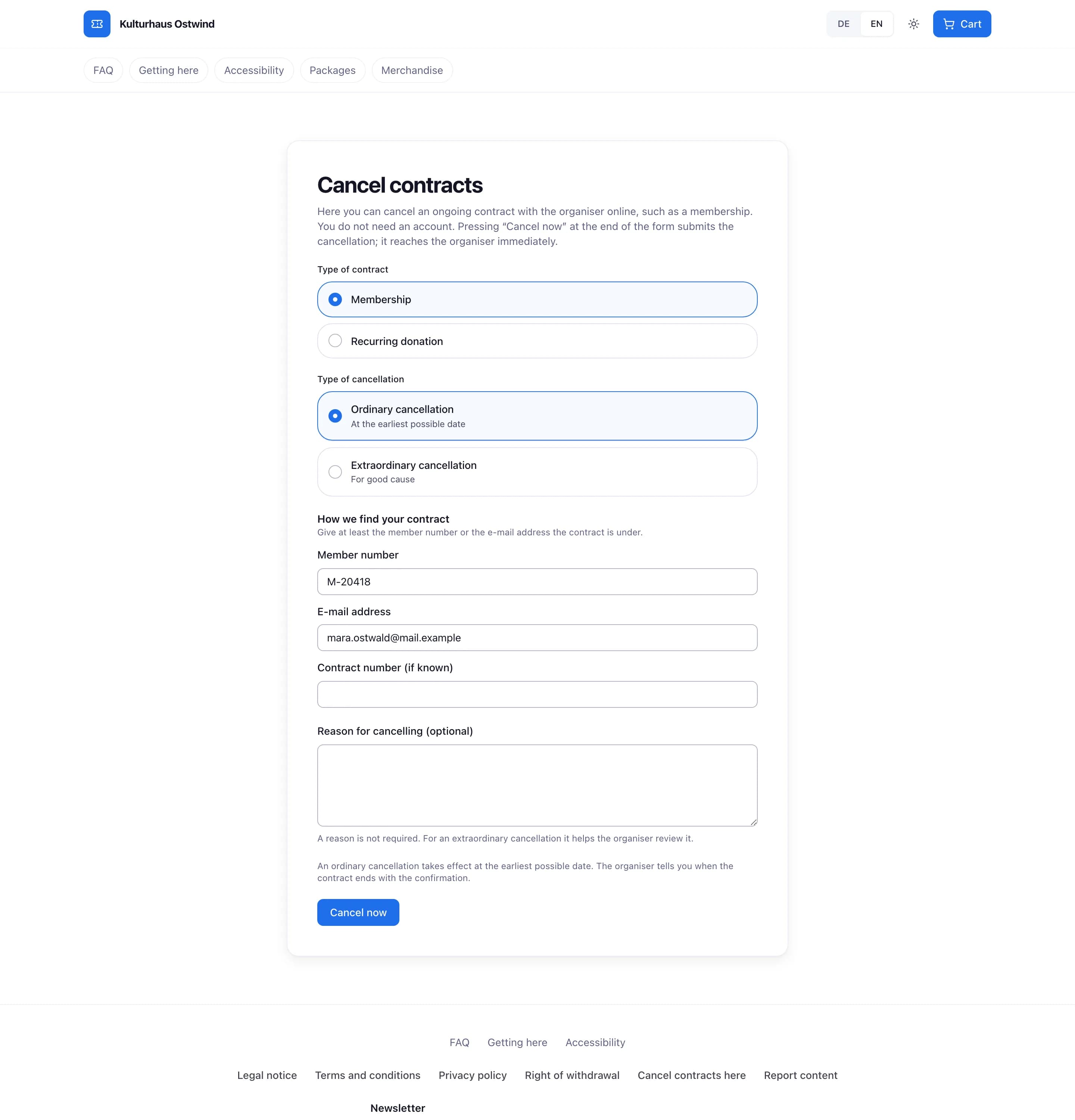
- Type of contract
- Type of cancellation
- Member number or e-mail
- Cancel now
See the cancellations you received
Customers & marketing → Engagement → Memberships lists every declaration under Cancellations received, newest first: when it arrived, the contract type, the member number (or whether it came with or without an account), the date the contract ends and its state:
- Awaiting confirmation: sent without signing in and not yet confirmed through the e-mail link.
- Needs your decision: an extraordinary cancellation. Judge its reason and end the membership yourself.
- Applied: the contract ends on the date shown.
- Received: received, but not matched to a contract automatically (for example one sent without an account). Find the member and cancel the membership by hand.