
 TixFin
Shop Designer
Style your shop, build its home page, and publish changes with a live preview
The Shop designer is where you decide how your project's shop looks: colours, type, the home page, the header and footer, how events are listed, and the pages behind the legal links. You work on a draft that is saved automatically; buyers only see your changes after you publish.
Where: Events & tickets → Shop design Who can do this: members with Customize shop design. The area needs the plan feature Shop design.
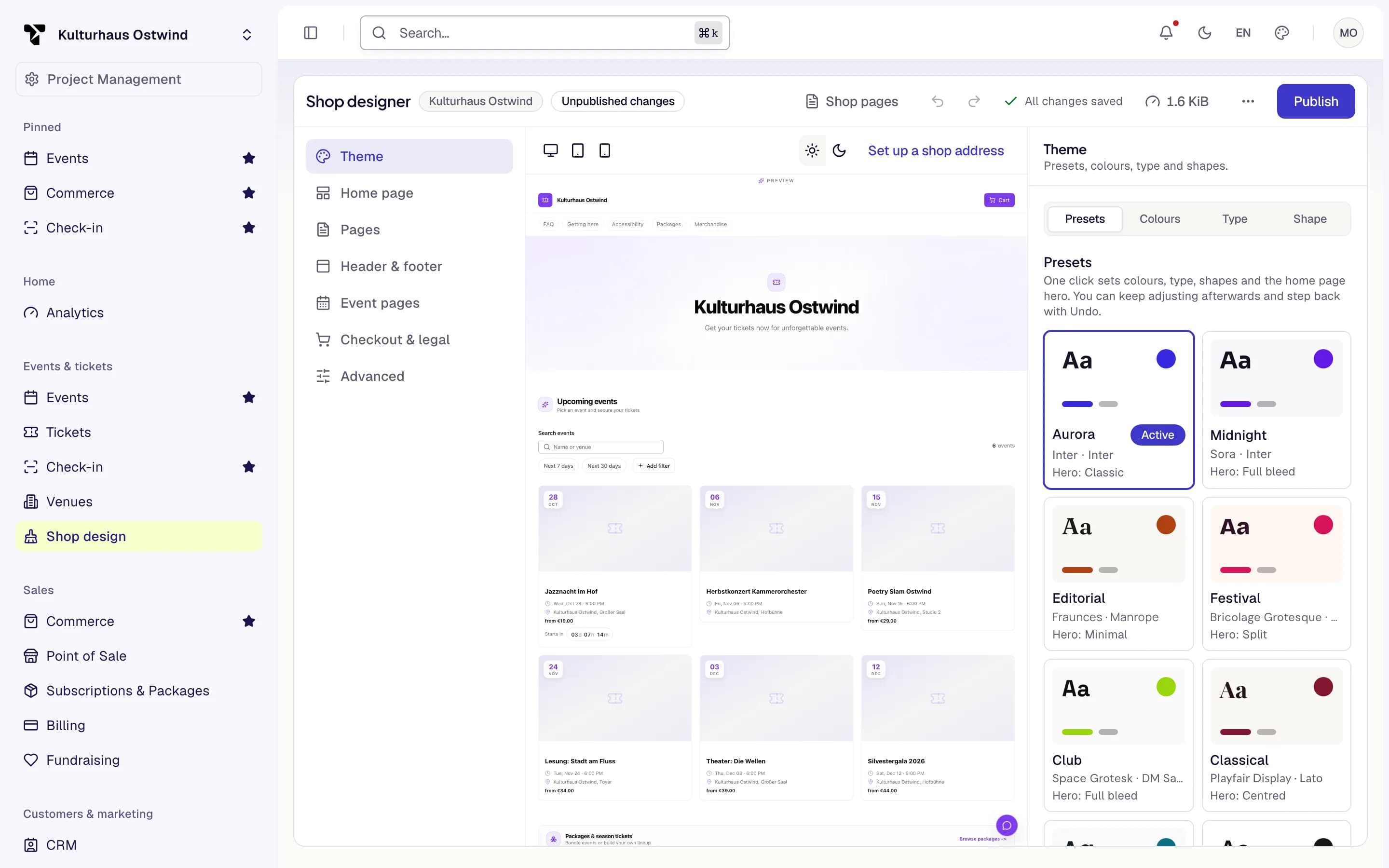
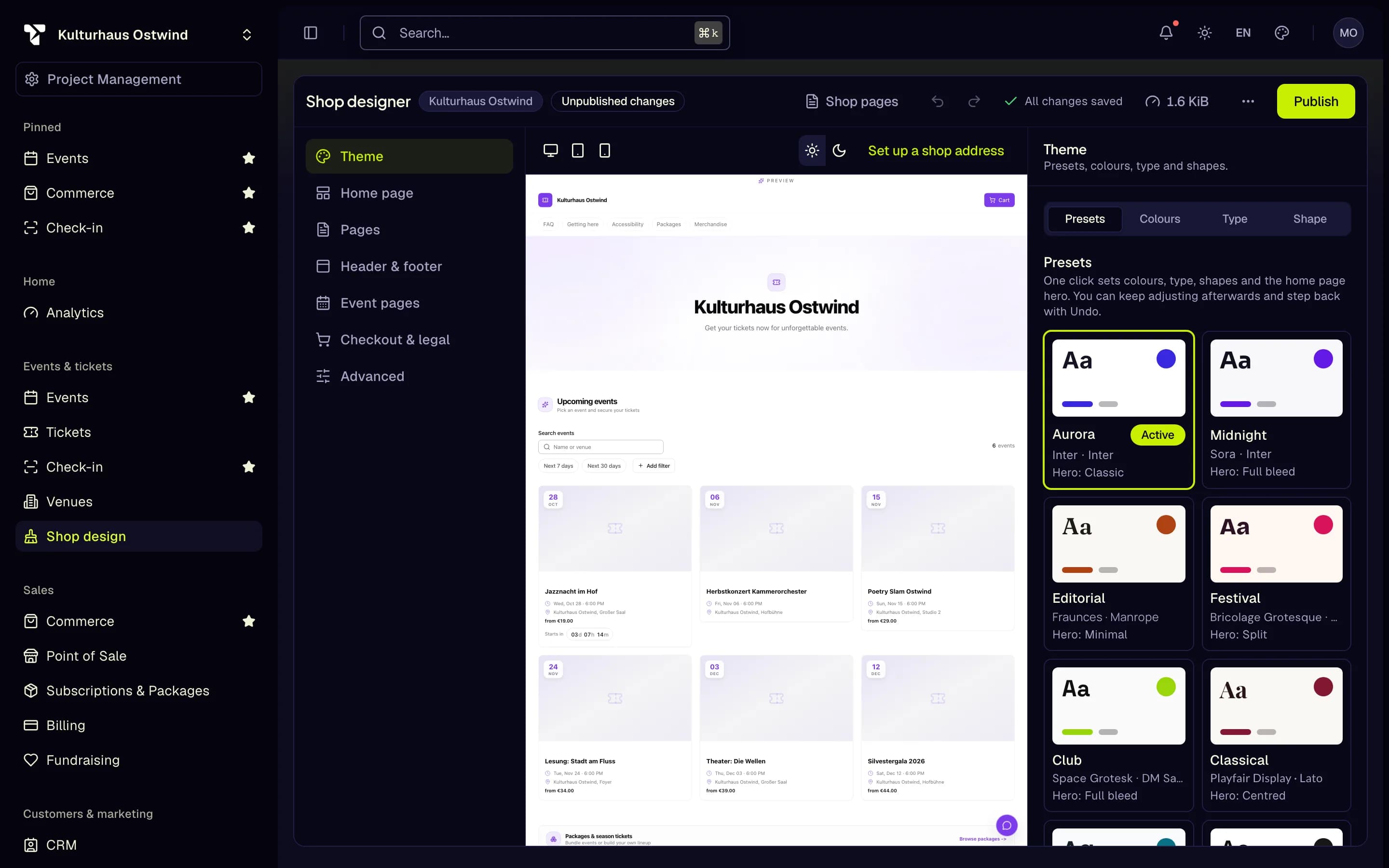
- Unpublished changes
- Theme → Presets
- Home page
- Preview devices
- Publish
Style your shop in five minutes
Open Events & tickets → Shop design. The top bar shows Published, or Unpublished changes when your saved design is newer than the live shop. The badge is right also after you close and reopen the designer, so you can see whether a colleague left changes unpublished.
In Theme → Presets, pick a preset. One click sets colours, type, shapes and the home page hero. You can change every part of it afterwards.
In Theme → Colours, set your Brand colour. If a colour pair is hard to read, the designer shows Not enough contrast with a Fix button.
In Home page, add, hide, reorder or remove sections, for example a Countdown or an FAQ.
Check the result in the preview on Desktop, Tablet and Mobile, in light and dark mode.
Click Publish. Your shop now shows the new design.
The shop needs an address before the live preview works. If you see No live preview available, choose a subdomain first — see Shop domain.
Draft, autosave and publishing
- Every change is saved to the draft about a second and a half after you stop typing. The top bar shows All changes saved, Saving …, or Not saved with a Retry link.
- Nothing is saved while a field shows an error (Please check your input).
- Undo and Redo work with ⌘Z / Ctrl+Z and ⌘⇧Z / Ctrl+Shift+Z.
- Publish saves pending changes first, then publishes. It is disabled while there are errors or when there is nothing new to publish.
- More actions → Reset to default design returns every design setting to the default and clears the undo history. Your published shop stays as it is until you publish again.
- The whole design must stay under 256 KiB. Images do not count, only their addresses. The size meter in the top bar shows how much you have used.
- If you leave the page with unsaved changes, you can Stay here, Leave without saving, or Save and leave.
Live preview
The preview loads your real shop and shows your draft in it, so what you see is what buyers will see after publishing.
- Devices: Desktop (1280 px), Tablet (820 px), Mobile (390 px)
- Colour mode: Light or Dark
- Open shop in a new tab opens the published shop
If the shop does not answer within five seconds, the preview shows The preview is not responding with a Reload button.
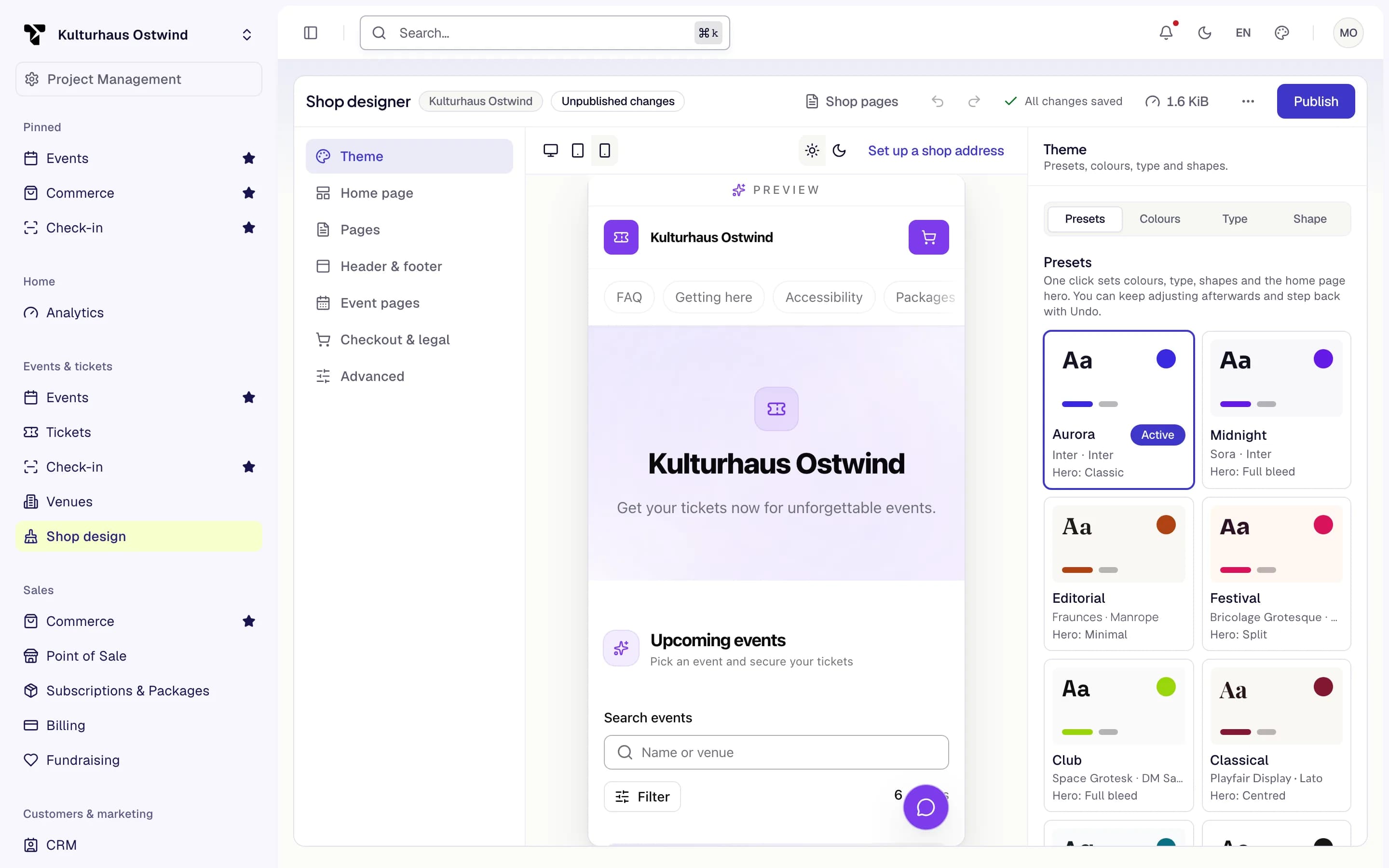
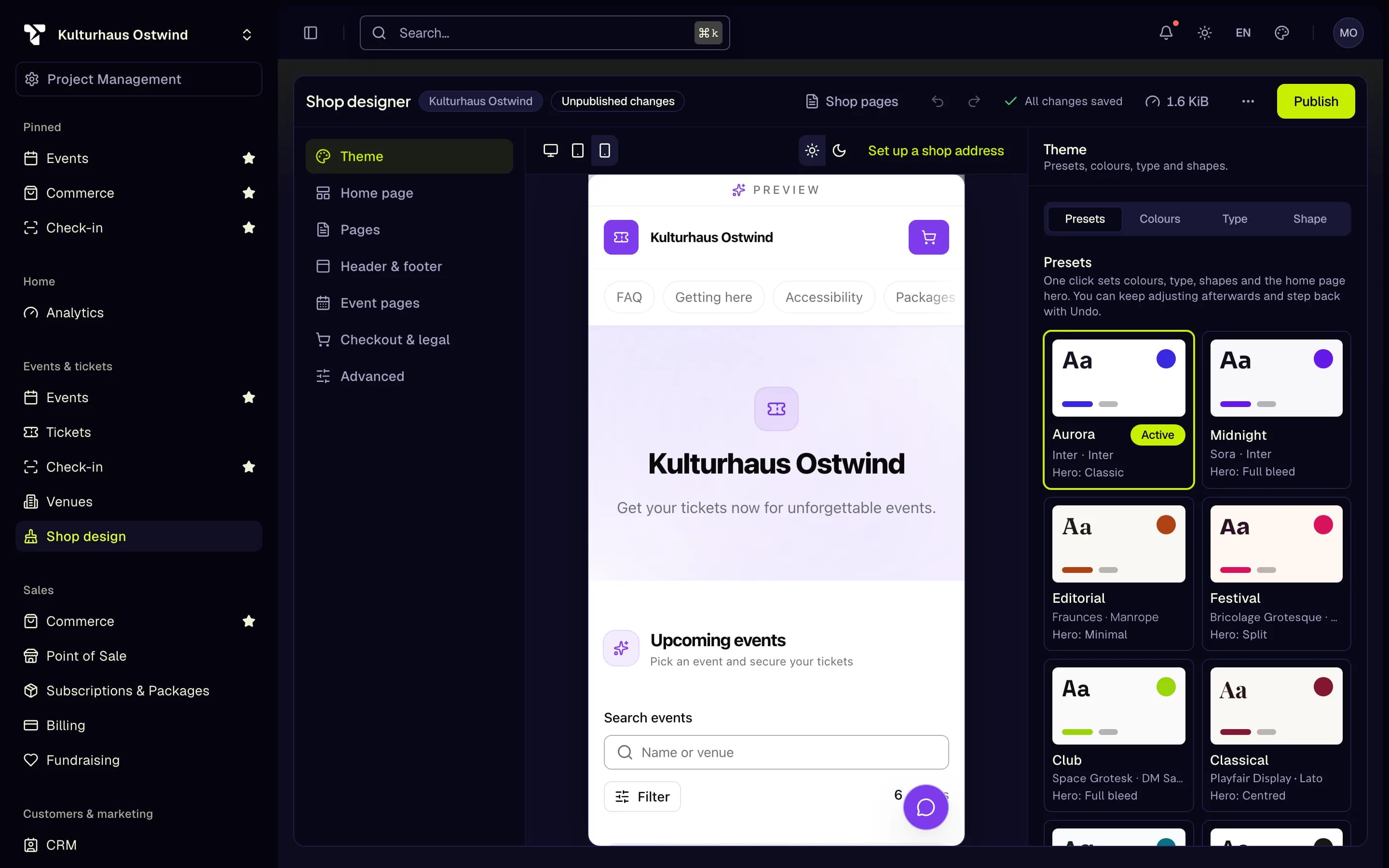
- Mobile
- Colour mode
- Live preview
- No address: set one up
Reference: designer areas
| Area | What you set there |
|---|---|
| Theme | Presets, colours, type and shapes |
| Home page | The home page, built from sections |
| Pages | Info pages such as FAQ, directions or imprint |
| Header & footer | Logo, navigation, announcement bar and footer |
| Event pages | How events look in lists and on their detail page |
| Checkout & legal | Legal links in checkout and the required pages |
| Advanced | Search engines, social preview and custom CSS |
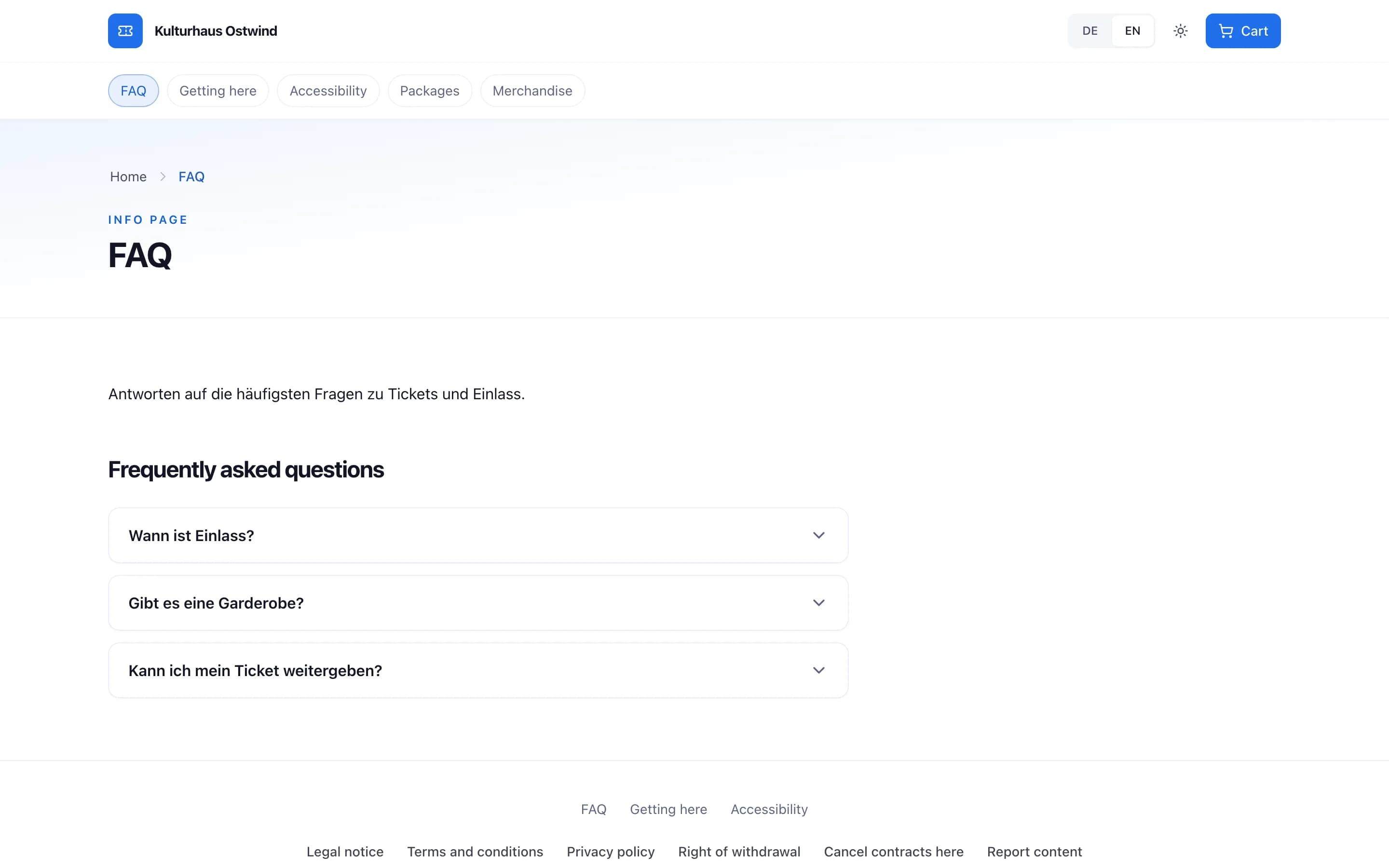
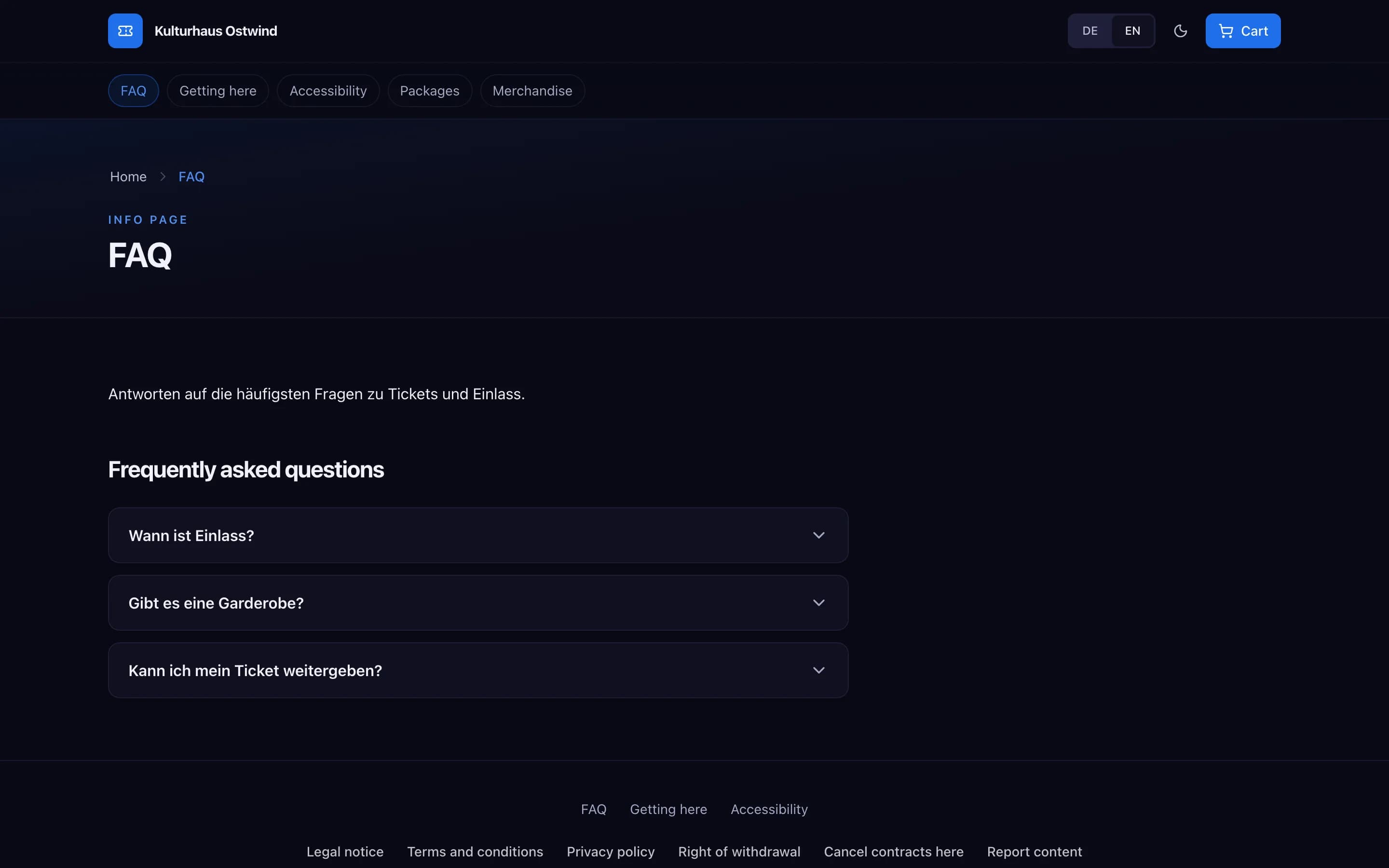
- FAQ page in the navigation
- Expand a question
- FAQ link in the footer
Theme
- Presets — Aurora, Midnight, Editorial, Festival, Club, Classical, Coastline and Mono. A preset card can warn about contrast problems before you apply it.
- Saved designs — give the current theme a Design name and Save it; later Apply, Overwrite or Delete it.
- Colours — Brand colour and a full palette for light and dark mode (brand, surfaces, text, lines and focus, error colour). Reset palette returns to the preset.
- Type — Font pairings, or separate fonts for Headings, Body text and Monospace (codes, numbers); weights, Base size, Letter spacing and a Type scale (Compact, Default, Large).
- Shape — Corner radius (Sharp, Soft, Round, Pill), Shadow, Button shape, Spacing, Content width, a Page background pattern, and the Default colour mode (Light, Dark, System) with the option to let visitors switch.
Home page
Build the home page from up to 40 sections. Available sections: Hero, Featured events, Event list, Categories, Countdown, Rich text, Image and text, Gallery, Testimonials, FAQ, Sponsors, Venue map, Newsletter, Stats, Call to action, Spacer and Packages.
- Add section, then show/hide, move, duplicate or delete each one.
- The Hero comes in Classic, Centred, Split, Full bleed, Minimal and Countdown variants.
- Each section has Style settings: background (including a custom colour or background image), text tone, vertical padding and width. Text colours are adjusted automatically so they stay readable.
Header & footer
- Logo in Small, Medium or Large. Without a logo, the shop uses the logo from your project settings.
- Header layout (Classic, Centered, Minimal, Overlay), navigation style, and switches such as Keep the header fixed, Show language switch and Show light/dark switch.
- Announcement bar with text, a link and colours; visitors can close it if you allow it.
- Footer layout (Simple, Columns, Brand) with tagline, copyright text, up to 20 links or 4 link columns, and social network links.
- Links may start with
https://,mailto:,tel:,/or#.
The legal links in the footer are always there and cannot be removed — see Shop legal pages.
Event pages
- Card layout: Grid, List or Masonry; Columns from 1 to 6 for sections using the automatic layout.
- Card style, an optional fade-in animation, and whether image, date, time and location are shown. Prices are always shown; this cannot be turned off.
- Detail page layout: Classic, Poster or Wide.
Advanced
Page title and description for search engines, a Preview image for social networks (1200 × 630 recommended), a favicon (at least 64 × 64), the text of the "Page not found" page, and Custom CSS.
Price note
The note next to prices ("incl. VAT", or the § 19 UStG small-business note) is not a designer setting. It follows your project's tax settings. After you change the tax settings, publish the shop again so the note updates.
Common problems
- "Cannot publish: fix all errors first." A field shows an error. Fix it, then publish.
- "Not saved" The draft could not be saved. Click Retry.
- The shop still looks old, and the top bar says "Unpublished changes". The draft is saved but not live. Click Publish.
- "No live preview available" The shop has no address yet. Choose a subdomain first.
- "The preview is not responding" Click Reload. If it stays, open the shop in a new tab to check it is online.