
 TixFin
Price, stock and sale window
Set a ticket type's price, stock, price phases, sale window, waitlist, access codes, highlight, deposit and buyer questions
A ticket type's settings decide what it costs, how many you sell, and when it is visible, purchasable and valid.
Where: Events & tickets → Tickets → Configuration → Types → click Manage on a ticket type Who can do this: Manage or edit ticket types
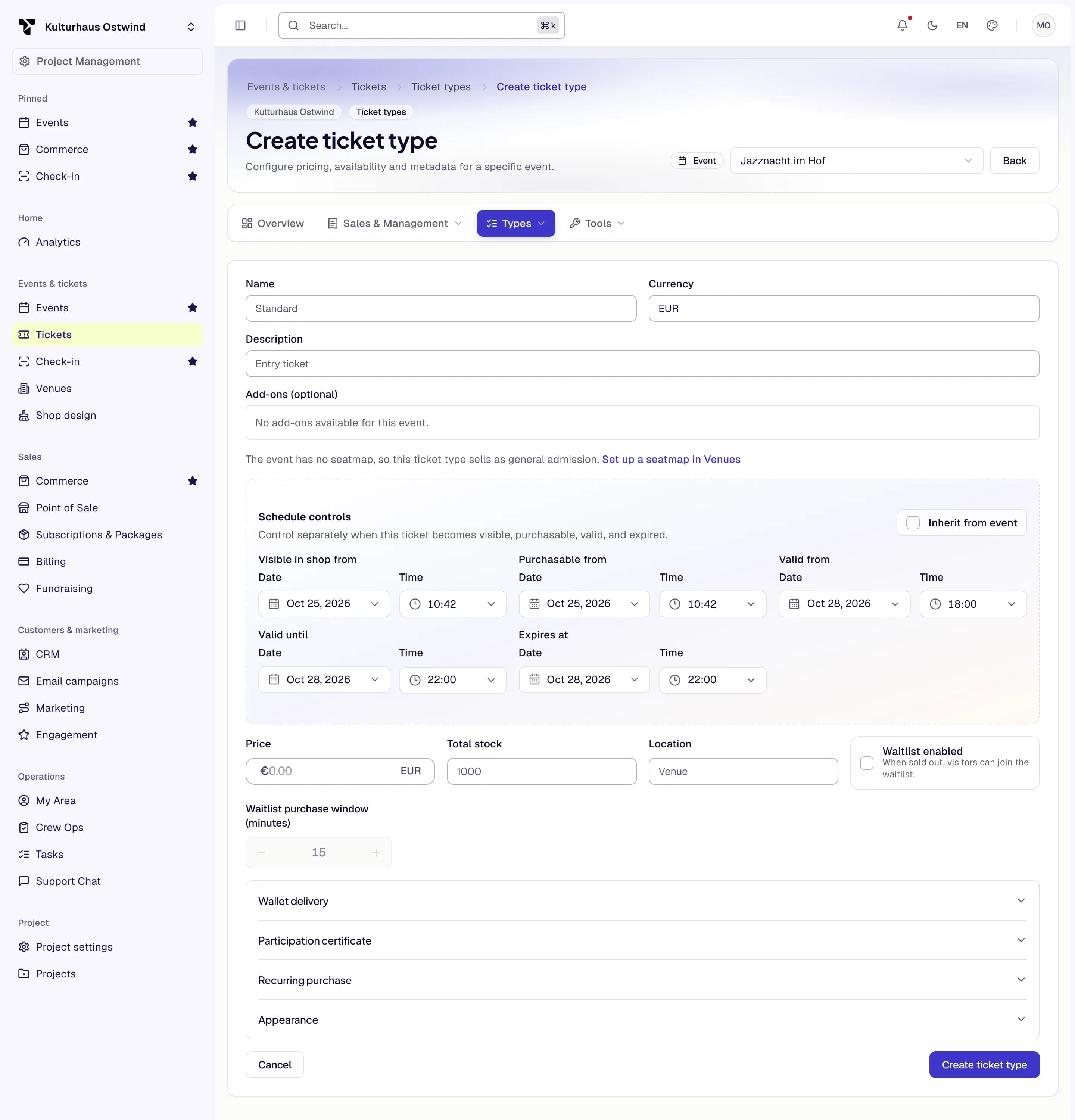
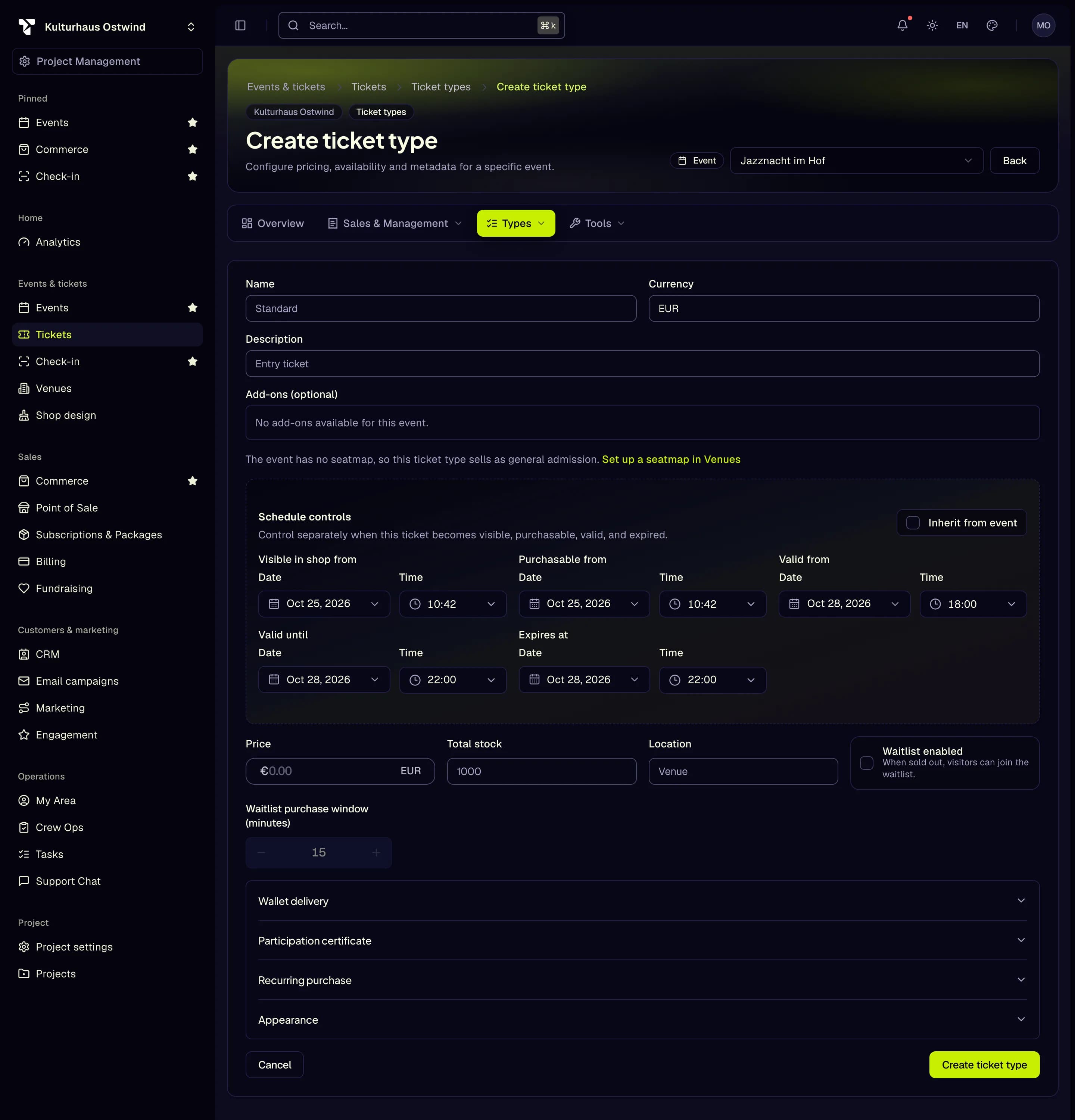
- Pick the event
- Name
- Price
- Total stock
- Create ticket type
The ticket type page shows its live Overview (price, active phase, stock, sales in the last 24 hours) and cards for each group of settings. Click a card to open it.
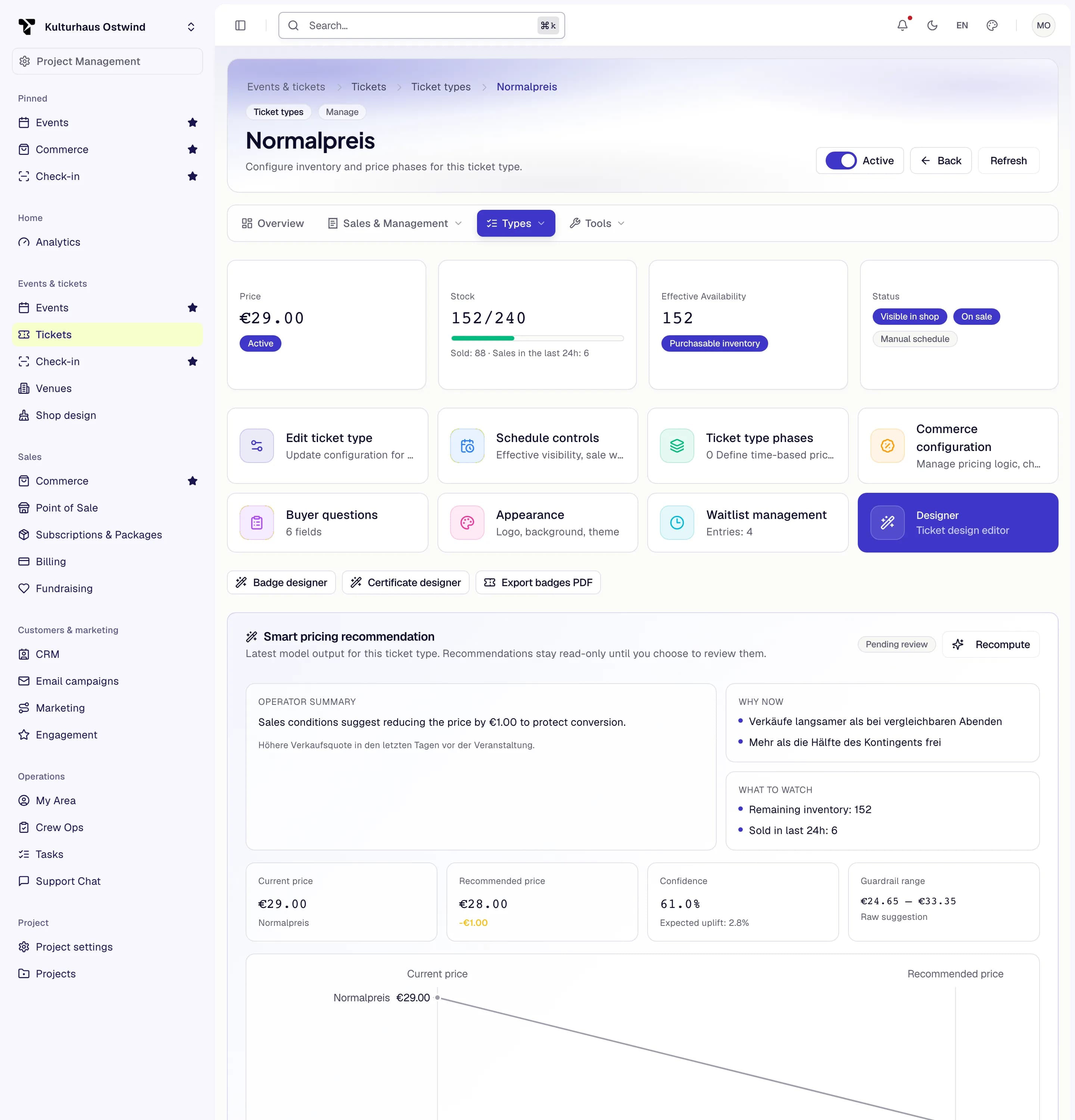
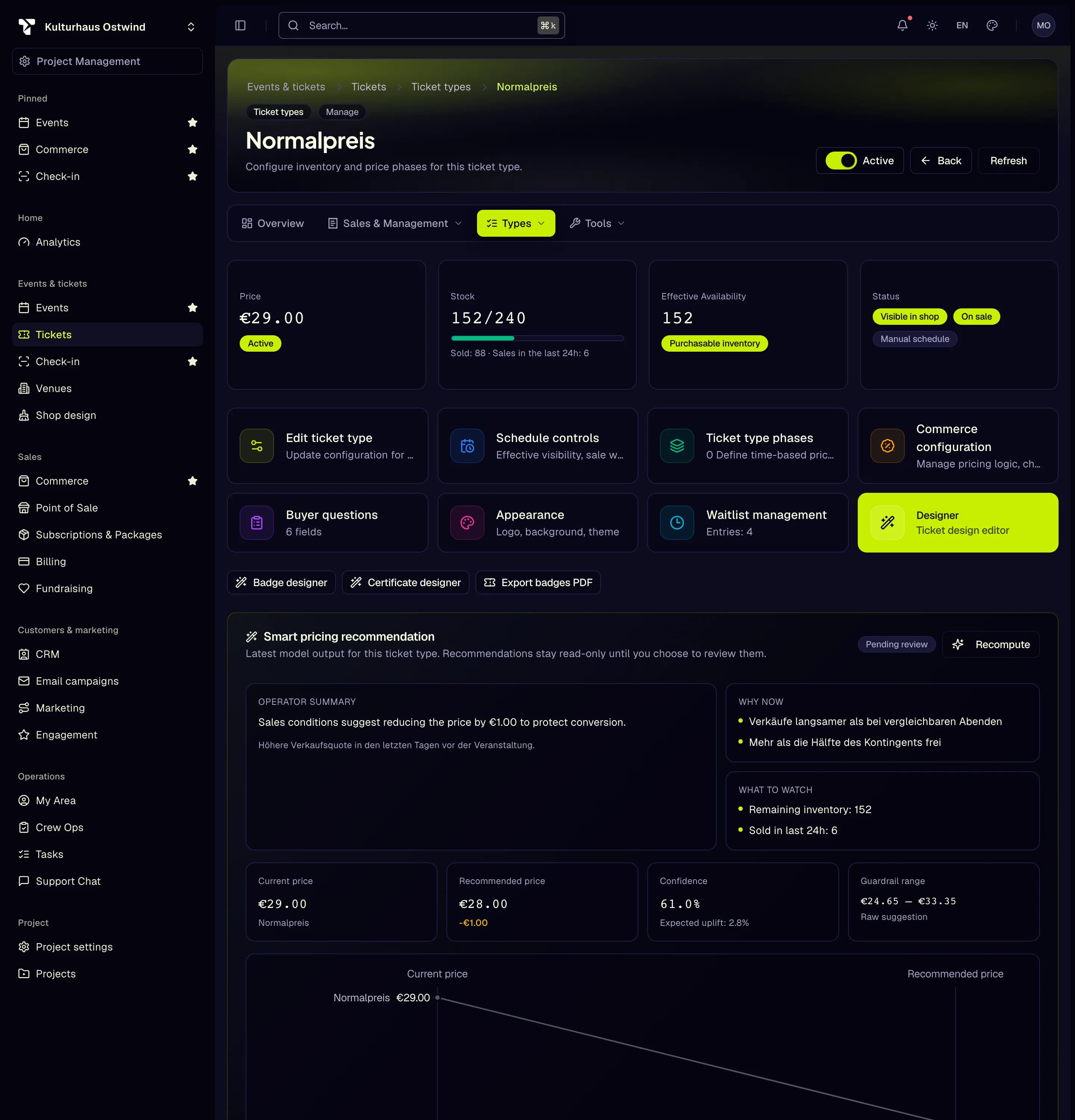
- Edit ticket type: price
- Ticket type phases
- Schedule controls
- Waitlist management
- Buyer questions
Set the price
A price already paid never changes. A new price applies to new orders only.
Change the stock
In the Types list, open the row menu and choose Manage stock. Set the Total stock and click Save. The total can't go below the number already sold. An empty stock means Unlimited.
Change the price over time
Price phases switch the price automatically, for example an early-bird price until a date.
Outside every phase the ticket type's own price applies.
Set the sale window
Open Schedule controls. Each date is separate:
| Field | Meaning |
|---|---|
| Visible in shop from | When the ticket type appears in the shop |
| Purchasable from | When buyers can order it |
| Valid from / Valid until | When the ticket gets people in |
| Expires at | When the ticket stops being valid |
Switch on Inherit from event to have all of them follow the event's times, also when the event moves. Project defaults can't follow a specific event.
To give a type the same dates as another, open its ⋯ menu in the ticket types list, choose Copy schedule from, pick the other type and confirm. Its current dates are replaced.
Let people wait for sold-out tickets
In the ticket type's settings, switch on Waitlist enabled and set the Waitlist purchase window (minutes). When the type is sold out, visitors can join the waitlist. When a ticket becomes free, the next person gets an offer and has that many minutes to buy.
Tickets → Sales & Management → Waitlist and the ticket type's Waitlist management card list the people waiting. For each entry you can Release now, Resend offer or Remove.
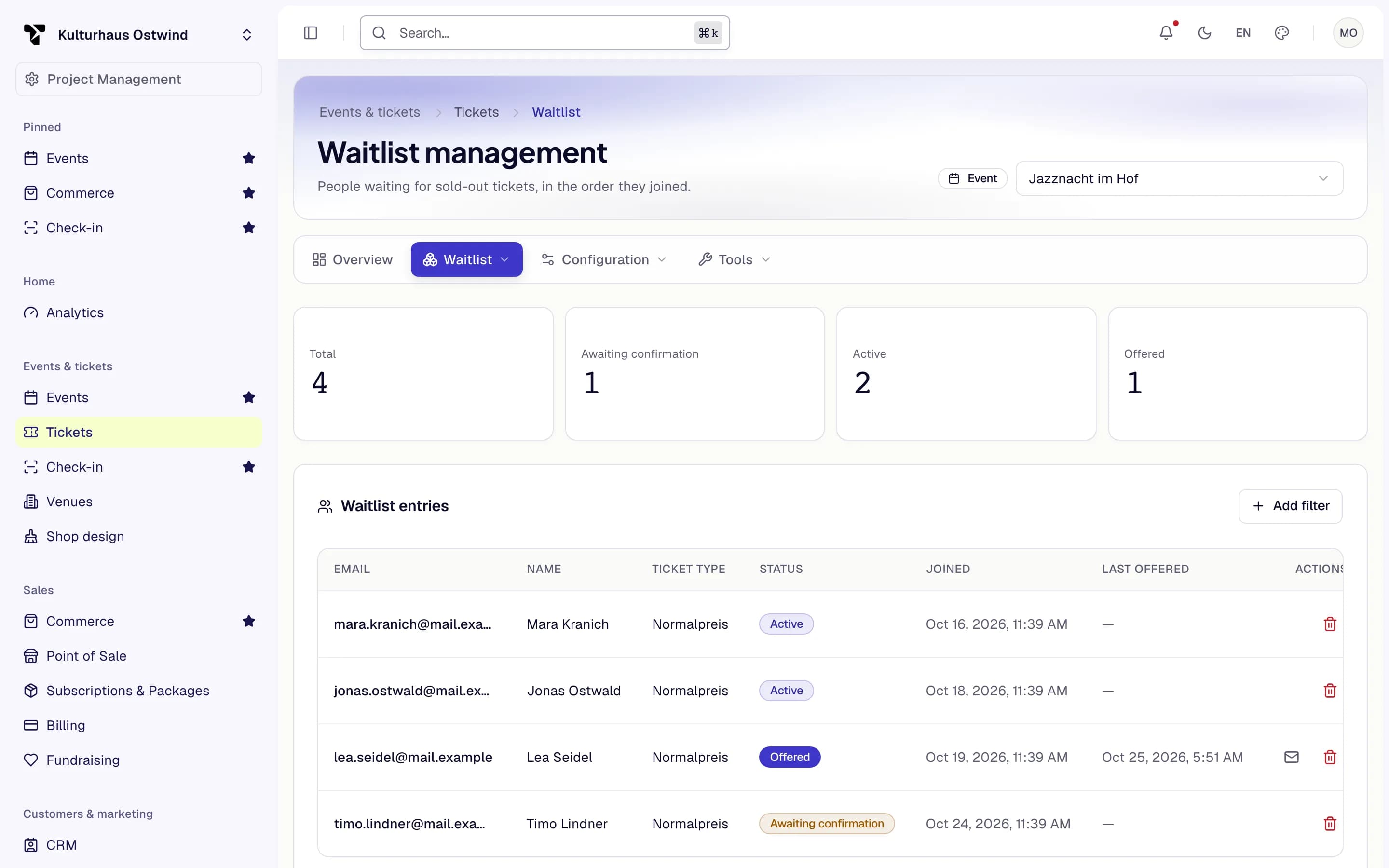
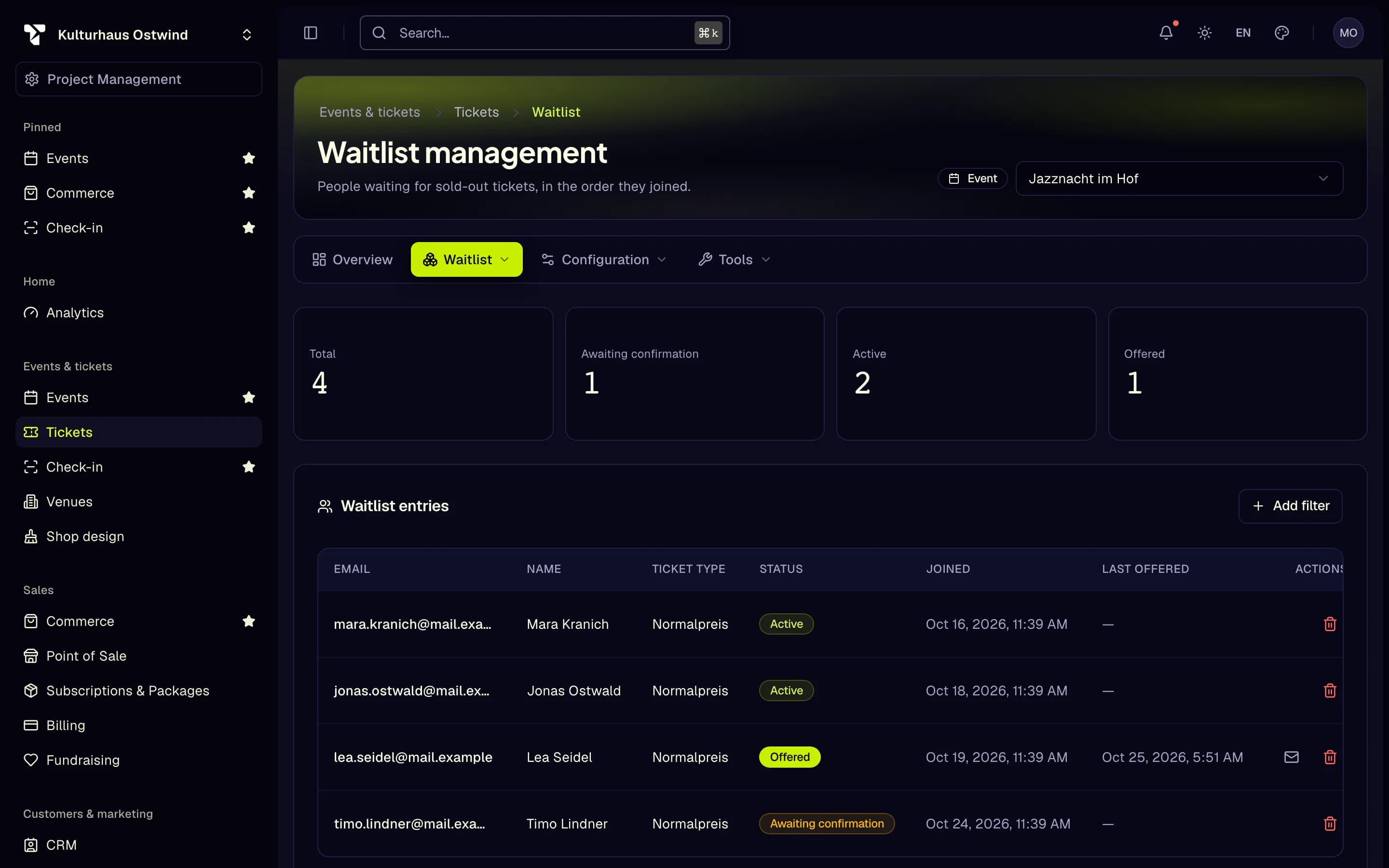
- Waitlist tab
- Offered entry
- Resend offer
- Remove
Hide a ticket type behind an access code
For presales, members, artists' guests or partners, open Visibility & highlight in the ticket type's settings (or, when you create it, the With form page or the wizard's Basics step) and switch on Only with an access code. Add one or more codes, or click Generate for a random one. Codes are 6 to 64 letters, digits, hyphens or underscores; upper and lower case are the same.
The type then appears nowhere in the shop. A buyer enters a code under Have an access code? on the event page, or opens a secret link: click Copy secret link next to a code to copy the event page's address with the code in it. The checkout sells the type only with one of its codes. Each visitor network has ten tries per ten minutes, so codes cannot be guessed. One order takes tickets unlocked with at most ten different codes.
A ticket type sold with seats, and a membership, cannot be hidden.
Highlight a ticket type
Enter a Highlight label in Visibility & highlight, or pick Recommended, Best value or Popular choice. The shop shows the label on the ticket and frames its card. Leave the field empty for no label.
Deposits
Deposits are not available yet. The ticket type editor and the ticket wizard show Deposit payment – not available yet: checkout always charges the full price. A ticket type that already has a deposit stored keeps it and shows a notice with the amount and the days to pay the remainder; the setting has no effect. Its price cannot be set below the stored deposit: the save is refused and the notice says so. Click Remove stored deposit in the notice and hold to confirm; the deposit is deleted and your other changes in the editor are saved with it. Orders still waiting for their payment are under Commerce → Orders, filtered on Pending payment.
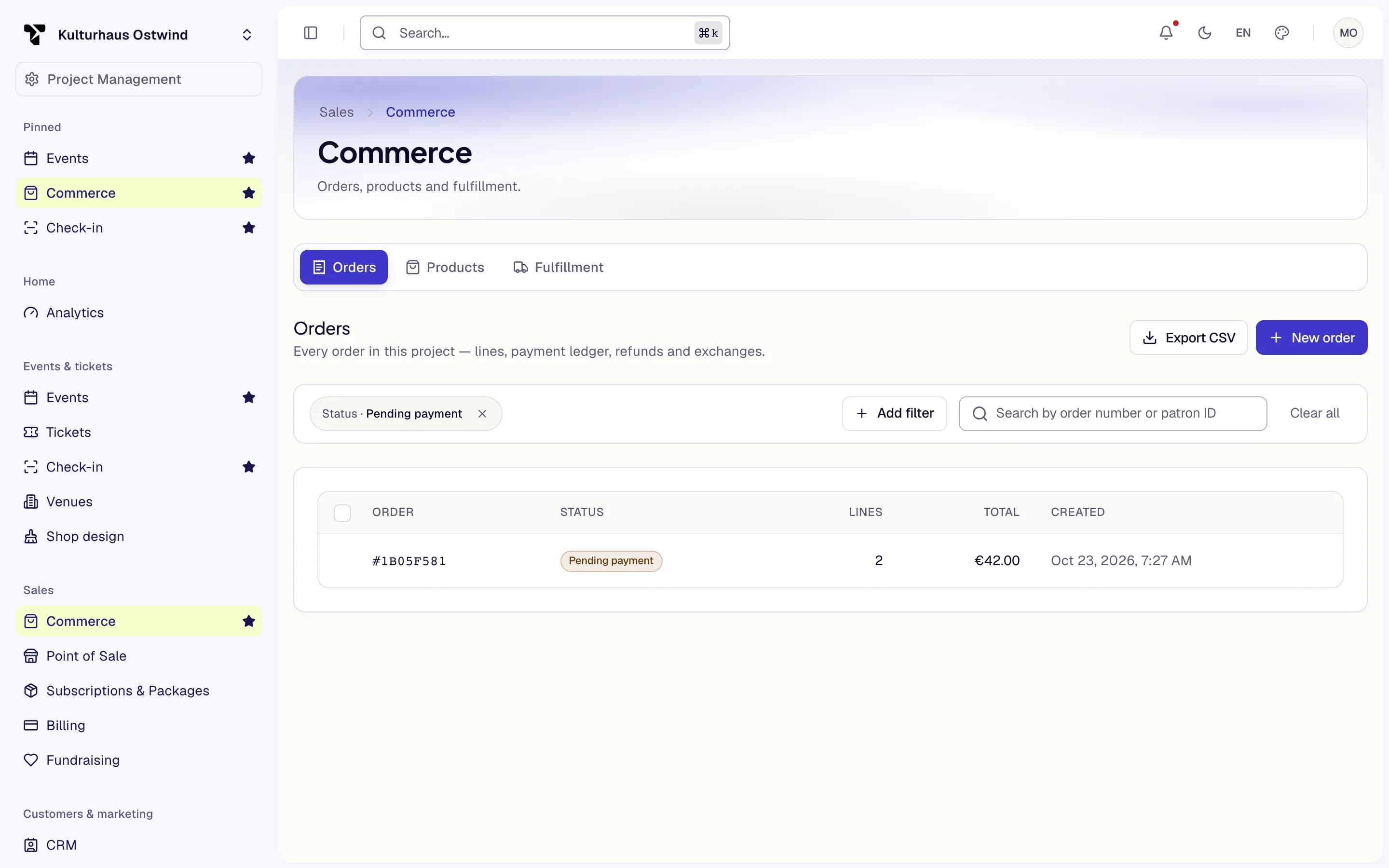
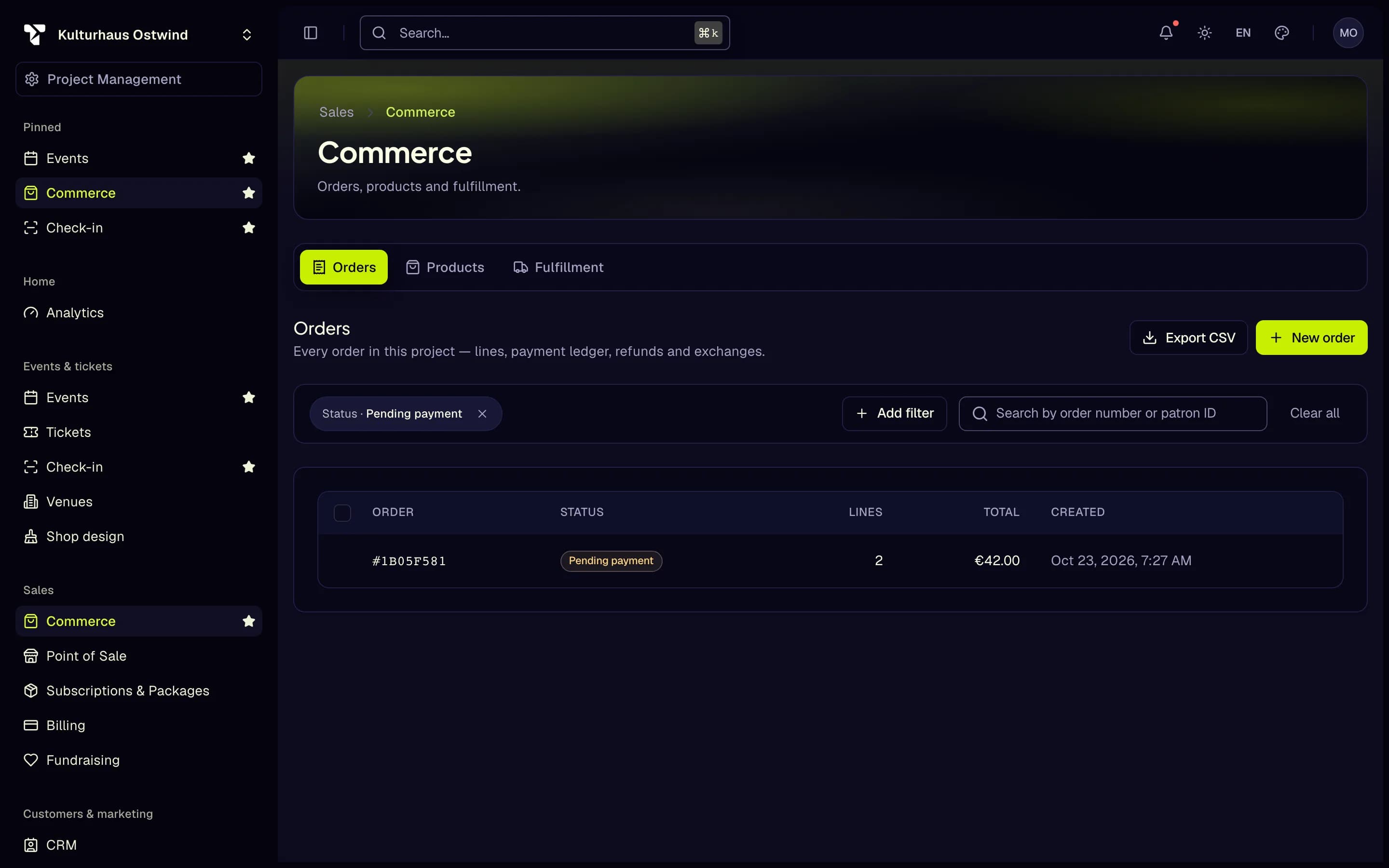
- Orders tab
- Filter: Pending payment
- Order waiting for payment
Ask buyers questions
Answers are stored on the ticket. The browser scanner shows them after a successful scan.
More settings on the ticket type
- Seating: Seated (uses the event's seat map) or General admission (Venues and seat maps).
- Add-ons: extras offered with this ticket type.
- Commerce configuration: upsell rules and bundles in checkout.
- Recurring purchase: sell the type as a membership with a duration and optional auto-renewal.
- Participation certificate: a PDF certificate after check-in, optionally sent by email.
- Appearance and Wallet: see Ticket design and delivery.
Offer upgrades and add-ons after purchase
In the ticket type's edit sheet, Upgrades and add-ons after purchase sets three offers. All three are off until you switch them on.
- Upgrade to: another ticket type of the same event, without seats and in the same currency, for example VIP for a general-admission ticket.
- Offer the upgrade at checkout: the shop suggests the upgrade in the cart before payment, with the price difference per ticket.
- Offer the upgrade after purchase: buyers upgrade a paid ticket on their order page and pay only the difference. The old tickets become invalid and new ones are issued. An upgrade is an exchange of the whole line (see Exchange a ticket). It is never offered when the new type is cheaper, and never for seated tickets.
- Let buyers add add-ons after purchase: buyers book this ticket type's add-ons on their order page while the event still sells. They pay for them in a separate order, so the first order stays as it was.
Common problems
- "Minimum is … (already sold)." You can't set the stock below what is sold.
- "Stock total is too low". Enter a higher total.
- "A phase needs a label and a start date." Fill both in before saving the phase.
- "Waitlist is currently disabled for this ticket type." Switch on Waitlist enabled first.
- "Waitlist operations are only available for event-scoped ticket types." Project defaults have no waitlist.