
 TixFin
My tickets
Find your tickets, show them at the entrance, add them to your wallet, pay an open order and refund a ticket
Where your tickets are depends on how you ordered.
| You ordered … | Your tickets are … |
|---|---|
| Without an account | On the page linked from your order confirmation e-mail |
| With a TixFin account | Under My tickets, and linked from the e-mail |
Tickets you buy in a shop with the e-mail address of your account appear in My tickets automatically.
Where: account menu (your avatar) → My tickets Who can do this: the account that bought or received the ticket
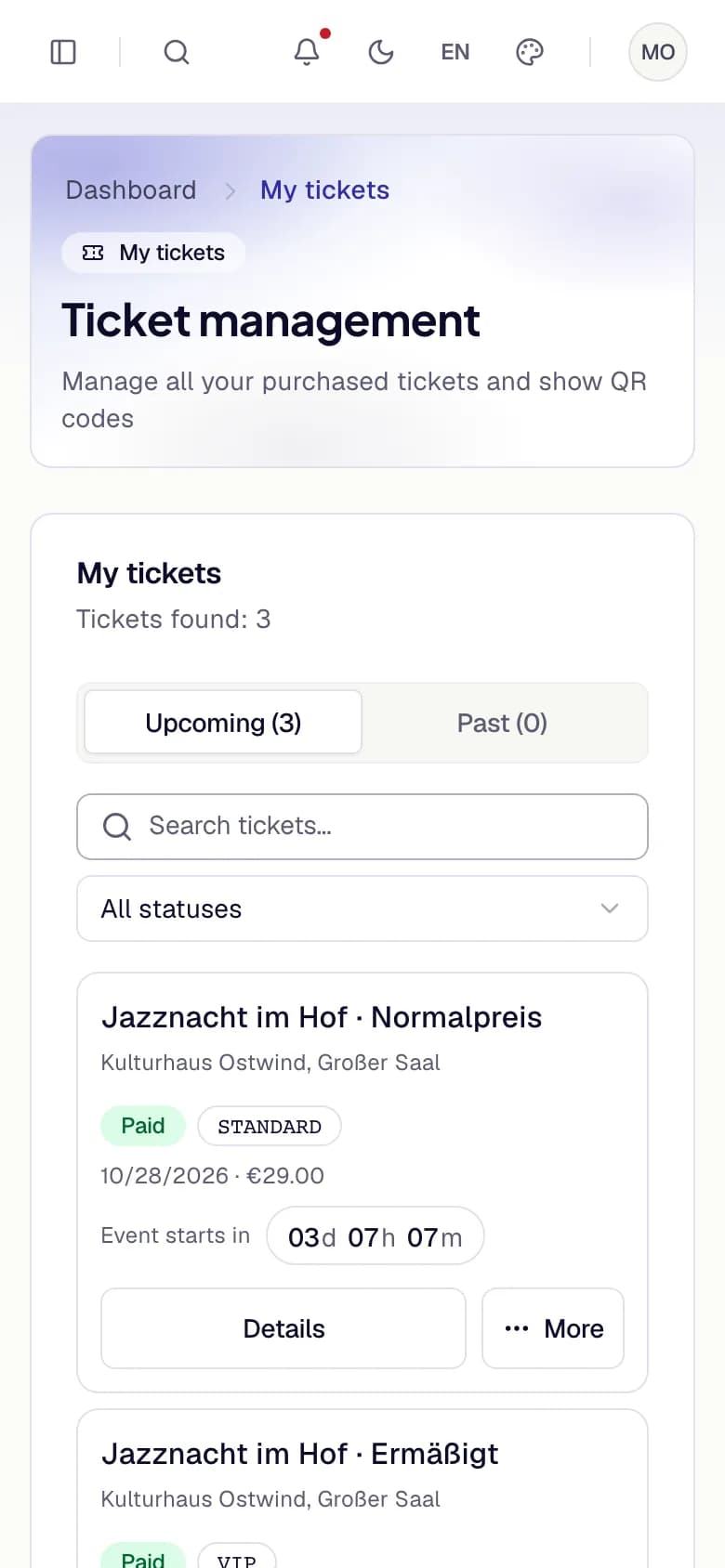
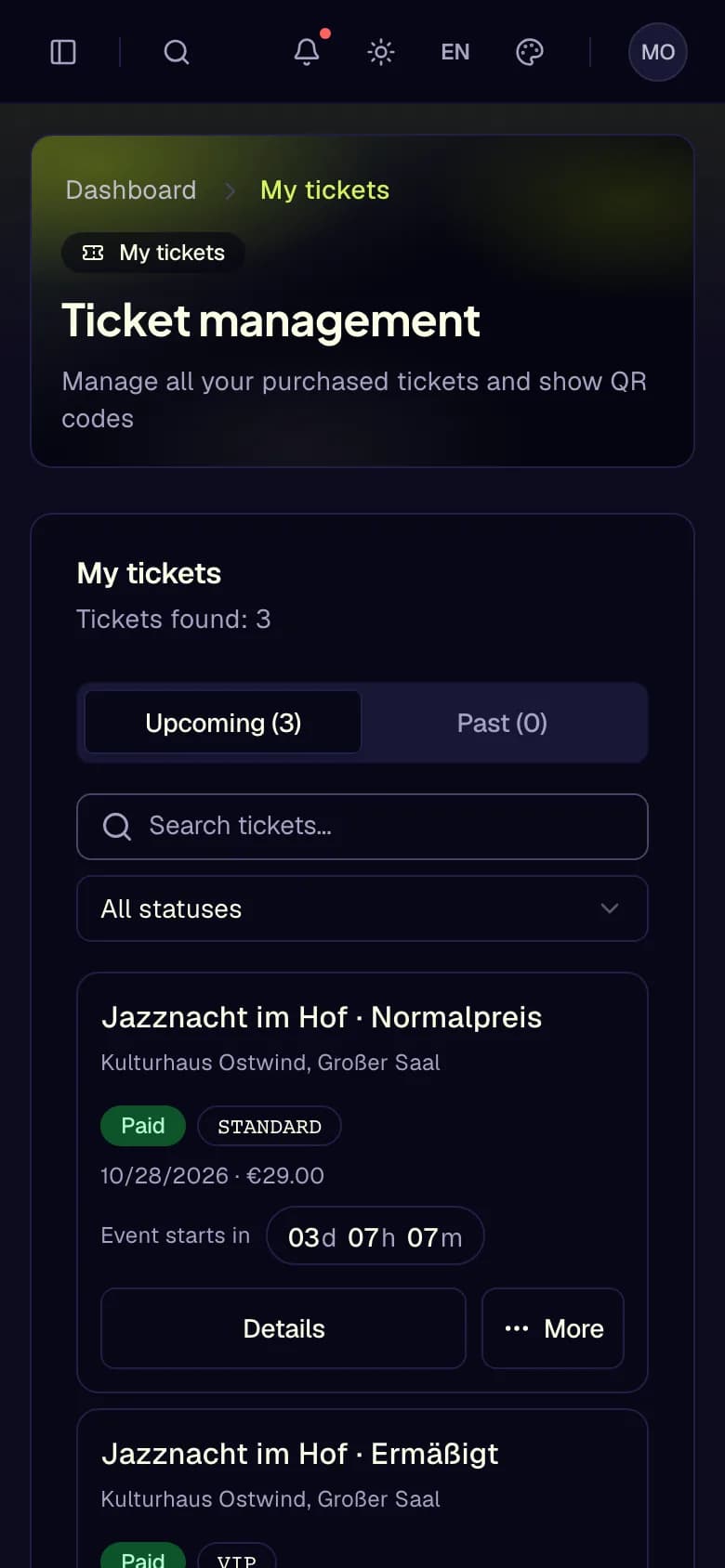
- Upcoming and Past
- Search tickets
- Filter by status
- Details
- More menu
Open your tickets from the e-mail
The page shows each ticket with its type, its seat (for seated events) and its QR code. The code renews every few seconds, so keep the page open at the entrance. A screenshot is not admitted.
If the page shows no tickets, use the link from your most recent order confirmation.
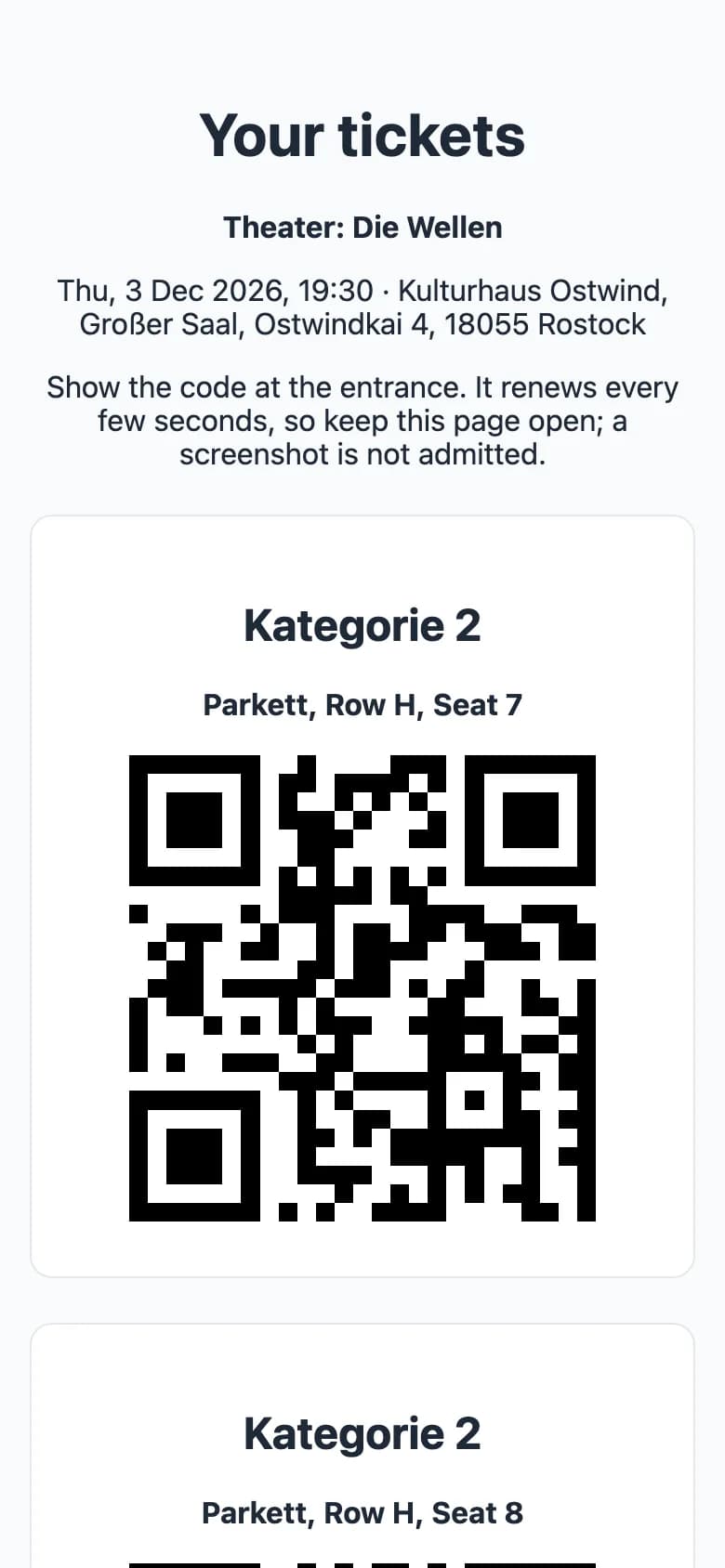
- Keep this page open
- Ticket type and seat
- Renewing QR code
Use My tickets
Switch between Upcoming and Past. Search, or filter by status. Each ticket is named by its event and ticket type, for example "Jazznacht im Hof · Normalpreis".
Each ticket has one main button (Pay now, a wallet button, or Details) and a More menu with the rest: Details, the wallet buttons, Transfer ticket and Refund ticket.
The ticket page (Details) shows the QR code, the event, the status and payment, the wallet buttons, and these cards when they apply:
- Order confirmation: Send confirmation again e-mails the confirmation to you once more.
- Refund: see Refund a ticket.
- Transfer: see Transfer a ticket.
- Participation certificate: Download PDF, after check-in, if the organiser offers certificates.
- History: when the ticket was created, checked in, transferred and so on.
If the organiser has switched on the buyer support chat, the ticket page also has Contact project support.
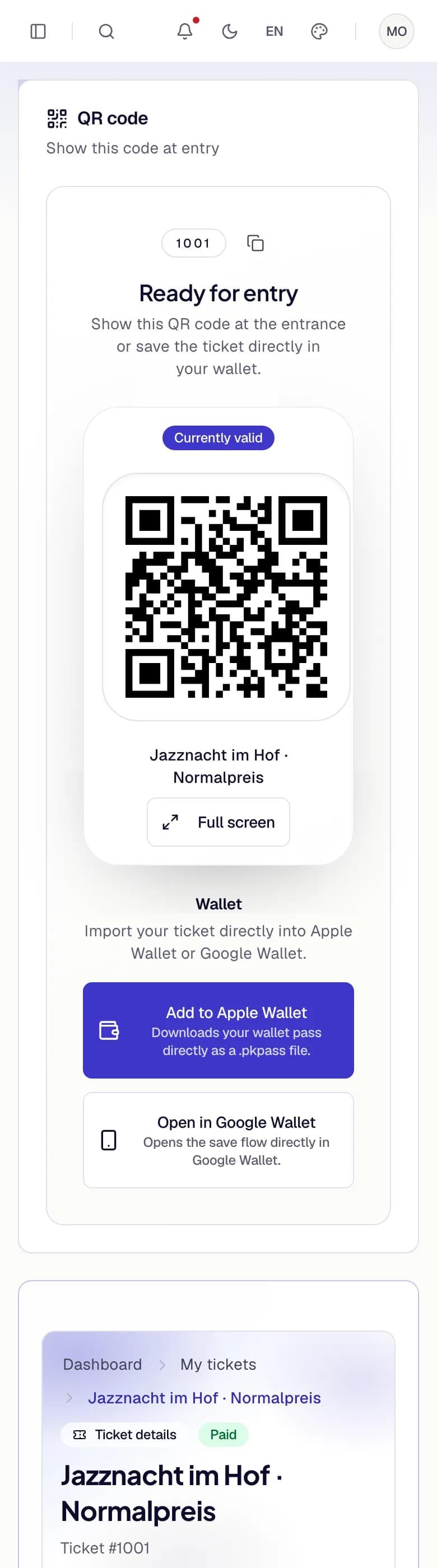
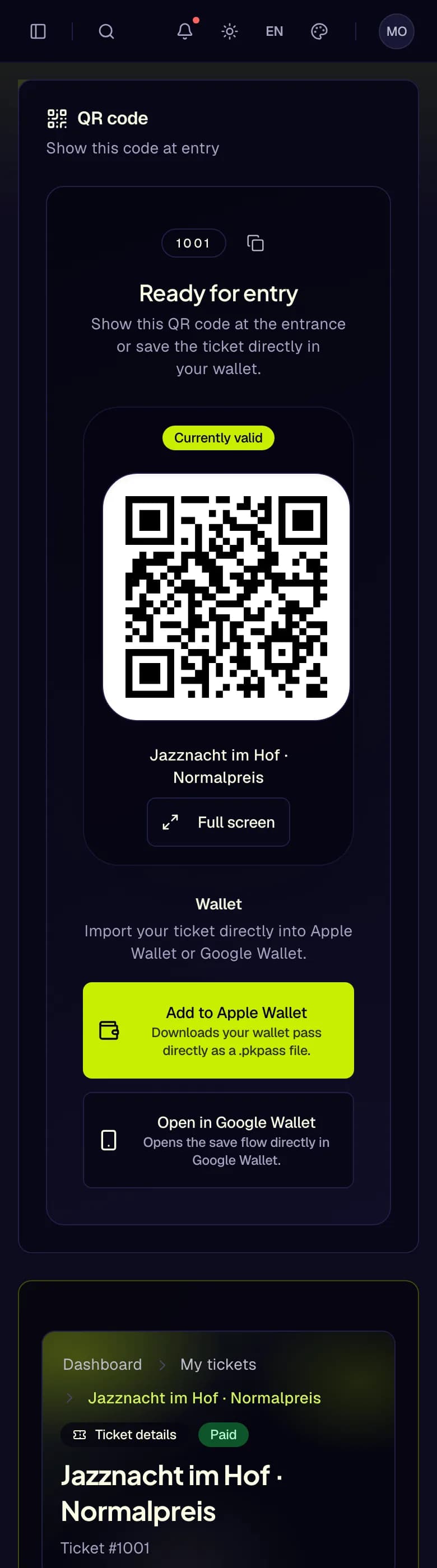
- QR code
- Full screen
- Add to Apple Wallet
- Open in Google Wallet
Ticket statuses
Created, Awaiting payment, Paid, Scanned, Scanned out, Cancelled, Refunded, Expired. The QR code appears once a ticket is Paid or Scanned.
At the entrance
- Open the ticket before you queue: in My tickets (use Full screen for the QR code), on the page from your e-mail, or in your wallet.
- Turn the screen brightness up.
- Bring a photo ID if the organiser asks for one.
- Keep your phone charged.
Keep your ticket to yourself. Do not post the QR code or your confirmation e-mail. Whoever shows the code first gets in. Buy only from the organiser's shop.
Add a ticket to your wallet
Paid tickets show Add to Apple Wallet and Open in Google Wallet. On an iPhone you see the Apple button, on Android the Google button, on a computer both.
Apple Wallet passes are only issued for tickets the organiser allows to be transferred. For other tickets the Apple button is missing, and Open in Google Wallet is offered instead, also on an iPhone. On an iPhone the main button is then Details. You can always show the QR code in TixFin.
Pay an open order
A ticket in Awaiting payment has Pay now. It opens the payment page in a new tab. Pay within the deadline shown: an unpaid order becomes invalid after 24 hours.
If you cancel on the payment page, you come back to My tickets with Payment cancelled: nothing was charged and the order is still open. Pay it with Pay now before the deadline, or let it lapse on its own.
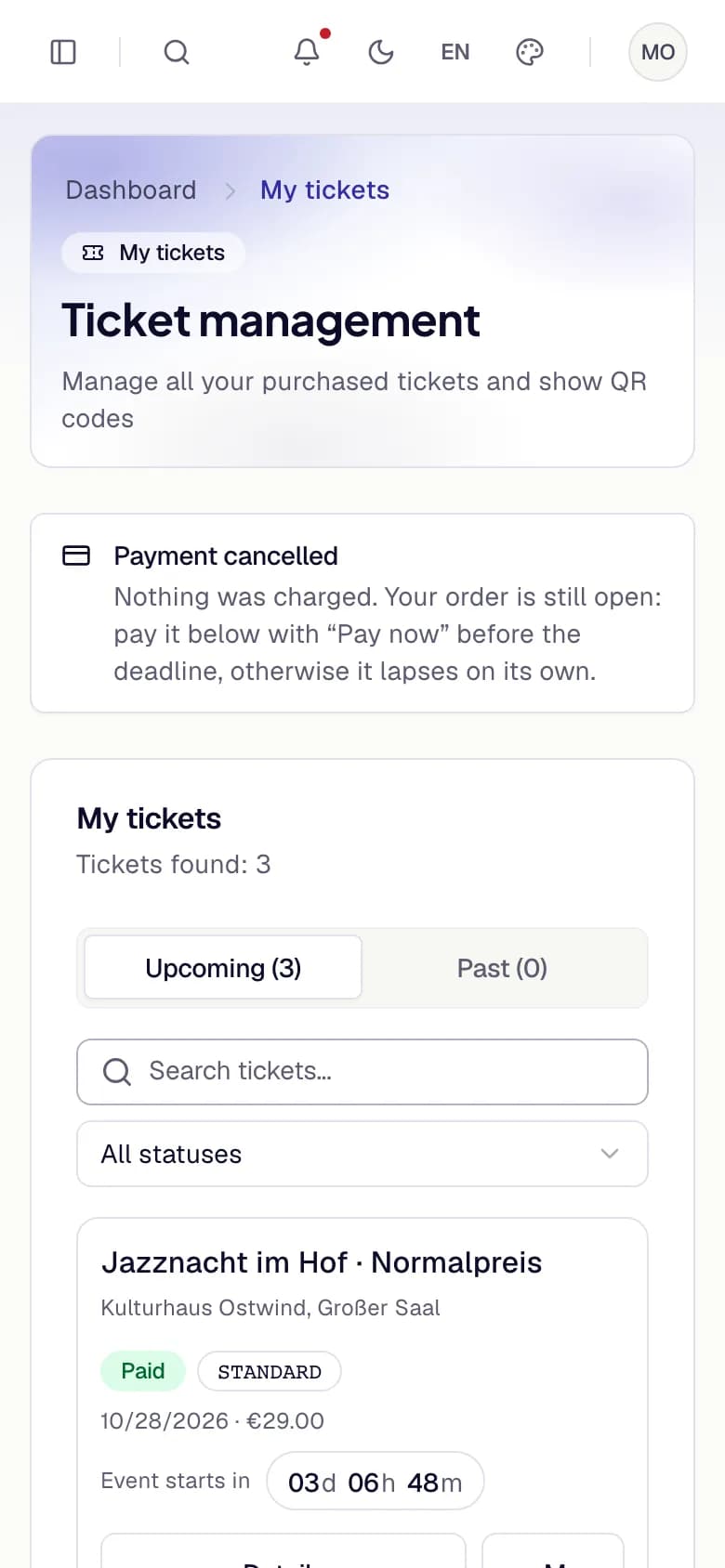
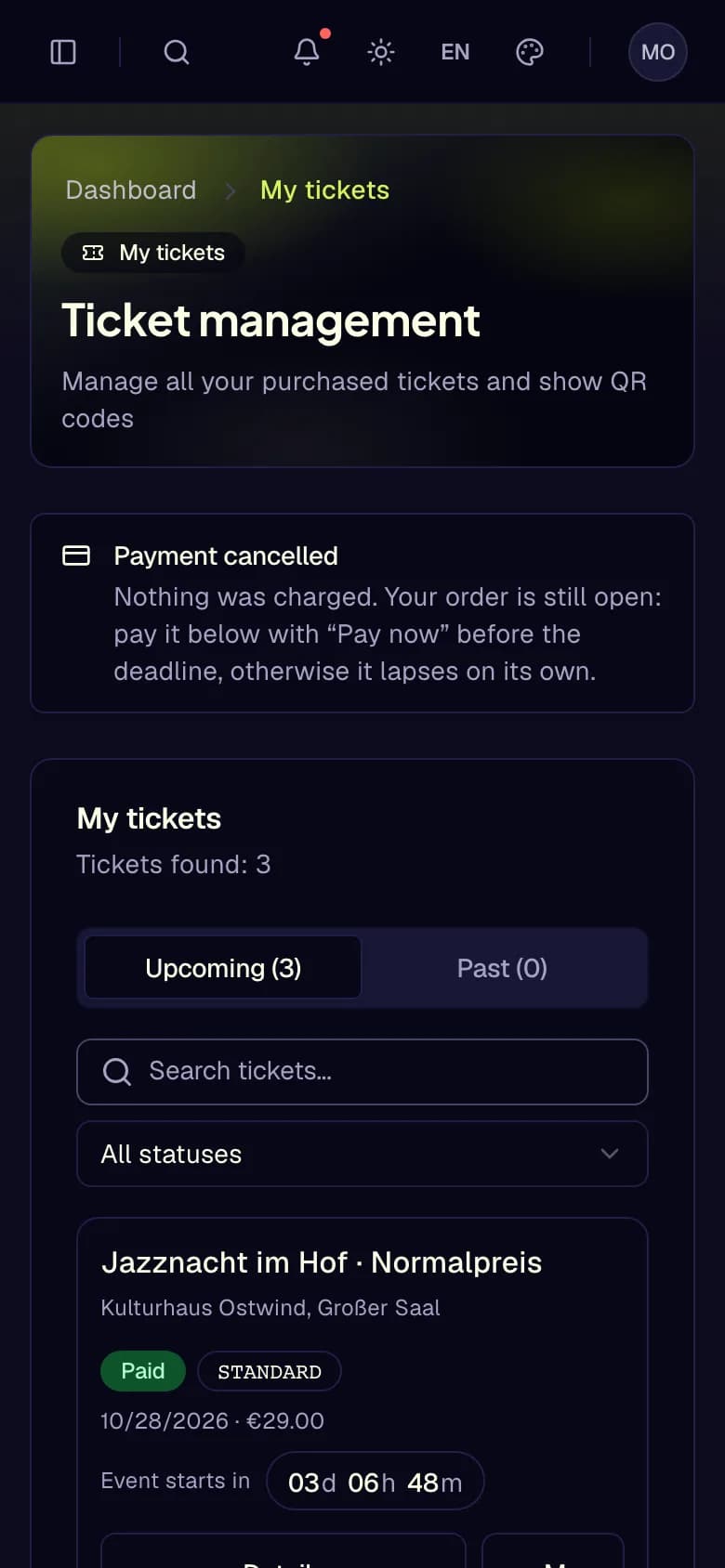
- Payment cancelled
- Your open order
Refund a ticket
Whether, and until when, you can refund a ticket yourself is up to the organiser, per event.
The confirmation states the amount, for example "Refund this ticket for €29.00? Its QR code and wallet pass stop working. This cannot be undone." Press Refund.
The ticket then says Refund requested. The money goes back through the organiser's payment provider.
Once the provider has made the refund, you get the e-mail Refund for your order …. It states the amount, what it was for, how many tickets it cancelled, and, if the order has an invoice, the invoice the organiser's credit note corrects. With an account, the credit note is under account menu → My purchases. Tickets you did not refund stay valid. There is no refund e-mail while the provider has not made the refund, or when it refuses it.
If the organiser cancels one of your tickets, you get A ticket of your order … was cancelled. A cancellation alone returns no money: if the organiser also refunds you, a refund e-mail follows.
A ticket you got in an exchange is refunded the same way, one ticket at a time: the organiser's refund fee is taken once, on the ticket's whole value, and the rest comes back from both of your payments.
The refund option is only shown for tickets you can refund. If the organiser blocks it, the reason is shown on the ticket page. Then contact the organiser. Their details are in your order confirmation.
If the event is cancelled or postponed
The event page in the shop shows Dieses Event wurde abgesagt (This event has been cancelled) or Dieses Event wurde verschoben (This event has been postponed), with the new date and, where offered, until when you can ask for a refund. Use Refund on your ticket if it is offered, otherwise contact the organiser.
Leave a waitlist
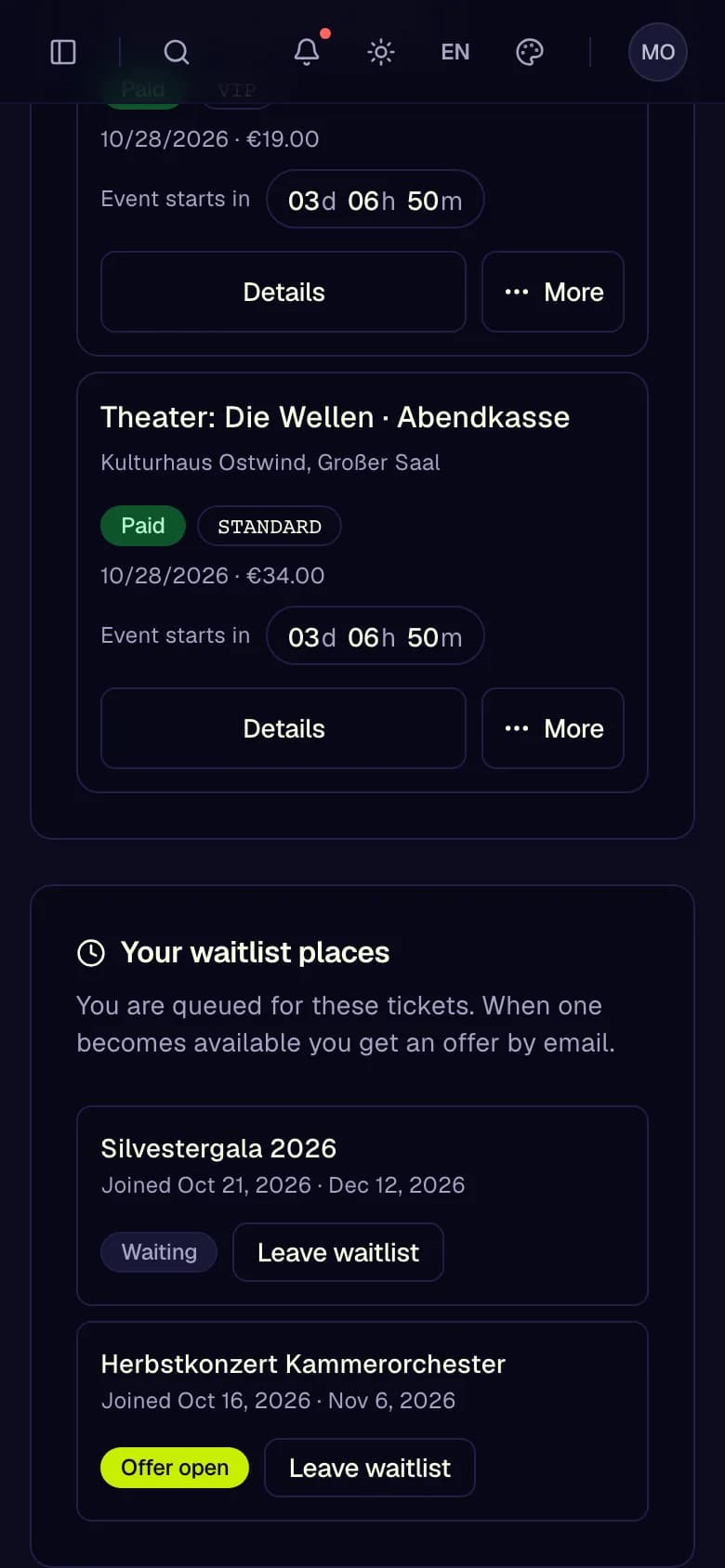
Waitlist places you joined while signed in are listed under My tickets → Your waitlist places, with the event, the date you joined and the status: Waiting, or Offer open when a ticket is held for you.
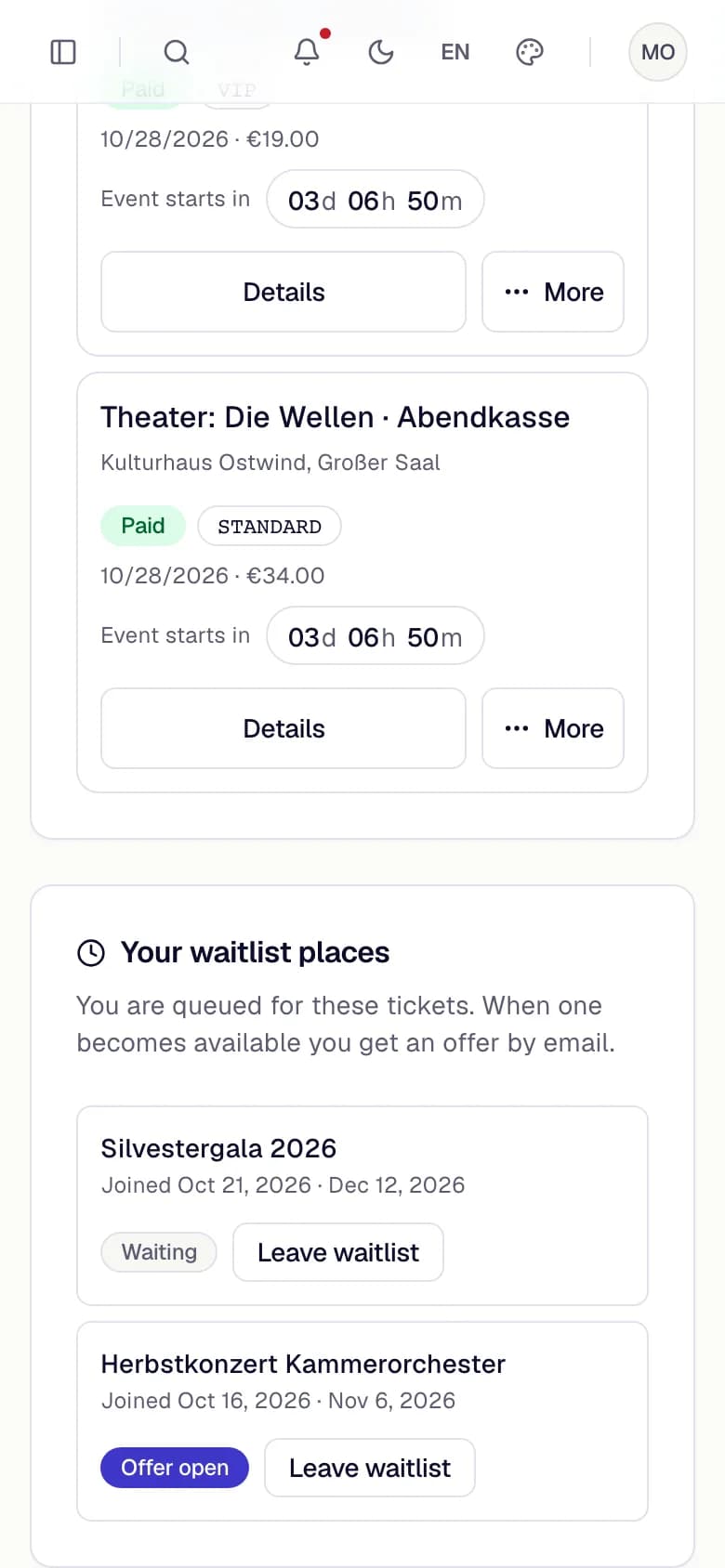
- Your waitlist places
- Waiting
- Offer open
- Leave waitlist
Leaving cannot be undone. If you join again, you start at the end of the queue.
Common problems
- "The QR code appears once your ticket reaches status "Paid" or "Scanned"." The ticket is not paid yet. Pay it with Pay now.
- "This ticket cannot be used yet based on its current validity window." The ticket is valid from a later date.
- "Ticket not found" on the ticket page. The ticket belongs to another account. Sign in with the address you ordered with.
- "Apple Wallet passes are only issued for tickets the organiser allows to be transferred." Use Google Wallet or the QR code in TixFin.
- "Transfer not allowed" in the More menu. The organiser does not allow transfers for this ticket. See Transfer a ticket.
- A ticket shows only its type, without the event. The event name could not be loaded just now. Reload the page.
- A ticket is missing from My tickets. It was bought with another e-mail address. Use the link in that order's confirmation e-mail.