
 TixFin
Transfer a ticket
Send a ticket to someone else by e-mail, and accept a ticket sent to you
You can pass a paid ticket on to another person by e-mail, if the organiser allows transfers for the event. Both of you need a TixFin account.
Where: account menu → My tickets → More → Transfer ticket, or the ticket's Transfer card. Your transfers: My tickets → Transfers. Who can do this: the account that holds the ticket
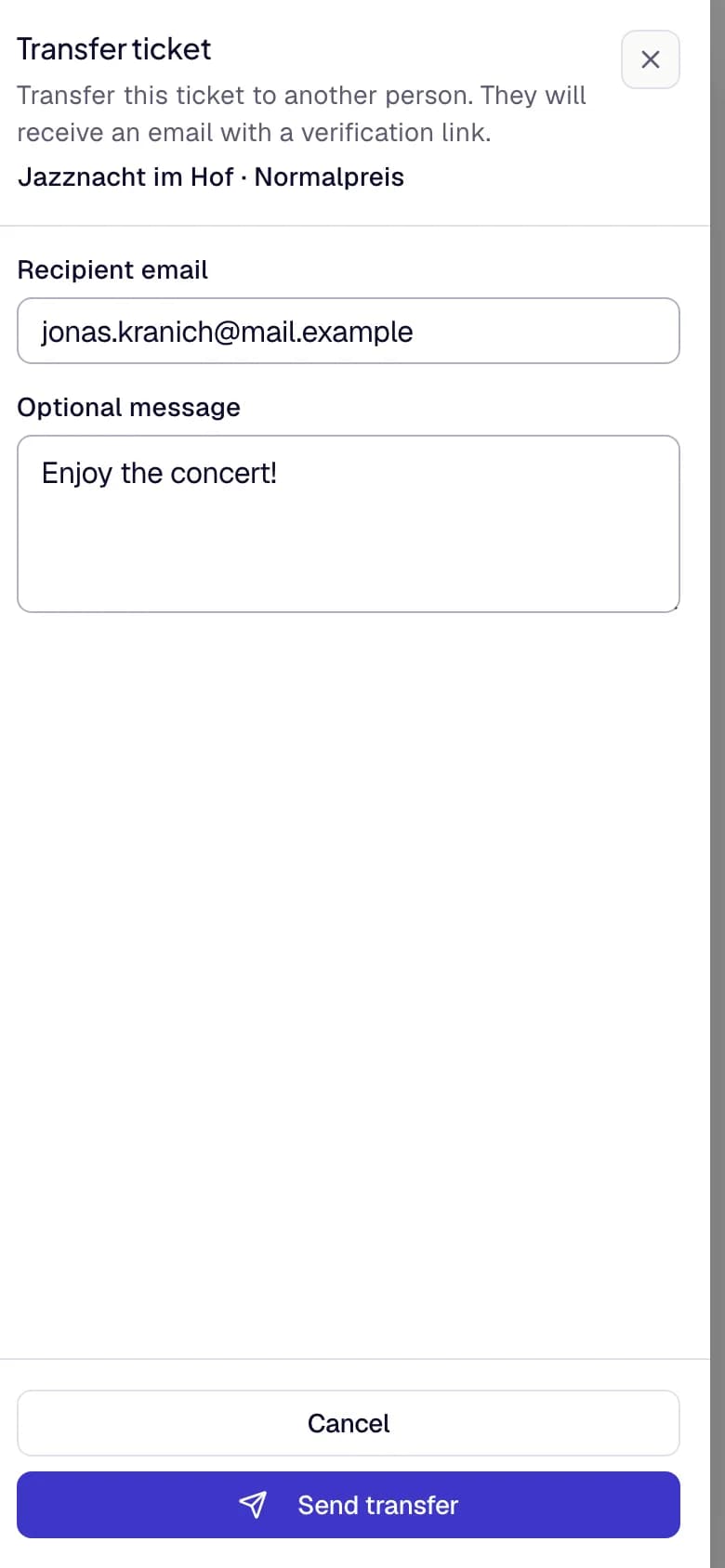
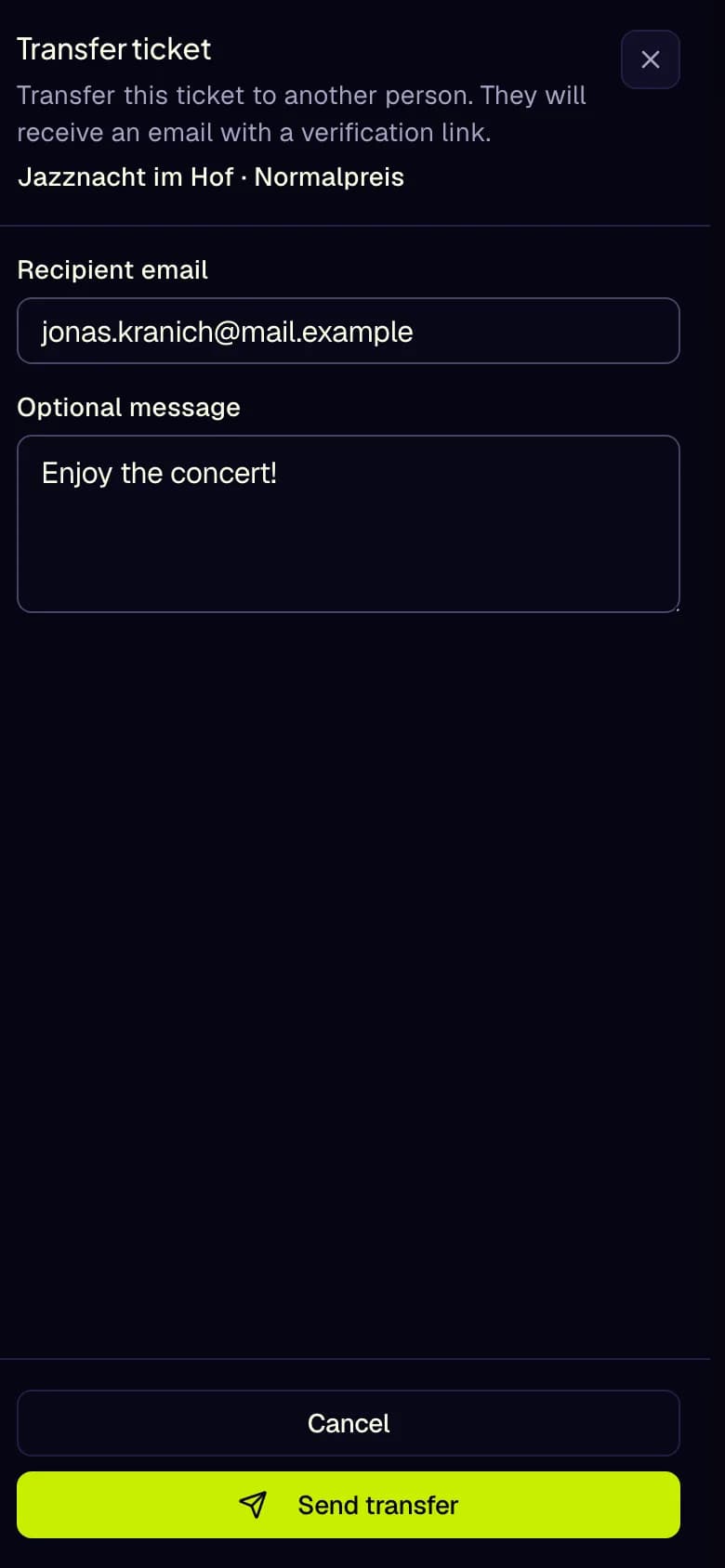
- Check the ticket
- Recipient email
- Optional message
- Send transfer
Send a ticket
The dialog names the ticket ("Event · ticket type"), its date and venue. Check that it is the right one.
Enter the Recipient email and, if you like, an Optional message. Press Send transfer.
Confirm with Yes, transfer. The dialog warns you: once the recipient accepts, your QR code and any saved wallet pass stop working.
The recipient gets the e-mail "A ticket has been offered to you". Your ticket shows Transfer in progress with the recipient and the expiry date: the offer can be accepted for 7 days. Until the recipient accepts, you can Cancel transfer.
Accept a ticket
You can accept in My tickets or from the e-mail link.
In My tickets
From the e-mail
The sender's QR code stops working at that moment. Only your new ticket is valid.
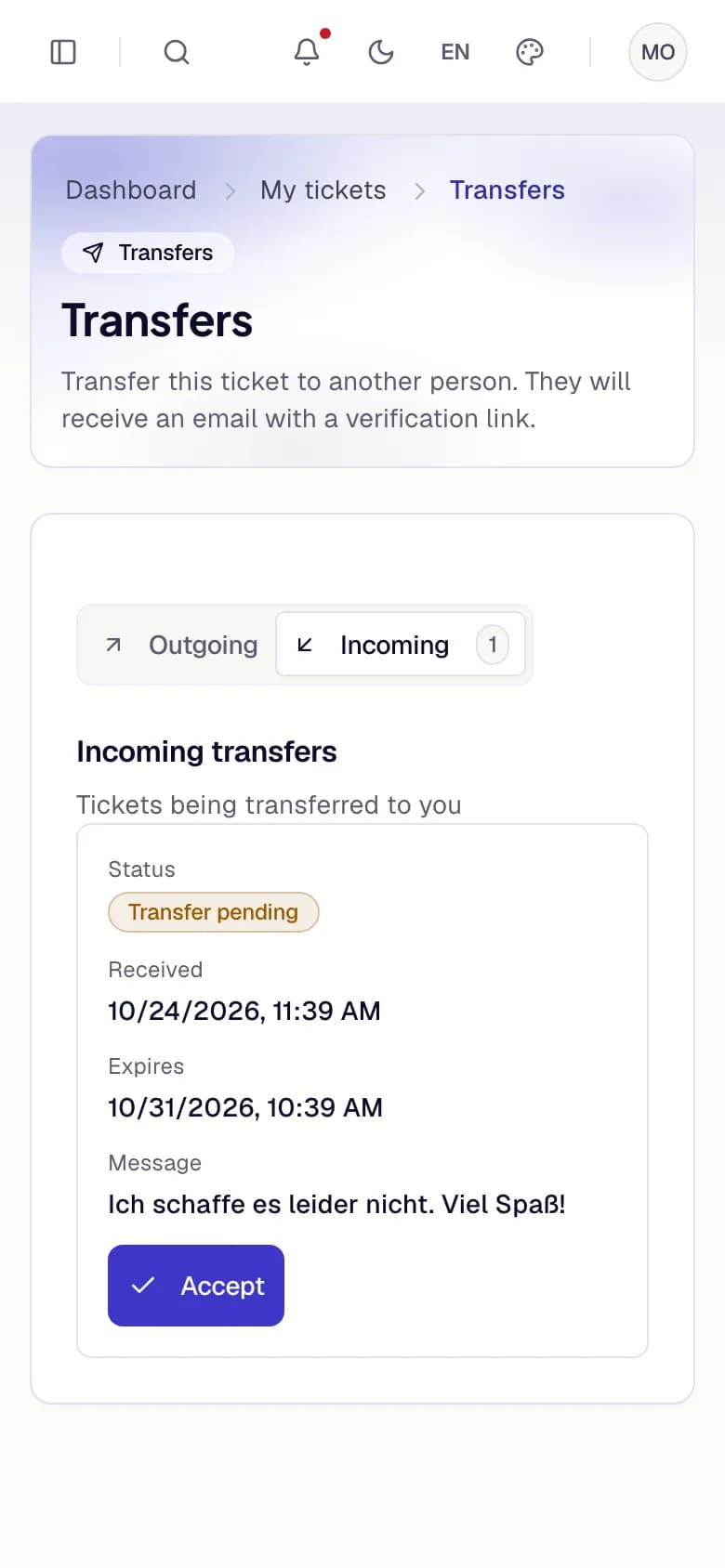
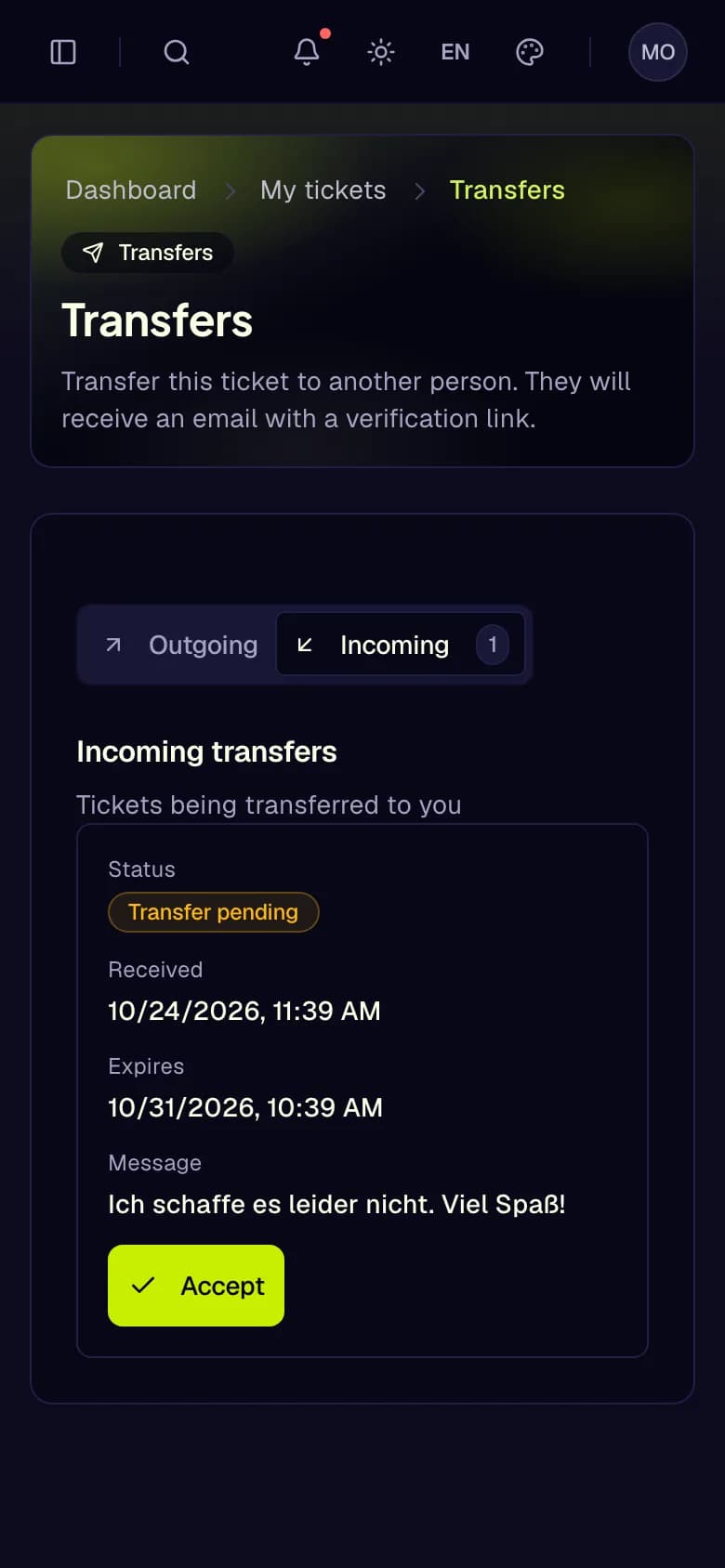
- Incoming
- Accept
- Outgoing
- Transfer status
Follow your transfers
My tickets → Transfers has two tabs, Outgoing and Incoming. It opens on Incoming when you only have incoming transfers. Each transfer shows its status (Transfer pending, Transfer accepted, Transfer cancelled, Transfer expired or Transfer revoked), when it was sent and until when it can be accepted. The organiser can revoke a transfer.
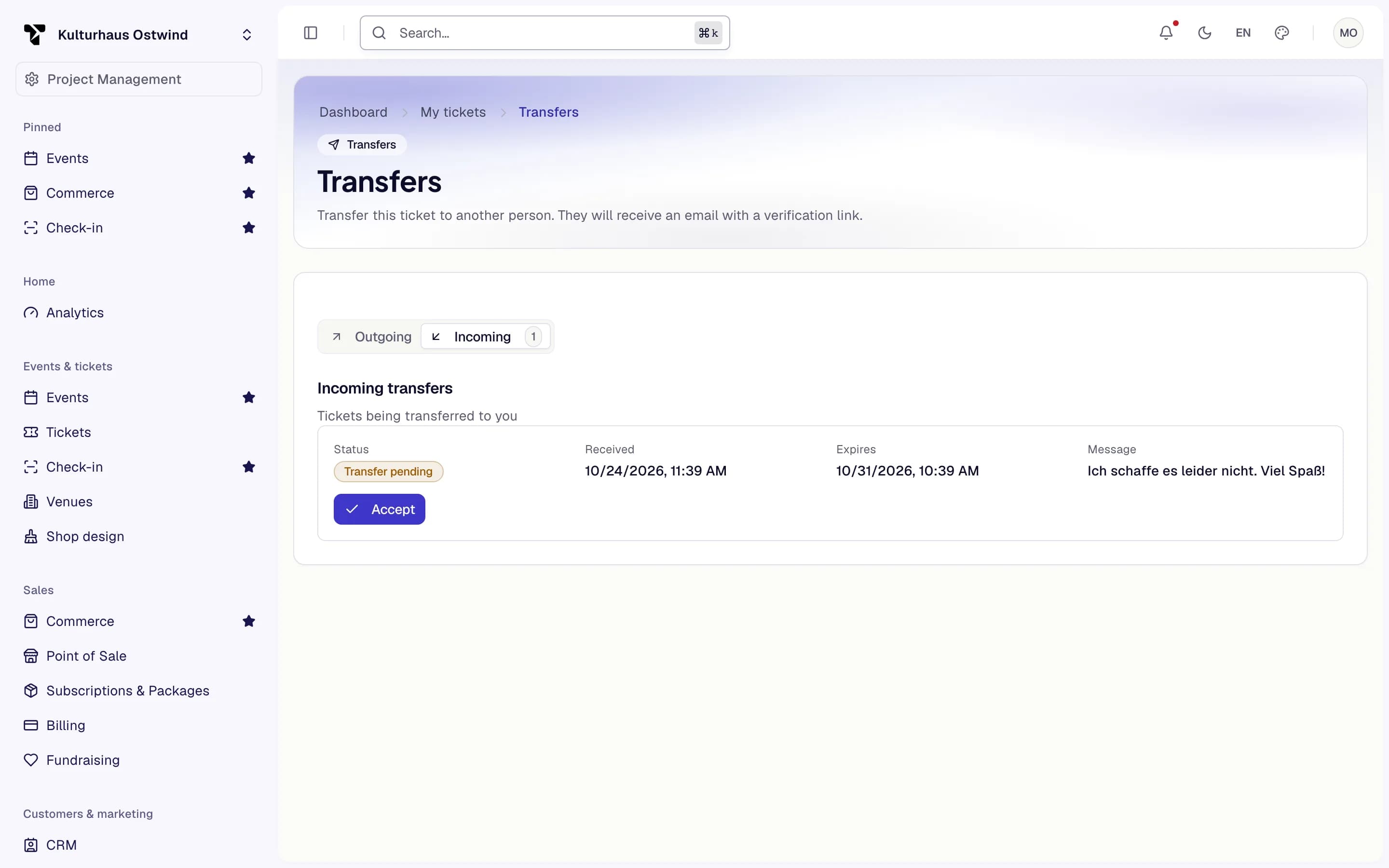
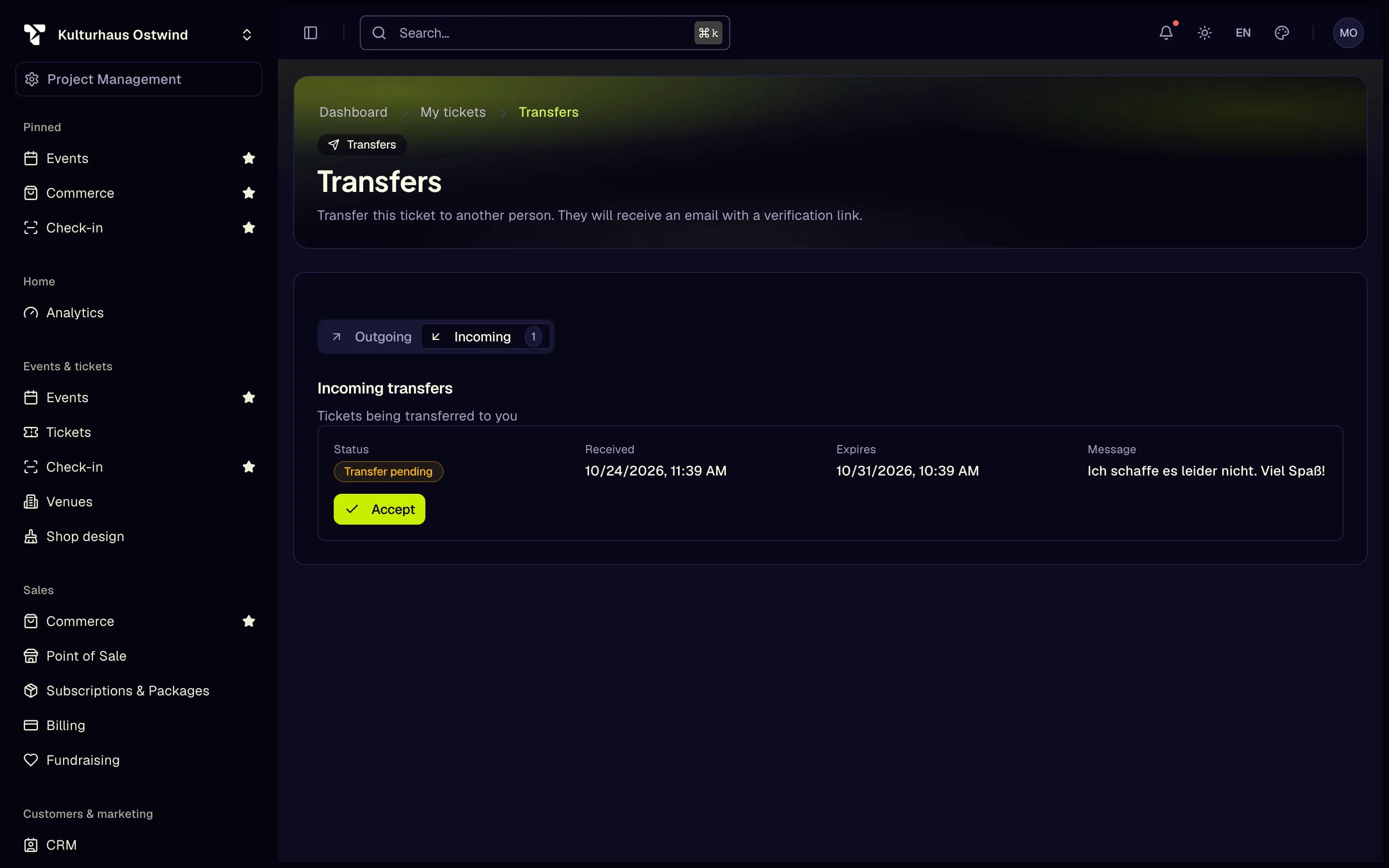
- Outgoing
- Incoming
- Transfer status
- Can be accepted until
When a transfer is not possible
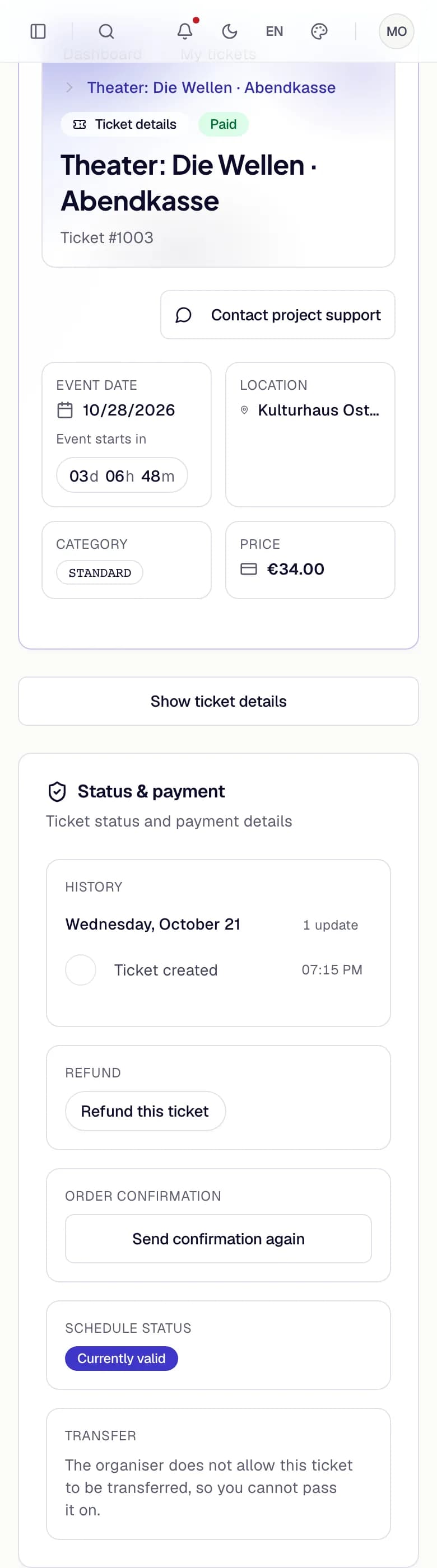
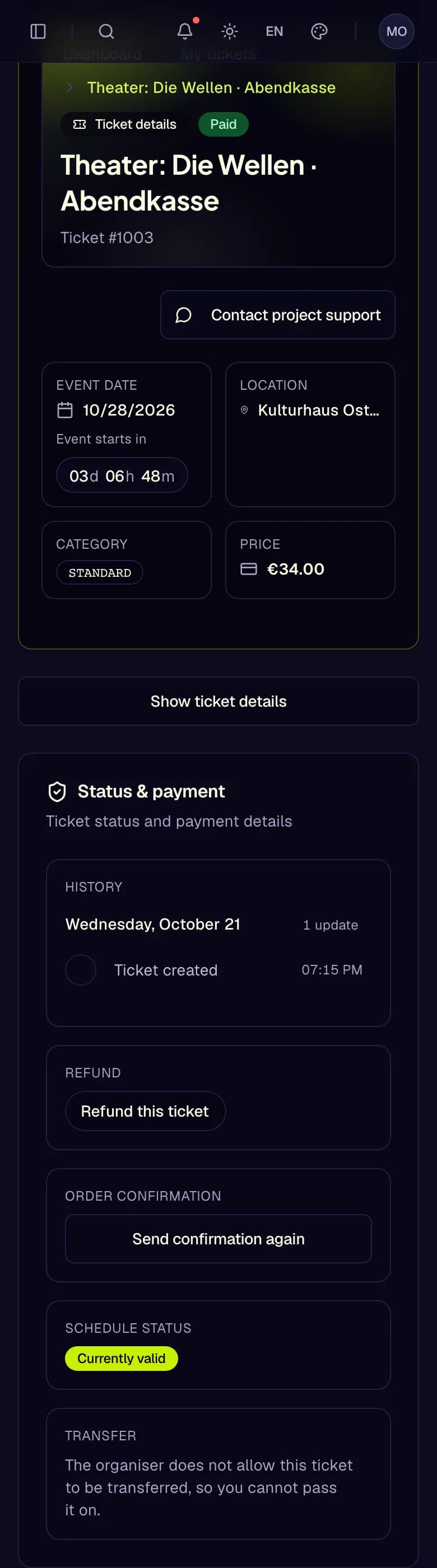
- Ticket status
- Transfer not allowed
- "Transfer not allowed" in the More menu, or "The organiser does not allow this ticket to be transferred, so you cannot pass it on." on the ticket page. The organiser does not allow transfers for this event. Such a ticket has no Apple Wallet pass either. Google Wallet and the QR code in TixFin still work.
- "Only paid tickets can be transferred." Pay the ticket first.
- "Transfers for this event have closed" The deadline for transfers has passed.
- "This ticket has been transferred as often as permitted"
- "This ticket already has a pending transfer" Cancel the pending transfer first, or wait for it.
- "Cannot transfer a ticket to yourself"
- "Too many transfer offers; please try again later" There is a daily limit.
Common problems
- "Open the link in the transfer email again to accept the transfer." The page lost the link, for example after a reload. Open the link from the e-mail once more.
- "This transfer has expired." or "This transfer is no longer available." The offer ran out, or the sender cancelled it. Ask the sender to send it again.
- "Transfer not found or link is invalid." Use the link from the most recent transfer e-mail.
- The transfer is not under Incoming. You are signed in with another address, or the address is not verified. Use the e-mail link instead, or sign in with the address the ticket was sent to.