
 TixFin
Your account
Create an account, verify your e-mail, sign in with two-factor, and reset a forgotten password
You do not need an account to buy tickets. With one you get My tickets, transfers, refunds, wallet passes and your invoices in one place. Tickets bought with the same e-mail address show up there automatically.
Where: the TixFin dashboard sign-in page, beta.tixfin.com Who can do this: anyone
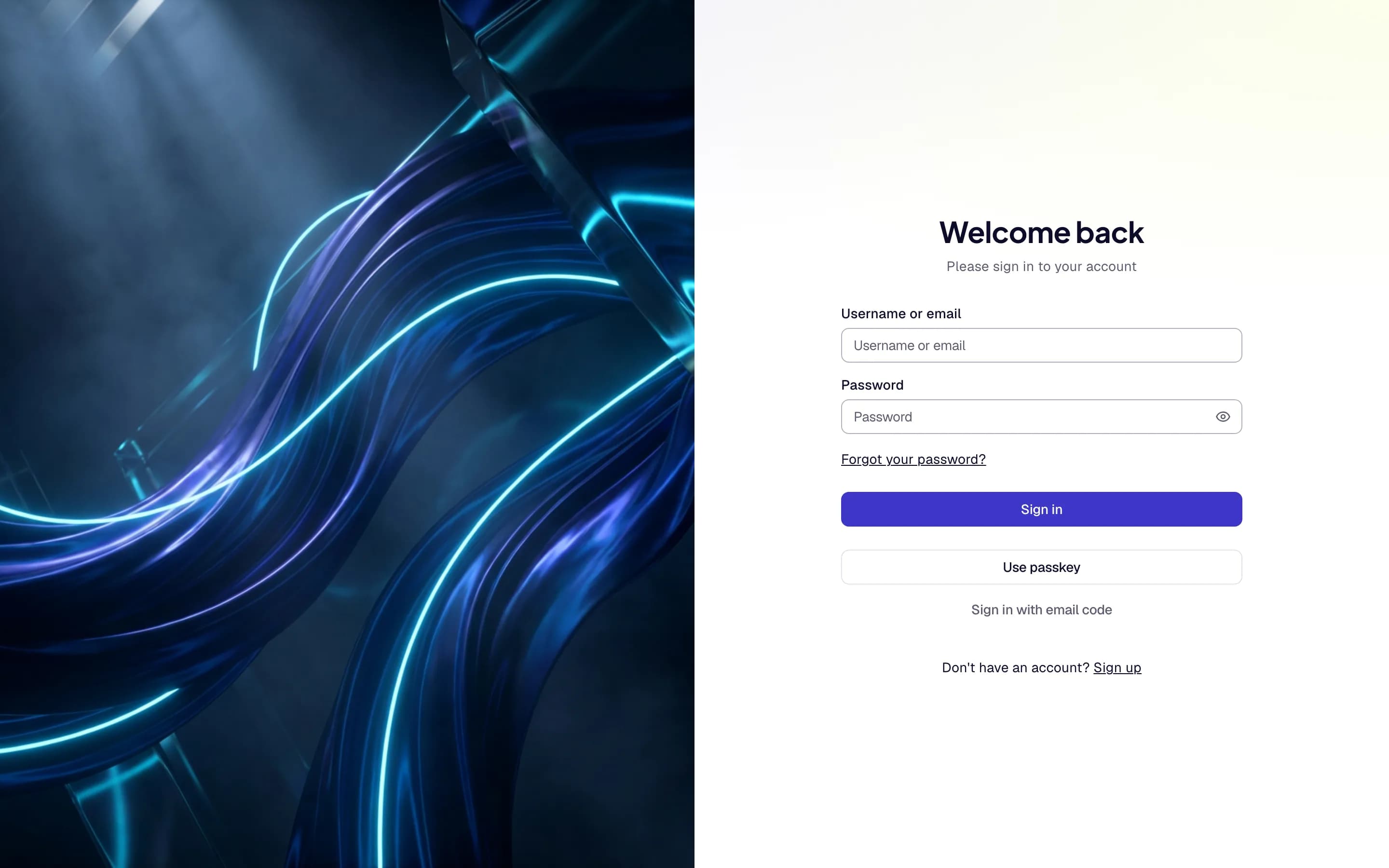
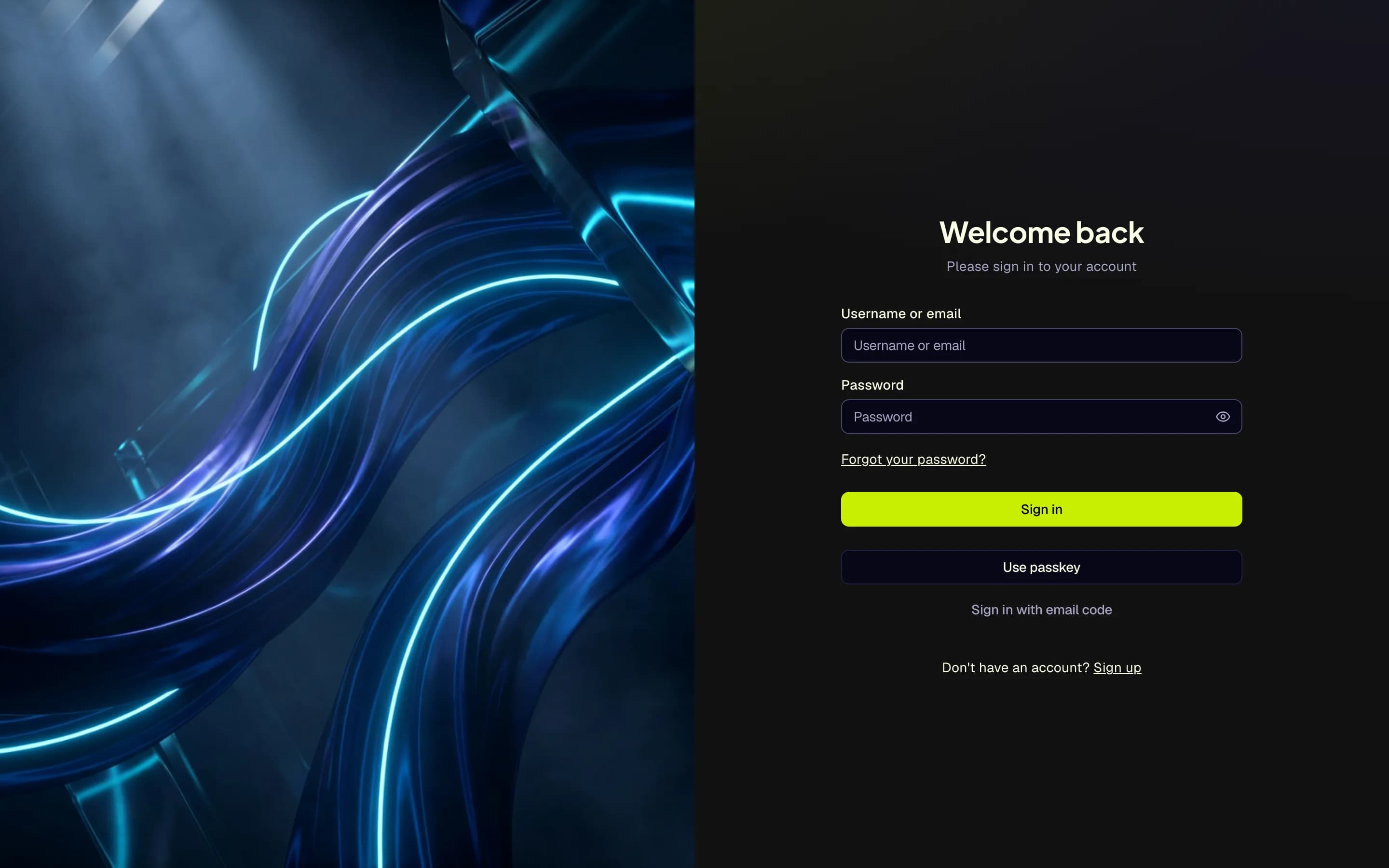
- Sign up
- Username or email
- Password
- Sign in
- Forgot your password?
Create an account
Enter your first name, last name, Email address and Birth date. The birth date is required to check that you are at least 13. It is stored encrypted.
Choose a password: at least 12 characters, with uppercase, lowercase, a number and a special character. Repeat it under Confirm password.
If the page offers Google or Apple under or continue with, you can sign up with that account instead.
Verify your e-mail
After registering you land on Verify your email, and we send you a link.
Open the link in the same browser, while you are still signed in from registering. The link is valid for 24 hours.
If the page says Sign in to verify, sign in to the account you registered with that address, then open the link again.
No verification e-mail?
On the Verify your email page, or in the Email not verified panel on the sign-in page, enter your address and press Resend link.
The page answers "If an unverified account uses this address, we sent a new link." It says that for every address. Open the new link while signed in.
You can request a new link once a minute. After three requests in 15 minutes the page says how many minutes to wait: "Too many requests for this address. Please try again in … min." You do not need to be signed in to request a link.
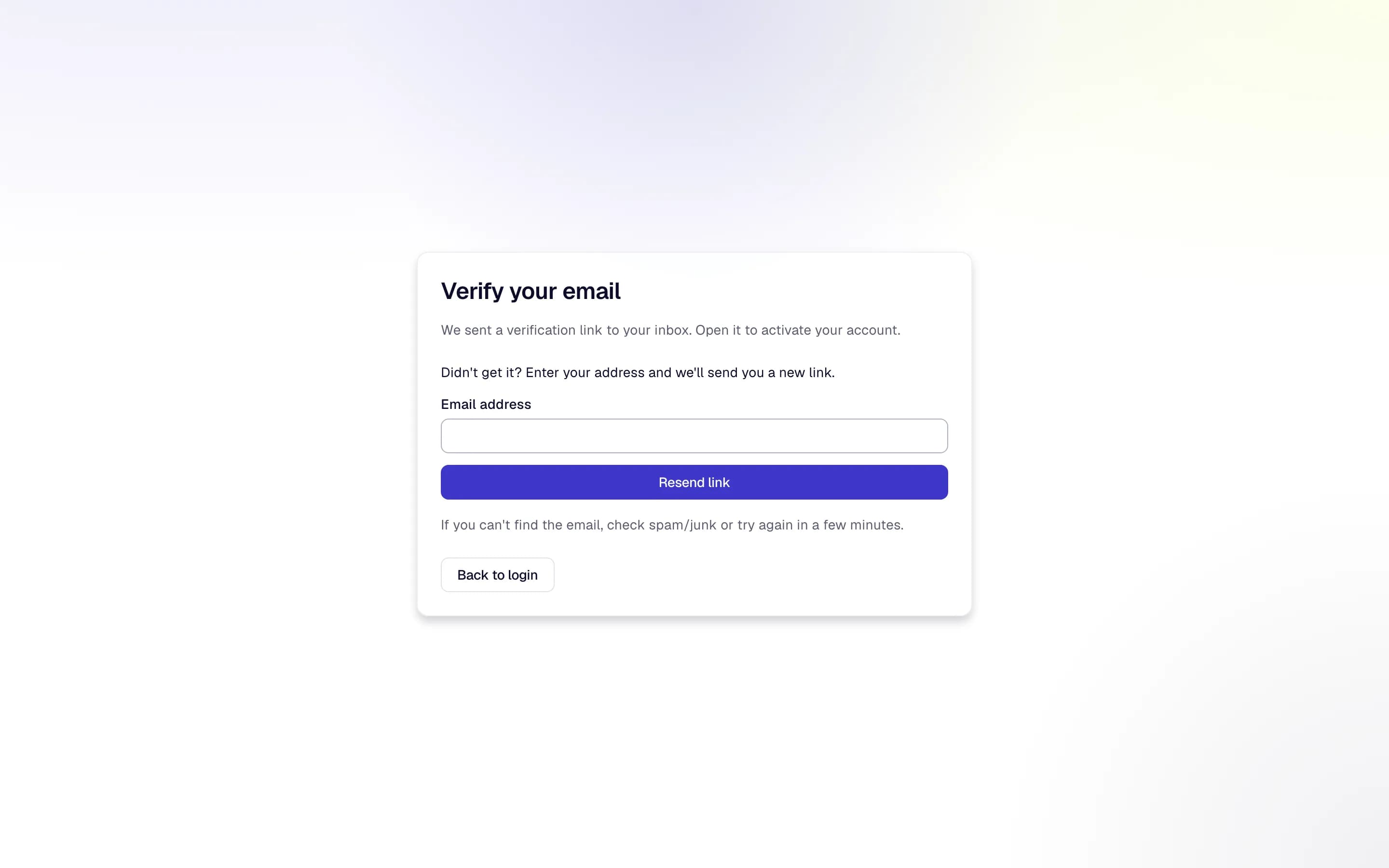
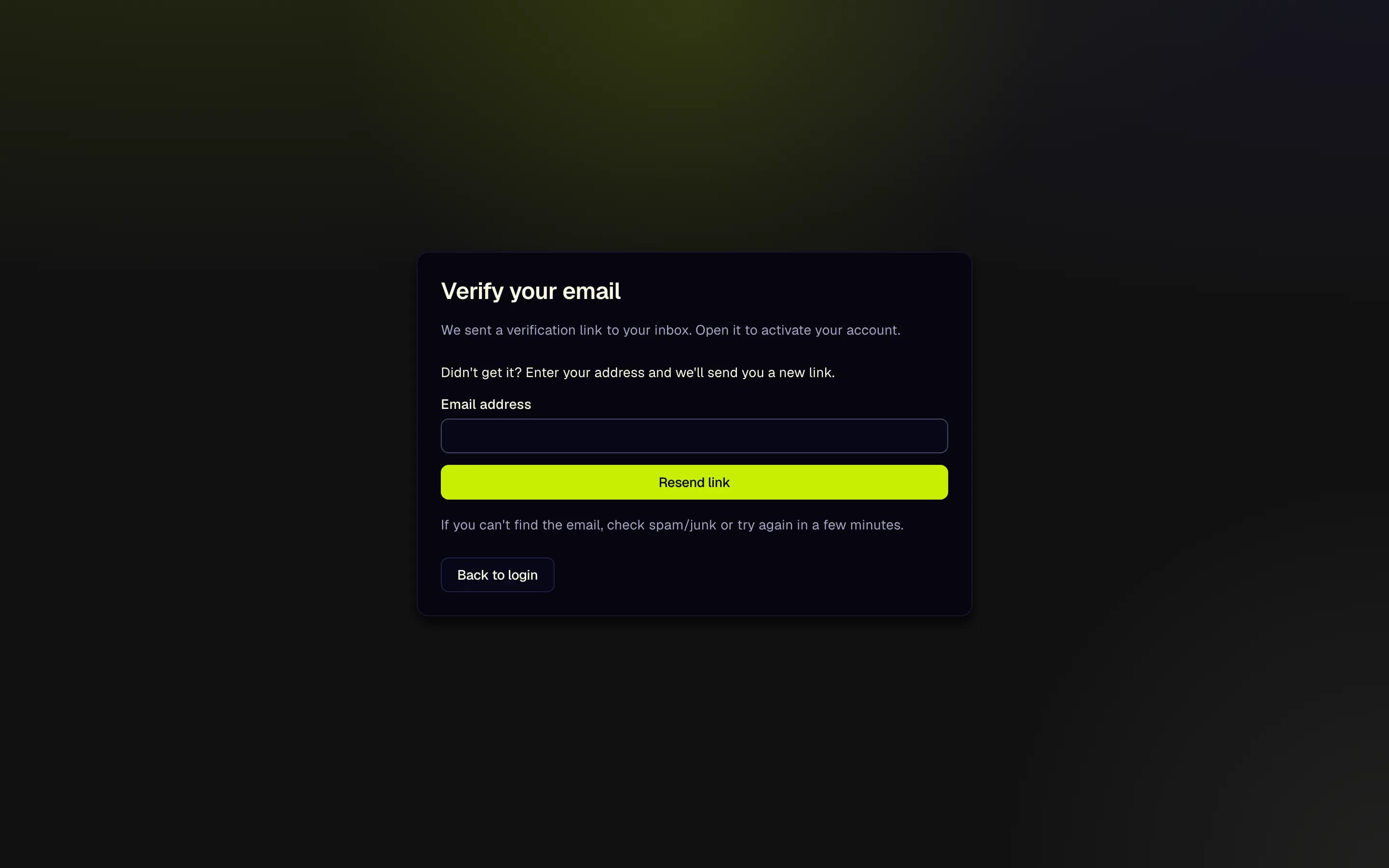
- Verify your email
- Enter your address
- Resend link
Signed in already? Account menu → Account → Security also has Resend verification email.
Sign in
Or sign in another way: Use passkey, Sign in with email code (a 6-digit code, valid for 10 minutes), or Google or Apple if the page shows them.
Two-factor at sign-in
If your account has two-factor authentication, the next step asks for Two-factor authentication.
No access to your authenticator app? Use one of the backup codes you saved when you set up two-factor authentication.
ABCDE-FGHJK. Upper and lower case, spaces and the hyphen do not matter.Use the code from your authenticator app instead switches back. The same step, with backup codes, follows Sign in with email code and a Google or Apple sign-in. After signing in, set up two-factor again on a new device and create new backup codes (Account security).
No backup codes left and no device? Contact TixFin support. Support can reset the second factor; you get an e-mail when that happens.
To set up two-factor or a passkey, see Account security.
Reset a forgotten password
Open the e-mail "Reset your password" and follow the link within an hour. Enter a New password, repeat it, and press Update password.
The page answers "If an account exists, you will receive a password reset email." for every address.
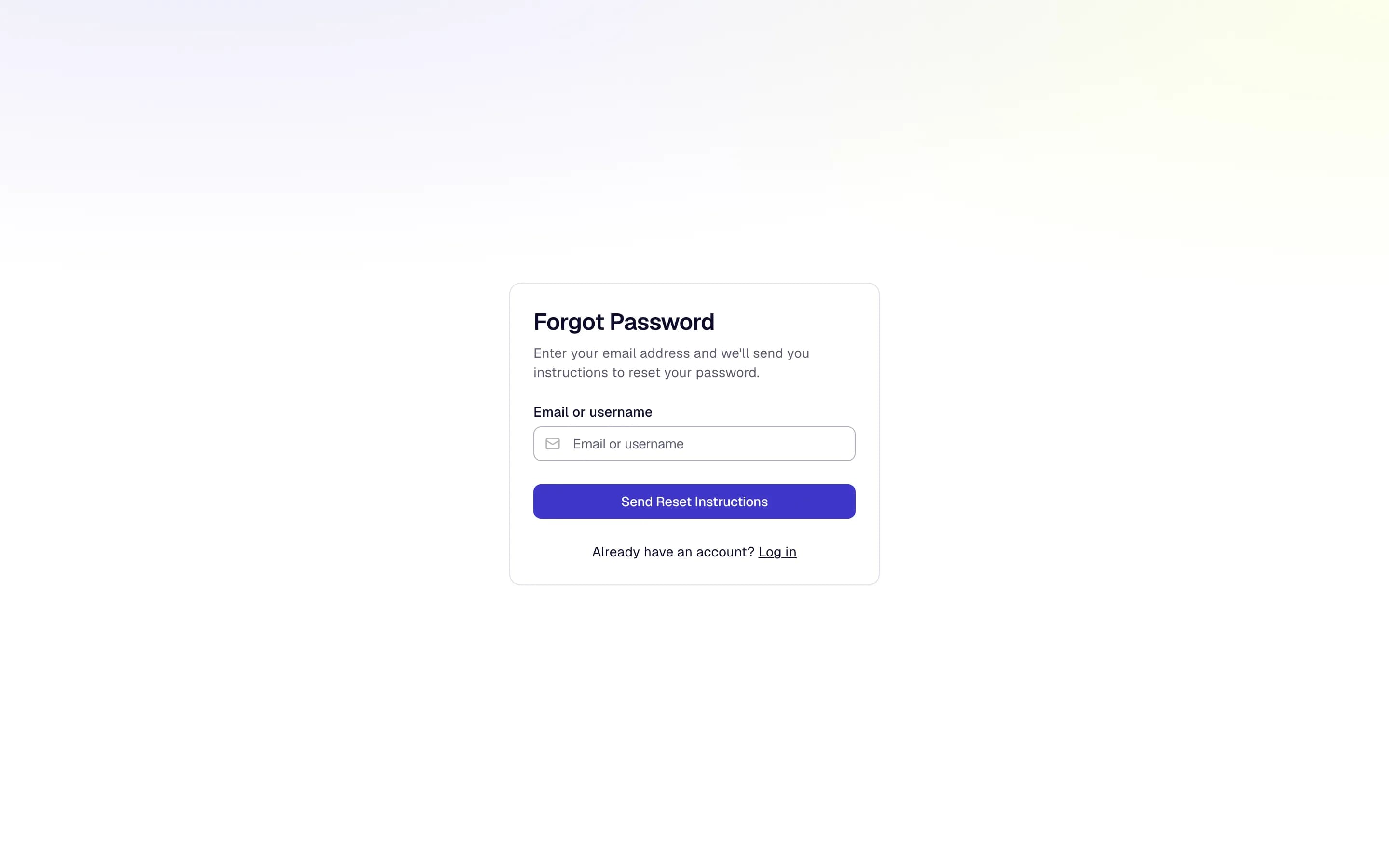
- Email or username
- Send Reset Instructions
Change your details
Account menu → Account: change your e-mail address, and download all data stored for your account with Download export. Account menu → Account → Security: change your password, set up two-factor and passkeys.
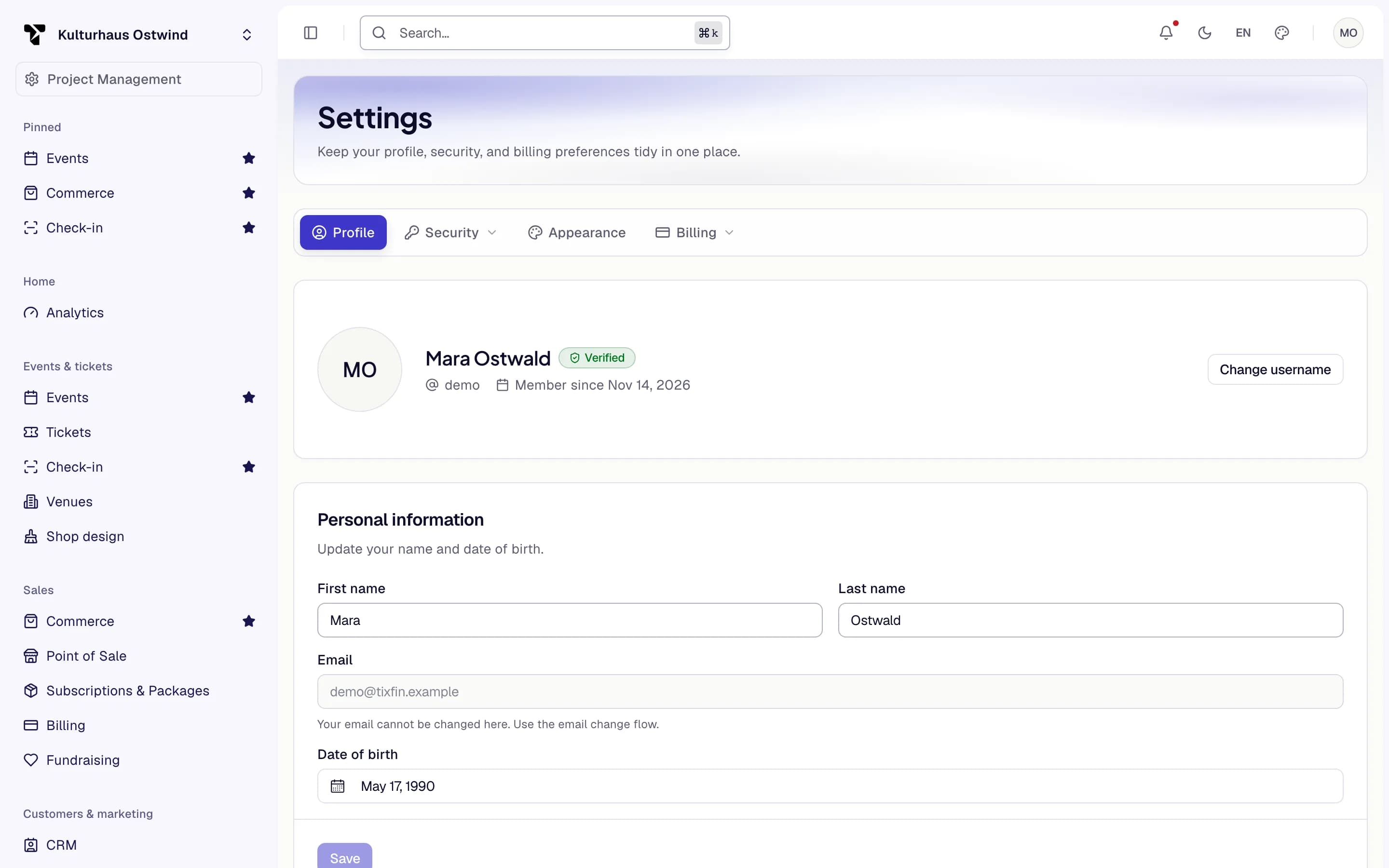
- Account: Profile
- Your name
- Save
Your privacy choices
Account menu → Account → Privacy choices lists what you can consent to: Marketing emails and Usage analytics. Each has a switch. Turning a switch off withdraws your consent at once, with one click, just as turning it on gave it. A withdrawal applies from then on.
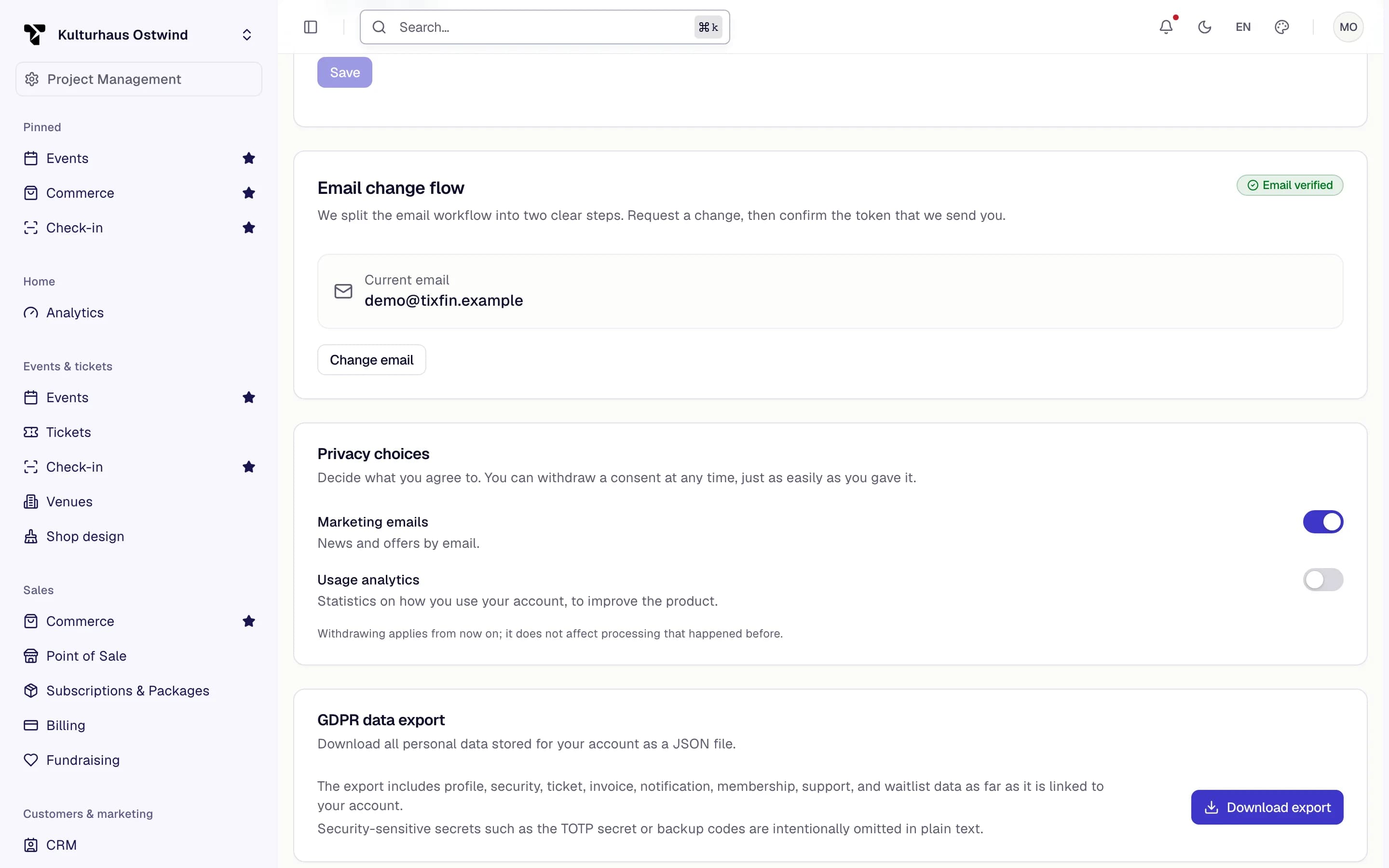
- Change email
- Download export
- Marketing emails
- Usage analytics
When you sign out of the installed app, the browser also stops receiving push notifications for your account.
Common problems
- "Username, email or password is incorrect." Check both. Use Forgot your password? if needed.
- "Email not verified" when you sign in. Your address is not confirmed yet. Use Resend link in the panel.
- "Invalid 2FA code" Use the current code from your authenticator app. Check that your phone's clock is right.
- "Invalid or already used backup code" Each backup code works once. Try another one from your list.
- "This sign-in has expired" The mailed code or the Google/Apple sign-in ran out while you were at the two-factor step. Start the sign-in again.
- "Too many attempts. Please wait a few minutes and try again." After five wrong backup codes in 15 minutes, wait before trying again.
- "Verification failed" after opening the link. The link is used or expired. Request a new one with Resend link.
- "The link is invalid or has expired. Request a new link." on the password page. Request a new reset e-mail.
- "Sign-in is not reachable right now." Try again in a few minutes.