
 TixFin
Invoicing
Set up your invoice details, find and correct invoices to buyers, design the invoice and export to DATEV
TixFin issues invoices to your buyers in your name. Every paid online order gets one automatically, and so does every sale at the Point of Sale. Free orders get none. This page covers the invoices you issue. What TixFin bills you is under Billing and plans. Invoices to your own business customers and sponsors are under Invoices and receivables.
Where: Sales → Billing (tabs Invoices, Invoice template, Compliance) and Project → Project settings → Billing & Legal Who can do this: members with View billing (read) or Manage billing (change)
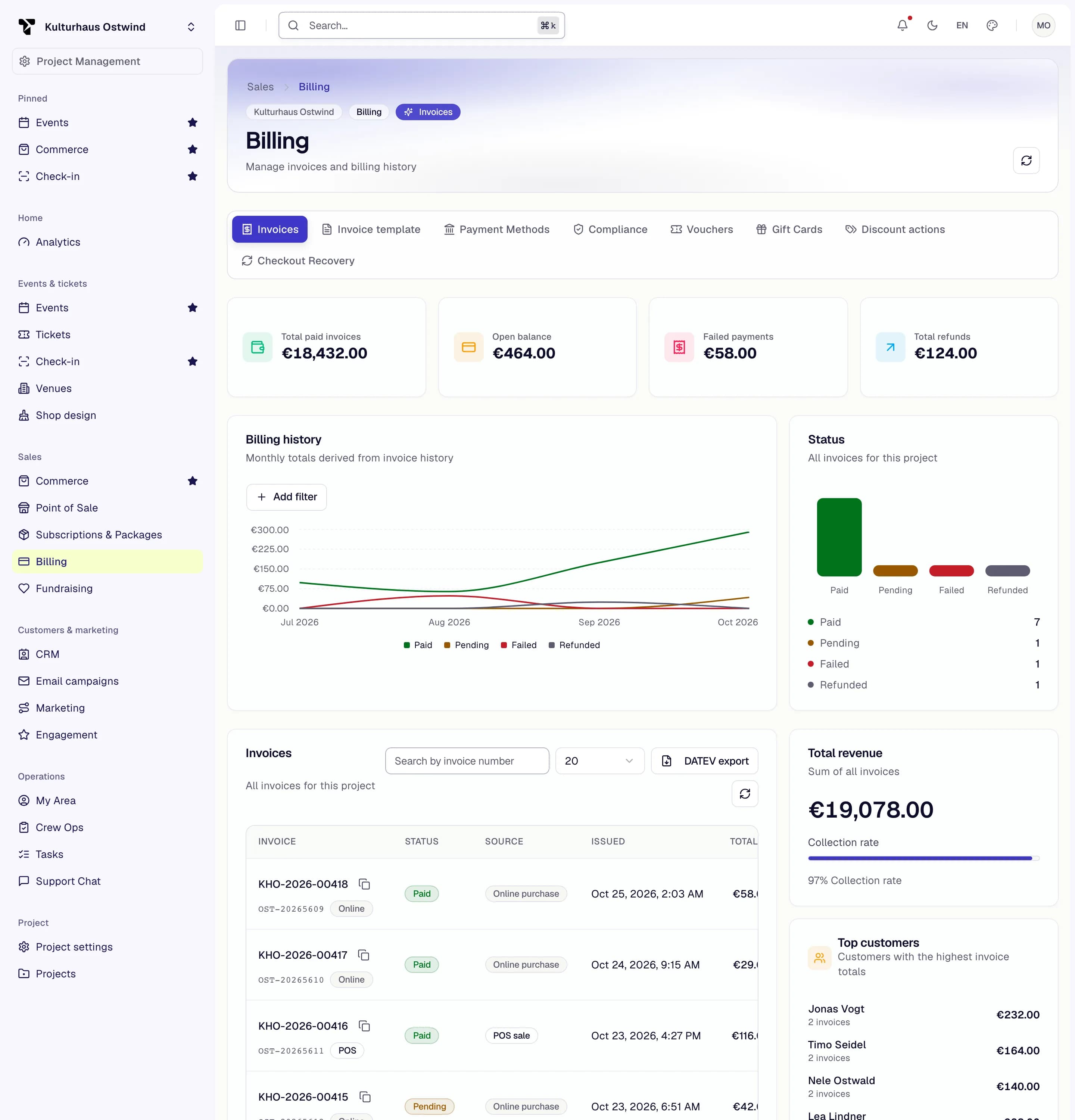
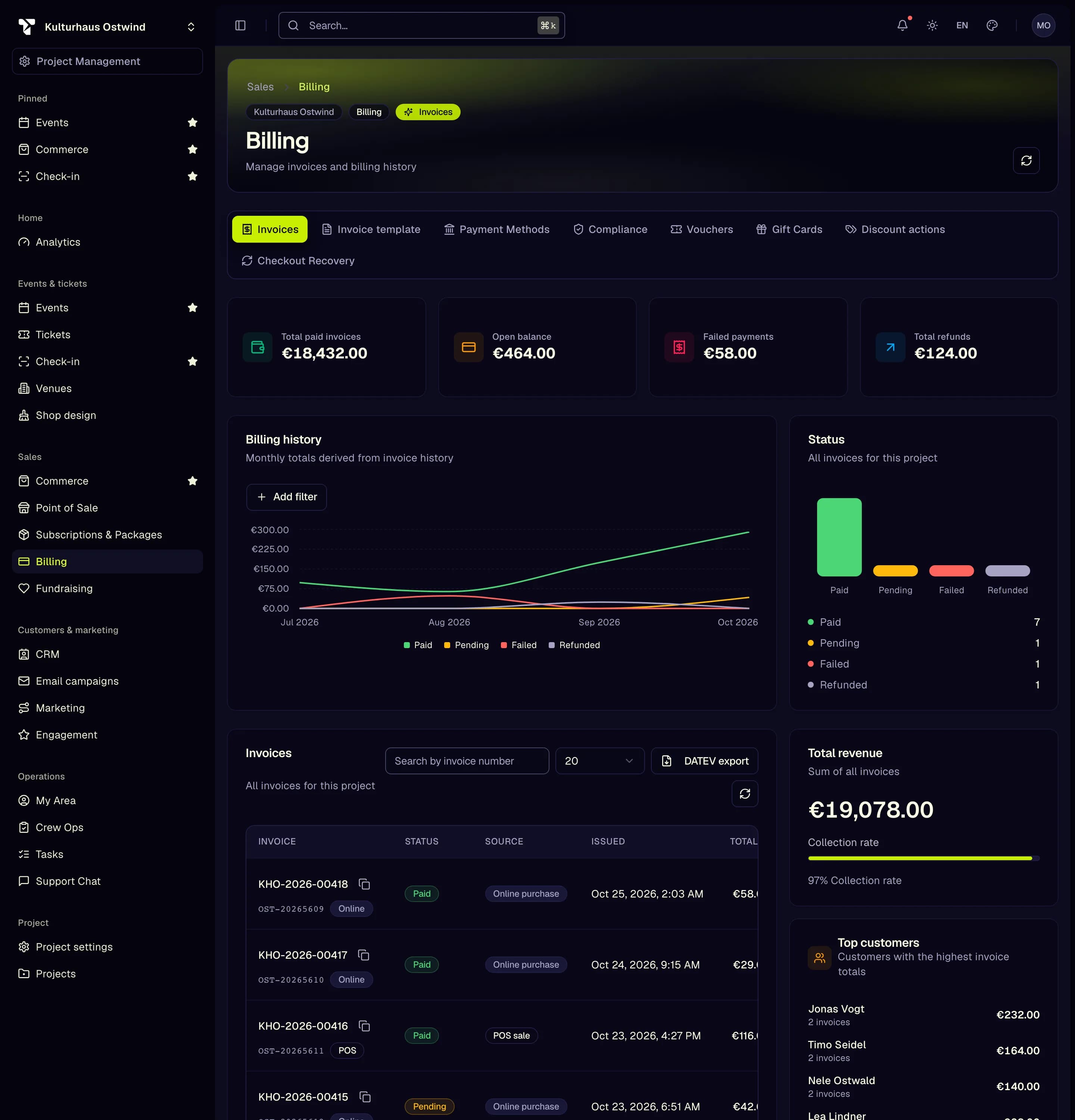
- Invoices tab
- Invoice template
- Compliance
- Invoices with status and source
Enter your company and tax details
Every invoice and order confirmation shows these details. You cannot sell before they are complete.
Set the tax regime and invoice numbers
The price note in your shop ("incl. VAT" or the small-business note) follows these settings. Publish your shop again after changing them.
Find an invoice
Open Sales → Billing. The Invoices tab lists every invoice with its status and source (Online, POS or Manual).
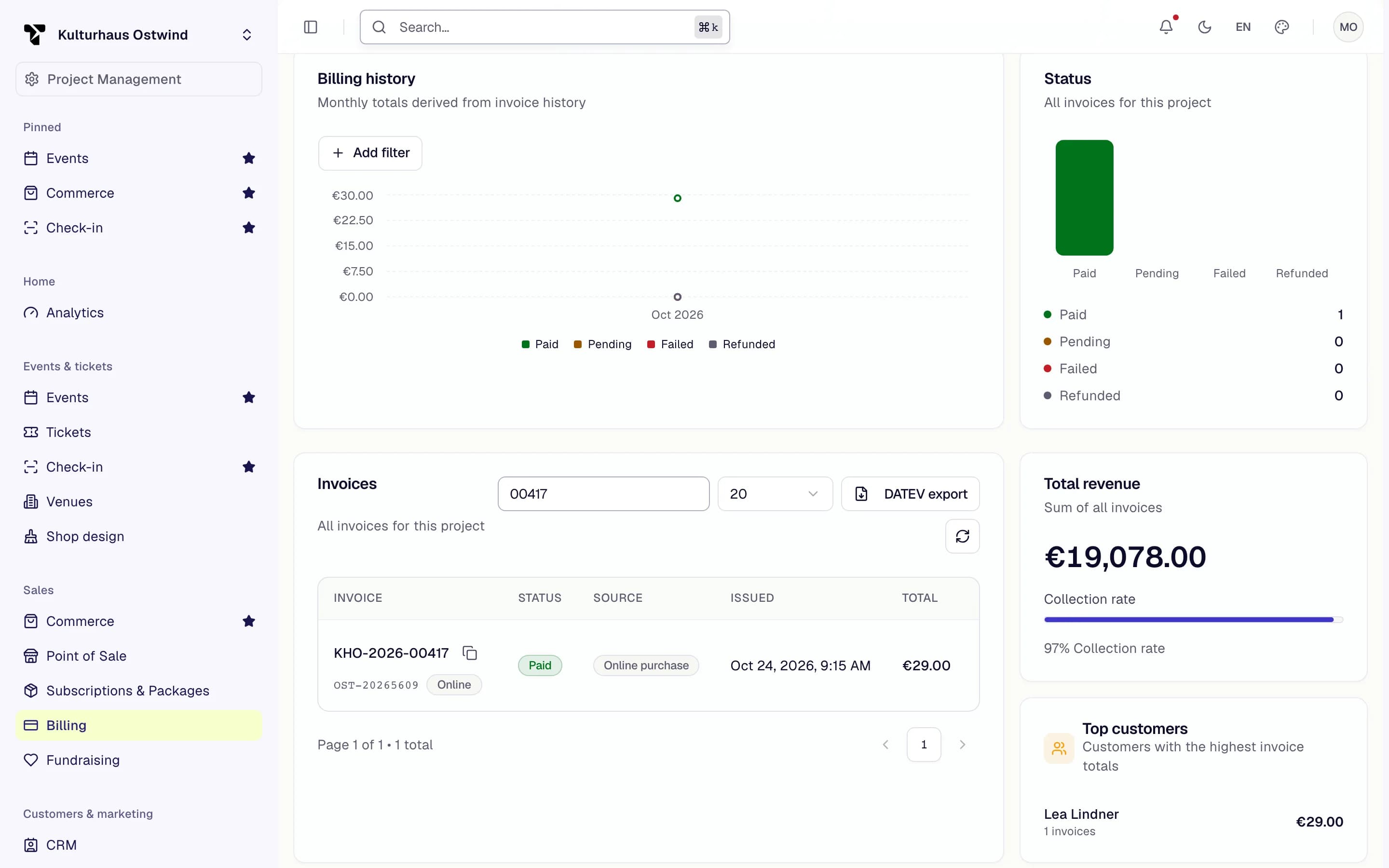
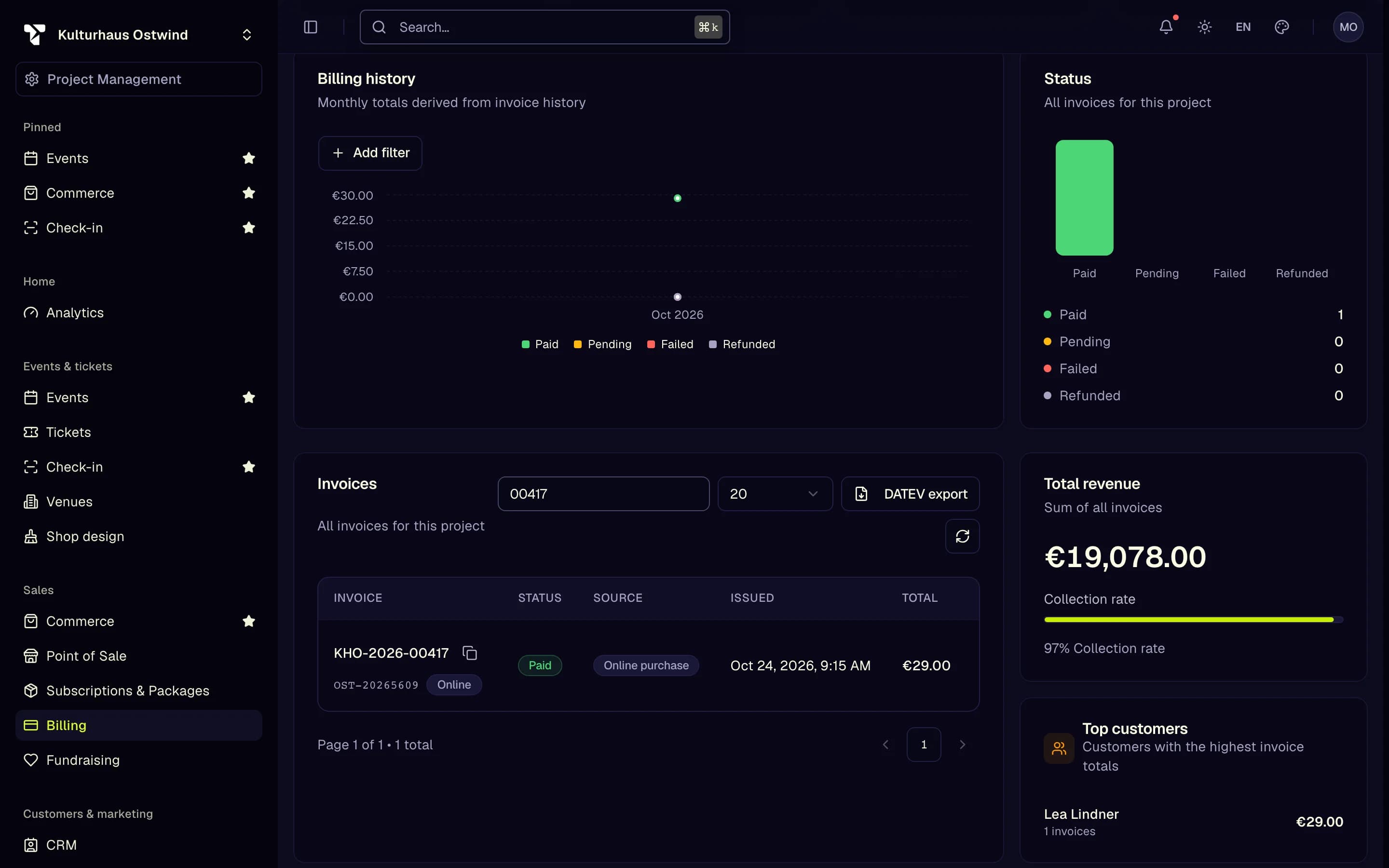
- Search by invoice number
- Open the invoice
- Status
00417. Upper and lower case do not matter.The number search covers all invoices, not only the page you see. The Category filter works on the invoices currently loaded.
Download or correct an invoice
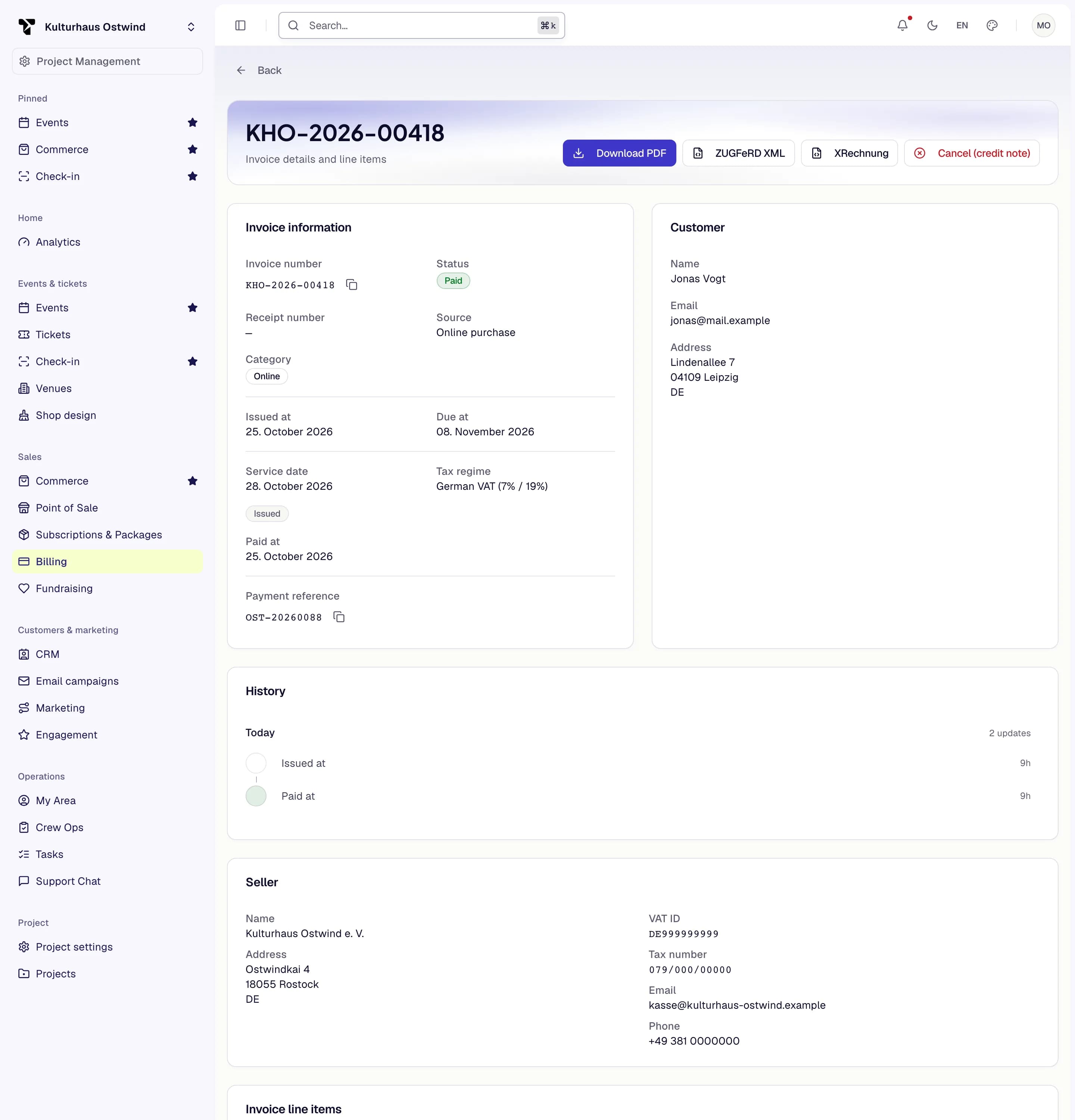
- Download PDF
- ZUGFeRD XML
- XRechnung
- Cancel (credit note)
An issued invoice can never be edited or deleted. To correct one, cancel it with a credit note. Each refund issues a credit note too.
Design your invoices
Reset deletes your template and restores the default layout. If you leave with unsaved changes, the editor asks first.
Export to DATEV
Click DATEV export (this year so far) on the Invoices tab for this year so far; choose a period for an earlier year with Export CSV under Compliance → DATEV CSV Export. A DATEV export covers one calendar year. Debtor numbers per customer are listed under Debtors (Debitoren).
How buyers get their invoice
When the invoice of a paid online order is issued, TixFin e-mails it to the buyer in their language, with the order reference, the amount and a link. You do not need to do anything.
| Buyer | The link opens |
|---|---|
| Ordered with a TixFin account | My purchases in their account, where they download the PDF |
| Ordered as a guest | The PDF itself. The link works without an account |
Invoices you issue at the POS or create by hand are not e-mailed. Download the PDF and send it yourself. See Receipts and e-mails for the buyer's side.
Common problems
- "Please check these details before saving:" followed by, for example, "Enter the VAT ID or the tax number." Fill in the fields listed, then save again.
- "No ZUGFeRD XML for this invoice" The invoice is older than the e-invoice feature. Click Regenerate under Compliance → Regenerate invoice documents.
- The XRechnung download fails. XRechnung needs data that not every invoice has, for example a public-sector buyer's routing ID (Leitweg-ID). Use the PDF or the ZUGFeRD XML instead.
- A buyer did not get their invoice e-mail. Ask them to check spam. With an account they find it under My purchases; for a guest, download the PDF and send it.
- "Tampering detected" under Audit trail integrity: the invoice chain check found a gap. Contact TixFin support.