
 TixFin
Invoices and receivables
Invoice your business customers and sponsors for advertising, record their payments by hand and read what is invoiced and still outstanding
Besides the invoices TixFin issues to your buyers, you can invoice your own business customers and sponsors: a banner, a page in the programme, a named stage. TixFin issues the invoice in your name, in your project's number series, and shows what you invoiced and what is still outstanding.
Where: Sales → Billing (tabs Invoices & receivables, Customers and Invoices, and the Invoice template page for your bank details) Who can do this: members with View billing (read) or Manage billing (create, record payments, cancel)
Invoices to your customers are switched on per project while our tax adviser reviews the DATEV export's booking logic. Until then they are available in a test project only. If Create invoice answers "Manual invoices are not enabled for this project yet.", your project is not switched on yet. Customers, bank details, recorded payments and the overview work anyway.
What it covers
- An advertising service with consideration ("Werbeleistung mit Gegenleistung") that you have already performed.
- Both parties in Germany. Your project uses the German VAT regime (19 %) or the small-business regime (§ 19 UStG). The buyer is a business, a public body or a consumer in Germany. If you are a non-profit organiser, confirm the VAT treatment of your sponsorship and advertising income with your tax adviser before you invoice it.
- Euro only, 1 to 50 lines per invoice.
Not included: invoices abroad, goods, rent, admissions, donations, advance invoices, service periods, saved drafts, partial payments, payment reminders, matching payments with your bank account, and sending invoices. The overview is not a profit and loss statement and not a cash-flow report.
Customers and sponsors
The Customers tab keeps the businesses and public bodies you invoice. Consumers are not stored: you type them into the invoice.
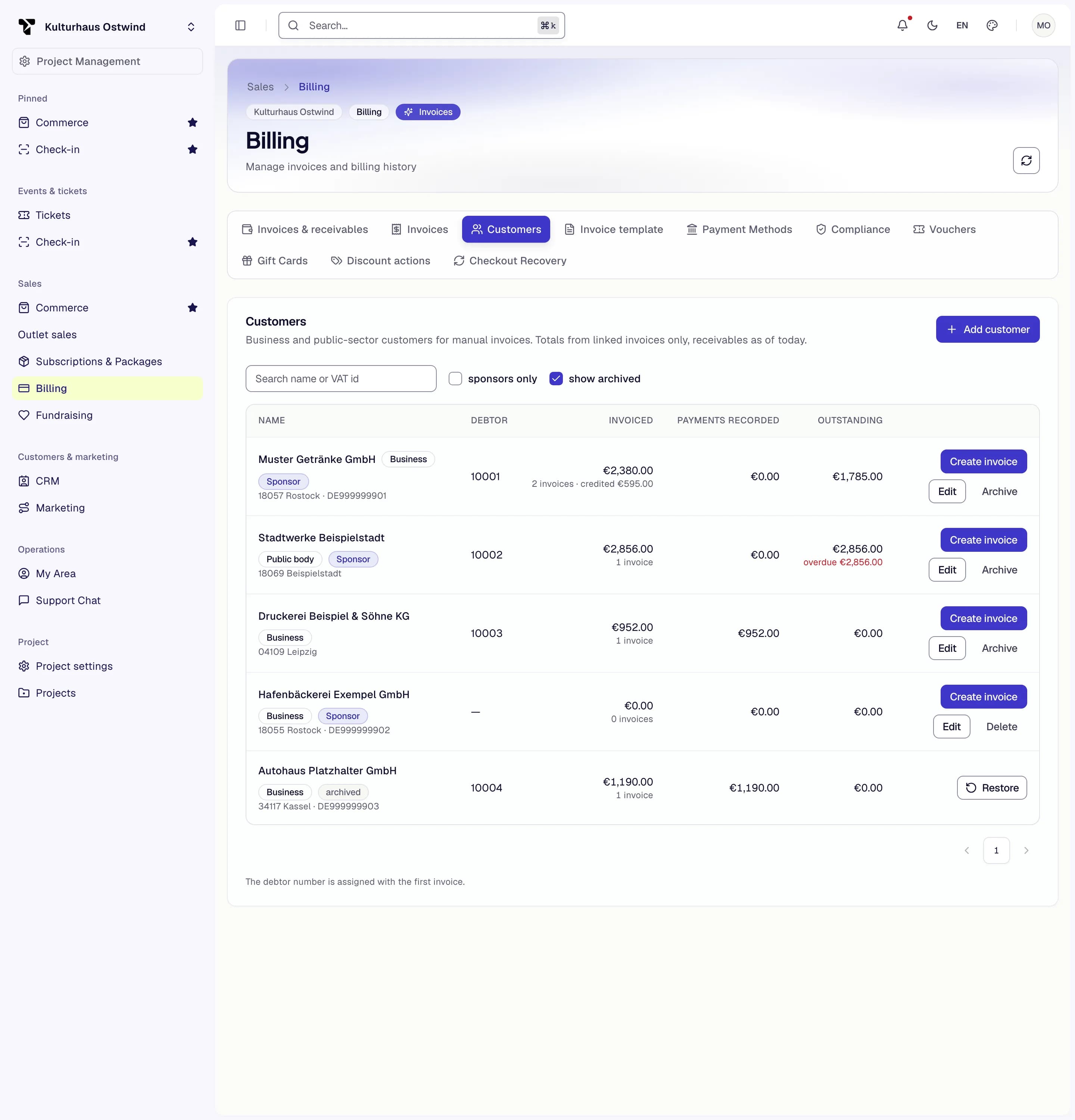
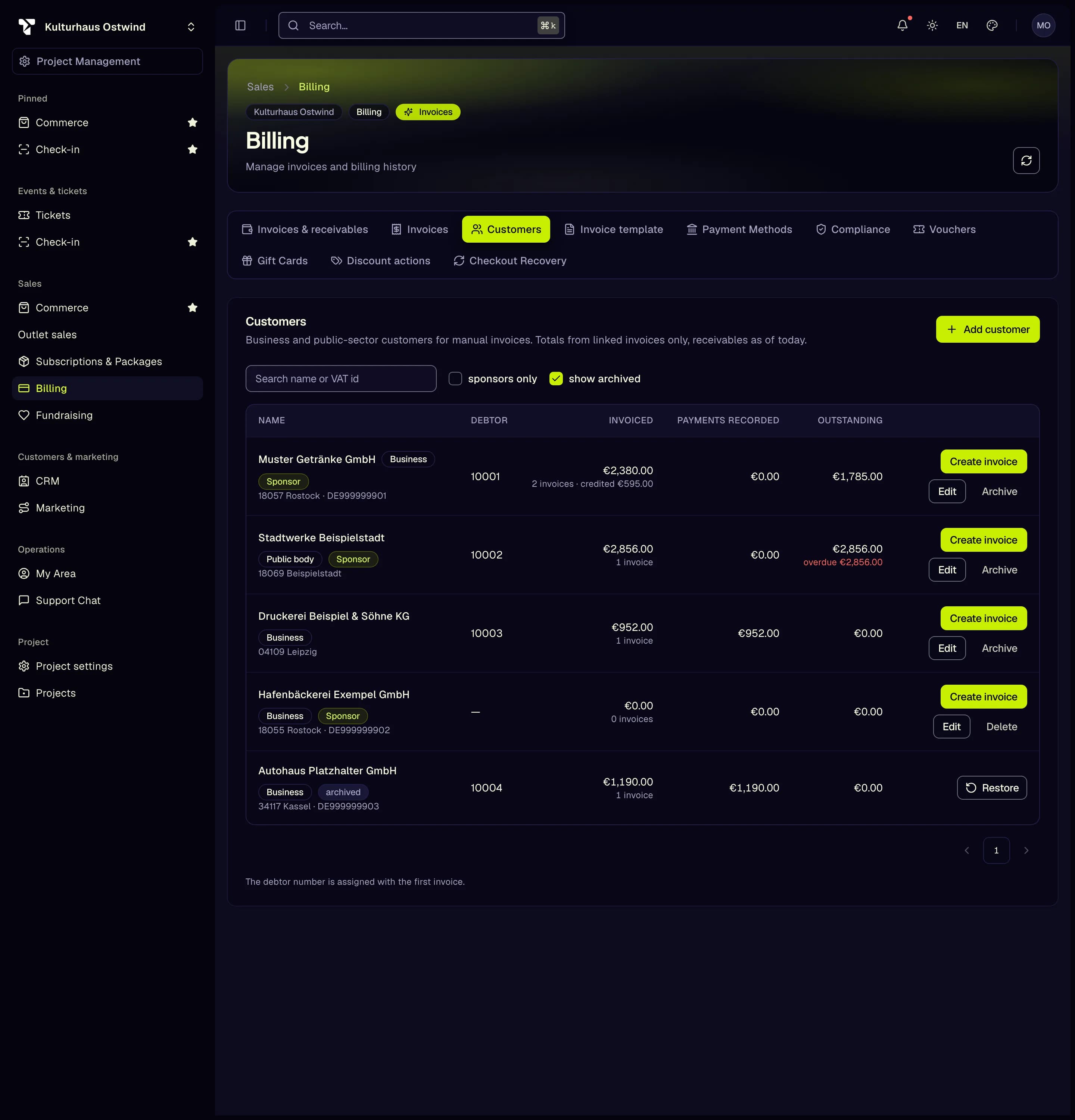
- Debtor number. A customer gets its DATEV debtor number with its first invoice and keeps it. Until then the list says "The debtor number is assigned with the first invoice."
- Totals. Each customer shows what was invoiced, payments recorded and what is outstanding today, from the invoices issued to that customer only.
- Delete or archive. A customer no invoice names can be deleted for good. A customer with invoices is archived instead and stays readable with its invoices. Turn on show archived and click Restore to use it again.
- Sponsors. The sponsors on your project's Sponsors page are not copied into the customers. Add a sponsor you invoice as a customer yourself; the sponsors page links here.
If someone else changed a customer while you edited it, saving says "The customer has changed in the meantime — reload." Reload and enter your change again.
Your bank details and contact
Every invoice names the account the buyer pays into, so you need these details before the first invoice.
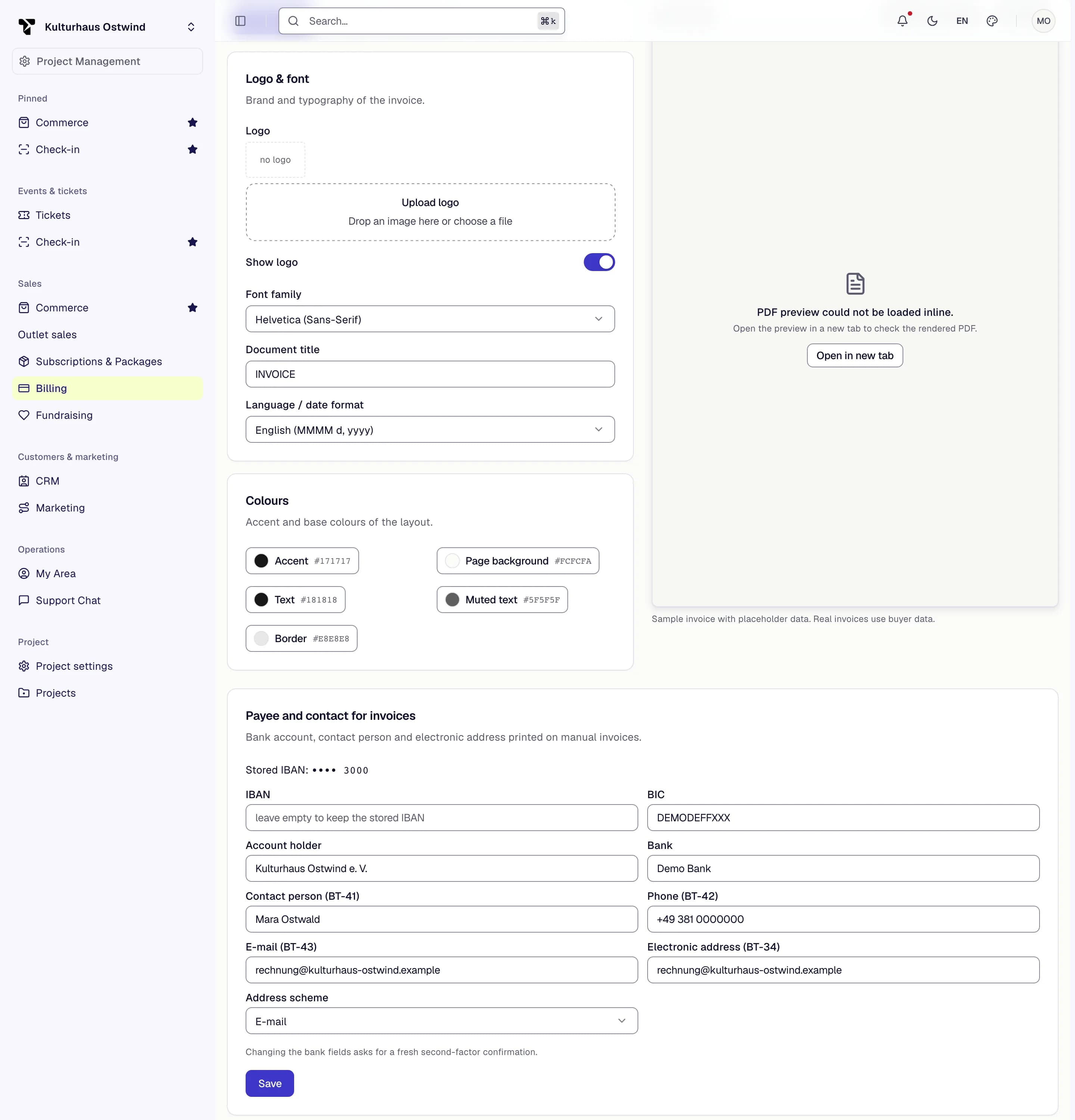
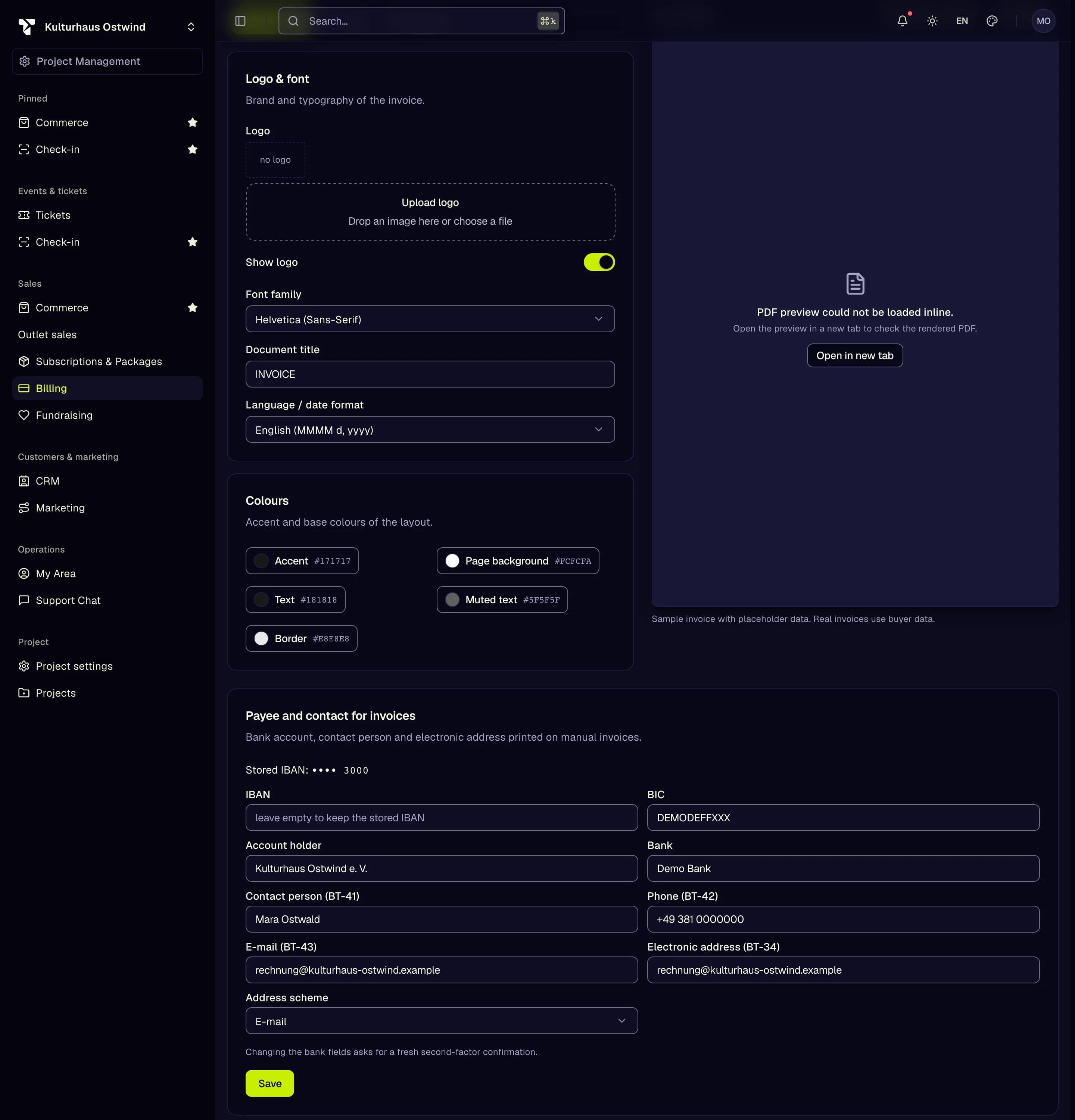
The stored IBAN is shown only by its last four digits. To keep it, leave the IBAN field empty. Changing the contact fields needs no second factor. Each issued invoice keeps the details it was issued with.
Create and issue an invoice
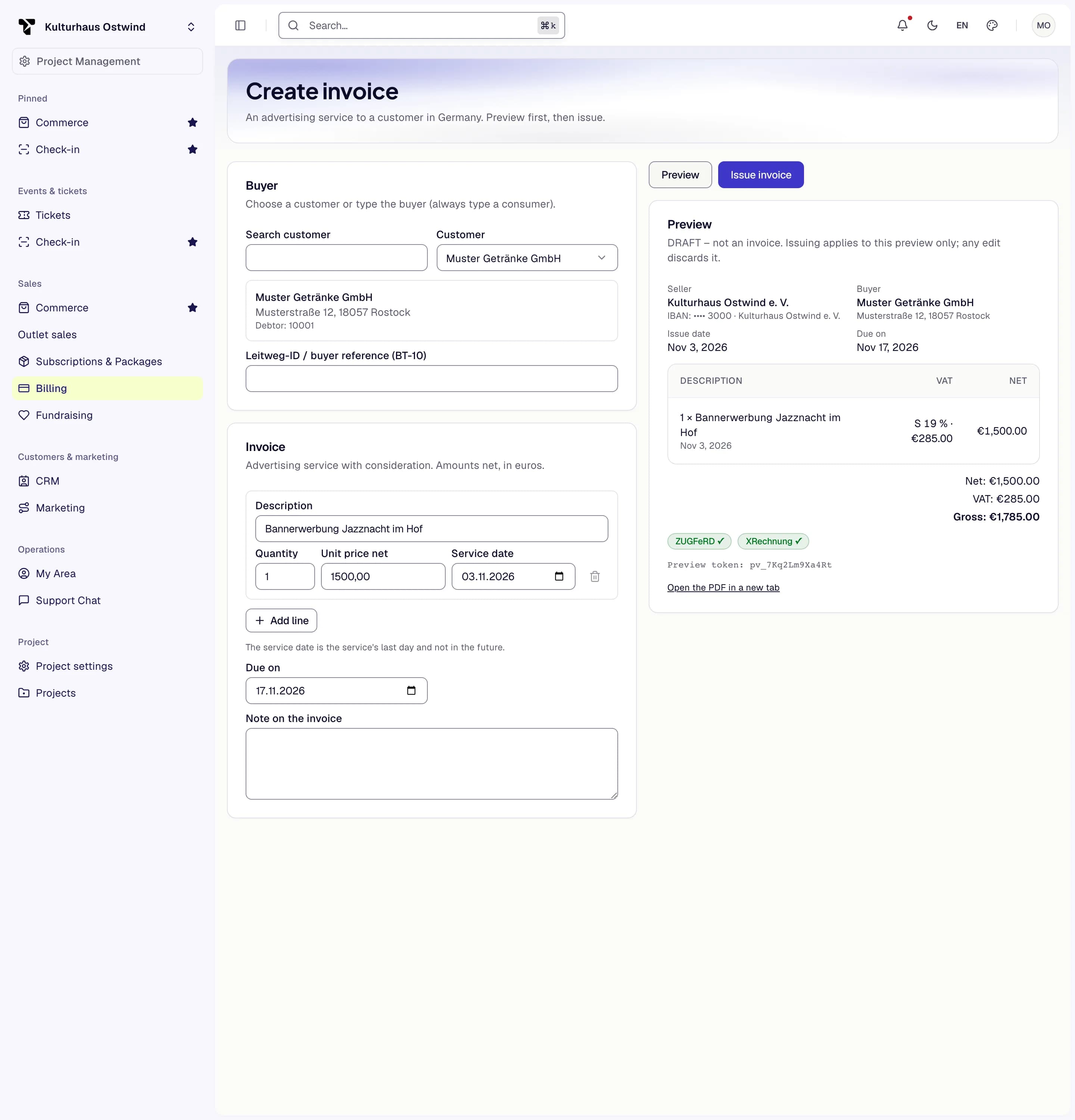
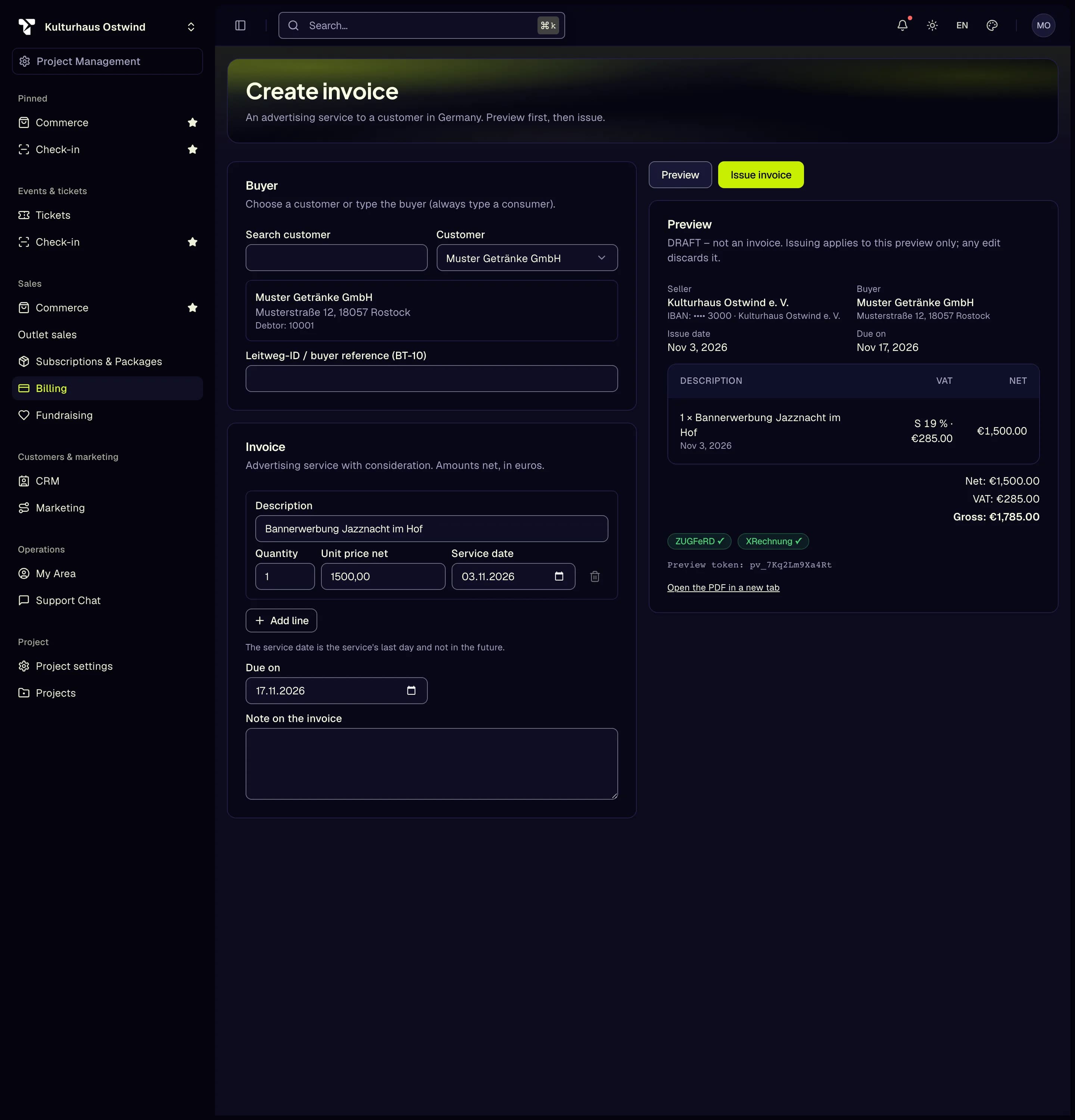
Issue invoice applies to the preview you saw. If you change anything in the form, the preview is discarded and you preview again. If a customer, your bank details or your company details changed in the meantime, issuing answers "The data has changed — a new preview is needed."
Each invoice is issued exactly once. While TixFin issues it, the form is locked. If the server does not answer, click Send again: it repeats the same request and never issues a second invoice. Before you discard an attempt, check the invoice list.
Before the preview, the form lists what is missing, for example a Leitweg-ID or your bank details, each with a link to fix it.
After issuing
The invoice page says Issued — not sent. TixFin does not send these invoices. Download them and send them to your customer yourself:
- ZUGFeRD XML, the e-invoice for businesses
- XRechnung, the e-invoice for public bodies. For a business it is available when the customer has a Leitweg-ID and an electronic address, and your contact person, phone, e-mail and electronic address are filled in under Payee and contact for invoices.
For a public body, upload the XRechnung to its invoice portal. A valid XRechnung does not mean the portal has accepted it.
An issued invoice can never be edited or deleted. The invoice date is the UTC day of issue: an invoice issued at 00:30 German time on 1 January is dated 31 December and numbered in the previous year's series. This is provisional until our tax adviser confirms it.
Record a payment
TixFin does not see your bank account. You record when the buyer paid; TixFin does not check it.
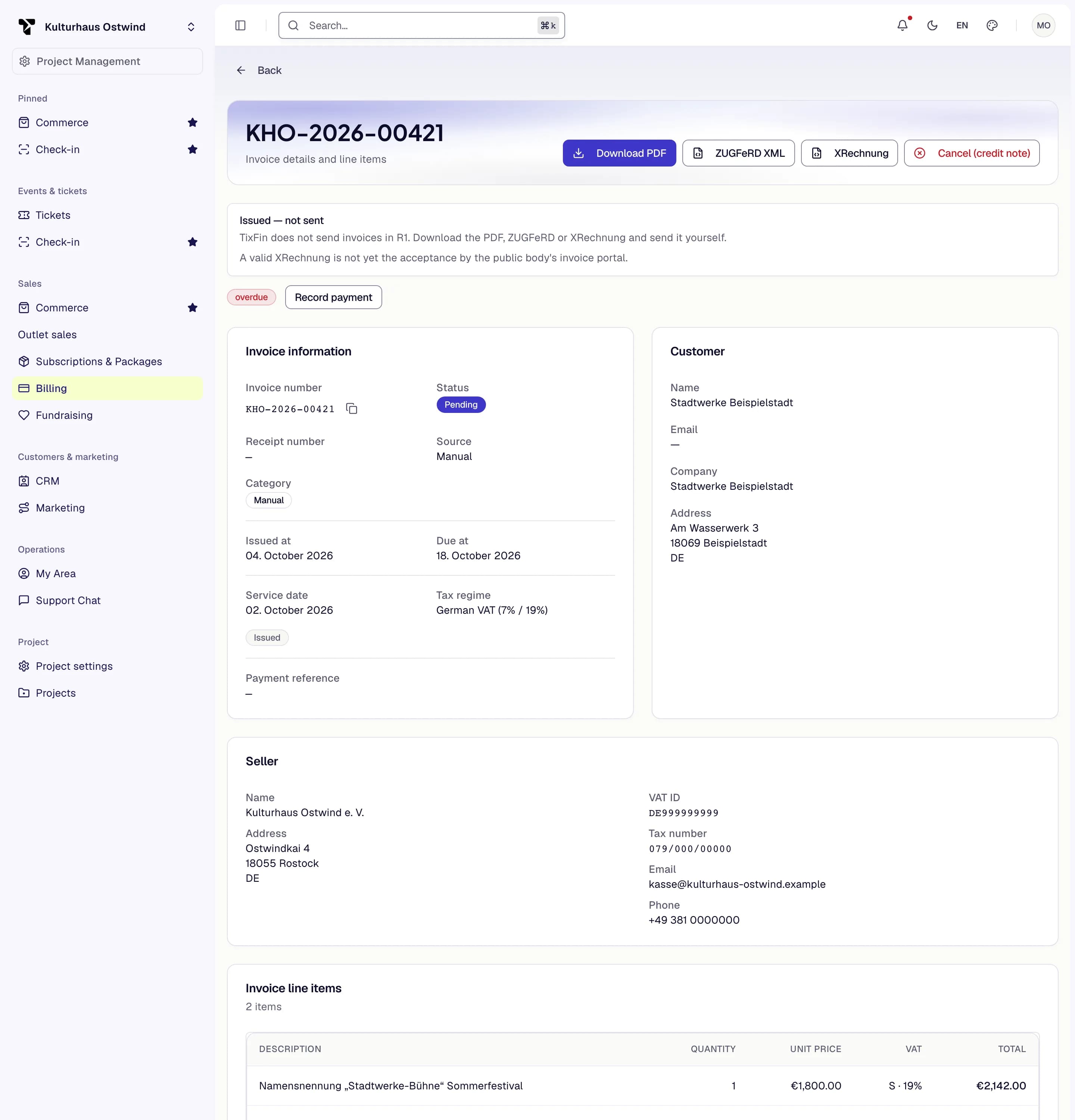
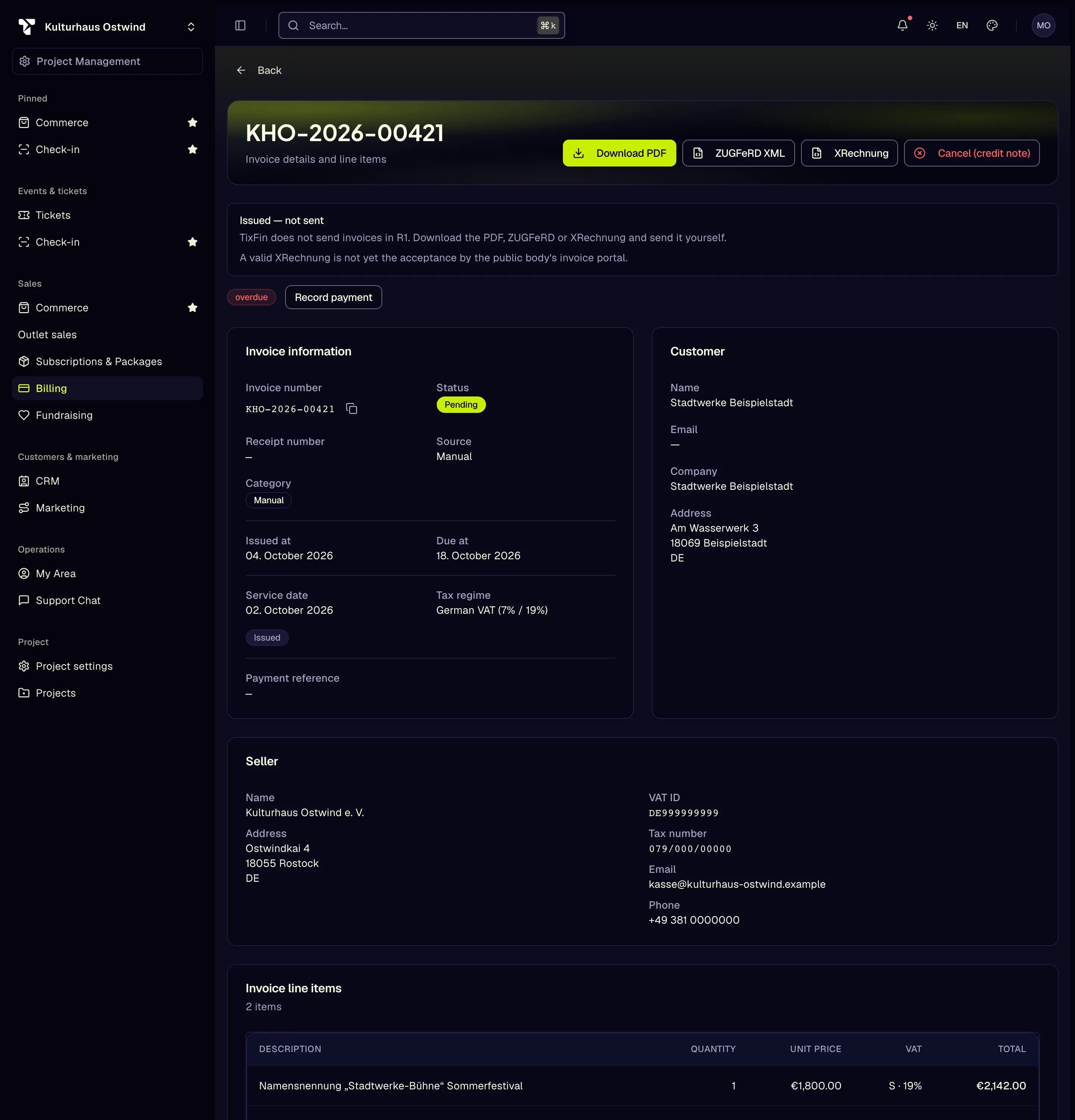
The invoice is then marked paid (recorded by hand). Other states are open, overdue, cancelled and cancelled · payment recorded.
- Correct payment date changes the recorded date.
- Withdraw payment removes a payment recorded by mistake. Choose a Reason: Entered in error, Wrong invoice, Payment returned or Other.
Every change is in the project's activity log. If someone else changed the payment at the same time, TixFin reloads the current state; check it and save again.
Cancel an invoice
Click Cancel (credit note) on the invoice and confirm. TixFin issues a credit note that fully reverses it. If the invoice was recorded as paid, TixFin warns you first: cancelling does not refund anything. Pay the money back from your own account if you need to. The recorded payment stays on the cancelled invoice.
The overview: three numbers, never added up
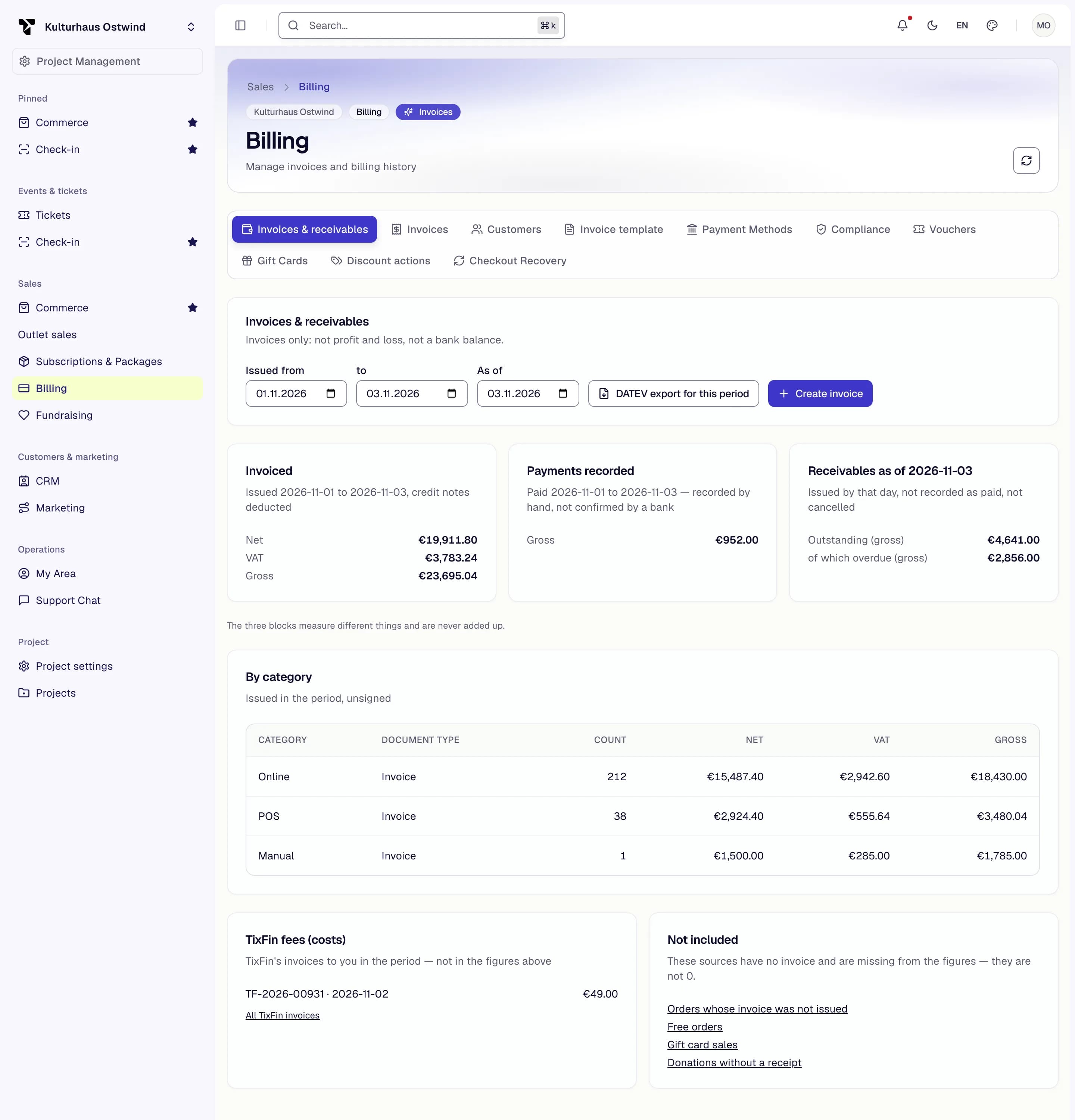
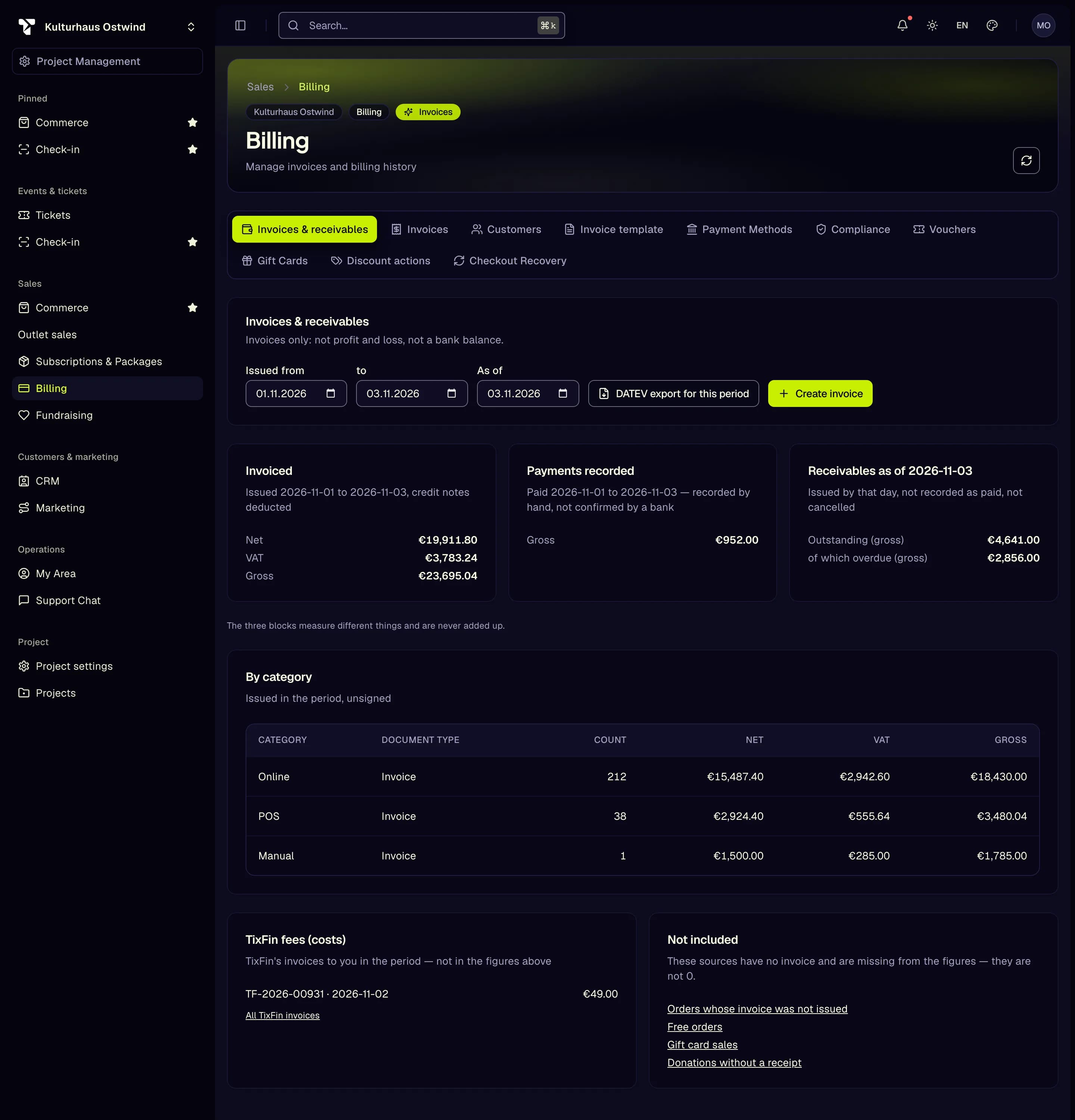
The Invoices & receivables tab opens with three blocks. Each measures something different, so they are never added up.
| Block | What it counts |
|---|---|
| Invoiced | Invoices issued from Issued from to to, net, VAT and gross, credit notes deducted |
| Payments recorded | Invoices whose recorded payment date lies in the same period. Recorded by hand, not confirmed by a bank |
| Receivables as of | Invoices issued by the As of day, not recorded as paid and not cancelled by then, with the overdue part |
Below them: a table By category (online, POS, manual), TixFin fees (costs), which are TixFin's invoices to you and not part of the figures above, and Not included: orders whose invoice was not issued, free orders, gift card sales and donations without a receipt. Those have no invoice, so they are missing from the figures, not zero.
Days are counted in UTC, as for the invoice date (provisional, see above).
DATEV export
Click DATEV export for this period on the Invoices & receivables tab. Choose a period within one calendar year: a DATEV export covers one fiscal year, and a period spanning two years is refused. Without a start date the export begins on 1 January of the end date's year; without an end date it ends on 31 December, or today if that comes earlier and is not before the start. The export has your customer invoices next to your other invoices: one booking per line, each customer on its own debtor number.
These bookings are provisional until our tax adviser has approved the export's booking logic, and may change before the feature is switched on for every project:
- consumers you typed in are booked on the collective debtor 10000;
- with the small-business regime, your customer invoice lines are booked to SKR03 8195 / SKR04 4185. Your online and POS invoice lines are unaffected.
See Invoicing for the DATEV settings.
Common problems
- "Manual invoices are not enabled for this project yet." Your project is not switched on yet (see the note at the top).
- "Bank account missing" Enter your bank details on the Invoice template page.
- "Leitweg-ID missing (public body)" or "The buyer's electronic address is missing" Complete the customer.
- "A seller contact field is missing" or "The seller's electronic address is missing" Complete Payee and contact for invoices.
- "The service date is in the future" Invoice a service only once it is performed, with its last day.
- "R1 invoices buyers in Germany only" Invoices abroad are not available.
- "This invoice number prefix is already taken or temporarily locked for this tax number or VAT id" Saving the billing settings answers it when the VAT id or tax number with that prefix is already in use on TixFin; choose a prefix of your own. Your other invoices are issued as before.
- The same message when issuing an invoice. There are three causes:
- Another project with the same VAT id or tax number and the same prefix uses the same number series. Set a distinct Invoice number prefix under Compliance.
- A project with the same VAT id or tax number and prefix was deleted this calendar year. Its numbers stay reserved until 1 January; set a distinct prefix.
- TixFin is still building its index of number series, and refuses every project until it is done. A new prefix does not help: wait, or contact support if it persists.