
 TixFin
Tax
Declare where you sell and are registered for VAT, classify what you sell, and resolve tax decisions that need a person
TixFin decides the VAT of every invoice line from your markets, your registrations, what the line sells and the tax rules for the country. This page is where you set those inputs and where the decisions that need a person land.
Where: Sales → Billing → Documents → Tax (/dashboard/billing/tax)
Who can do this: anyone in the project whose role holds the tax permissions — owners, admins and accountants by
default, or a custom role. Reading needs View tax decisions, markets and classifications, changing markets,
registrations and classifications needs Manage tax classifications, registrations and market rollout, resolving
reviews needs Resolve tax review cases and record overrides.
Markets
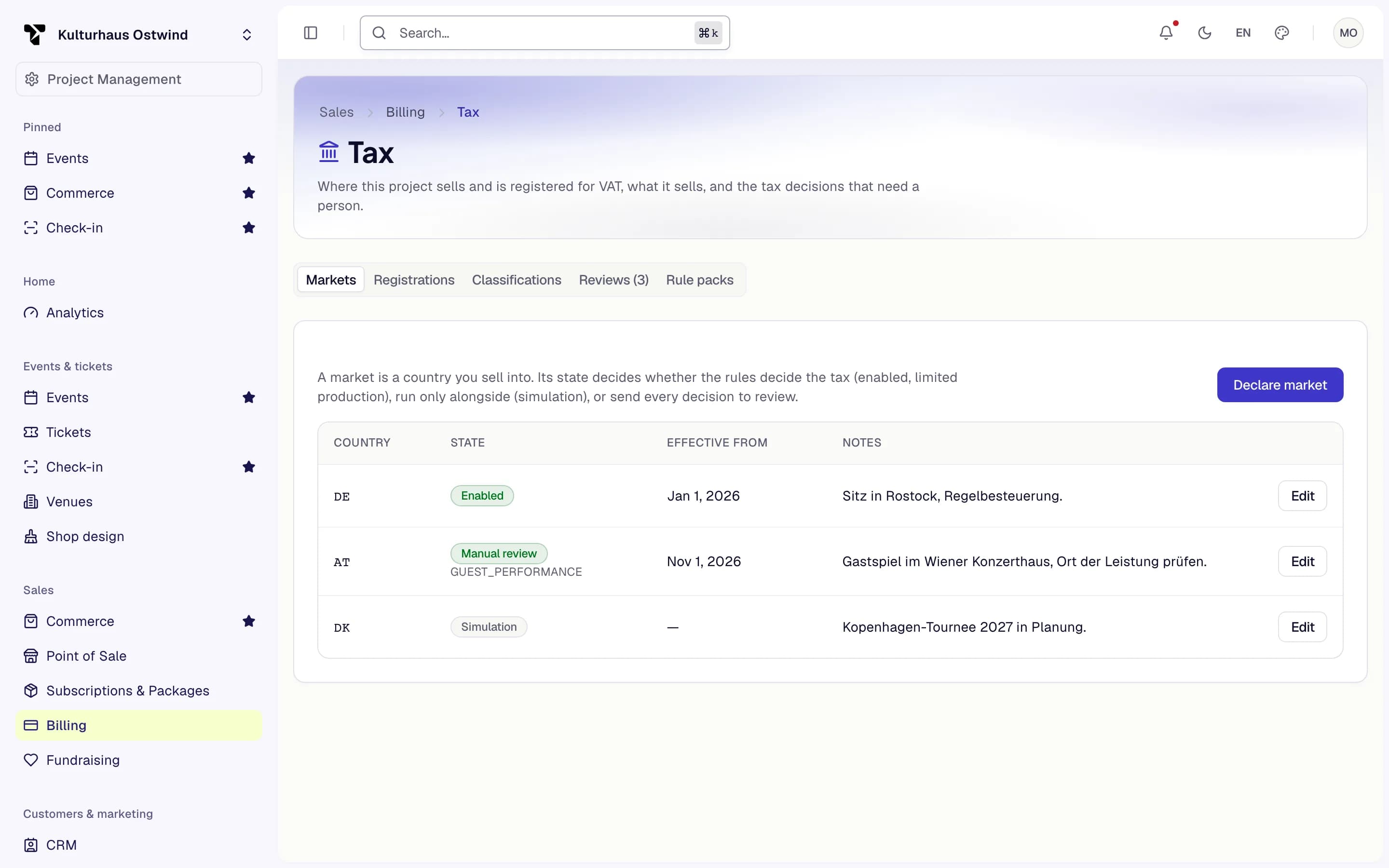
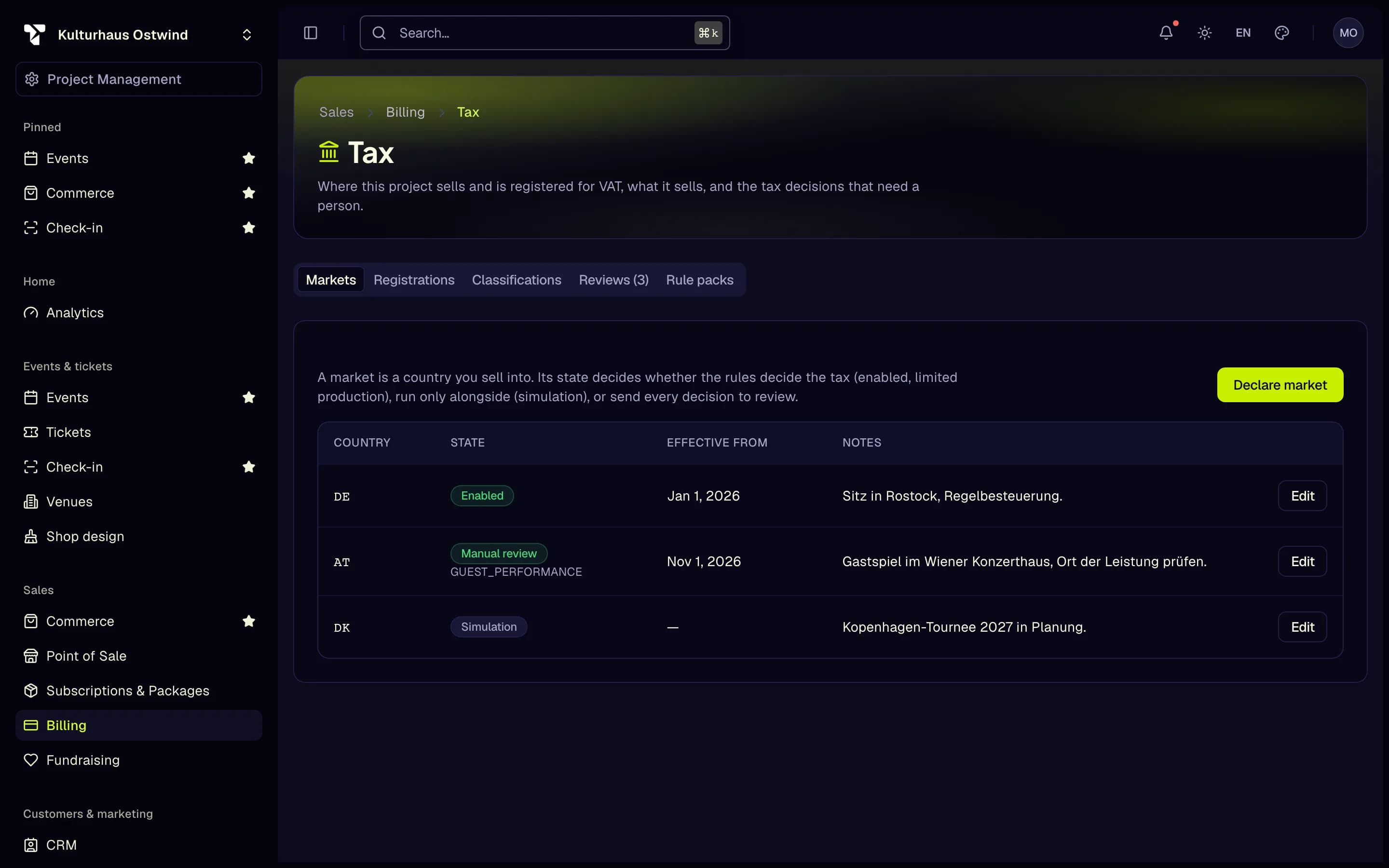
A market is a country you sell into. Click Declare market, enter the country as a two-letter code (for example
DE), choose its State and save. Edit changes the state later.
- Markets
- Declare market
- State
- Edit
| State | What the rules do |
|---|---|
| Disabled | Nothing is decided for this country |
| Simulation | The rules run alongside and decide nothing |
| Manual review | Every decision goes to Reviews |
| Limited production, Enabled | The rules decide the tax |
| Suspended | Stopped until you change it |
Registrations
Record each VAT registration: country, Scheme (standard VAT, OSS, small business, not taxable), your VAT number and tax number, and the dates it is valid. Check asks VIES whether a VAT number is valid. When VIES cannot be reached the number counts as unverified, never as rejected. Turn on Established where you have your seat or a fixed establishment.
Classifications
Everything you sell needs a kind of supply (admission on site, online participation, education, catering and so on). Click Classify an item, choose the Kind of item and then the item itself, choose its supply and save:
| Kind of item | You choose from |
|---|---|
| Ticket type | the project's ticket types, including event-only ones |
| Add-on | first the Event, then one of its add-ons |
| Box office product | the project's products |
| Donation | the project's funds |
| Sponsorship | the project's sponsors |
An unclassified item is taxed only after a review. Only unresolved shows what is still unclassified. Remove sends an item back to unclassified. The list shows each item by name; an add-on shows its id.
Reviews
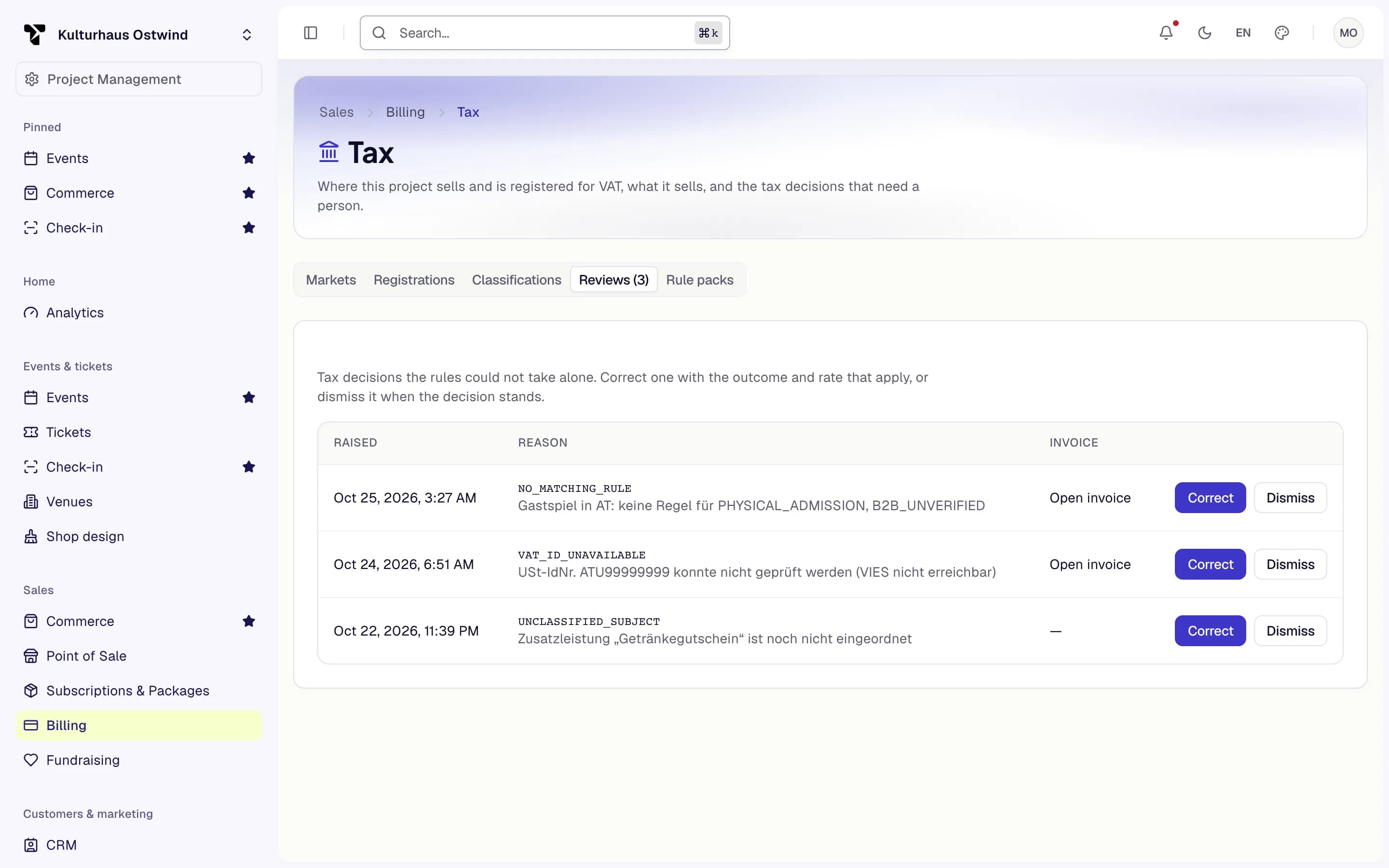
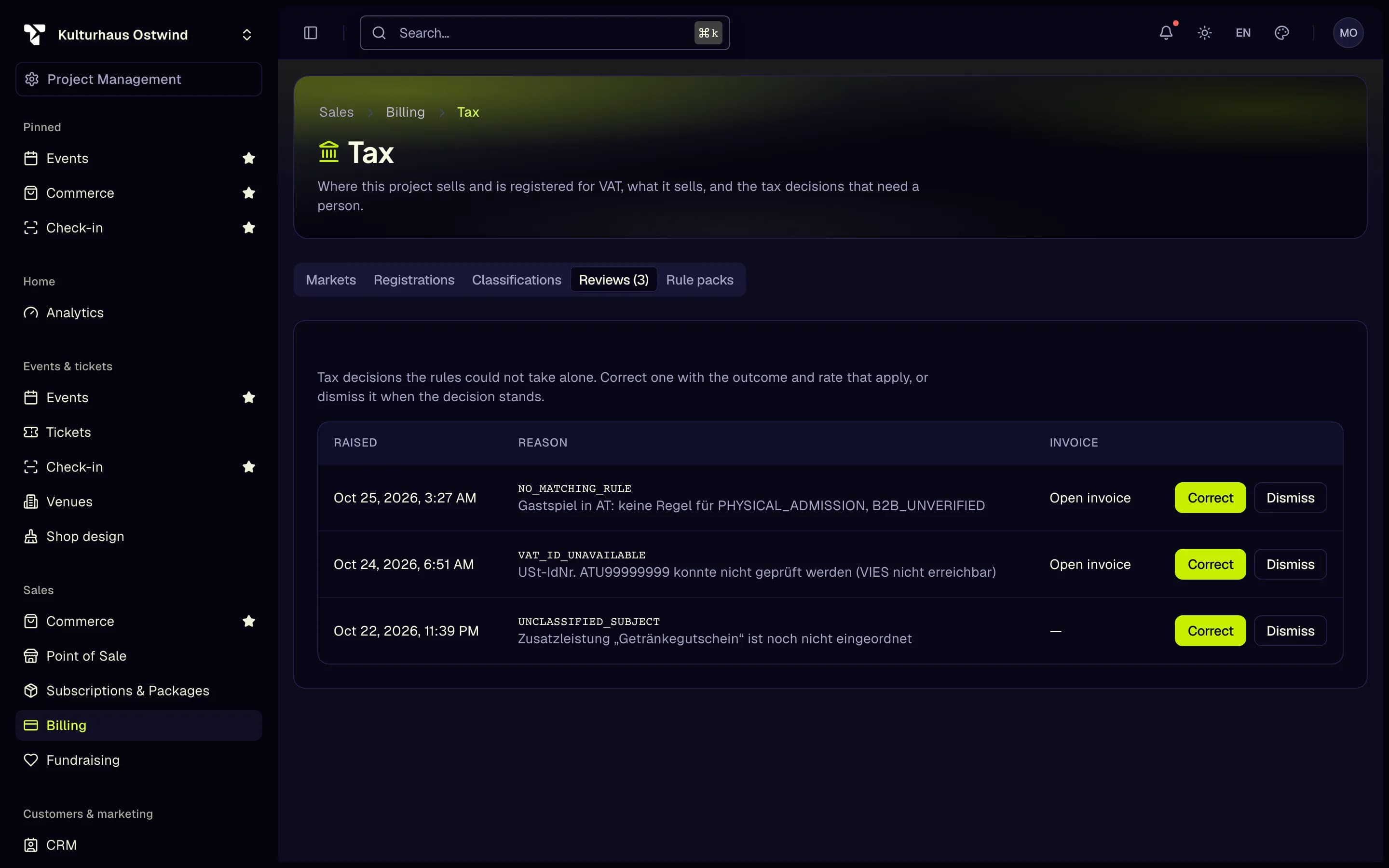
A review opens when the rules cannot decide a line alone. The tab shows how many are open.
- Reviews
- Open invoice
- Correct
- Dismiss
- Classifications
- Correct: choose the Outcome, optionally the Rate (%), give a Reason code and optionally an Evidence reference, and whether it applies to This line or The whole invoice. The correction is recorded with your reason; the original decision stays on file.
- Dismiss: closes the case. The tax stays as decided.
Open invoice shows the invoice the review belongs to.
Rule packs
TixFin maintains the tax rules per country as rule packs with numbered revisions. Choose a pack, click Show rules on a revision to see its rules, and Simulate to run its test cases. Only TixFin staff activate a draft revision.
Tax decisions on an invoice
Open an invoice under Billing → Documents → Invoices. Tax decisions shows each line's supply, country, customer status, outcome, rate and amounts, and marks corrections. An invoice issued before decisions were recorded shows Record decisions from the invoice (needs Manage tax classifications, registrations and market rollout): it copies the issued lines' tax into decisions. Nothing is recalculated and the invoice does not change.
Common problems
- The page says you have no access. Ask a project owner for the permission View tax decisions, markets and classifications.
- "The change could not be saved" with no further reason. Your role can view tax but not change it. Ask a project owner to add Manage tax classifications, registrations and market rollout (or Resolve tax review cases and record overrides for reviews) to your role.
- The item list in the dialog is empty. The item has to exist first, and your role needs to see it: products need the product permission, funds the fundraising permission.