
 TixFin
Scan offline
Keep scanning without a network, sync the queued scans, and clear scans that clashed
When the network drops, the app keeps scanning. It checks each ticket against the event's offline data on the device and queues the scan until it can reach the server again.
Where: App → Scanner. The status pill sits under the event name. Who can do this: members with Scan tickets, and temporary scanners
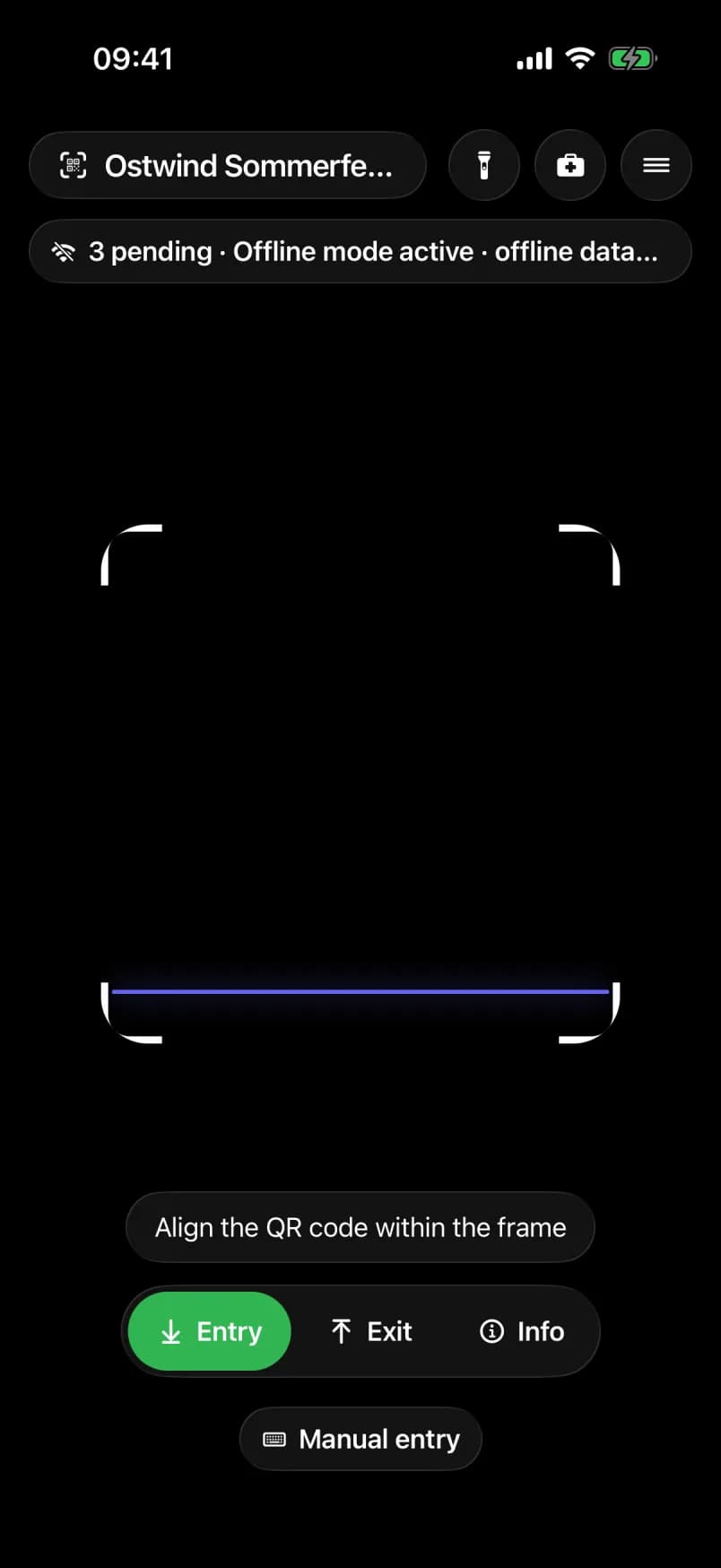
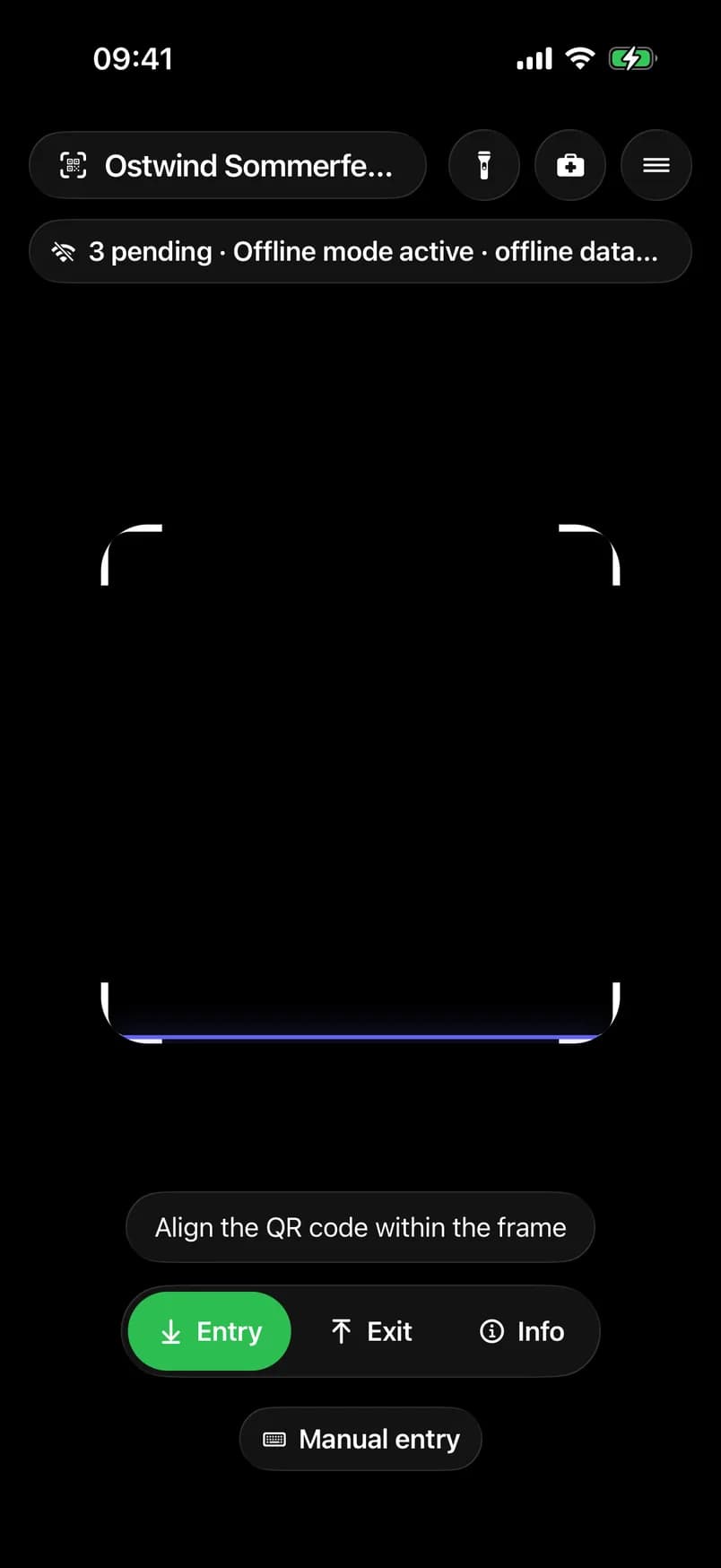
- Event with its offline data
- Status pill: pending scans
- Keep scanning as usual
Get the offline data
You don't need to do anything. The data downloads when you open an event while online. While you stay online it downloads again once it is older than 30 minutes, so tickets sold since are included. Each check-in list, and Scan all tickets (no list), has its own data.
The pill shows the state: Online · offline data 14:05 or Online · no offline data yet. Tap it before doors open to download now. The app confirms with Offline pack ready and the number of tickets.
Scan offline
Keep scanning as usual. While offline the pill reads n pending · Offline mode active · offline data 14:05, and each result adds Checked offline · syncs later.
The device remembers what it admitted, so a ticket shown twice at this device is Already scanned. It cannot know what another door admitted in the meantime. Such clashes show up after the sync.
Without offline data, or with data that has expired, the result is Not checked with "No offline data for this event yet. Download it while online." or "The offline data is out of date. Download it again."
A scan the server never answered
If you are online but the server does not answer within 5 seconds, the result is Not checked. When the event's offline data is on the device, the result offers Check offline: the app decides the scan from that data and queues it. If the server had in fact admitted the ticket, the sync later says n offline scans were already admitted online instead of reporting a clash.
Sync the queue
Queued scans sync by themselves once the network is back. If a sync fails, the app tries again after a growing pause. While you are online and scans are still queued, the pill reads Sync queue (n). Tap it to sync now. The app then reports n synced, m failed.
A scan that failed to sync five times stops retrying by itself. The pill then adds n stuck · retry. Tap it to try those scans again. The app never drops a queued scan. If you sign out with scans still queued, it warns n scans are still waiting to sync, and the queue stays on the device.
Check and clear clashing scans
After a sync, some scans may clash: another door already used the ticket, or the server refused it. The app reports n offline scans need checking. The pill n to check stays on the camera until you clear it.
Common problems
- The pill shows "no offline data" and you are about to lose the network. Tap the pill while still online to download it.
- "Sync queue (n)" never goes away. Look for n stuck · retry and tap it. If the scans still don't sync, keep the device signed in and tell your organiser. The scans stay queued.
- A guest was admitted offline at two doors. You see it as n to check after the sync. Check it on the web, then clear it.