
 TixFin
Find your way in the dashboard
Sidebar groups, area tabs, breadcrumbs, the ⌘K command palette, pins, the account menu and confirming a delete
The dashboard has four ways to get around: the sidebar for the main areas, tabs inside an area, the command palette to jump anywhere by typing, and the account menu for your personal pages. The breadcrumb above each page title tells you where you are.
Where: every page of the dashboard Who can do this: everyone. You only see the areas, tabs, palette entries and pins your role and plan allow, so nothing you see refuses to open.
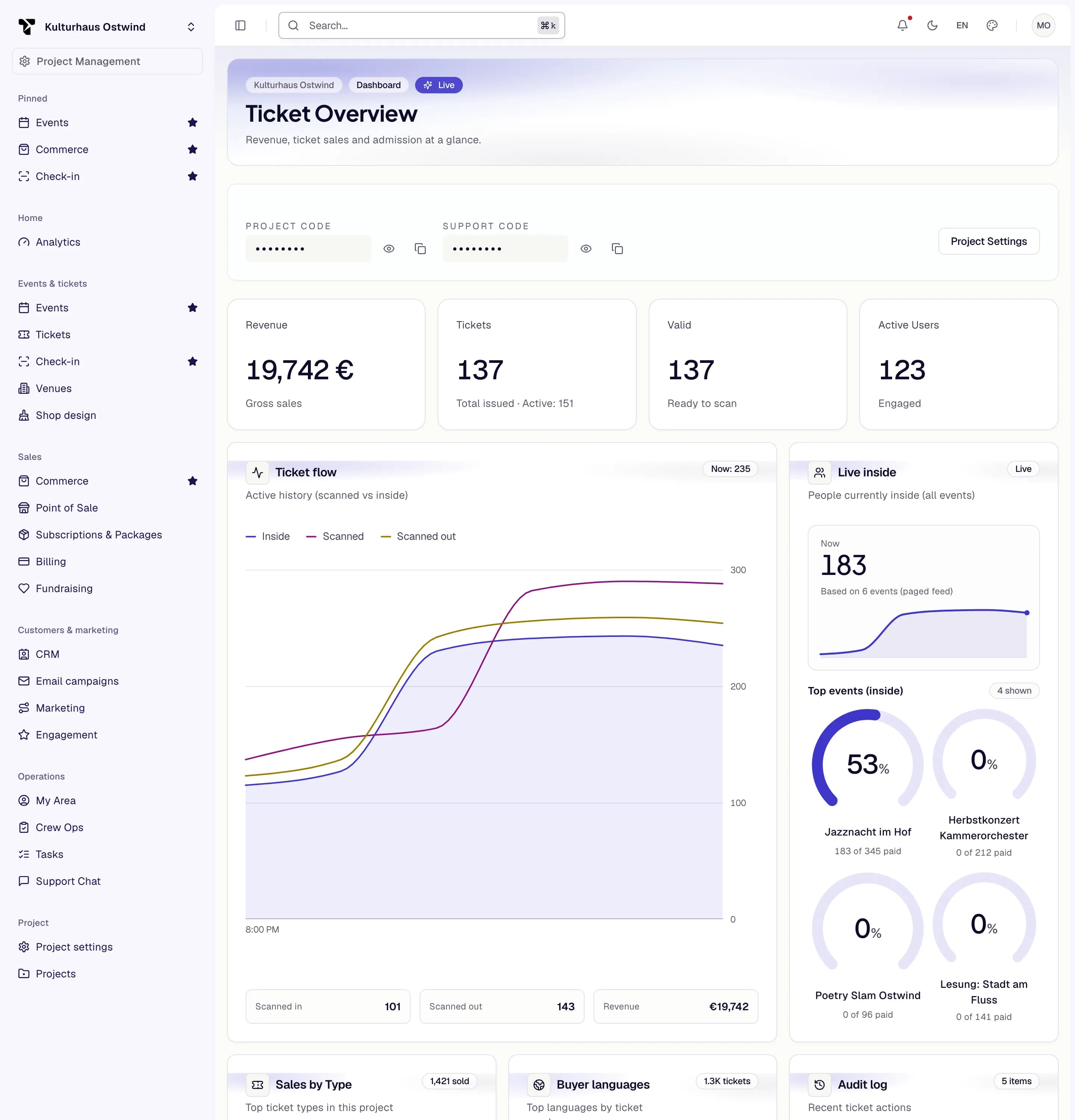
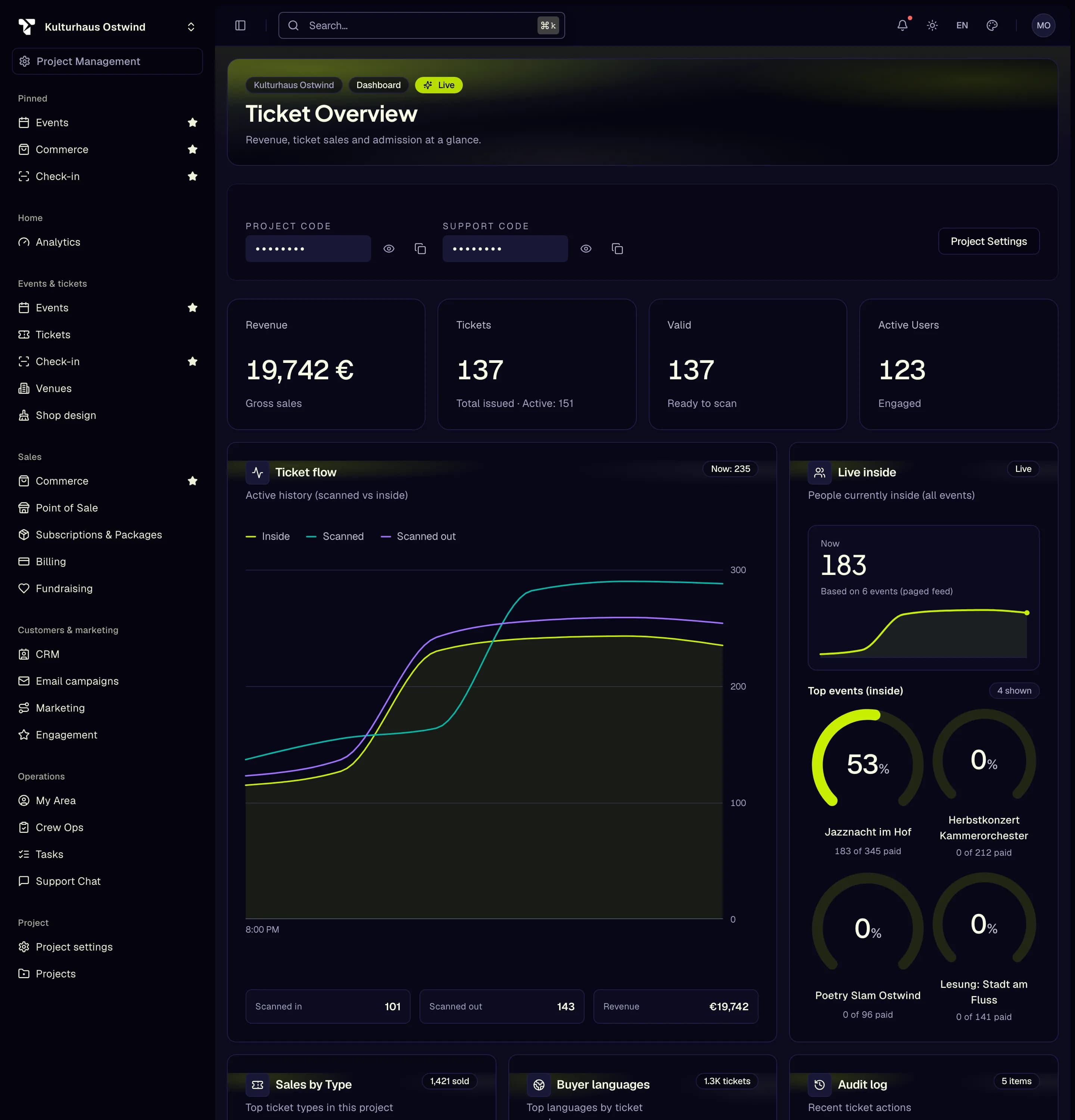
- Project switcher
- Sidebar area, e.g. Tickets
- Search… opens the command palette
- Star to pin an area
- Account menu
Find your way in three steps
Pick your project in the project switcher at the top of the sidebar. Most areas show the data of the selected project.
Click an area in the sidebar, for example Events & tickets → Tickets.
Use the tabs below the page header to switch between the parts of that area, for example Overview, Configuration → Types or Tools → Check-in Lists.
Faster: press ⌘K (Mac) or Ctrl+K (Windows, Linux) and type what you are looking for.
The sidebar
Areas are grouped by what you do. You only see the areas your role allows, and some only when your plan includes them.
| Group | Areas |
|---|---|
| Home | Dashboard, Analytics |
| Events & tickets | Events, Tickets, Check-in, Venues, Shop design |
| Sales | Commerce, Point of Sale, Subscriptions & Packages, Billing, Fundraising |
| Customers & marketing | CRM, Email campaigns, Marketing, Engagement |
| Operations | My Area, Crew Ops, Tasks, Support Chat |
| Project | Project settings, Projects |
| Administration | Platform staff only |
- Press ⌘B / Ctrl+B to collapse or expand the sidebar.
- The area you are in stays highlighted on its detail pages too, for example Events while you edit one event.
- If your sidebar shows only your personal pages and Security, your session has no second factor yet. Set up two-factor authentication to unlock the dashboard — see Account security.
Project switcher
The switcher shows the selected project's logo and name. Open it to choose another project (each marked Active or Inactive) or click New Project. Below it, Project Management opens the settings of the selected project, if your role allows it.
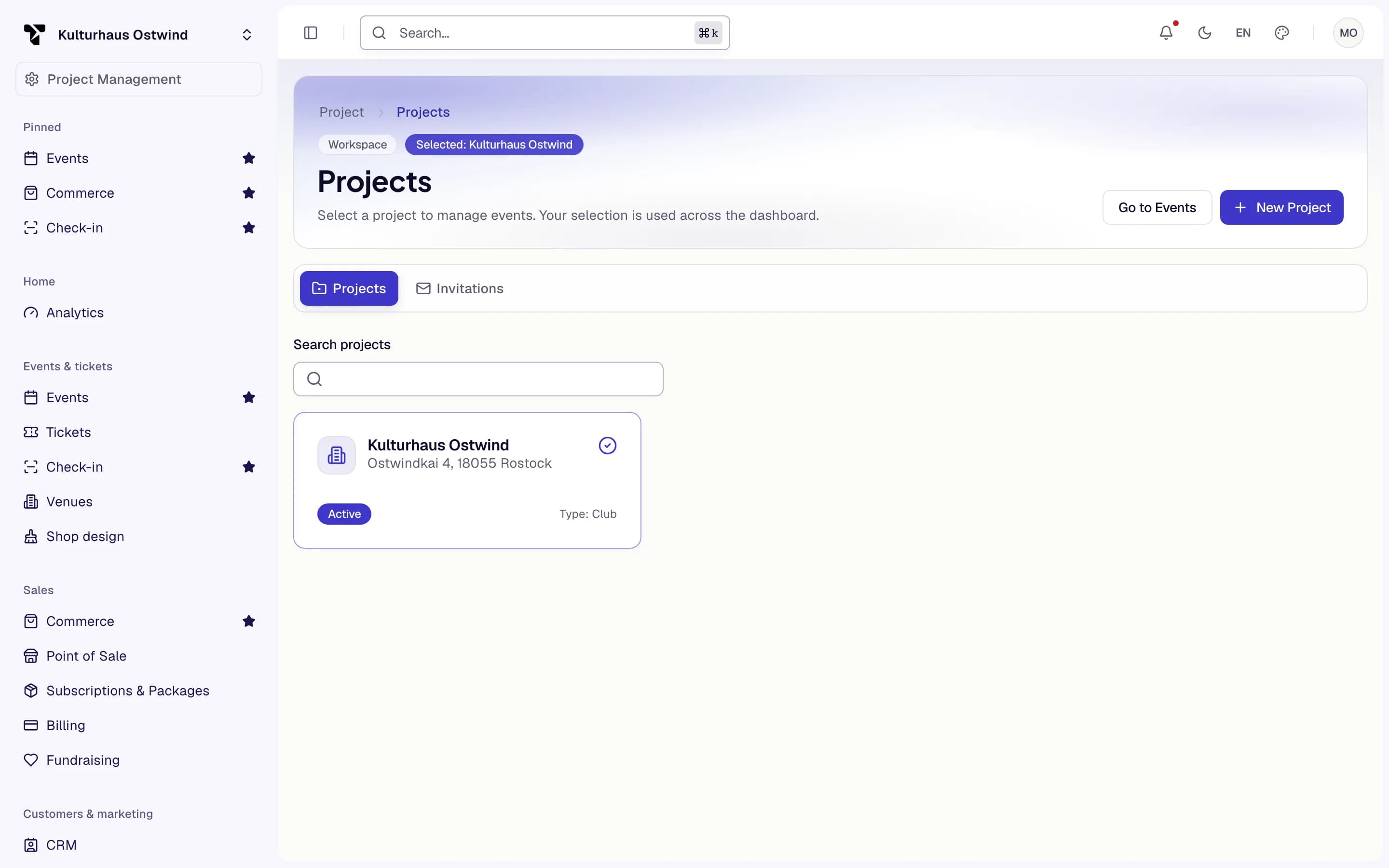
- Projects
- Search projects
- Active or Inactive
- New Project
Area tabs
Inside an area, tabs below the page header lead to its parts. Tabs with several entries open a dropdown. You only see the tabs you have access to.
| Area | Tabs |
|---|---|
| Analytics | Overview, Reports |
| Events | Overview, Programme, Gallery |
| Tickets | Overview, Sales & Management (Sales, Manage, Transfers, Waitlist), Configuration (Types, Tiers, Add-ons, Lotteries), Tools (Check-in Lists, Logs, Ticket Wizard, Access control) |
| Commerce | Orders, Products, Fulfillment |
| Subscriptions & Packages | Seasons, Packages, Renewals |
| Billing | Invoices, Invoice template, Tax, Payment Methods, Compliance, Vouchers, Gift Cards, Discount actions, Checkout Recovery |
| Fundraising | Fundraising campaigns, Donation receipts |
| CRM | Contacts, Segments |
| Email campaigns | Send, Templates, Groups, Multi-step |
| Marketing | Journeys, Attribution |
| Engagement | Loyalty, Memberships, Referrals |
| Tasks | List, Kanban, Settings |
| Projects | Projects, Invitations |
Project settings has its own side menu: Overview; Project & insights; Team & permissions; Setup; Billing. See Team and roles.
Breadcrumbs: where am I?
The breadcrumb above the page title shows group › area › page, for example Events & tickets › Check-in › Check-in Lists. Detail pages show the list and the object instead, for example Events › Summer Night. Each part links back up.
The command palette
Open it with ⌘K / Ctrl+K or by clicking Search… in the header. Type to filter, use the arrow keys, and press Enter.
The palette lists, in this order:
- Recently visited — the last five pages you opened
- Events — events of the selected project whose name or venue matches what you typed (from two characters on, up to five results). The match runs in your browser over the project's first 200 events: what you type is not sent anywhere. For any other event, use the search on the Events list, which covers them all.
- Actions — New event, Event Wizard, New ticket type, Ticket Wizard, Create discount action, Project settings
- Pages — every page you have access to, with its group and area
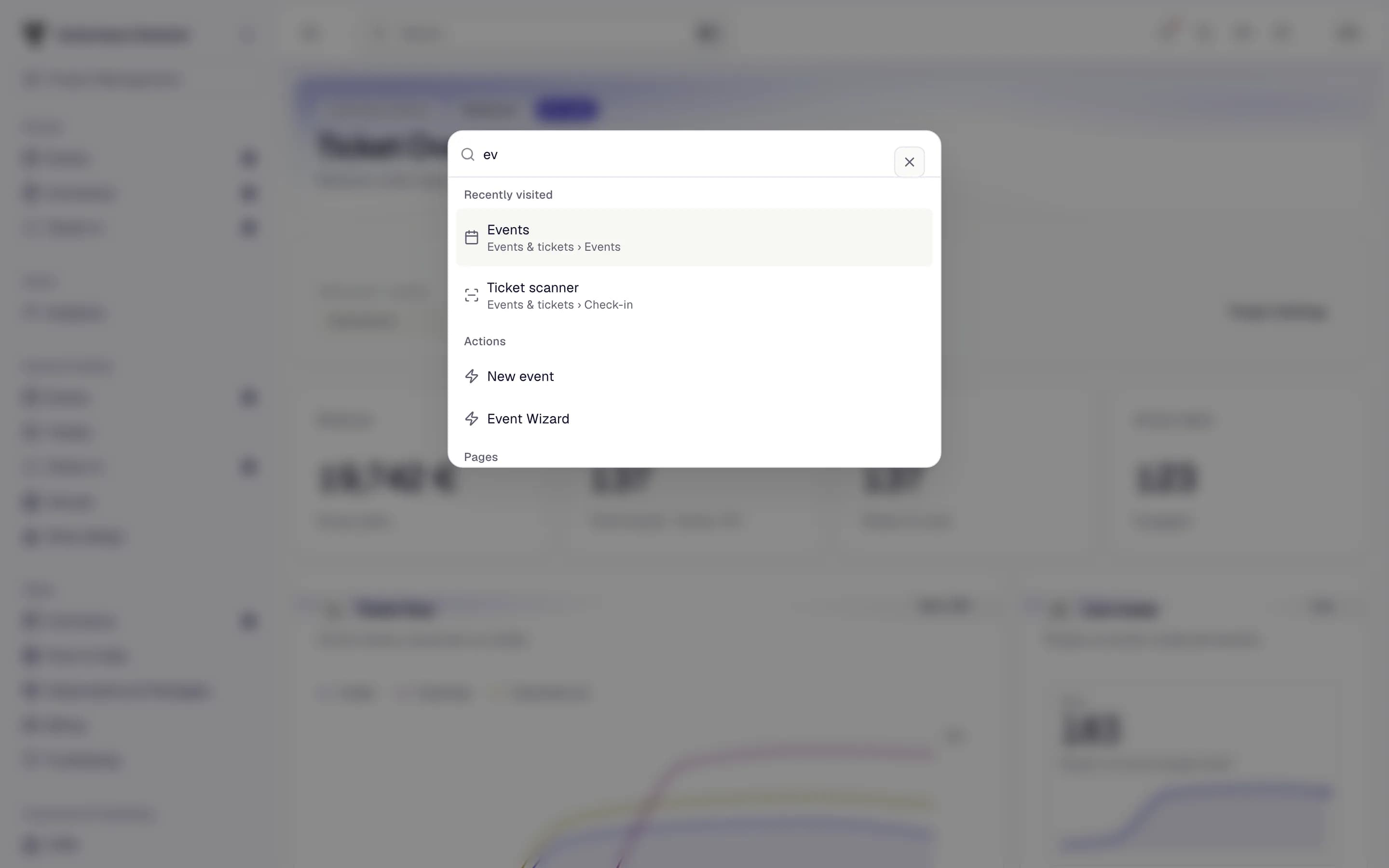
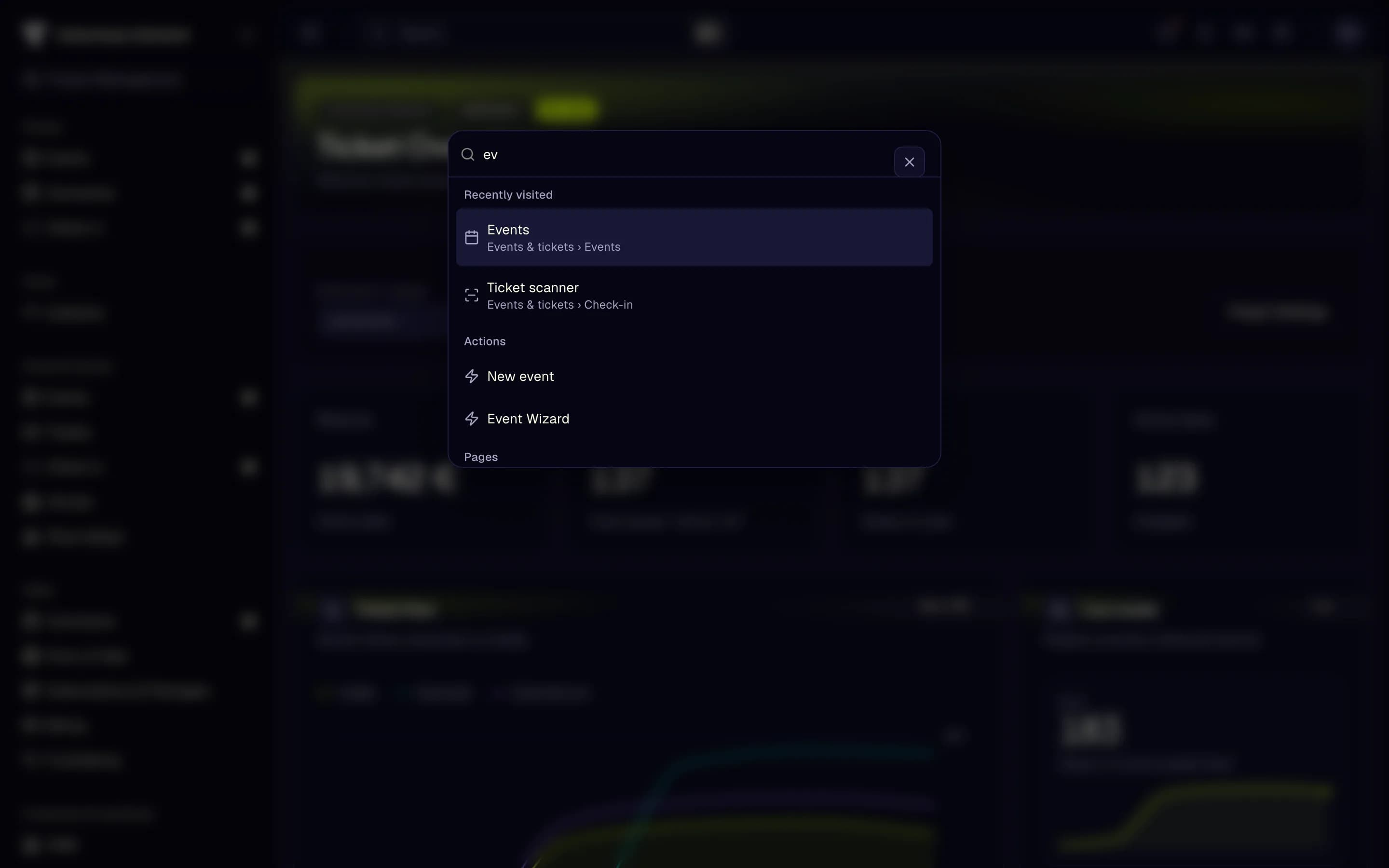
- Type to filter
- Recently visited
- Actions
- Pages
Pin your favourite areas
Hover over an area in the sidebar and click the star (Pin). Pinned areas appear in a Pinned group at the top of the sidebar. You can pin up to five areas; click the star again to unpin.
Pins and recently visited pages are stored in your browser. They are cleared when you sign out or your session expires.
The account menu
Click your name in the sidebar footer or your avatar at the top right.
| Item | Opens |
|---|---|
| Buy tickets, My tickets, My Rewards, My memberships | Your purchases (shown once you have bought tickets) |
| Account | Your profile and settings, including Security |
| Billing | Your invoices, or the project billing if your role allows it |
| Notifications | Your notifications |
| Restart Tour | The guided tour (sidebar menu only) |
| Sign out | Signs you out |
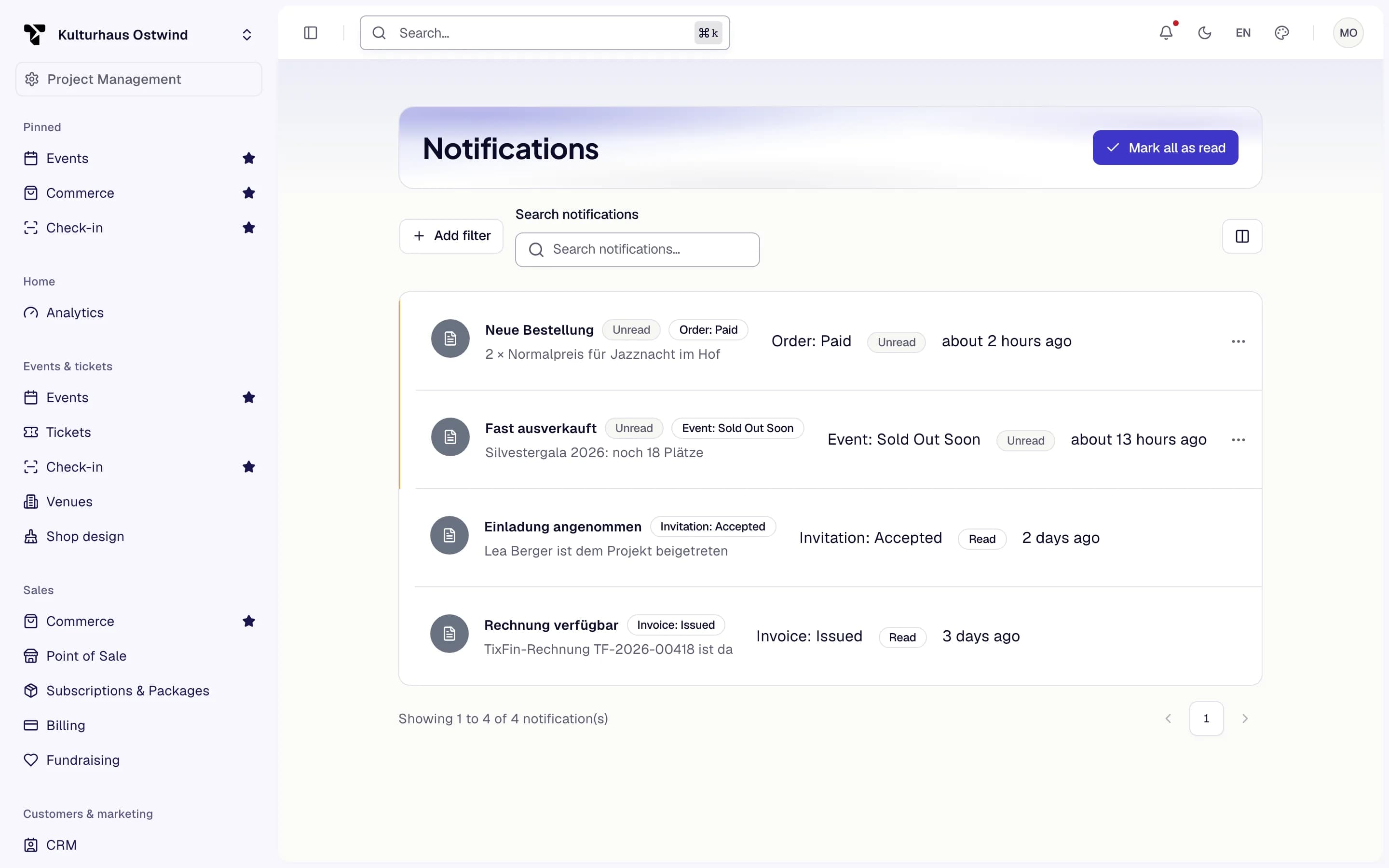
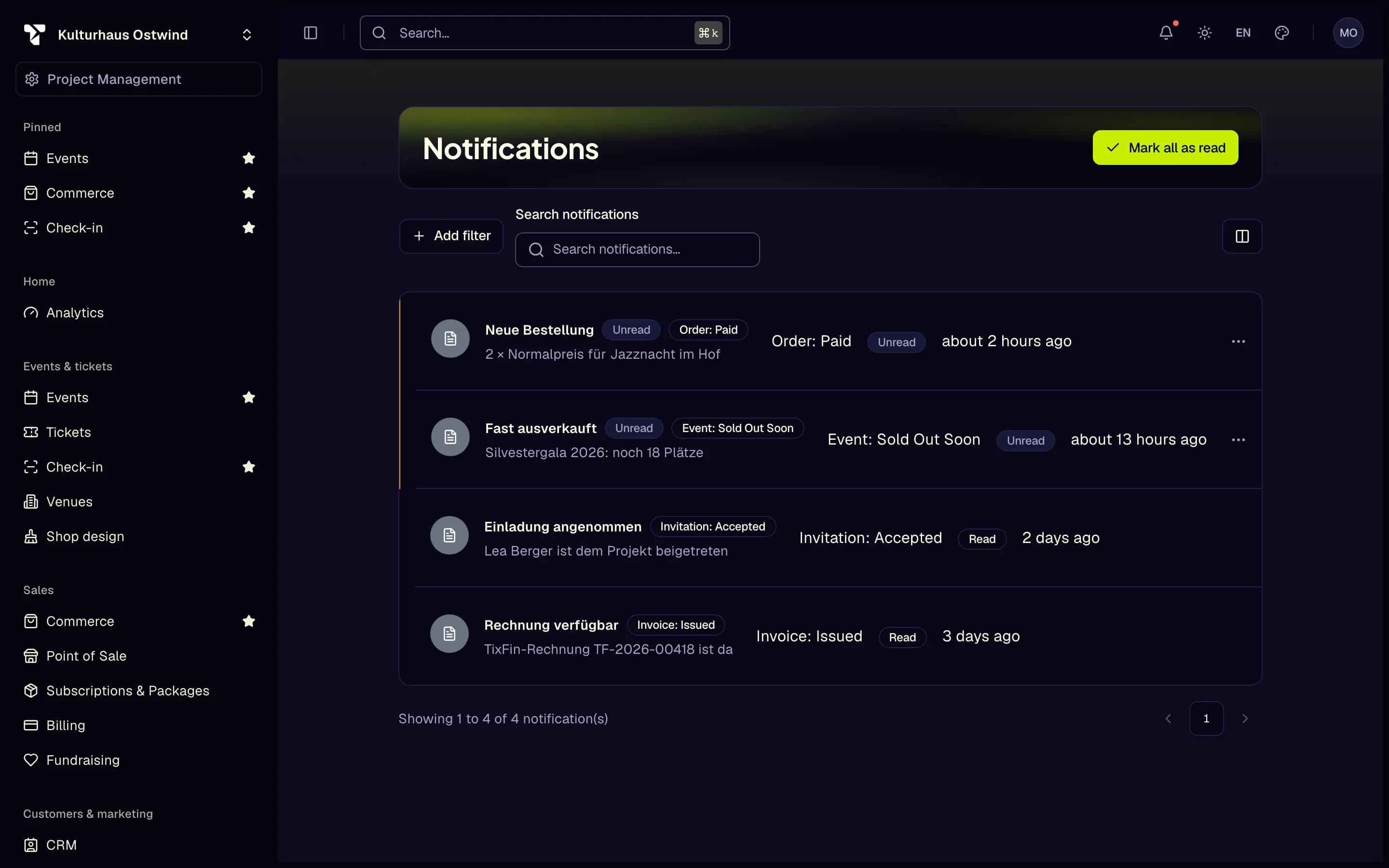
- Mark all as read
- Add filter
- Search notifications
- Unread
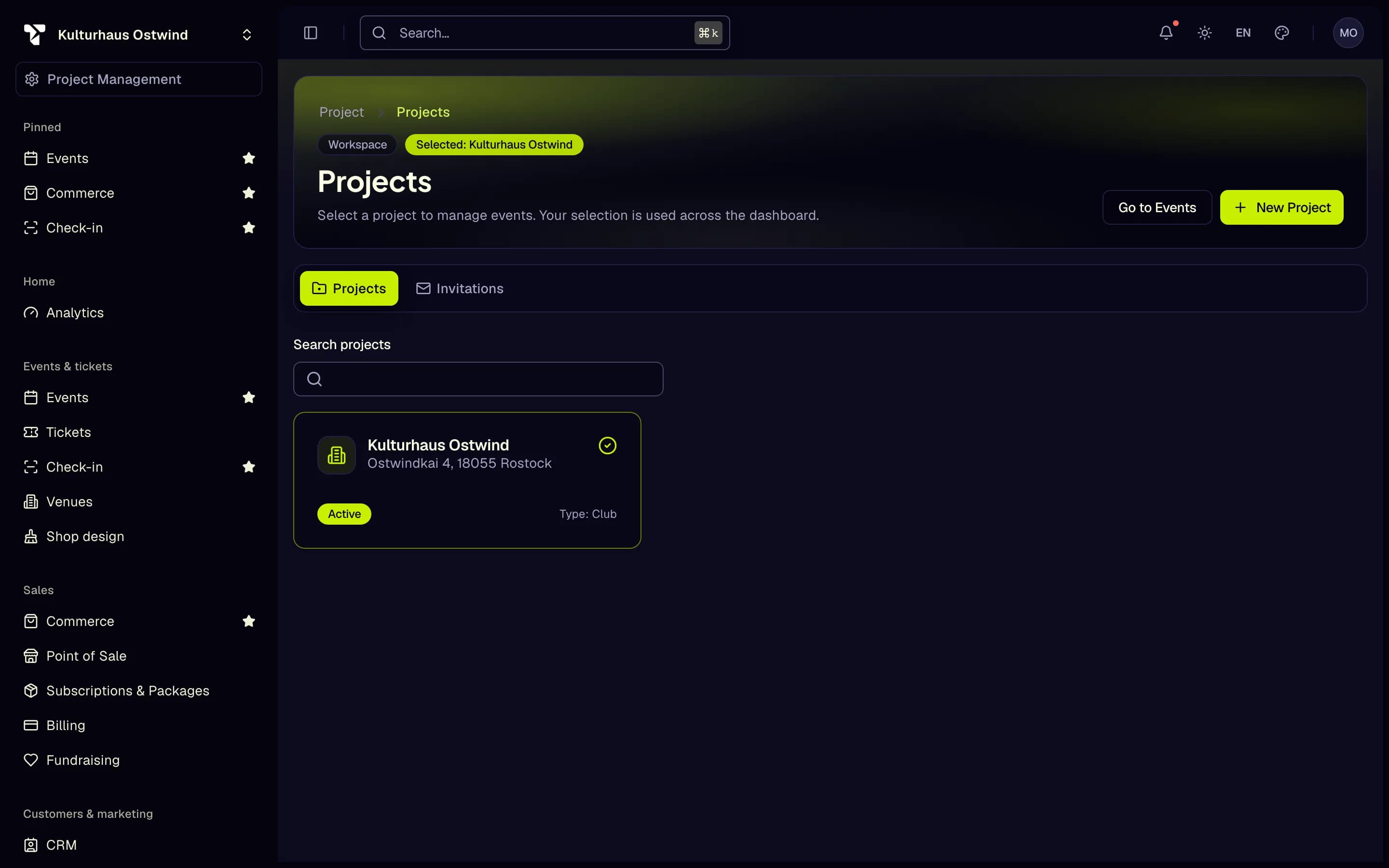
Light/dark mode and the Language (English or German) are separate controls in the header.
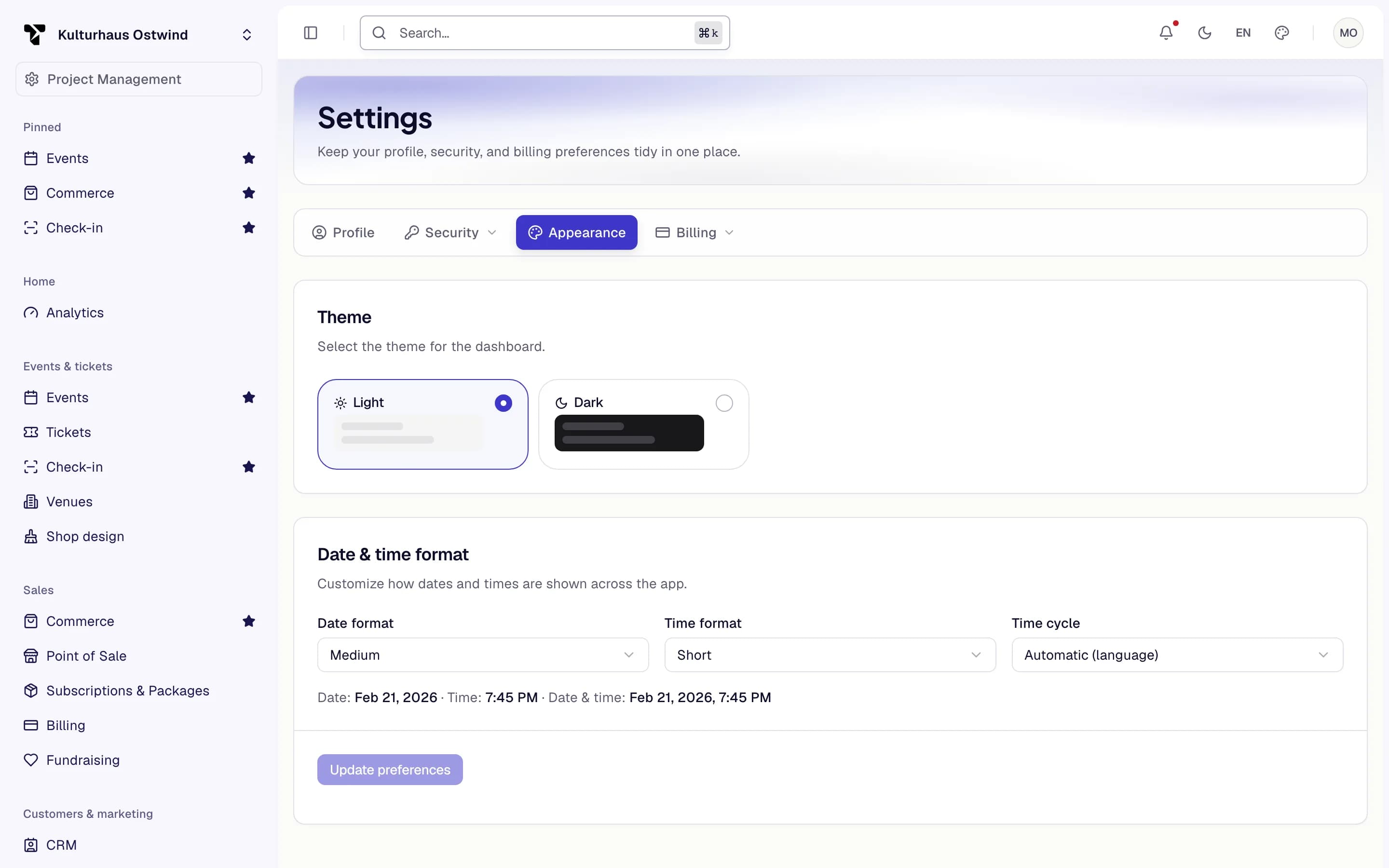
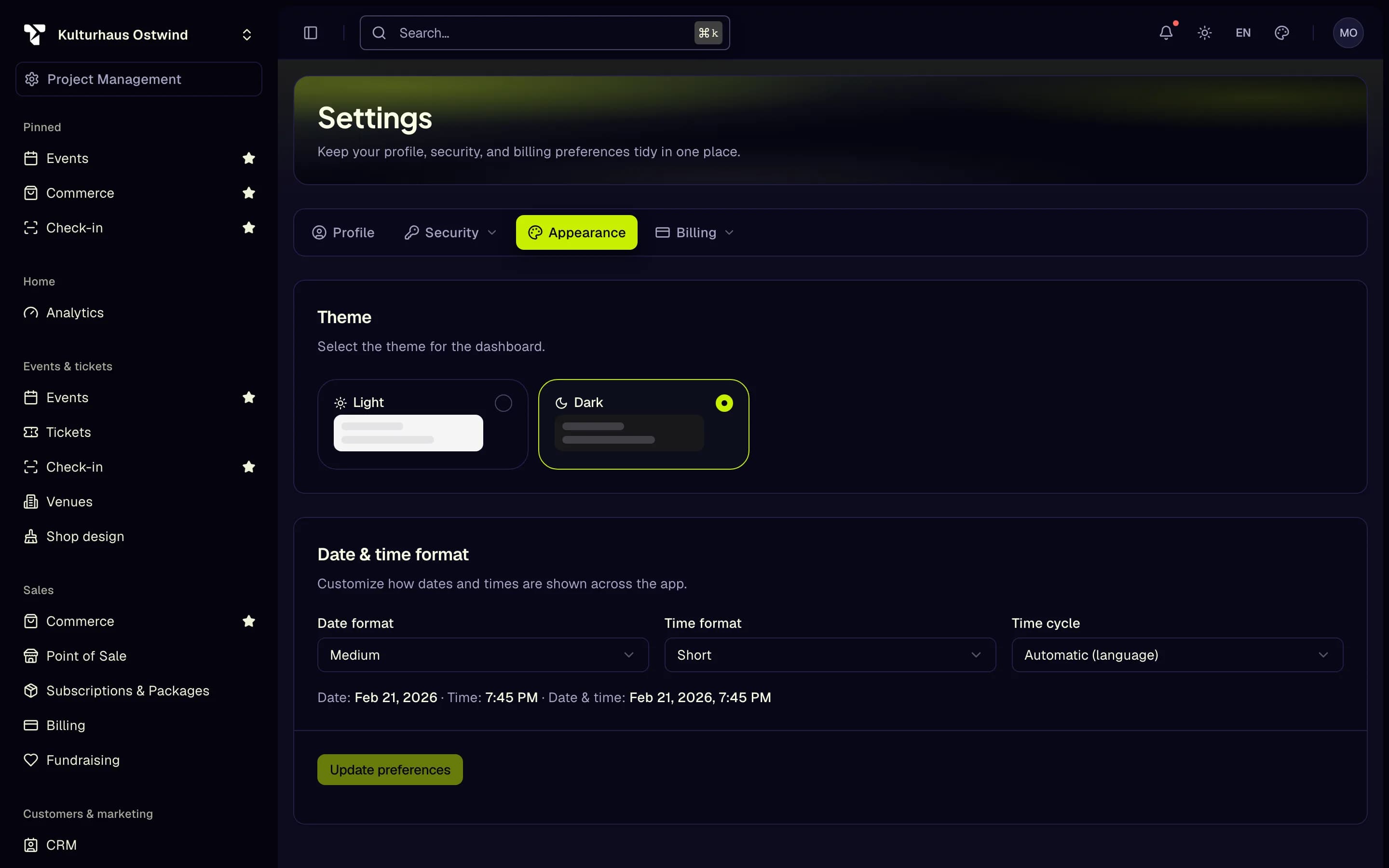
- Appearance
- Light
- Dark
- Date & time format
- Update preferences
Confirm a delete (hold to confirm)
Deleting or revoking something that cannot be undone, such as an event, a venue, a seatmap, a member, an invitation, an e-mail template or a temporary scanner, opens a dialog that says what will be lost.
Letting go early cancels. Cancel closes the dialog without deleting.
Unsaved changes
If you leave a form with changes you have not saved, for example while creating an event, the dashboard asks first: stay on the page, leave without saving, or, where offered, save and leave.
Common problems
- An area or tab you expect is missing. Your role in the selected project does not include it, or your plan does not. Check the project switcher first: most areas show the selected project only. Ask a project owner or admin for the role (Team and roles).
- The sidebar shows only your personal pages and Security. Your session has no second factor yet. Set up two-factor authentication (Account security).
- The palette finds no event. Type at least two characters of the event's name or venue, and check that the right project is selected. In a project with more than 200 events, older ones are not in the palette; search the Events list instead.
- Your pins are gone. Pins are kept in this browser only and are cleared when you sign out or your session expires. Pin the areas again.
- The delete button does nothing. It needs to be held, not clicked. Hold it until it fills.