
 TixFin
Scanner devices
Hand out a temporary scanner with a one-time QR code, activate it at the door, revoke it, and watch today's figures
A temporary scanner turns a phone, tablet or handheld into a door scanner without a personal account. You create it in the app, the door device activates it with a one-time QR code, and it scans one event until you revoke it. The organiser home also shows today's sales and check-ins as they happen.
Where: App → organiser home → Manage → Temp Scanners Who can do this: creating and revoking scanners needs Manage project members (Owners and Admins). Today's figures need View ticket statistics or dashboard. Activating a device needs only the QR code.
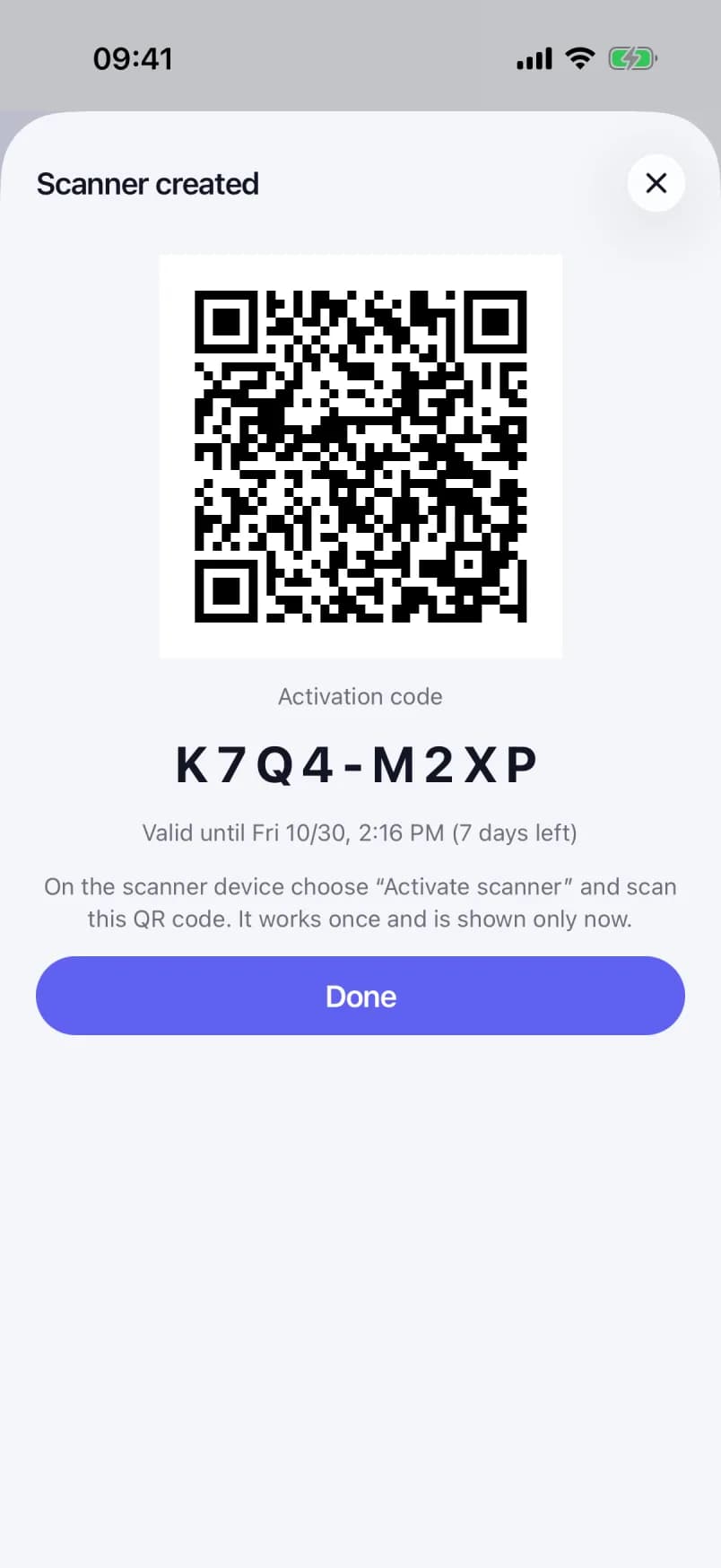
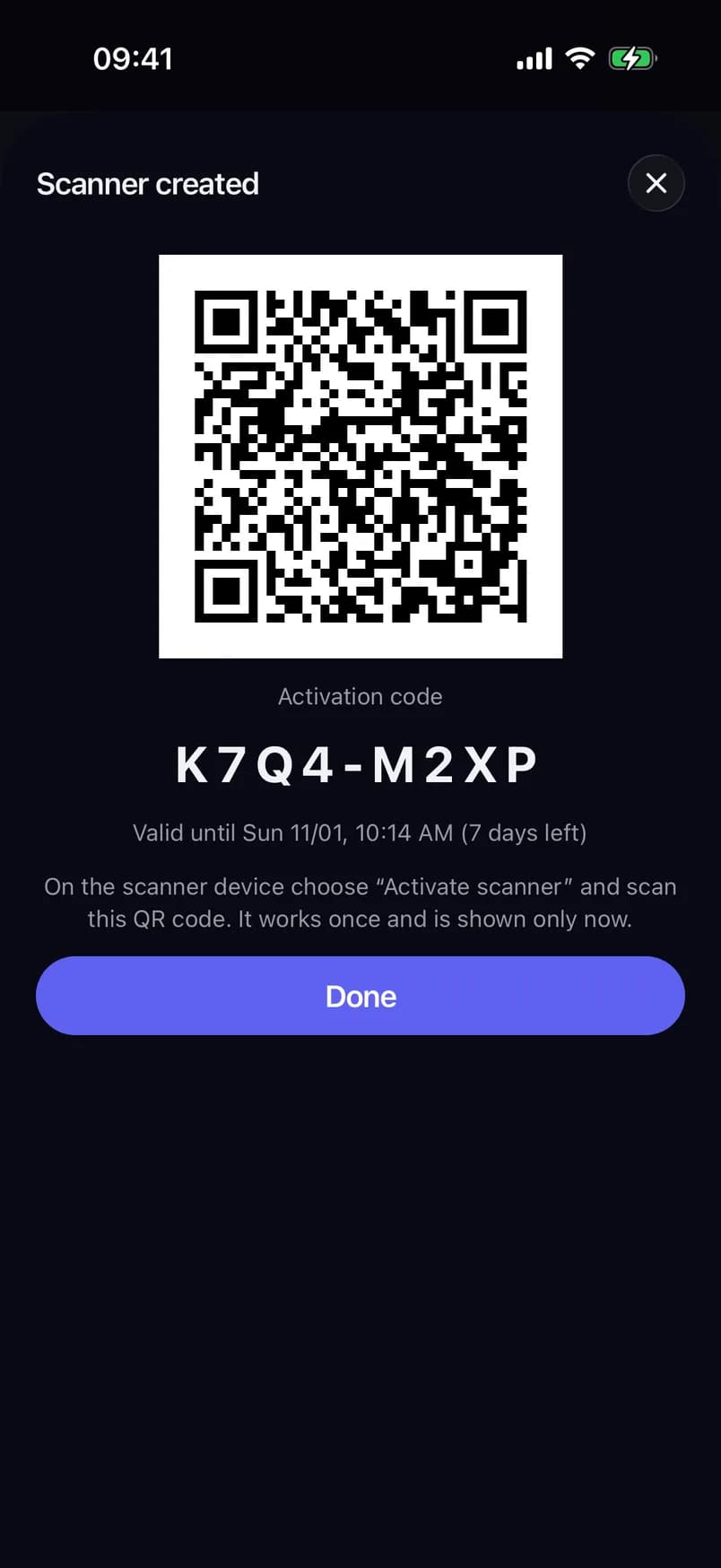
- One-time QR code
- Activation code
- Valid until
- Done
Create a temporary scanner
Issuing scanners needs a recent two-factor confirmation. If you have not entered a code in the last ten minutes, the app asks for the Security code from your authenticator app. Enter it and tap Verify. Without an authenticator app, tap Sign in again: a fresh sign-in counts for ten minutes.
Hand over the QR code
After Create scanner, the sheet Scanner created shows:
- the QR code to activate the scanner;
- the Activation code as text;
- Valid until and how many days are left.
Activate the door device now (next section). The code works once and is shown only now. The sheet closes only through Done. If you try to close it otherwise, the app warns The code will not be shown again. While the app is in the background, the QR code is hidden, so it doesn't show up in the app switcher.
Activate the scanner device
Do this on the device that will scan at the door.
The device opens the scanner, fixed to the event and check-in list from the QR code and locked in scanner mode. It can't change the event, and it has no Safety button. If the device is already in scanner mode, the app keeps its exit PIN and doesn't ask for a new one.
To end the shift, touch and hold the Scanner mode badge and enter the exit PIN to Sign the scanner out. The sheet says how many scans still wait to sync.
Pause, test or revoke a scanner
Temp Scanners lists every scanner with its device type, Last seen and its status: Active, Disabled or Revoked. Tap a scanner to:
- switch Enabled off to pause it, and on again to resume;
- tap Send test ping. The app says "Test requested. The device will confirm on its next contact.";
- tap Revoke. The app asks Revoke scanner? ("This scanner will no longer be able to scan."). Tap Revoke again.
A revoked scanner can't be opened or brought back. Create a new one instead. Revoking is also the way out when the exit PIN of a temporary scanner is forgotten.
"No event assigned"
A temporary scanner shows No event assigned, with no camera, when it was activated without an event. This happens when the code was typed by hand, or when the scanner was created on the web under Project settings → Temp Scanners, and the scanner may scan more than one event. A scanner allowed for exactly one event picks that event and its check-in list by itself after activation.
The camera opens on that event. The device stays in scanner mode, and the event stays fixed until the scanner is signed out.
If the device was activated from the app's QR code but shows No event assigned with a Retry button, the event could not be read right after activation. Tap Retry.
Enrol an offline door scanner
An enrolled door scanner has no account at all. It holds a credential for one event, valid for 1 to 72 hours, and checks every ticket against the guest list it downloads, even when the network is up. Use it for doors with poor signal, or for devices you don't want to give a sign-in.
The device downloads the event's guest list and opens the scanner, fixed to the event and entrance of the code. Its scans sync whenever it is online. Without a network it keeps checking against the list it has.
When the credential expires, or you revoke it, the device signs itself out the next time it is online and tries to download the guest list or sync. The sign-in screen then says This scanner was signed out: its credential was revoked or has expired. Scans that had not synced yet stay on the device. Enrol it again with a new code.
The app connects to one region. A QR code made in another region is refused with a message that names the region of the code. Create the code in the console of the app's region instead.
Revoke an enrolled door scanner
Revoke a door scanner that was lost or stolen, or that should stop scanning before its credential expires.
Revoking needs Manage project members and a two-factor confirmation from the last ten minutes. From its next contact on, the device can no longer download the guest list or sync, and it signs itself out. A revoked device can't be brought back; enrol it again with a new code.
Watch today's figures
The organiser home shows the selected project and today's date.
- Today lists today's events. A running event carries Live. Each one shows Sold, Inside now and a Check-in rate bar with the share of sold tickets already admitted. With no event today, it says No events today and lists the next three under Upcoming.
- Crew status for the selected event shows Checked in (out of assigned), Open incidents with "n critical", and Staffing gaps. With crew screens, each row opens the crew list behind it.
The figures are read fresh from the server every 30 seconds while the home is on screen, and again when you come back to it. Pull down to refresh at once. Tap an event to open its details.
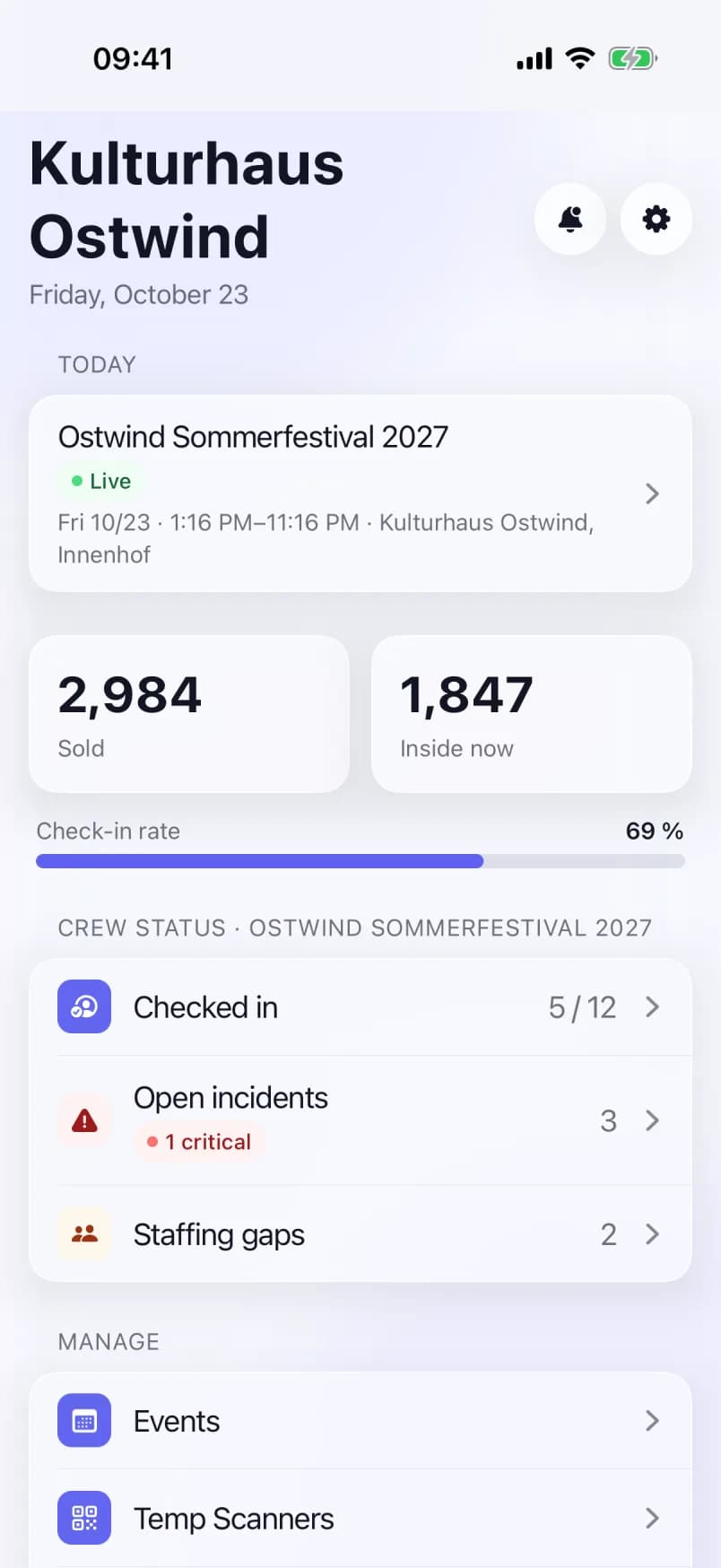
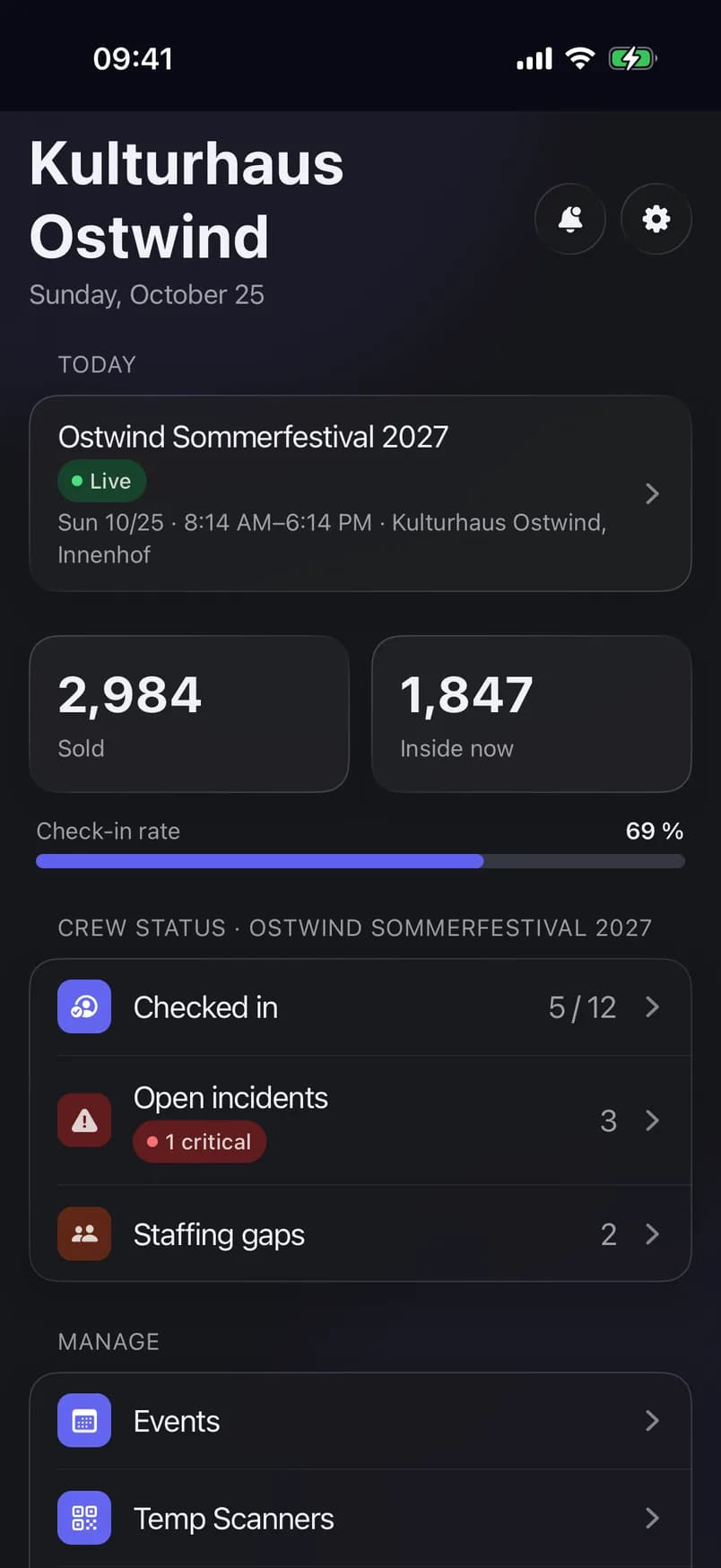
- Today's event
- Sold
- Inside now
- Crew status
- Temp Scanners
Common problems
- There is no Temp Scanners row. Your role lacks Manage project members. Ask an Owner or Admin to create the scanner.
- "Could not create scanner". The reason follows in the message. Check your connection and try again.
- "Invalid activation code". The code was mistyped, already used, expired or revoked. Create a new scanner.
- "Code not accepted. It was issued for region …". The enrolment QR code comes from another region than the app's server, or it was already used or has expired. Create a new code in the console of the app's region.
- "This scanner was signed out". The enrolled door scanner's credential was revoked or has expired. Enrol the device again with a new code.
- "Activation code is required". Scan the QR code or paste the code before tapping Activate.
- No figures under Today. Your role lacks View ticket statistics or dashboard, or the figures could not be loaded. Tap Retry on the row.