
 TixFin
Handover, messages and notifications
Read and write handover notes and the daily log, send and acknowledge crew messages, and work through your notifications
These screens keep the crew informed during the event: handover notes pass what the next shift needs to know, the daily log records what happened, messages and announcements reach the crew, and the notifications inbox collects everything addressed to you.
Where: App → My Hub → My work → Handover Notes or Messages. Notifications: My Hub → Account → Notifications, or the bell on the organiser home. Who can do this: reading needs View crew ops communications. Writing notes, log entries, messages and announcements needs Manage crew ops communications. Every signed-in member has notifications.
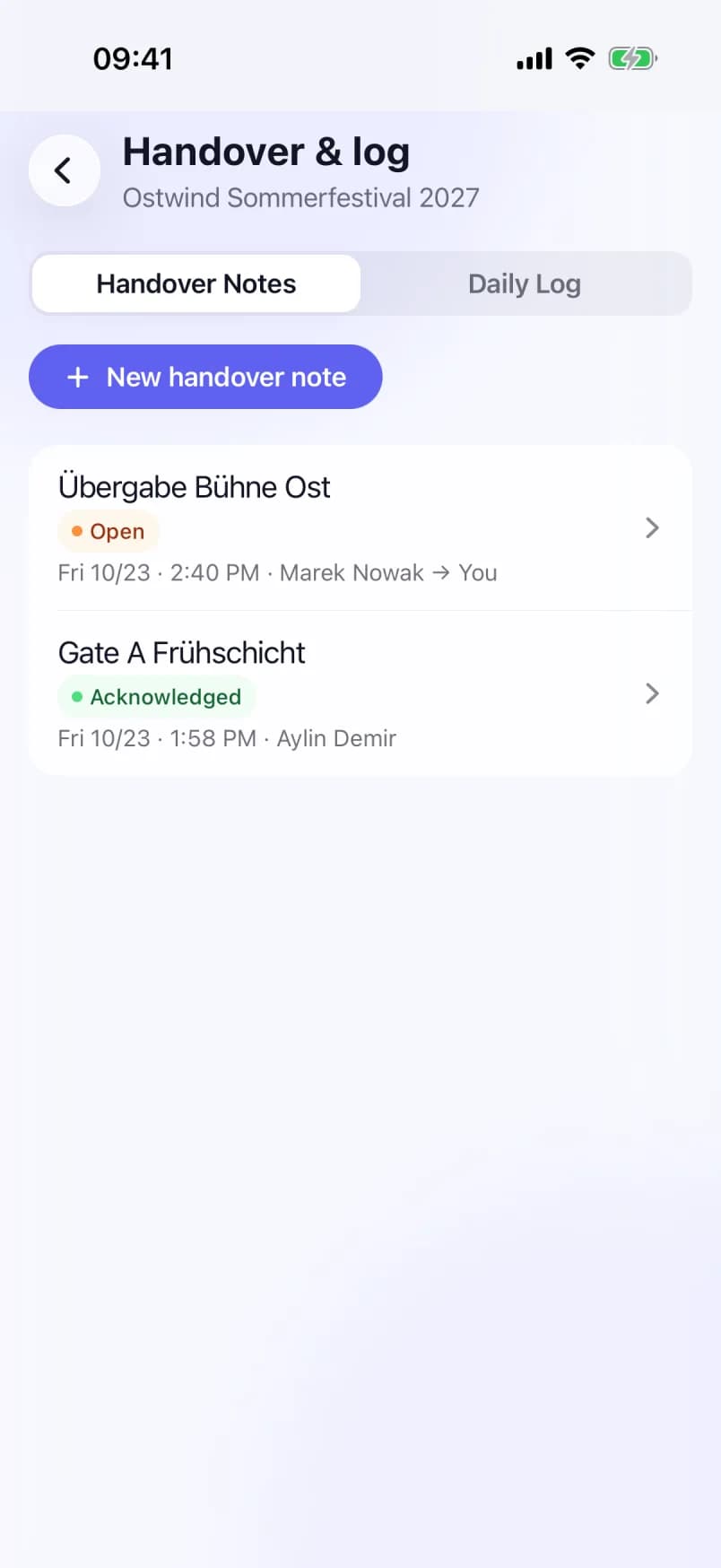
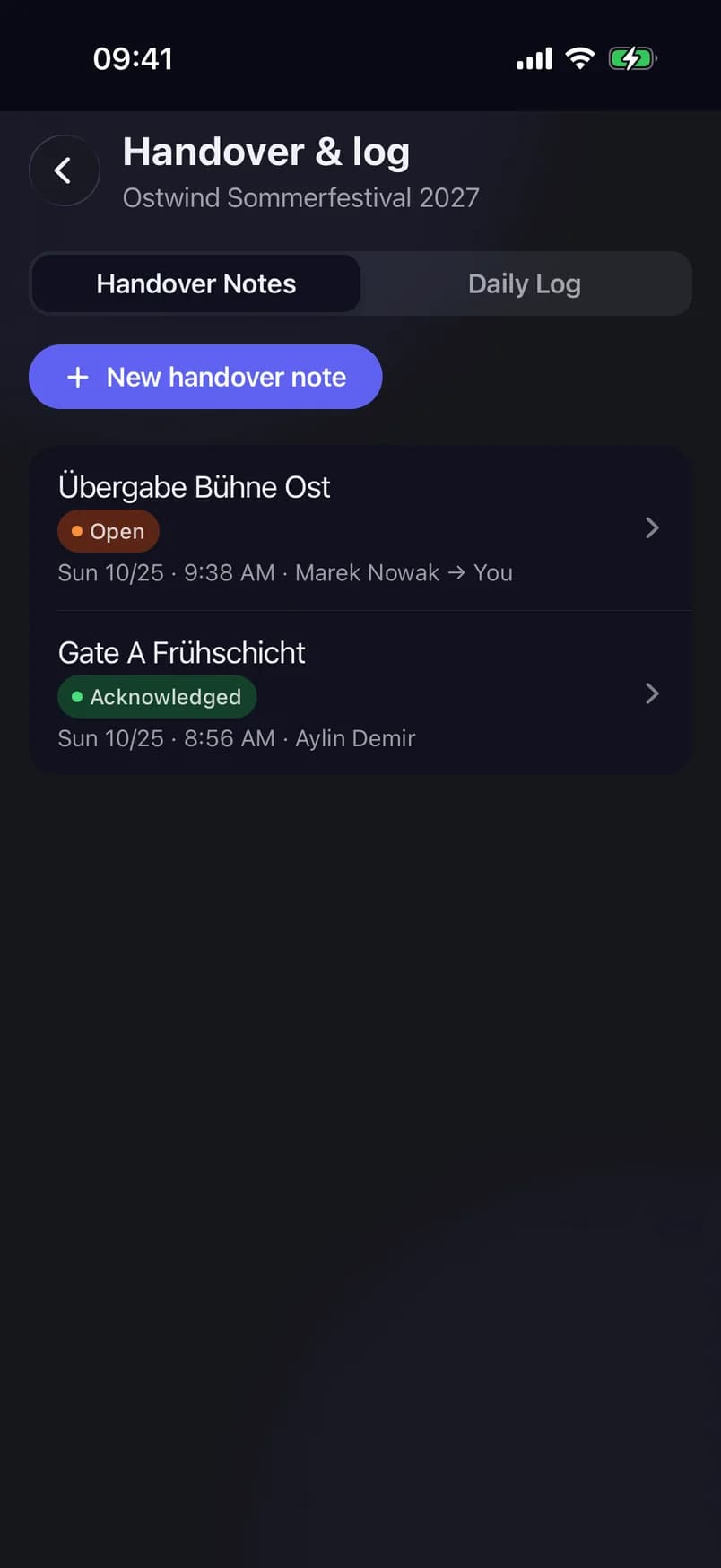
- Handover Notes
- Status Open or Acknowledged
- New handover note
- Daily Log
Read and acknowledge a handover note
Crew with Manage crew ops communications can acknowledge any open note.
Write a handover note
A note written in the app is not addressed to anyone. To address a note to one person, write it on the web under Operations → Crew Ops → Live → Handover. To change or remove a note, open it and tap Edit or Delete.
Keep the daily log
The daily log is the event's running record of what happened, newest first.
Everyone with View crew ops communications can read the log. Tap an entry to read it. Crew with Manage crew ops communications can Edit or Delete it there. Categories and severities are set on the web, under Operations → Crew Ops → Live → Daily log.
Read and acknowledge messages
Send a message to the crew
Your own messages show how many people acknowledged them ("3 acknowledged"). Open one to Edit message (the text only) or Delete it.
Read and publish announcements
Tap Announcements on the Communication screen. Pinned announcements come first and carry Pinned. A priority other than Normal is shown on the row. The same announcements are on Safety.
To publish one with Manage crew ops communications:
Deleting a message or an announcement asks first, because it cannot be undone.
Work through your notifications
While the app is open, it checks for new notifications every minute and whenever you come back to it. With Allow push notifications on in Settings, new ones also appear as a notification on the phone. The inbox lists your most recent notifications.
Common problems
- "No event selected". Handover notes, the daily log and messages belong to one event. Tap Select event… on My Hub and choose it.
- There is no Acknowledge button on a handover note. The note is addressed to someone else, or not addressed to anyone. Only that person, or a crew lead, can acknowledge it.
- There is no New handover note or pencil button. Your role can read but not write. Ask the organiser for Manage crew ops communications.
- "Could not load your notifications." Tap Retry. If you are offline, the inbox says "You're offline" and loads again once you are back online.