
 TixFin
Safety
Read announcements, acknowledge briefings and report an incident, also from a locked door device
Safety puts the event's announcements, the briefings you must acknowledge and the incident report one tap away from the camera.
Where: App → Scanner → the Safety button (first-aid case) beside the torch. You also find it in the Scanner menu → Safety, and on My Hub under My work → Safety. Who can do this: members with View crew ops communications (announcements), View crew briefings (briefings) or View crew incidents (report an incident). A temporary scanner has no Safety.
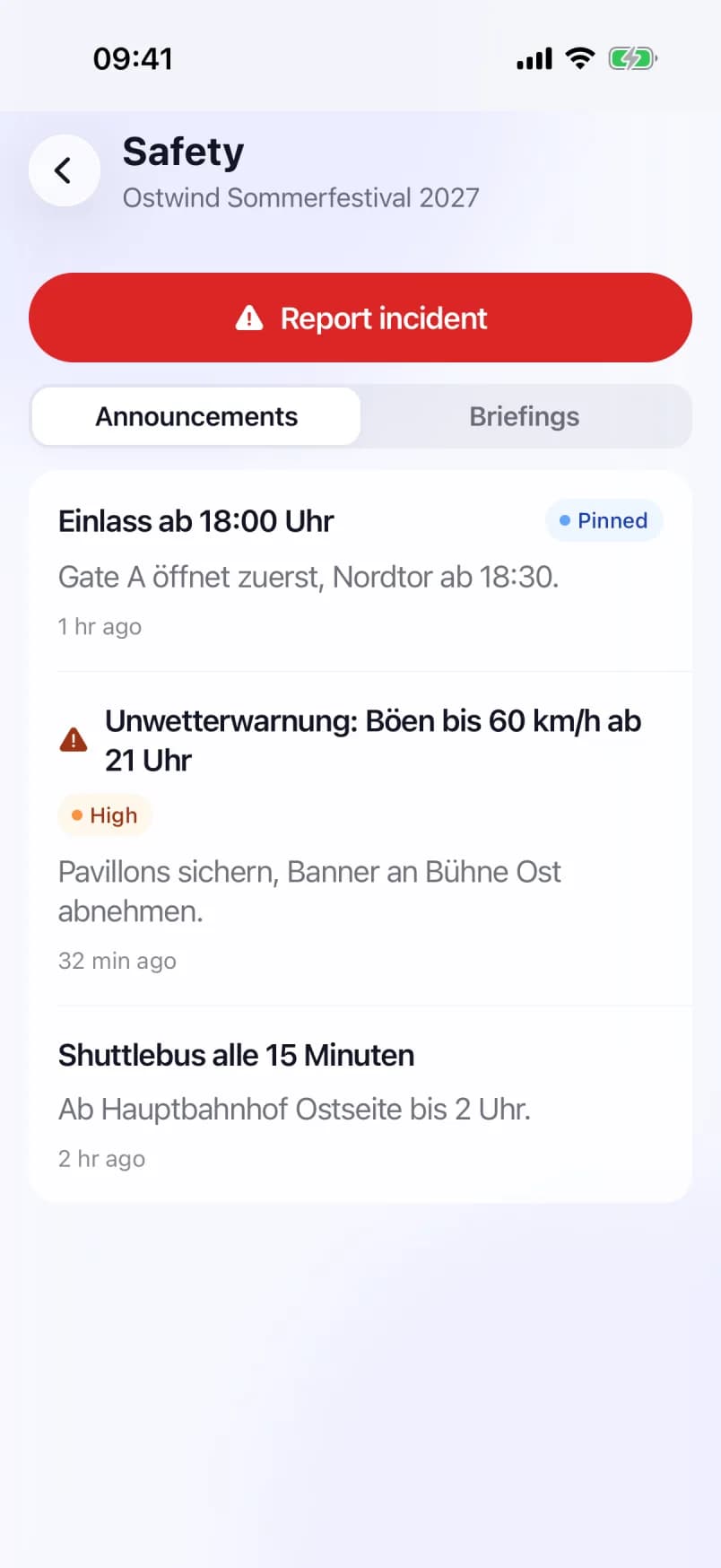
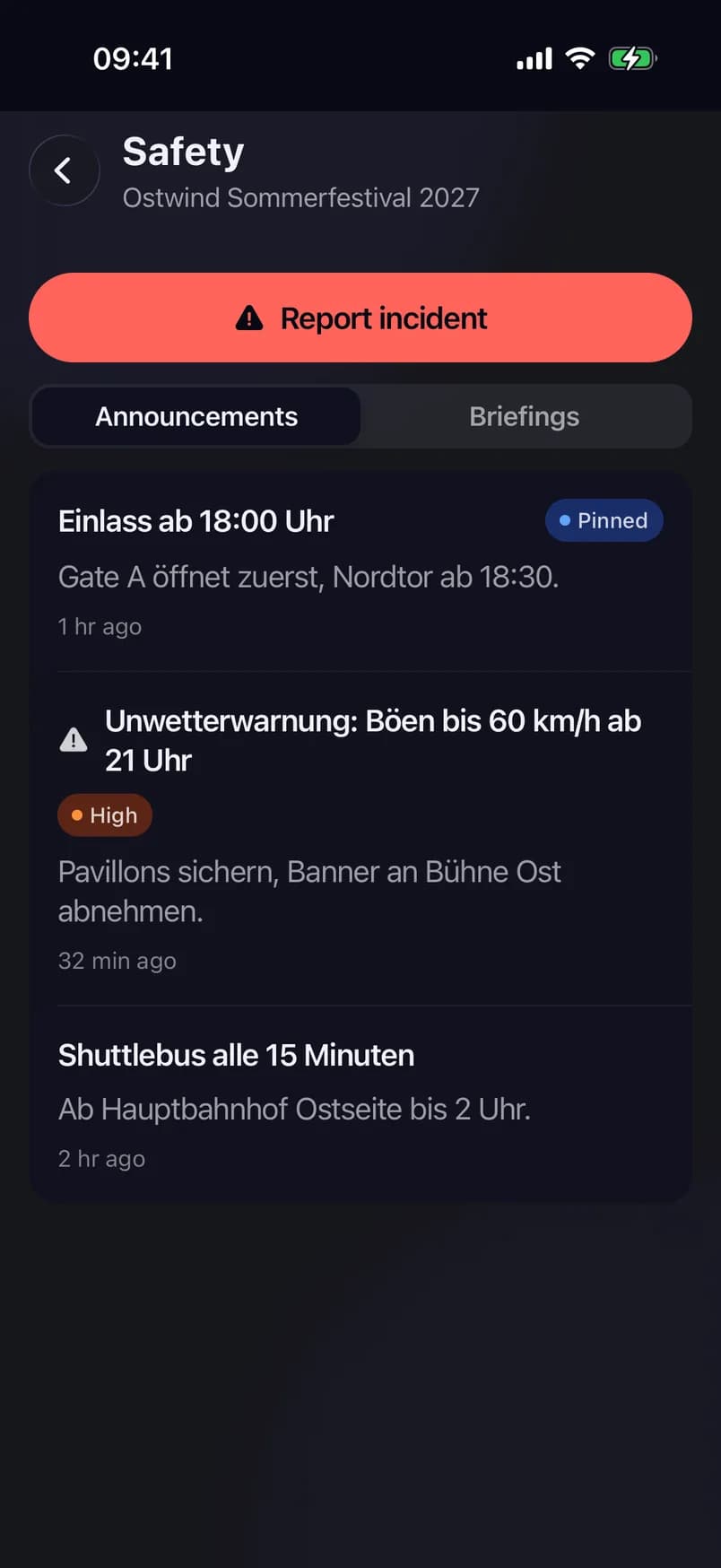
- Announcements
- Pinned
- Briefings
- Report incident
Read announcements
Open Safety. Announcements is the first tab. Pinned announcements carry Pinned, and urgent ones a warning icon and their priority. Pull down to refresh.
Acknowledge a briefing
On My Hub, the Briefings to acknowledge section walks you through the open ones in turn ("2 of 3").
Report an incident
This is the same incident form the crew screens use. If you close it with text typed, the app asks before discarding it. Crew with Manage crew incidents create a full incident. Everyone else files a report that the incident team picks up. Crew can also report from My work → Incidents.
On a locked door device
In scanner mode, Safety is the one screen besides the scanner that stays open. Staff whose role includes Safety keep the button beside the torch. Anything they acknowledge or report is recorded under their own account. A temporary scanner has no Safety button.
Common problems
- "Choose an event on the scanner first." Choose the event on the scanner, then open Safety again.
- "There are no announcements or briefings you may read here." Your role has none of the Safety permissions for this project. Ask the organiser.
- The list could not be loaded. Tap Retry. If you are offline, it loads again once you are back online.