
 TixFin
Crew check-in and availability
Check in and out for your shift, check a crew member in as crew lead, and tell your crew lead when you can work
Crew check-in records who is working on site. You check yourself in when your shift starts. A crew lead can check anyone on the crew in or out. Availability tells your crew lead when you can work.
Where: App → My Hub → Your check-in. On the scanner, the same card is in the Scanner menu. Who can do this: your own check-in needs View crew check-ins. Checking others in needs Manage crew check-ins. Availability needs View crew availability, and the team coverage Manage crew availability.
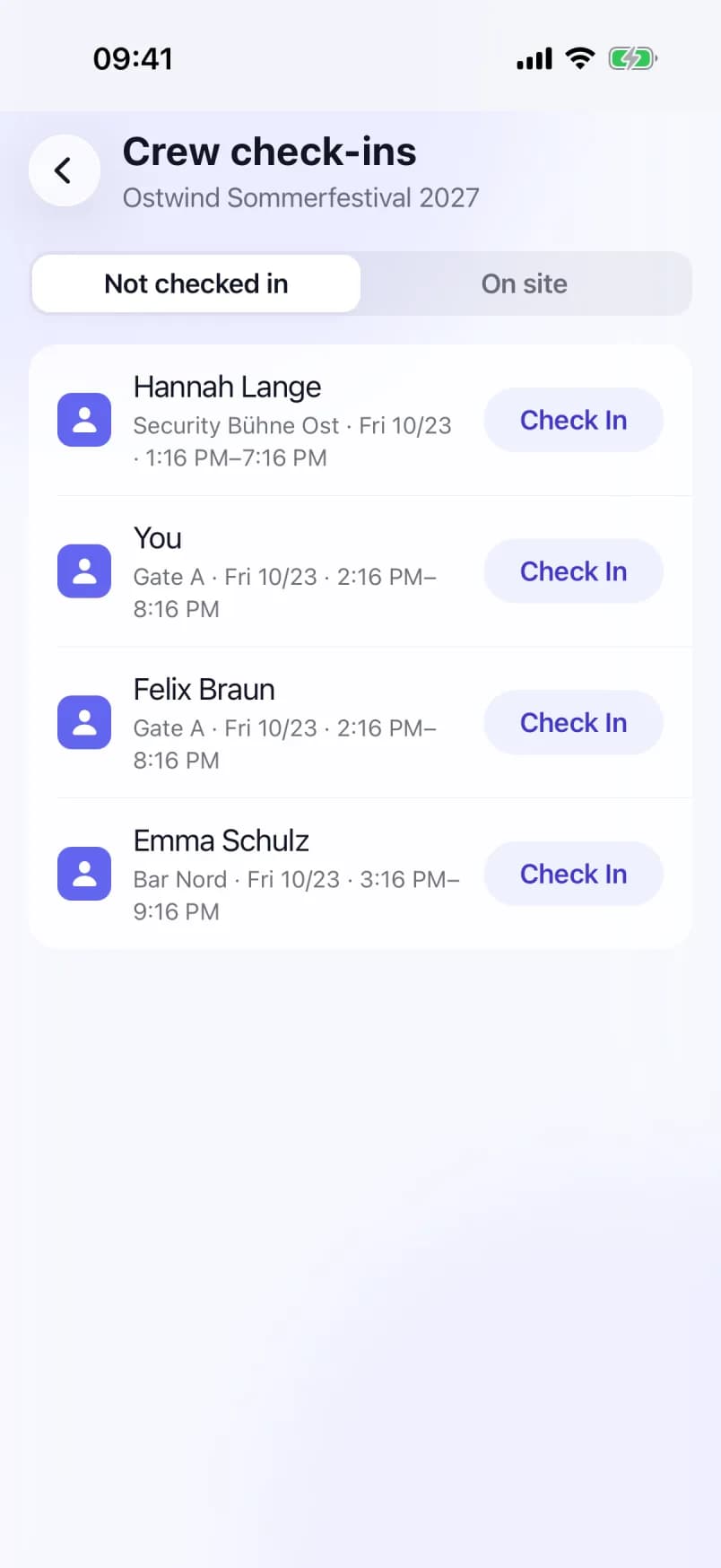
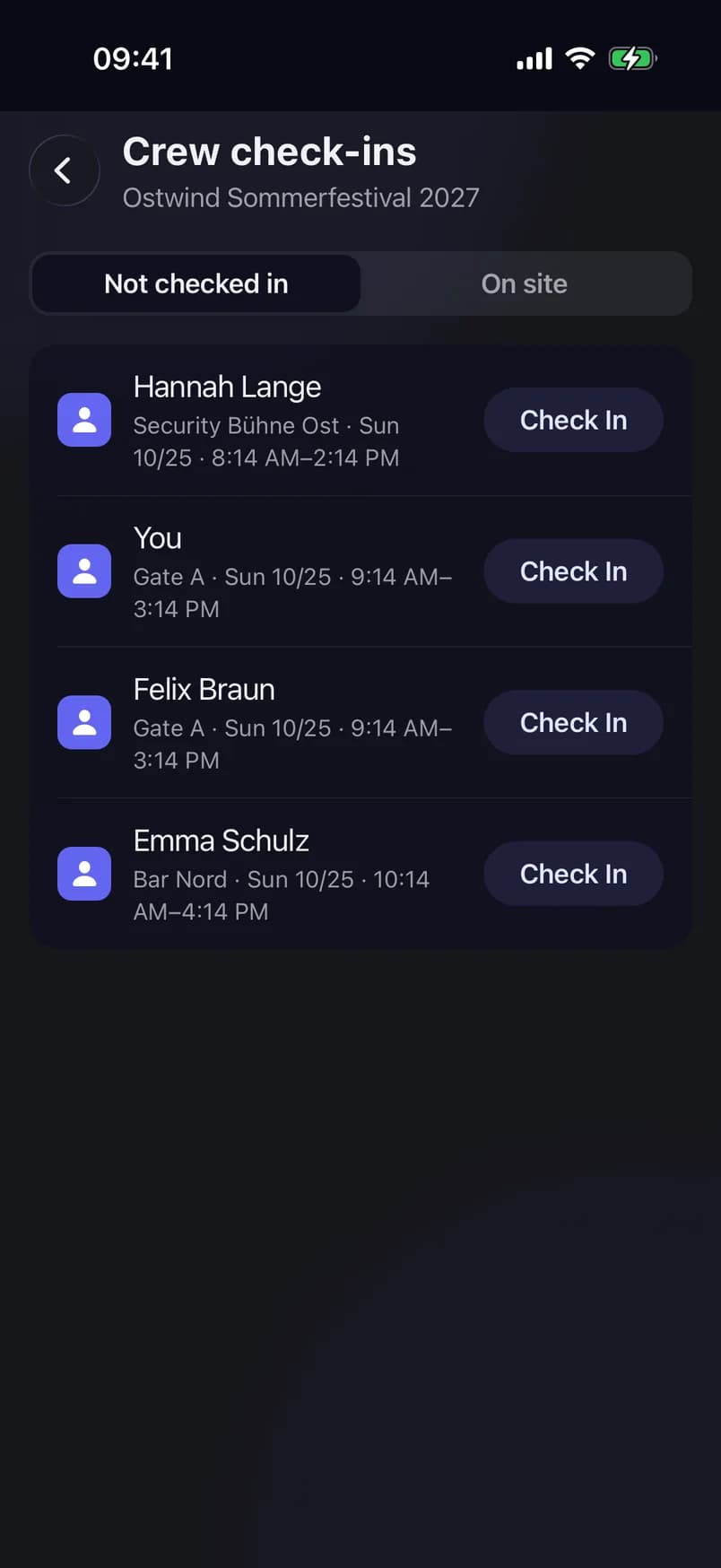
- Not checked in
- Check In a crew member
- On site
Check in for your shift
The check-in is recorded for that shift and its location. You need a connection: offline, the card shows "Checking in needs a connection. It works again once you're back online." instead of the button.
Check out at the end of your shift
When check-in is refused
The event's check-in rules can refuse a check-in. The app tells you what to do:
| Message | What to do |
|---|---|
| "Check-in opens closer to the start of the shift." | Wait until shortly before your shift starts. |
| "Check-in for this shift has closed. Only a crew lead can still check in." | Ask your crew lead. They can check you in from the crew list. |
| "Checking in needs a shift. A crew lead assigns shifts." | You have no shift on this event. Ask to be assigned to one. |
| "Checking in needs a location. Only a crew lead can check in without one." | Ask your crew lead. |
| "No longer assigned to this shift. Pull to refresh." | Your shift changed. Pull down to refresh, then try again. |
| "You are not on this event's crew. Ask the organiser to add you." | You are not on the event's crew list. The organiser adds you under Event Crew. |
Check a crew member in or out (crew lead)
The app confirms with "Anna is checked in." or "Anna is checked out." The check-in uses the person's current shift and its location.
Check in anyway (override)
If the event's check-in rules refuse a person, for example because check-in for the shift has closed, the app shows the reason under the person's name and offers Check in anyway. Tap it to check the person in despite the rule.
- The override only works if the event's check-in rules allow a crew lead to override them. If they don't, the same message appears again.
- There is no override when the person is no longer on that shift. Pull down to refresh the list.
- A person who is not on the event's crew can't be checked in at all. Add them under Event Crew first.
Set your availability
Your entries are listed under My availability. Tap one to change it, or tap Delete in it. The app asks Delete entry? first, because this cannot be undone. If you close the form with changes, it asks Discard changes?
Team coverage. With Manage crew availability, the top of the screen shows Team coverage: one row per day (and role) with "Available n · Maybe n · Unavailable n".
On the web
Crew members find the same check-in card in Operations → My Area (My Area). Organisers check crew in and out under Operations → Crew Ops → Live → Check-ins (Plan & Crew). It is the same check-in record.
Common problems
- "No event selected". Tap Select event… on My Hub and choose the event.
- The check-in card is missing. Your role has no View crew check-ins for this project. Ask the organiser.
- "End must be after start." In an availability entry, Until is before From. Move Until later.
- "Could not load your check-in." Tap Retry. If you are offline, the card says so and loads again once you are back online.