
 TixFin
Postpone or cancel an event
Move an event to a new date, cancel it, or pause and resume its sales
Use these when an event that is already on sale changes. Buyers see your notice on the event's shop page. A draft that never sold can simply be edited or deleted instead.
Where: Events & tickets → Events → open the event. Postpone event and Cancel event show once the event is published or has sold tickets. Who can do this: Manage or edit events
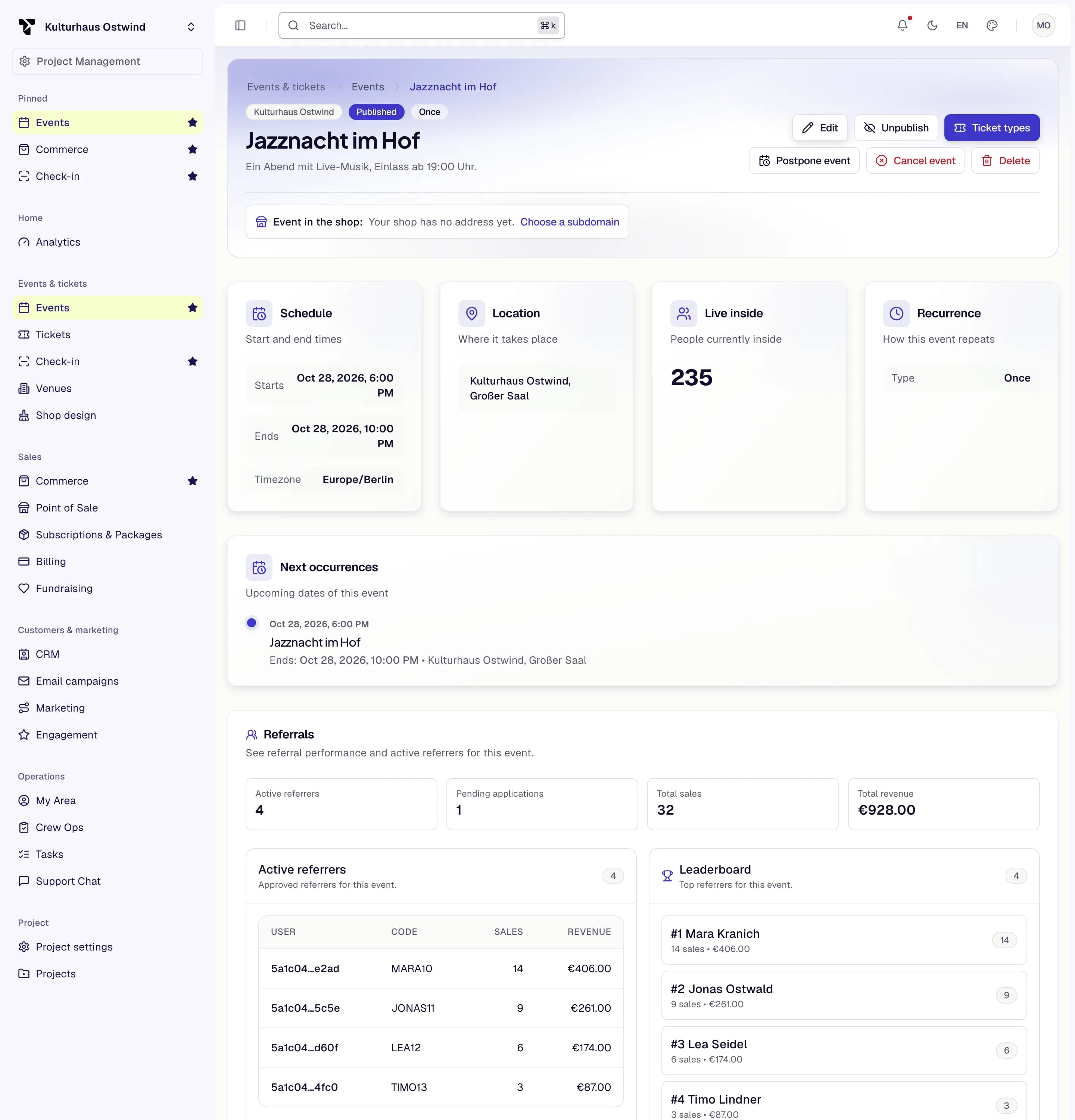
- Live inside
- Unpublish
- Ticket types
- Postpone event
- Cancel event
- Delete
Postpone an event
Tickets already sold stay valid. Sales pause until you click Resume sales on the event page. The event list shows the event as Postponed.
Cancel an event
Sales stop at once and the event shows as Cancelled. The shop page stays visible with your notice.
Neither postponing nor cancelling sends an email, and refunds don't happen automatically. Tell your buyers yourself, for example with an email campaign, and refund the orders under Sales → Commerce → Orders (Refund a line).
Pause and resume sales
When sales are paused, for example after postponing, the event page shows Resume sales. Click it to sell again. To take an event out of the shop without postponing it, use Unpublish (Publish an event): tickets already sold stay valid.
Run the next event in a series
There is no copy action for events. For a repeating event, set a Recurrence on one event (Make an event repeat); otherwise create the next event with New event.
Common problems
- "The end must be after the start." Correct New start or New end.
- "Postponing failed" / "Cancelling failed". Nothing was changed. Try again; if it keeps failing, reload the page.
- "Sales could not be resumed". Try again. The event stays paused until resuming works.
- No Postpone or Cancel button. The event is a draft with no sold tickets. Edit or delete it instead.