
 TixFin
Badge printing
Set up print stations and printers for an event and follow the print jobs
Badge printing sends name badges to printers at your check-in desks. Each desk is a station with one or more printers (devices).
Where: Operations → Crew Ops → Guests & on-site → Badge printing. Pick the event at the top. Who can do this: members whose role includes the printing permissions
Set up a station and a printer
LOCAL_USB or NETWORK. Click Save.A device entry alone does not connect a printer. Until a printer connection is active for the station, print from the PDF export instead (Print without a printer connection).
Follow the print jobs
Print jobs lists each badge with its Status (QUEUED, PRINTING, DONE, FAILED or CANCELLED),
Station, Device, Attempts and, for a failure, the Error. The cards at the top count stations, devices,
jobs and failed jobs.
- Retry sends a failed job to the printer again.
- Cancel stops a job that should not be printed.
Queue a badge
An approved accreditation that issued a ticket can be queued straight from Accreditation: choose Queue badge in its row's menu.
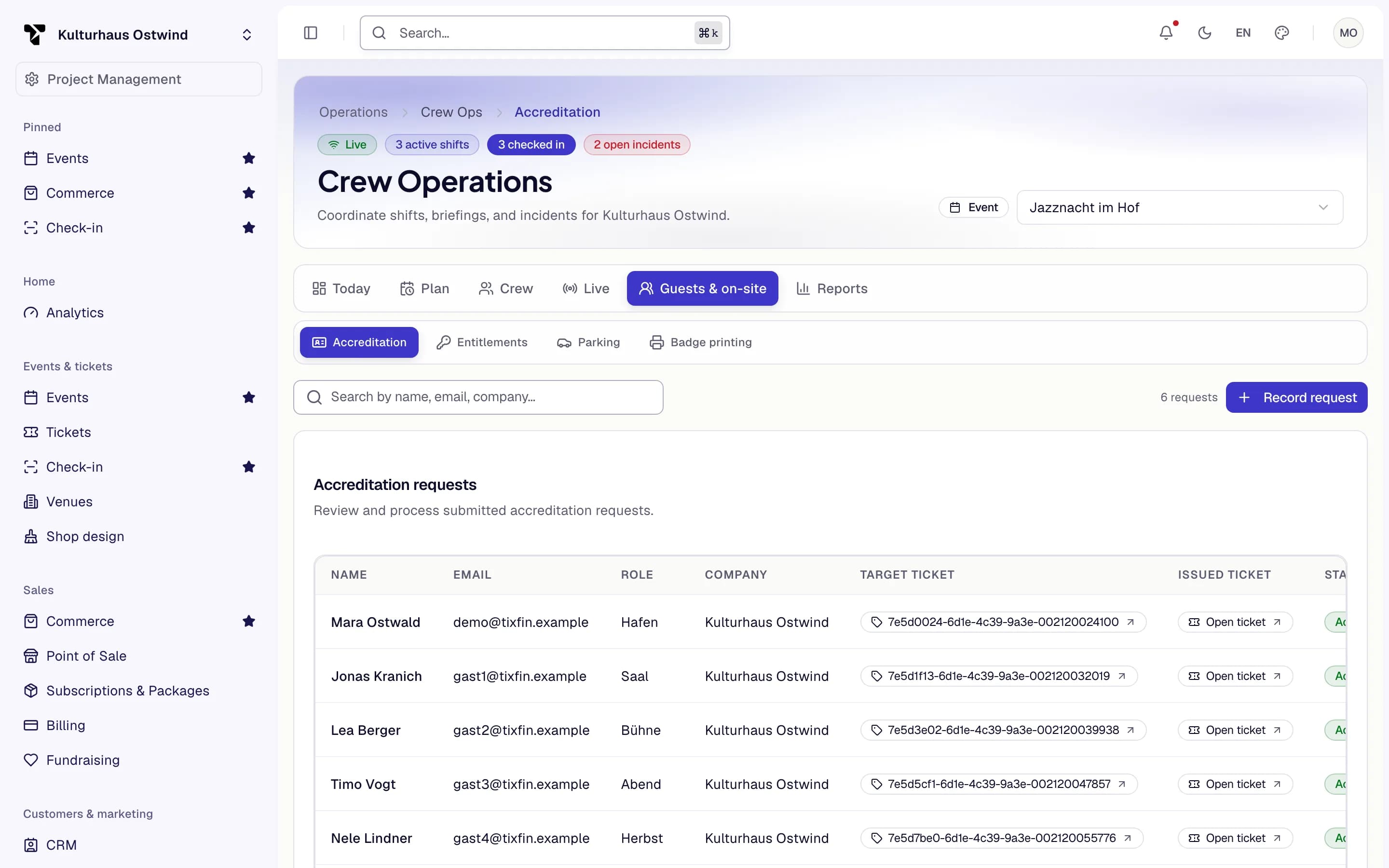
- Guests & on-site tab
- Accreditation
- Search requests
- Record a request
Print without a printer connection
Design the badge with Badge designer on the ticket type, then click Export badges PDF to download all badges of that ticket type as one PDF and print it yourself (Ticket design and delivery).
Common problems
- Jobs stay
QUEUED. No printer at the station is picking them up. Check the printer connection, or print the PDF instead. - The Badge printing tab is missing. See Why a module is missing.