
 TixFin
Crew operations
Working-time and check-in rules, required qualifications, copying a plan, shift and run sheet templates, crew attributes, incident categories, comments and mentions, briefing confirmations, timesheet breaks and manual automation runs
Crew operations plans and runs the people working your event: shifts, check-in, profiles, incidents and timesheets. This page covers the settings and records that sit next to the day-to-day lists.
Where: Operations → Crew Ops. Pick the project and the event at the top. Who can do this: members whose role includes the permission named in each section. Ask a project admin (Team and roles).
Set the working-time rules
The working-time rules are checked whenever someone is assigned to a shift: the minimum rest between two shifts and the longest allowed shift. An event without saved rules uses the defaults shown.
Where: Plan → Shifts, card Working-time rules. Needs OPS_SHIFT_MANAGE to change.
When an assignment would break the rules, it is refused. An assignment is also refused when its role is marked as needing a qualification (Crew → Roles, switch Qualification required in the role editor) and the person holds no current (unexpired) qualification for that role — add one under Crew → Profiles → Qualifications. If it has to happen anyway, open the shift, switch on Override assignment rules, give a reason and click Assign again. The reason is kept with the assignment. You can also add Notes to an assignment there, and switch on Check-in expected: such assignments count towards the no-show rate in Reports → Analytics. The check-in rules do not read it.
Copy a plan from another event
Where: Plan → Shifts, Copy from event. Needs PROJECT_UPDATE.
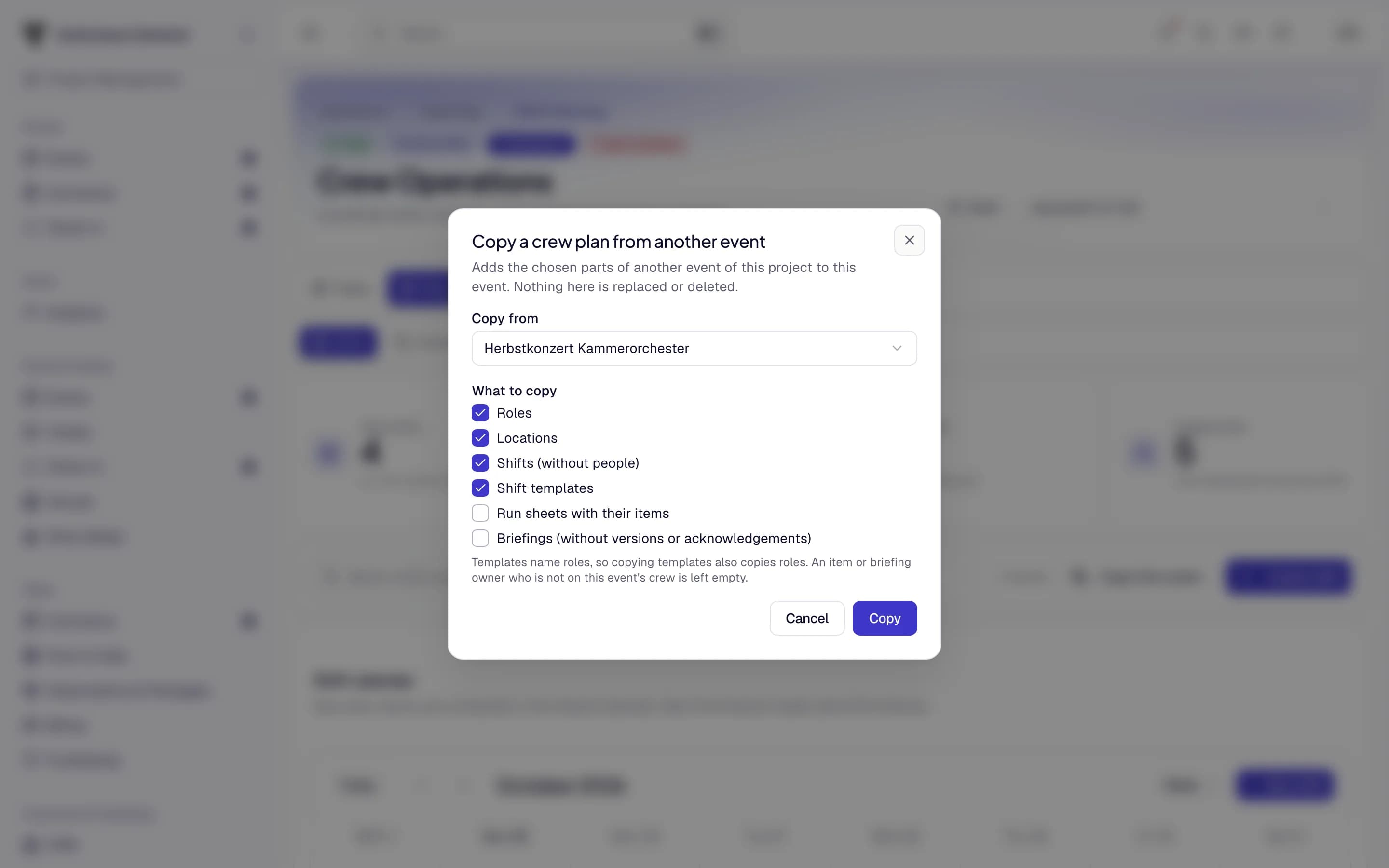
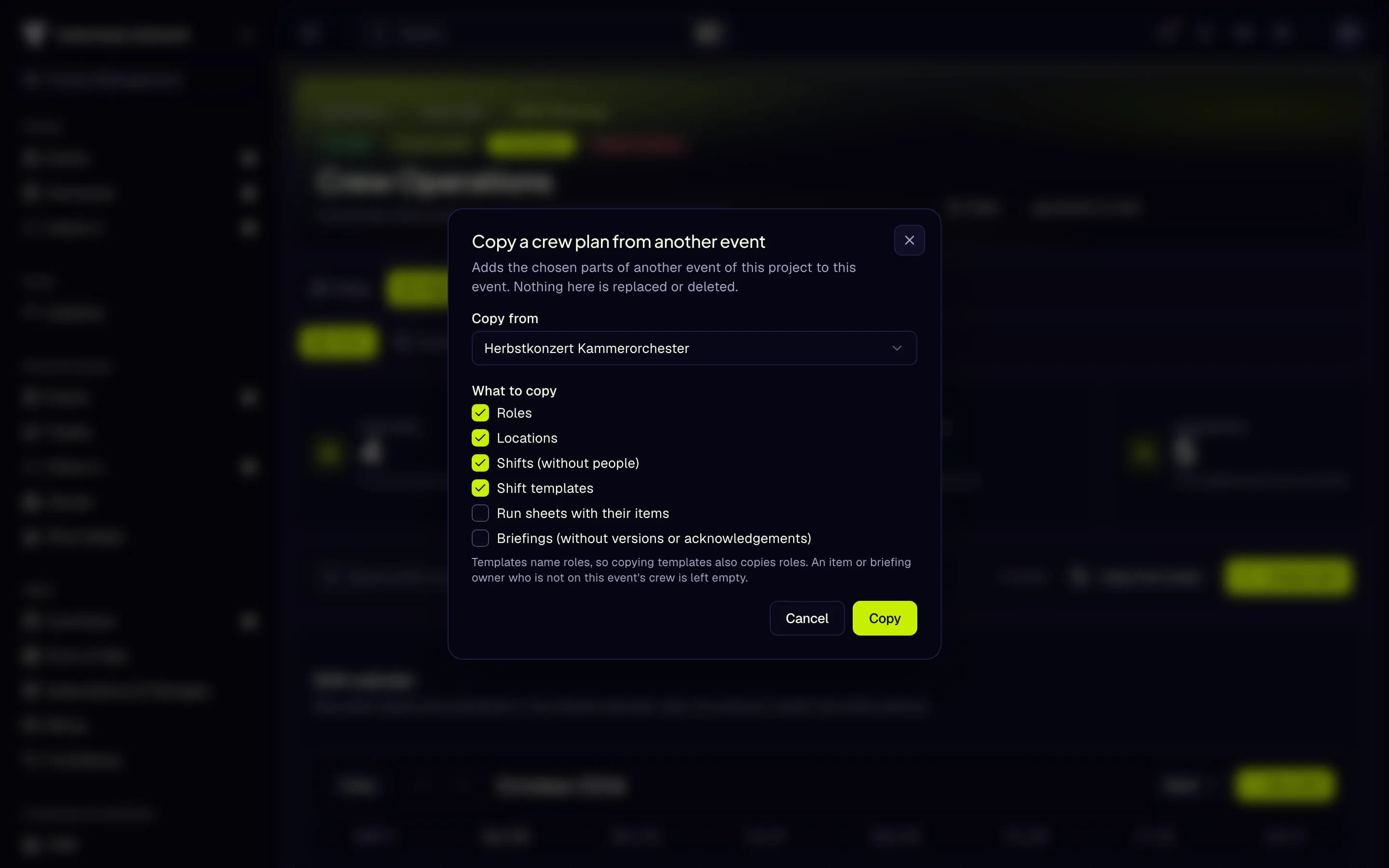
- Choose the event
- Choose what to copy
- Copy
Set up shift template rules
A shift template's assignment rules say how many people of which role a shift made from it needs.
Where: Plan → Templates, pencil on a template. Needs OPS_SHIFT_MANAGE.
Use run sheet templates
Where: Plan → Run sheets → Templates. Needs OPS_RUNSHEET_MANAGE.
Set the check-in rules
The check-in rules decide who may check in and when.
Where: Live → Check-ins, card Check-in rules. Shown with OPS_SHIFT_MANAGE.
To check someone in although the rules refuse it, switch on Override check-in rules in the check-in form and give a reason. This works only when Managers may override the rules is on, and only for members who may manage check-ins. The override is recorded in the audit log. In the crew app, Check in anyway asks for the reason in the check-in sheet.
Record crew skills, certificates, preferences, tags and qualifications
Where: Crew → Profiles. Pick a person in the list.
- Skills and Certificates tabs: click a skill's name or level, or a certificate's name or issuer, to change
it in place. Needs
OPS_CREW_PROFILE_MANAGE. - Preferences tab: click Add preference, enter the Preference type (for example shift time or diet) and
the Value. Click a value to change it; the bin removes it. Needs
OPS_CREW_PROFILE_MANAGE. - Qualifications tab: click a qualification code to rename it. Needs
OPS_AVAILABILITY_MANAGE. - Tags are renamed on the person's detail page (Details): click the tag, type, press Enter.
Skills, certificates, qualifications, preferences and tags are personal. Without OPS_CREW_PROFILE_MANAGE (or, for
qualifications, OPS_AVAILABILITY_MANAGE) you see only your own; the tab, the person's detail page and the crew sheet
say so, and a colleague's lists stay empty. Crew managers see everyone's. All five are part of a crew member's data
export.
Manage incident categories
Where: Live → Incidents → Categories. Needs OPS_INCIDENT_MANAGE.
When you pick a category for a new incident, its default severity is filled in.
Comment on an ops entry
Incidents, briefings, run sheets and assets: open the entry's detail page (click the row). Tasks, announcements
(Messages), handover notes and daily log entries: open the entry to edit it. The Comments card lists the
team's notes. Write a comment and click Comment; the bin deletes one. Comments need PROJECT_UPDATE, which only
project owners and admins hold, so everyone in a thread can also remove other members' comments; the confirmation says
so, and the author is not notified. A comment cannot be edited: delete it and write a new one.
To mention someone, pick them under Mention someone before you click Comment; the bin on a name removes it. Each person mentioned gets a notification (it names no text from the comment). You can mention this event's crew and project admins; only project admins can open the thread.
Edit breaks and see a timesheet's history
Where: Crew → Timesheets, row menu → Edit. Needs OPS_TIMESHEET_MANAGE.
The editor lists the timesheet's Breaks. Click Add break or the pencil on a break, set start, end and an optional note, and click Save changes. History shows every status change and correction with who made it and the values before a correction.
Log a manual automation run
No service runs automation rules on its own yet. When you carry out a rule by hand, log it so the history stays complete.
Where: Reports → Automations, open a rule's Execution log. Needs OPS_AUTOMATION_MANAGE.
Acknowledge a briefing
When you acknowledge a briefing (staff hub, a briefing's detail page, or the crew app), the statement I have read and understood this briefing. is shown with the button and stored with your acknowledgement. Managers see it when they point at a name in the briefing's acknowledgements.
In the crew app
Managers with OPS_BRIEFING_MANAGE can tap the newest briefing version to update it with the briefing's current
title and content, for corrections that need no new version number. Changing a briefing's audience keeps its target
group. In shift templates and run sheet templates, tap a rule or an item to change it.
Task groups
Groups bundle related project tasks. Create, edit and delete them in Tasks → Settings, section Groups
(needs TASK_CONFIG_MANAGE), then choose a group when you create or edit a task.
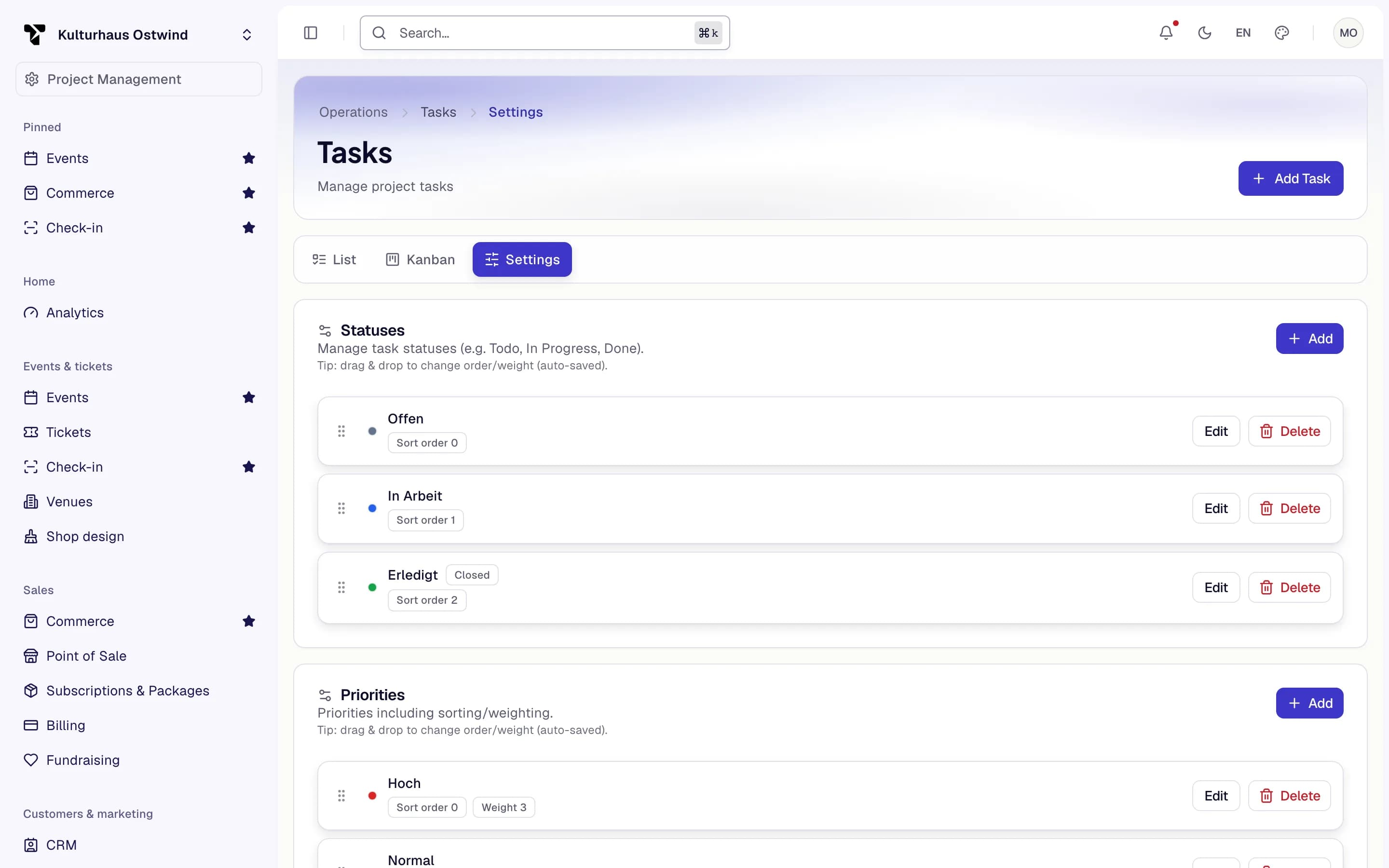
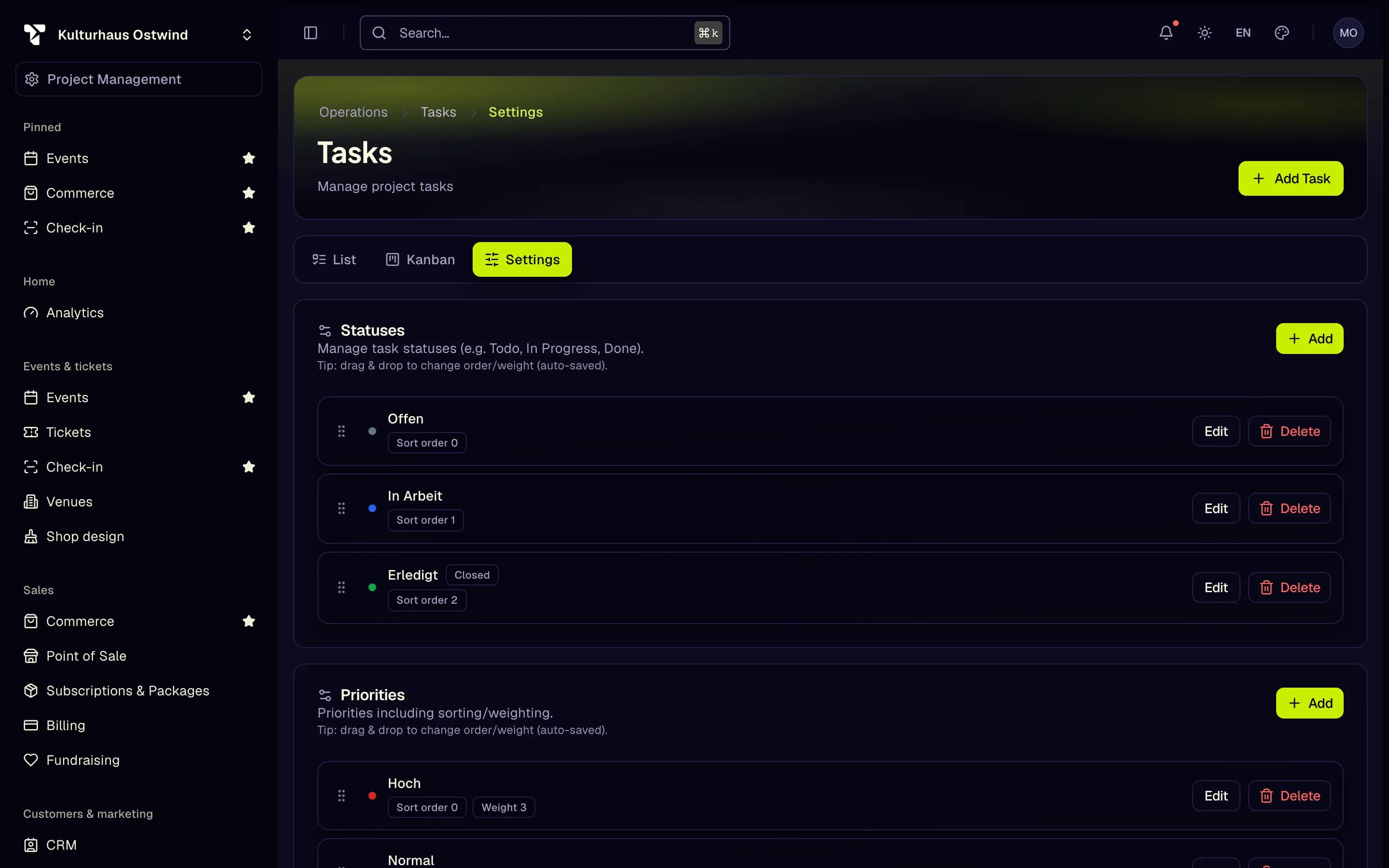
- Settings
- Add
- Edit
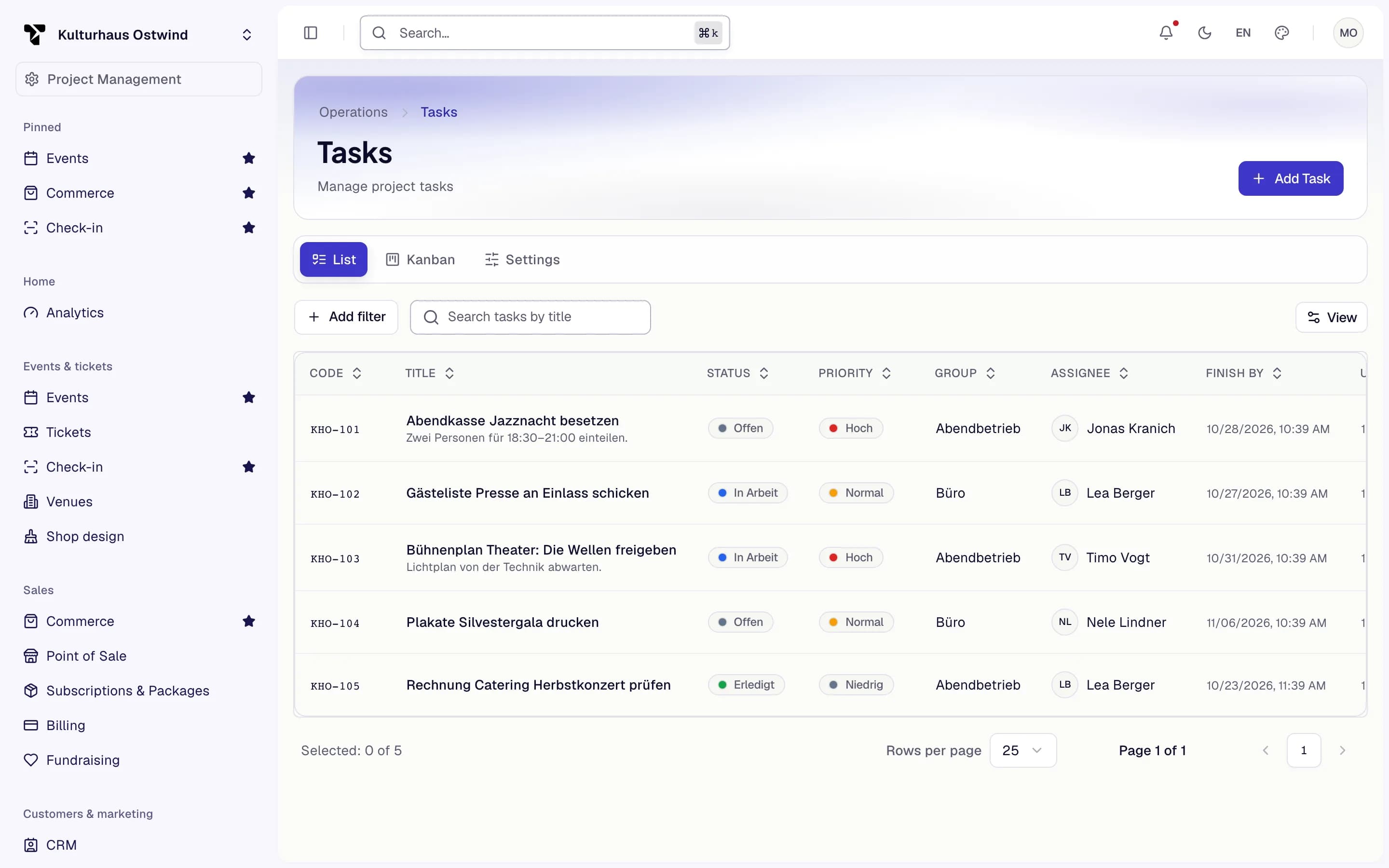
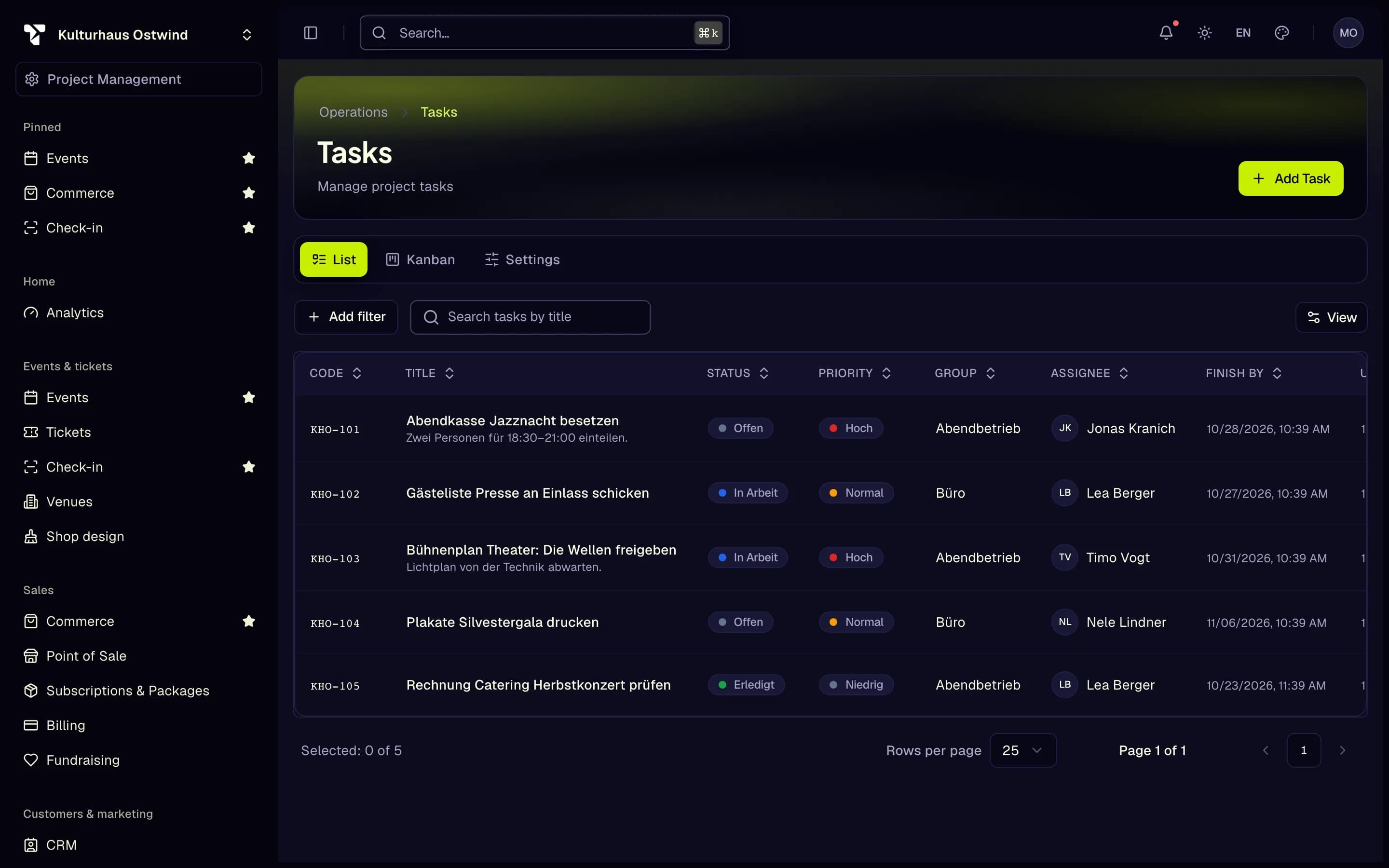
- Add Task
- Group
- Search tasks by title
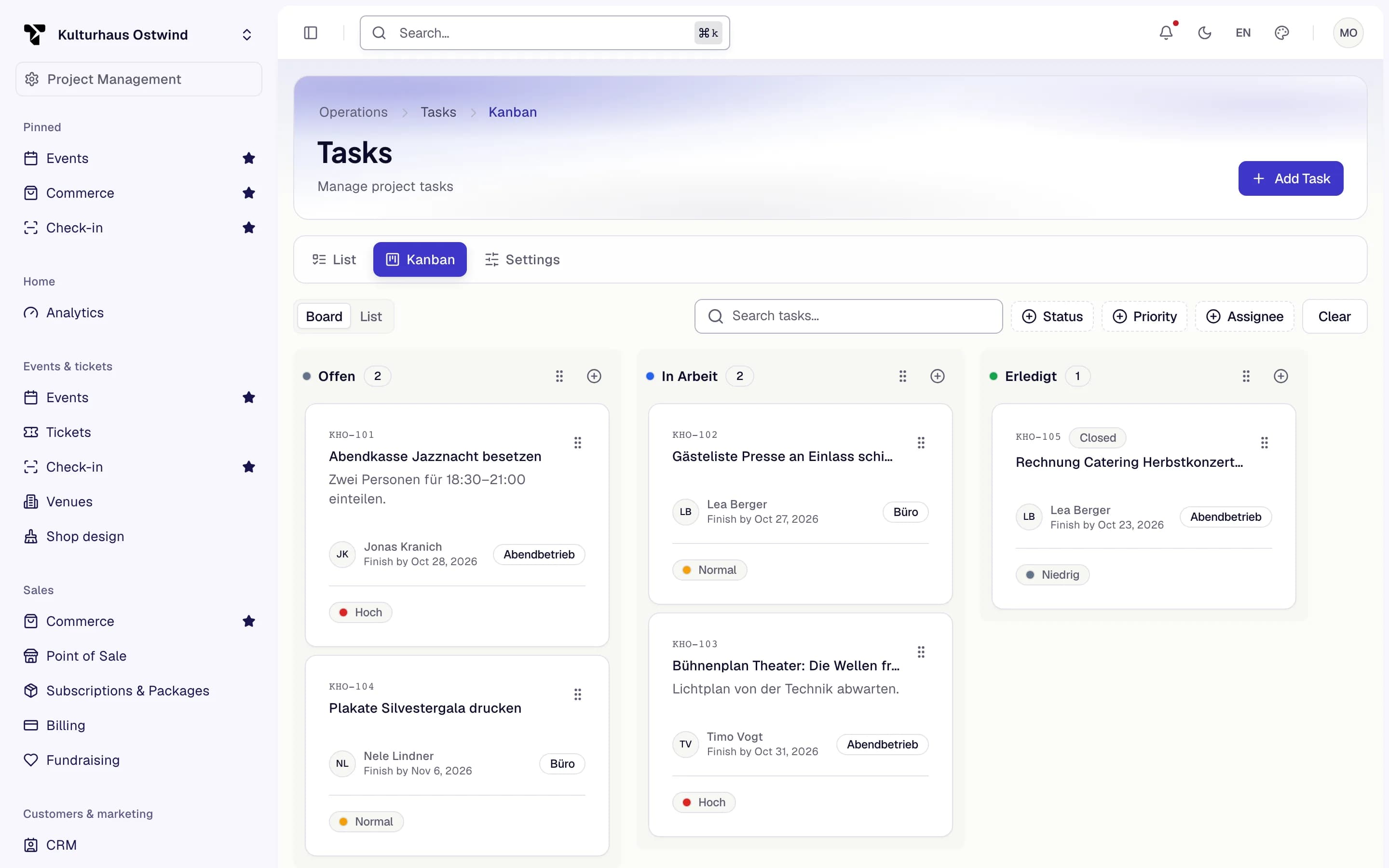
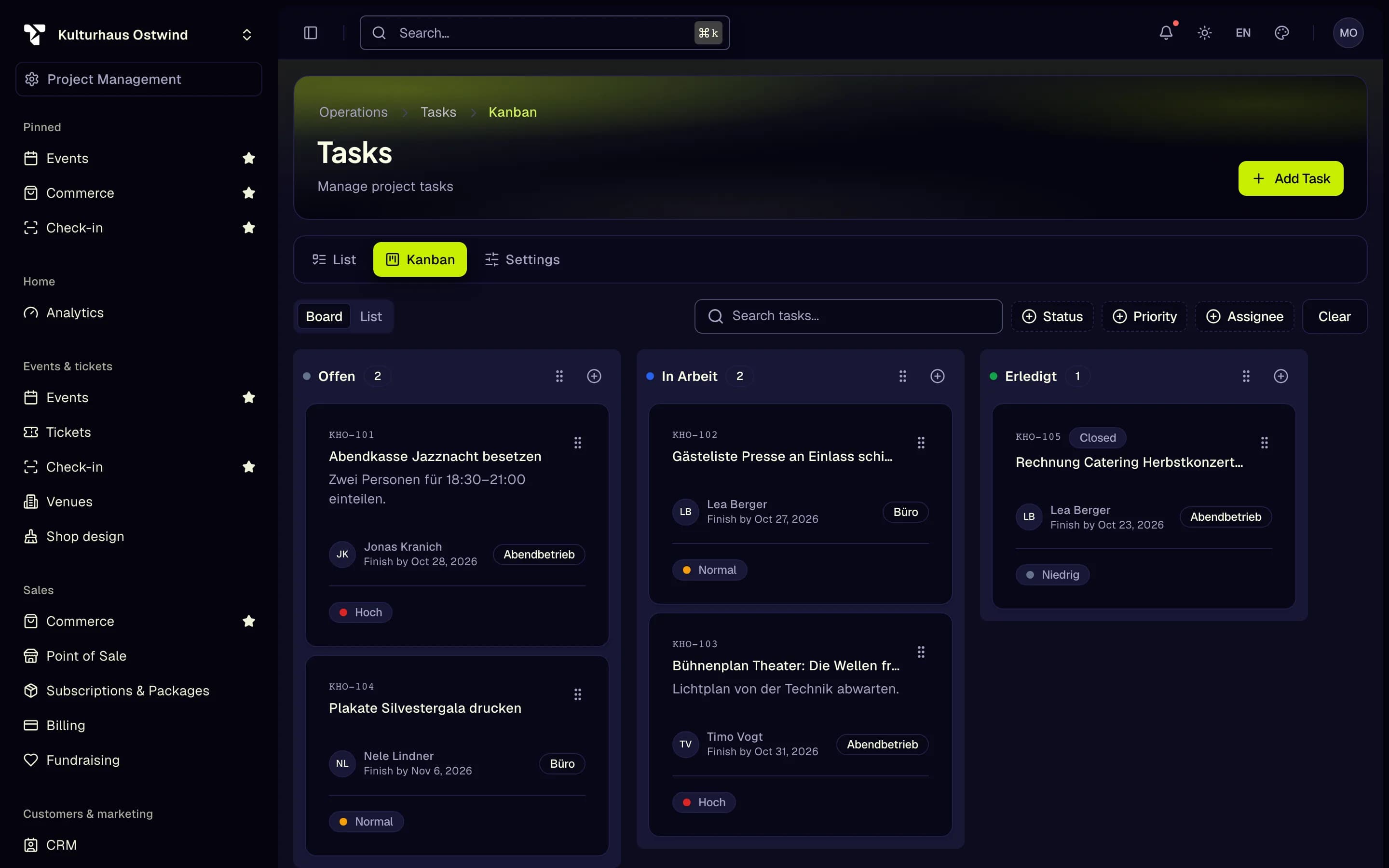
- Kanban
- Group on the card
- Status filter